
Twievo C36
Twievo C36 Bluetooth 5.3 Audio Receiver Instruction Manual
Model: C36
1. Product Overview
The Twievo C36 is a versatile Bluetooth 5.3 audio receiver designed to upgrade your existing wired audio systems with wireless streaming capabilities. It enables you to stream music from your Bluetooth-enabled devices, such as smartphones, tablets, and laptops, to home stereo systems, car stereos, and speakers that lack built-in Bluetooth functionality. The C36 supports multiple input options including RCA, 3.5mm AUX, optical, and coaxial connections, along with direct music playback from USB drives and TF cards.

Figure 1.1: Twievo C36 Bluetooth Audio Receiver highlighting its key features.
Equipped with the latest Bluetooth 5.3 technology, the C36 ensures a stable and high-fidelity audio transmission with minimal latency. Its compact design and multiple connectivity options make it an ideal solution for integrating modern wireless audio into traditional sound setups.
2. Safety Information
- This Bluetooth receiver does not contain an internal battery. It requires a continuous power supply via the provided USB-C cable for operation. Ensure it is connected to a stable power source before use.
- Do not expose the device to water, moisture, or extreme temperatures.
- Avoid dropping or subjecting the device to strong impacts.
- Do not attempt to disassemble or repair the device yourself. Contact customer support for assistance.
3. Package Contents
Please check the package for the following items:
- Twievo C36 Bluetooth 5.3 Audio Receiver
- USB-C Power Cable
- 3.5mm Audio Cable
- RCA Audio Cable (Red/White)
- Optical Audio Cable

Figure 3.1: The Twievo C36 receiver and its accompanying cables.
4. Product Diagram
Familiarize yourself with the various ports and controls on your Twievo C36 receiver:

Figure 4.1: Detailed view of the Twievo C36 components and interfaces.
- Multifunction Knob: Controls volume, power on/off (long press).
- Previous Song Button: Skips to the previous track.
- Mode Switch Key (M): Toggles between playback modes (Bluetooth, USB, Optical, Coaxial).
- Next Song Button: Skips to the next track.
- USB Disk Socket: For connecting USB flash drives for music playback.
- Display Screen: Shows current mode and volume level.
- RCA Dual Channel Interface (L/R): For connecting to audio systems via RCA cables.
- SPDIF Optical Fiber Interface: For connecting to audio systems via optical cable.
- 3.5mm Audio Hole (AUX): For connecting to audio systems via 3.5mm AUX cable.
- Type-C Charging Hole (DC-5V): For power input.
- Antenna: For stable Bluetooth signal reception.
5. Setup and Connection
Follow these steps to set up your Twievo C36 receiver:
5.1 Powering On the Device
- Connect the USB-C power cable to the DC-5V port on the C36 receiver.
- Plug the other end of the USB-C cable into a 5V USB power adapter (not included) or a USB port on your audio system.
- The device will automatically power on and the display screen will light up. To manually power on/off, long press the Multifunction Knob.

Figure 5.1: Easy setup steps: Plug, Pair, Enjoy.
5.2 Connecting to Your Audio System
The C36 offers multiple ways to connect to your existing audio system:
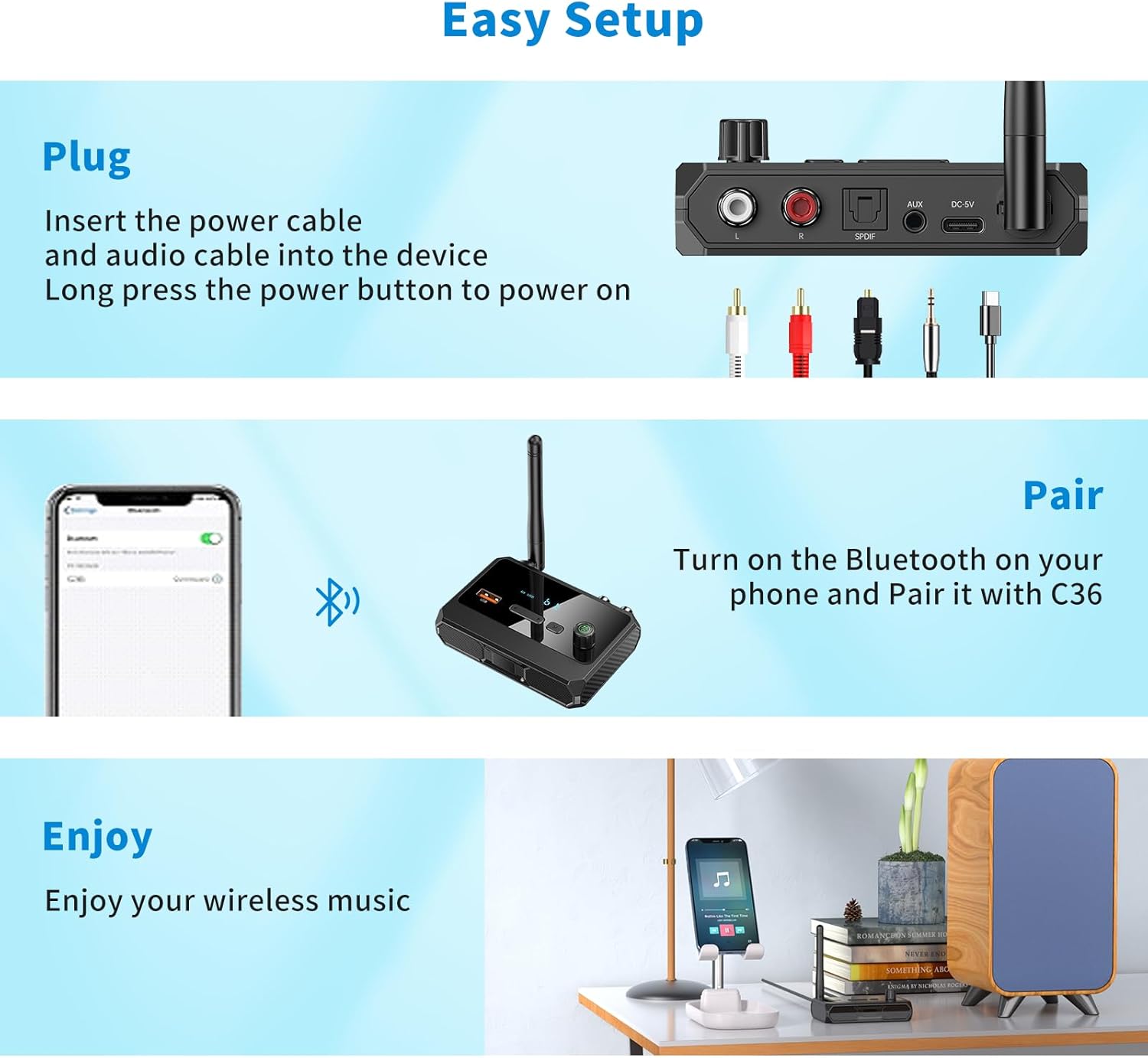
Figure 5.2: Universal compatibility with various wired stereo systems.
- RCA Connection: Use the included RCA audio cable. Connect the red and white plugs to the corresponding L/R RCA input ports on the C36, and the other end to the RCA input ports on your amplifier, receiver, or active speakers.
- 3.5mm AUX Connection: Use the included 3.5mm audio cable. Connect one end to the AUX port on the C36, and the other end to the 3.5mm AUX input on your audio system.
- Optical Connection: Use the included optical audio cable. Connect one end to the SPDIF optical fiber interface on the C36, and the other end to the optical input on your audio system.
- Coaxial Connection: (If applicable, use a coaxial cable, not included). Connect one end to the coaxial input on the C36 (if available, typically shared with optical or RCA), and the other end to the coaxial input on your audio system.
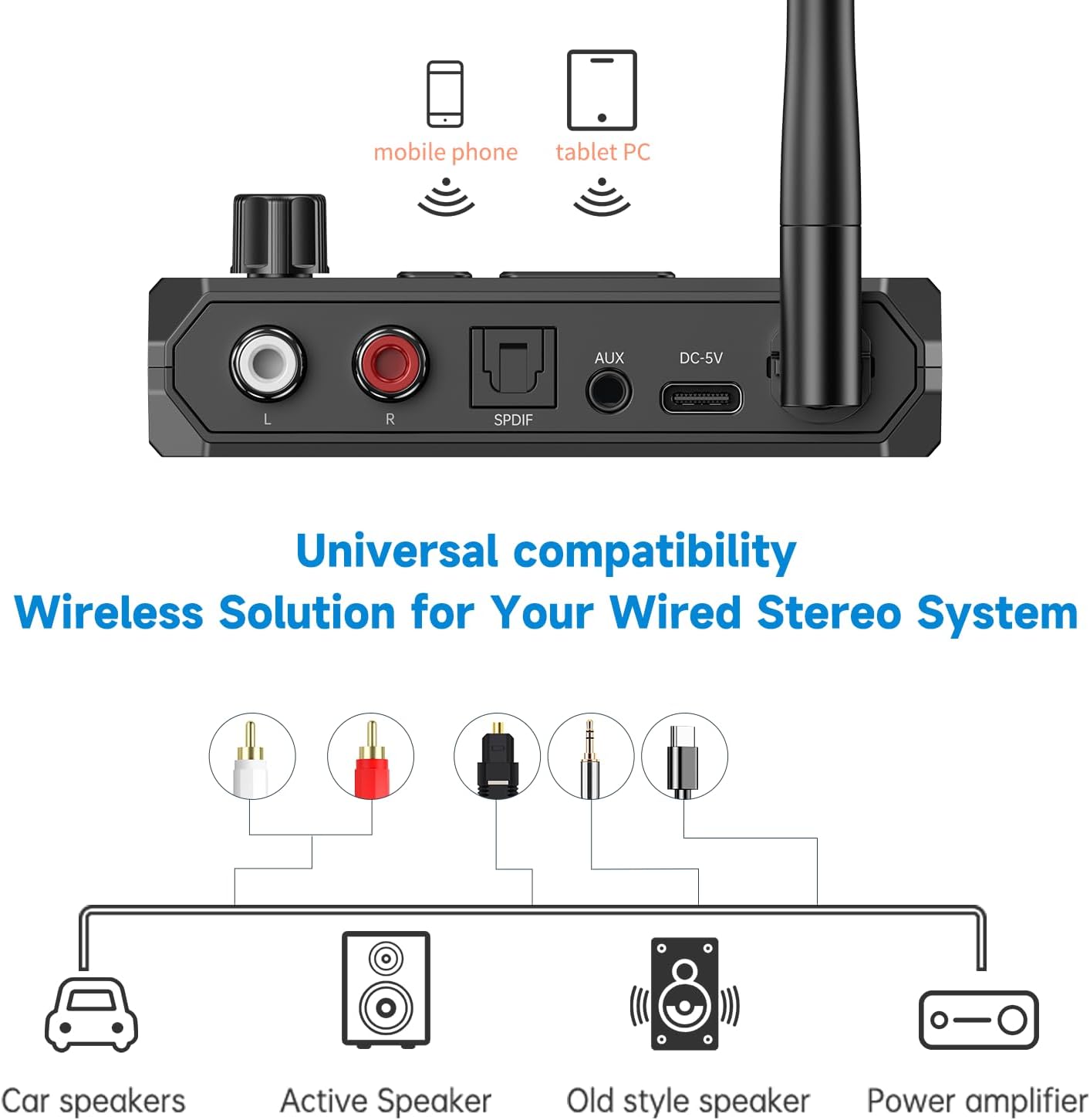
Figure 5.3: Rear panel connections of the Twievo C36.
5.3 Bluetooth Pairing
- Ensure the C36 is powered on and in Bluetooth mode (the display will show "bt"). If not, short press the 'M' (Mode) button to switch to Bluetooth mode.
- On your Bluetooth-enabled device (smartphone, tablet, laptop), go to its Bluetooth settings.
- Search for available devices and select "C36" from the list to pair.
- Once successfully connected, the display on the C36 will indicate a stable Bluetooth connection.
5.4 NFC Quick Connect
For NFC-enabled devices, simply tap your device near the NFC area on the C36 (refer to product diagram for NFC location, usually indicated by an NFC logo) to initiate a quick Bluetooth connection.
6. Operating Instructions
6.1 Mode Switching
Short press the 'M' (Mode) button to cycle through the available input modes: Bluetooth (bt), USB (USB), Optical (OPT), and Coaxial (COAX).
6.2 Music Playback (Bluetooth Mode)
After successful Bluetooth pairing:
- Play/Pause: Short press the Multifunction Knob.
- Next Track: Short press the 'Next Song' button.
- Previous Track: Short press the 'Previous Song' button.
- Volume Control: Rotate the Multifunction Knob clockwise to increase volume, counter-clockwise to decrease volume.
Video 6.1: Demonstration of connecting the C36 receiver and controlling music playback via Bluetooth.
6.3 Music Playback (USB Drive / TF Card Mode)
The C36 supports music playback directly from a USB flash drive or TF card (via a USB card reader, not included) inserted into the USB Disk Socket.
Figure 6.1: Playing music directly from a USB flash drive.
- Insert your USB flash drive into the USB Disk Socket.
- Short press the 'M' (Mode) button until the display shows "USB".
- The device will automatically begin playing music from the USB drive.
- Use the 'Previous Song', 'Next Song', and Multifunction Knob (for play/pause and volume) to control playback.
7. Maintenance
- Clean the device with a soft, dry cloth. Do not use liquid cleaners or aerosols.
- Keep the device away from dust and direct sunlight.
- Ensure proper ventilation around the device to prevent overheating.
8. Troubleshooting
| Problem | Possible Cause | Solution |
|---|---|---|
| Device does not power on. | No power supply or faulty cable. | Ensure the USB-C power cable is securely connected to both the device and a working 5V USB power source. Try a different USB port or power adapter. |
| Cannot pair via Bluetooth. | Device not in Bluetooth mode, too far from source, or already paired. | Ensure the C36 is in Bluetooth mode ("bt" on display). Move your device closer to the C36. Disconnect from other Bluetooth devices if necessary. Restart both the C36 and your Bluetooth device. |
| No sound output. | Incorrect audio cable connection, wrong input mode, or volume too low. | Verify audio cables are correctly connected to both the C36 and your audio system. Ensure the C36 is in the correct input mode (Bluetooth, USB, Optical, Coaxial). Check the volume level on both the C36 and your audio system. Ensure your audio system's input source matches the connection used (e.g., AUX, Optical In). |
| USB/TF card not playing. | Incorrect mode, unsupported file format, or faulty drive. | Ensure the C36 is in USB mode. Check if the music files are in a supported format (e.g., MP3, WAV). Try a different USB drive or TF card. |
| Poor sound quality or intermittent connection. | Interference, distance, or obstacles. | Reduce the distance between the C36 and your Bluetooth device. Remove any obstacles between them. Avoid placing the C36 near other wireless devices that may cause interference. |
9. Specifications
| Brand | Twievo |
| Model Number | C36 |
| Connectivity Technology | Bluetooth 5.3 |
| Input Interfaces | RCA, 3.5mm AUX, Optical, Coaxial, USB Disk, TF Card (via USB adapter) |
| Power Source | Corded Electric (DC 5V via USB-C) |
| Wireless Range | Up to 33 feet (10 meters) |
| Material | Plastic |
| Item Weight | 4.6 ounces |
| Package Dimensions | 4.33 x 3.27 x 2.24 inches |
10. Warranty and Support
Twievo products are designed and manufactured to the highest quality standards. For warranty information or technical support, please refer to the warranty card included with your product or visit the official Twievo website. You may also contact your retailer for assistance.
Ask a question about this manual
Ask about setup, troubleshooting, compatibility, parts, safety, or missing instructions. Manuals+ will review the question and use this page’s manual context to help answer it.