
1. Introduction
Thank you for choosing the ULTRALOQ 2025 Upgrade Bolt NFC Smart Door Lock. This manual provides detailed instructions for the installation, operation, and maintenance of your new smart deadbolt. Please read all instructions carefully before installation and use to ensure proper function and security.
The ULTRALOQ Bolt NFC is a 6-in-1 keyless entry deadbolt featuring built-in WiFi, NFC technology, and a door sensor for enhanced home security and convenience. It is designed for easy DIY installation and offers multiple unlocking methods.
2. Product Overview
The ULTRALOQ Bolt NFC Smart Door Lock combines advanced technology with robust design to provide a secure and convenient access solution for your home. Key features include:
- Exclusive Android NFC Unlock: Tap your Android phone to unlock your door effortlessly.
- Built-in WiFi: Remote locking, unlocking, and access sharing via smartphone app without an additional hub.
- Remote-Controlled Smart Lock: Manage access from anywhere, ideal for guests or when you're away.
- 10-Month Battery Life: Powered by 8 AA batteries, offering extended performance.
- Auto Lock/Unlock: Automatically unlocks upon your approach and locks securely when closed.
- Monitoring Door Status: Real-time updates on your door's open/closed status.
- Secure and Durable: IP65 rated for protection against water, dust, heat, and cold, ensuring reliable performance in various climates.
- DIY Installation: Simple installation process designed to fit US standard doors with minimal tools.
3. Setup and Installation
Important: Install and test the lock with the door open to avoid being locked out. Please read all instructions before contacting customer support. DO NOT install the batteries before installing the lock! Follow the instructions in sequential order.
3.1. Packing List
Ensure all components are present before beginning installation:
- Interior Assembly
- Exterior Assembly
- Interior Assembly Mounting Plate
- Strike Plate
- 8 AA Alkaline Batteries
- Bolt
- Screws (A, B, C, D, E, F)
- User Guide
- Drill Template
- Reset Needle
- Door Sensor
- Backup Keys (2)
- Homekit Guide (if applicable)
3.2. Prepare the Door
Verify your door's dimensions and prepare it for installation. The lock is designed for standard US doors.

Image: Diagram showing door thickness (1 3/8" to 1 3/4"), backset (2 3/8" or 2 3/4"), and bore hole diameter (1 1/2" to 2 1/8"). A thick door kit is requested for maximum thickness 2 1/4".
3.3. Install the Bolt and Strike
Adjust the bolt to the correct backset (2 3/8" or 2 3/4") and install it into the door edge. Ensure the 'up' icon on the bolt is facing upwards. Secure the strike plate to the door frame using Screw C.

Image: Hands demonstrating how to rotate the bolt to adjust the backset to 2 3/8" or 2 3/4". The bolt is then inserted into the door edge, followed by the strike plate being screwed into the door frame.
3.4. Install the Exterior Assembly
Route the cable from the exterior assembly through the door hole and connect it to the interior assembly mounting plate. Ensure the white paint side of the connector is facing up. Secure the exterior assembly.
3.5. Install the Interior Assembly
Connect the cable from the exterior assembly to the interior assembly. Align the interior assembly with the mounting plate and secure it using Screw E.
3.6. Install the Batteries
Insert 8 AA alkaline batteries into the interior assembly. Ensure correct polarity. Close the battery cover.

Image: Diagram showing the placement of 8 AA batteries inside the interior assembly of the lock.
3.7. Install the Door Sensor
Attach the door sensor to the door frame, aligning it with the lock. Ensure the 'up' arrow on the sensor is facing upwards. Secure it with Screw F.
3.8. Direction Calibration
After installation, calibrate the lock direction. Keep the lock in the unlock position, then press the number '5' button on the keypad for 5 seconds to initiate calibration. The lock will perform a self-test to determine the door's handing.
Video: This video provides a comprehensive guide to installing the ULTRALOQ Bolt Series smart lock. It covers preparing the door, installing the bolt and strike, mounting the exterior and interior assemblies, installing batteries, and calibrating the lock direction.
4. Operating Instructions
The ULTRALOQ Bolt NFC offers multiple convenient ways to unlock and manage your door.
4.1. Unlocking Methods
- Android NFC Unlock: Simply tap your Android smartphone against the lock to unlock.
- Smartphone App: Use the U-tec app to remotely unlock your door from anywhere.
- Keypad Code: Enter your personalized code on the keypad. The anti-peep function allows you to enter random digits before or after your actual code to prevent others from guessing it.
- Mechanical Key: Use the provided backup keys for traditional unlocking.
- Auto Unlock: The lock can automatically sense your approach and unlock the door as you get close.
- Voice Control: Integrate with smart home assistants like Amazon Alexa or Google Assistant to unlock your door using voice commands.

Image: A smartphone screen displaying the U-tec app interface, showing the lock status as 'Unlocked'. This illustrates how to unlock the door using the smartphone application.

Image: A hand entering a code on the keypad of the smart lock, demonstrating the keyless entry function.
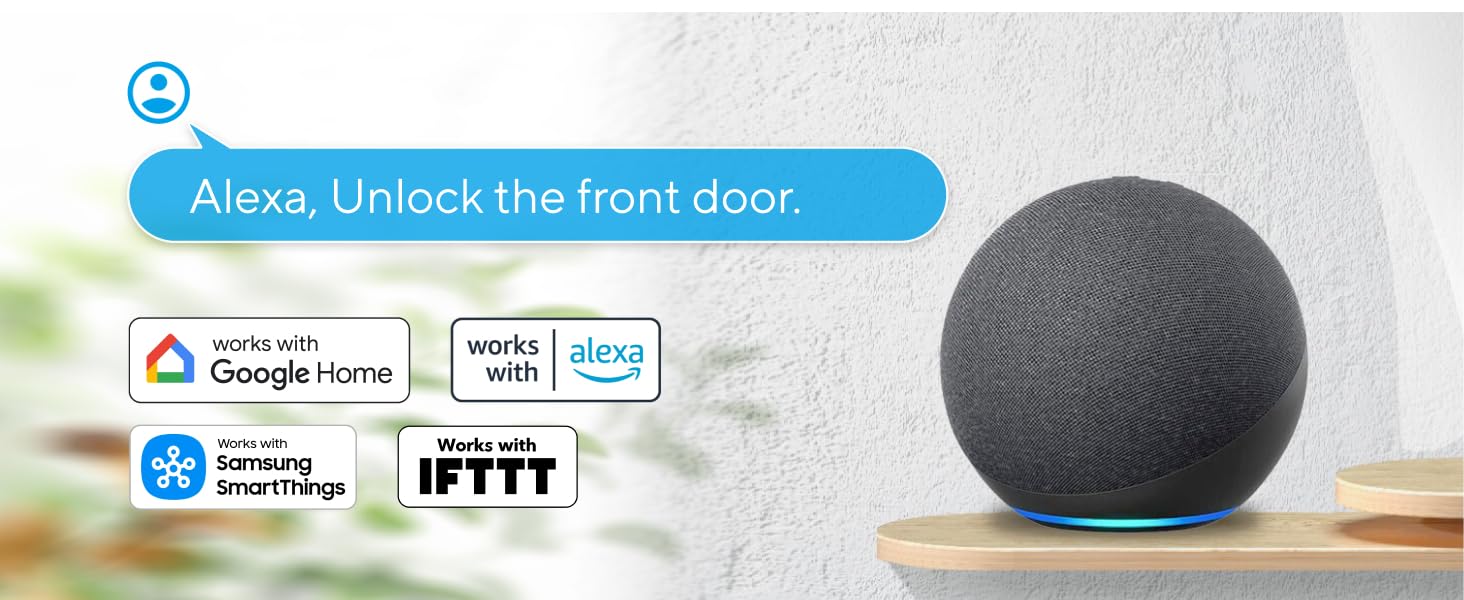
Image: An Amazon Echo device with a speech bubble saying "Alexa, Unlock the front door.", illustrating voice control integration with smart home systems.
4.2. Locking Methods
- Smart Auto-Lock: The lock will automatically secure itself once the door is closed after a set period.
- One-Press Lock: Simply press any button on the keypad to lock the door.

Image: A graphic illustrating the auto-lock feature, showing the deadbolt extending automatically.
4.3. Guest Access Management
Easily manage access for others through the U-tec app:
- Share Ekeys: Grant temporary or permanent access to family, friends, or service providers.
- Scheduled Access: Set specific times and dates for access codes to be valid.
- Access Logs: Monitor who enters and exits your home with detailed logs.

Image: A smartphone screen showing options to share access with guests, cleaners, delivery personnel, and Airbnb guests, highlighting the flexibility of access management.
4.4. Real-time Monitoring and Alerts
Stay informed about your home's security with instant notifications:
- Receive alerts if the door is left open or if the battery is low.
- Get notifications when specific users unlock the door.

Image: A smartphone displaying various notifications from the U home App, including alerts for a door left open and low battery.
Video: This video provides an overview of the ULTRALOQ Bolt NFC Smart WiFi Deadbolt, showcasing its various unlocking methods including app control, keypad codes, key cards, mechanical keys, and voice commands. It also highlights remote unlocking for trusted people, one-time passwords, auto-lock with door sensor, and remote lock/unlock capabilities via the U home app.
5. Maintenance
5.1. Battery Life and Replacement
The ULTRALOQ Bolt NFC is powered by 8 AA batteries, providing up to 10 months of reliable performance. The app will notify you when the battery is low, allowing ample time for replacement. Always use high-quality alkaline batteries.
5.2. Durability and Weather Resistance
With an IP65 rating, this smart lock offers excellent protection against water, dust, heat, and cold. It is designed to withstand various climates, ensuring long-term reliability and security.

Image: A close-up of the smart lock with water droplets on its surface, illustrating its IP65 weatherproof rating.
6. Troubleshooting
If you encounter any issues with your ULTRALOQ Bolt NFC Smart Door Lock, please refer to the following general troubleshooting tips:
- Lock Not Responding: Check battery levels and replace if necessary. Ensure the lock is within WiFi range.
- Unlocking Issues: Verify your codes are correct. For NFC/app unlocking, ensure your smartphone's NFC is enabled and the app is updated.
- Auto-Lock/Unlock Problems: Check the door sensor alignment and ensure it's clean. Review settings in the U-tec app.
- Connectivity Issues: Ensure your home WiFi network is stable. Restart your router and the lock if needed.
For more detailed troubleshooting or persistent issues, please contact ULTRALOQ customer support.
7. Specifications
| Feature | Specification |
|---|---|
| Brand | ULTRALOQ |
| Model Number | BOLT-N-W-NK |
| Lock Type | Deadbolt, Keypad, Biometric (NFC), Combination Lock |
| Connectivity | Built-in WiFi (2.4GHz), Bluetooth |
| Control Method | App, Keypad, NFC, Mechanical Key, Voice (Alexa, Google Assistant, IFTTT, SmartThings) |
| Material | Zinc |
| Color | Black with Satin Nickel |
| Item Dimensions (L x W x H) | 3 x 1.2 x 3 inches |
| Item Weight | 3 Pounds |
| Power Source | 8 AA Batteries |
| Weather Resistance | IP65 Waterproof |
| Certifications | BHMA Grade AAA |
8. Warranty and Support
ULTRALOQ products come with a manufacturer's warranty. Please refer to the included warranty card or visit the official ULTRALOQ website for detailed warranty information.
For technical support, troubleshooting assistance, or any questions regarding your ULTRALOQ Bolt NFC Smart Door Lock, please contact ULTRALOQ customer support through their official channels. Contact information can typically be found in the user guide or on the ULTRALOQ website.