1. Introduction
The Bewinner WiFi 6 Wireless Network Card (Model MT7921) is designed to upgrade your computer's wireless capabilities, offering high-speed internet connectivity and Bluetooth 5.2. This Mini PCIE card supports dual-band WiFi (2.4GHz and 5GHz) for efficient data transmission, smoother online gaming, HD video streaming, and fast file transfers. Its compact design makes it suitable for laptops and small form-factor PCs running Windows 10 or 11.
Key Features:
- Efficient Transmission: Up to 1200 Mbps on 5GHz and 574 Mbps on 2.4GHz.
- Seamless Dual-Band Switching: Automatically selects the optimal frequency band for wider coverage and reduced interference.
- Bluetooth 5.2 Connectivity: Enhanced transmission speed and distance for pairing with peripherals like headphones and keyboards.
- Wide Compatibility: Plug-and-play design for Windows 10 and 11 systems.
- Compact Design: Mini PCIE interface, ideal for space-constrained devices.
2. Package Contents
Please verify that all items are present in the package:
- 1 x Bewinner WiFi 6 Wireless Network Card (Model MT7921)
- 2 x Mounting Screws

Image: The Bewinner WiFi 6 Wireless Network Card (Model MT7921) shown with its two included mounting screws.
3. Setup and Installation
This section guides you through the physical installation of the Mini PCIE wireless network card. Ensure your computer is powered off and unplugged before proceeding.
3.1 Physical Installation
- Power Off: Shut down your computer completely and disconnect the power cable. For laptops, remove the battery if possible.
- Access Mini PCIE Slot: Open your computer case (for desktops) or the access panel (for laptops) to locate the Mini PCIE slot. Refer to your computer's manual for specific instructions on accessing internal components.
- Insert the Card: Carefully align the Bewinner WiFi 6 card with the Mini PCIE slot. Insert the card at an angle (typically 30-45 degrees) and gently push it into the slot until it is fully seated.
- Secure the Card: Once seated, push the card down until it is parallel with the motherboard. Use the provided screws to secure the card in place.
- Connect Antennas (if applicable): If your system uses external antennas, connect them to the corresponding connectors on the card (usually labeled "MAIN" and "AUX" or "1" and "2").
- Close and Power On: Close the computer case or access panel, reconnect the power cable, and power on your computer.
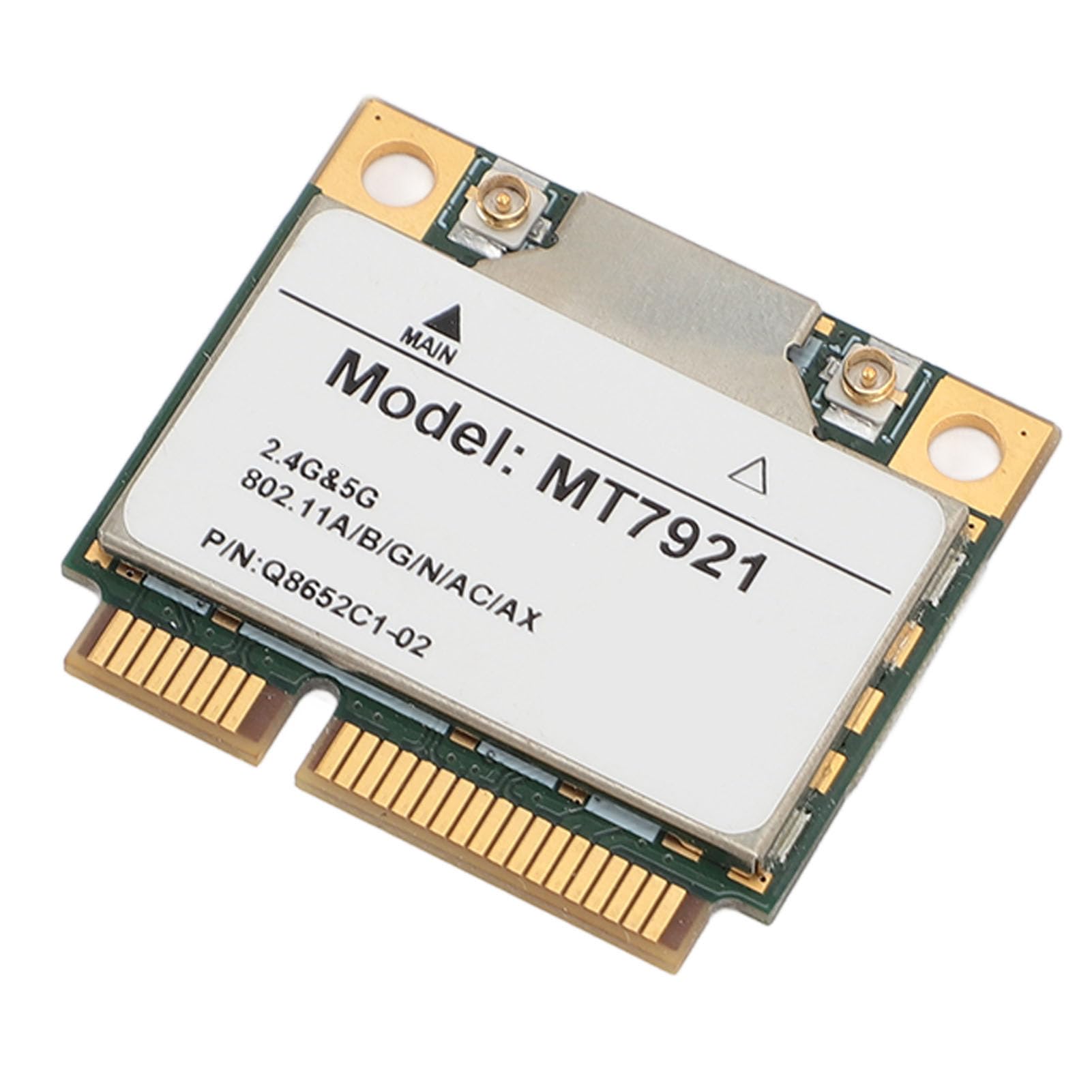
Image: A Bewinner WiFi 6 Wireless Network Card (Model MT7921) shown installed in a laptop, with a user interacting with the laptop.
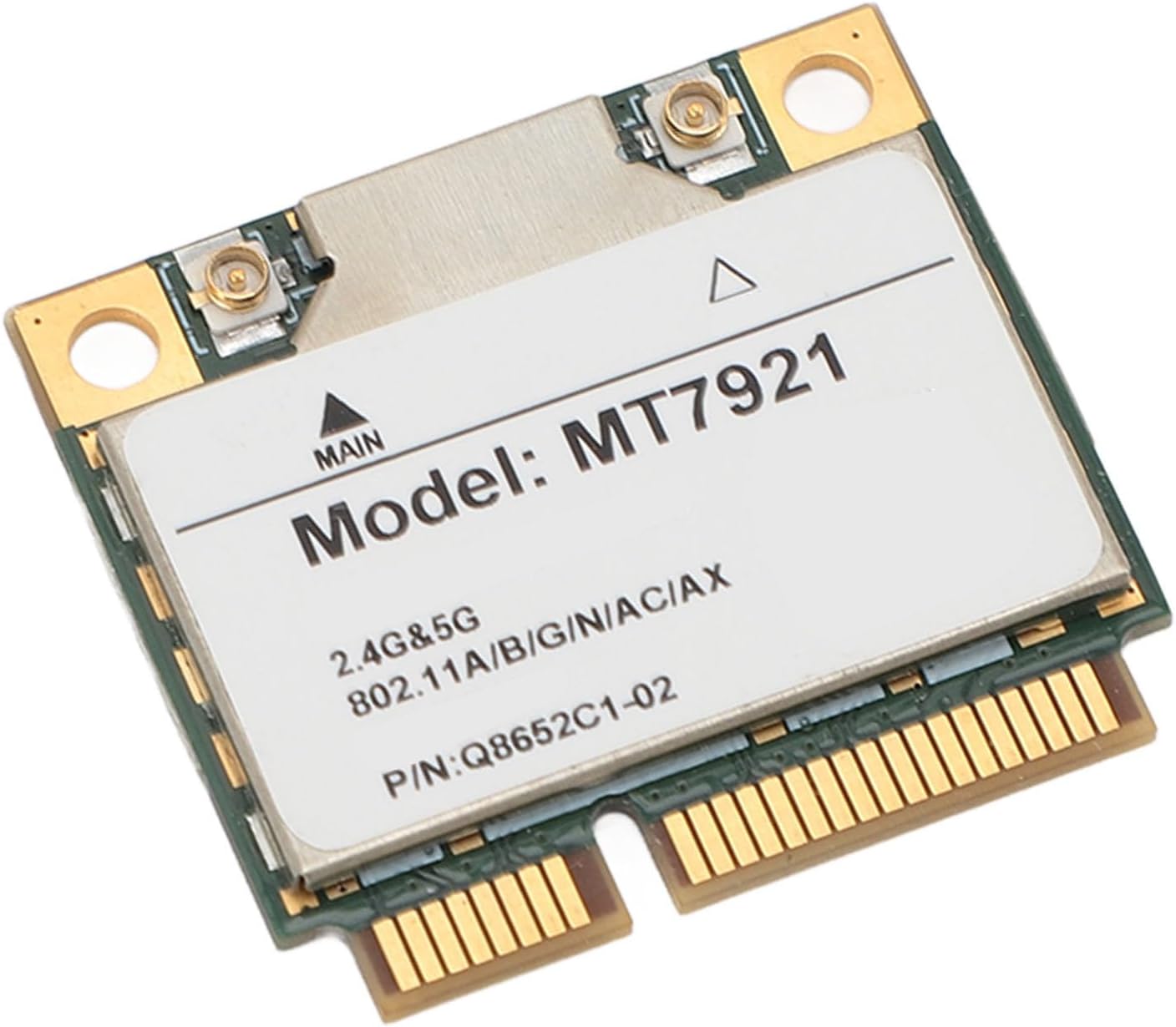
Image: A close-up view of the Bewinner WiFi 6 Wireless Network Card, clearly displaying "Model: MT7921" and "2.4G & 5G 802.11A/B/G/N/AC/AX".
3.2 Driver Installation
The Bewinner WiFi 6 Wireless Network Card is designed for plug-and-play functionality with Windows 10 and 11. In most cases, the operating system will automatically detect the new hardware and install the necessary drivers.
- Automatic Installation: After booting your computer, Windows should automatically install the drivers. You can check the Device Manager (Right-click Start > Device Manager) under "Network adapters" and "Bluetooth" to confirm the card is recognized.
- Manual Installation (if needed): If the drivers do not install automatically, you may need to download them from the manufacturer's website (Bewinner or the chipset manufacturer, e.g., MediaTek for MT7921). Search for "MT7921 driver Windows 10" or "MT7921 driver Windows 11".
4. Operating Instructions
Once the card is installed and drivers are recognized, you can connect to wireless networks and Bluetooth devices.
4.1 Connecting to a Wi-Fi Network
- Enable Wi-Fi: Ensure Wi-Fi is enabled in your operating system settings. In Windows, click the Wi-Fi icon in the taskbar.
- Select Network: A list of available Wi-Fi networks will appear. Select your desired network.
- Enter Password: If prompted, enter the network security key (password) and click "Connect".
- Verify Connection: Once connected, the Wi-Fi icon will indicate an active connection.
4.2 Connecting Bluetooth Devices
- Enable Bluetooth: Go to Windows Settings > Devices > Bluetooth & other devices, and ensure Bluetooth is turned "On".
- Pair Device: Put your Bluetooth device (e.g., headphones, keyboard) into pairing mode.
- Add Device: In Windows Settings, click "Add Bluetooth or other device" and select "Bluetooth". Your device should appear in the list.
- Complete Pairing: Select your device and follow any on-screen prompts to complete the pairing process.
5. Maintenance
To ensure optimal performance and longevity of your Bewinner WiFi 6 Wireless Network Card, consider the following maintenance tips:
- Keep Drivers Updated: Regularly check for updated drivers from the chipset manufacturer (e.g., MediaTek) or your computer manufacturer.
- Ensure Proper Ventilation: Make sure your computer has adequate airflow to prevent overheating, which can affect component performance.
- Clean Dust: Periodically clean dust from inside your computer case, especially around the network card, using compressed air.
- Avoid Physical Damage: Handle the card carefully during installation and avoid exposing it to excessive force or moisture.
6. Troubleshooting
If you encounter issues with your Bewinner WiFi 6 Wireless Network Card, refer to the following common troubleshooting steps:
6.1 Card Not Detected / Not Working
- Re-seat the Card: Power off your computer, open the case, and carefully re-seat the network card in its Mini PCIE slot to ensure it's properly connected.
- Check Device Manager: In Windows Device Manager, look for "Network adapters" and "Bluetooth". If you see an unknown device or a device with a yellow exclamation mark, it indicates a driver issue.
- Install/Update Drivers: Manually install or update the drivers as described in Section 3.2.
- Compatibility: Ensure your system's Mini PCIE slot is compatible with this type of card. Some older systems or specific BIOS configurations might have limitations. (Note: One user reported incompatibility with an Intel laptop. While the card is generally compatible with Windows 10/11, specific hardware configurations might vary.)
6.2 No Wi-Fi Connection
- Check Wi-Fi Switch: Ensure the physical Wi-Fi switch (if present on your laptop) and the software Wi-Fi setting in Windows are enabled.
- Restart Router/Modem: Power cycle your Wi-Fi router and modem.
- Forget Network: In Windows Wi-Fi settings, "forget" the problematic network and try reconnecting.
- Antenna Connection: Verify that any external antennas are securely connected to the card.
6.3 Slow Wi-Fi Speed
- Router Proximity: Move closer to your Wi-Fi router to improve signal strength.
- Interference: Reduce interference from other electronic devices (e.g., microwaves, cordless phones).
- Router Settings: Ensure your router is configured for Wi-Fi 6 (802.11ax) and using both 2.4GHz and 5GHz bands effectively.
- Driver Update: Ensure you have the latest drivers installed.
6.4 Bluetooth Device Connection Issues
- Ensure Device is in Pairing Mode: Confirm your Bluetooth device is discoverable.
- Remove and Re-pair: In Windows Bluetooth settings, remove the device and attempt to pair it again.
- Check Device Battery: Ensure the Bluetooth device has sufficient battery power.
7. Specifications
| Feature | Detail |
|---|---|
| Model | MT7921 (Product SKU: Bewinnerw15by076zf) |
| Interface | Mini PCIE |
| Wi-Fi Standard | 802.11a/b/g/n/ac/ax (Wi-Fi 6) |
| Frequency Bands | 2.4GHz / 5GHz |
| Max Wi-Fi Speed (5GHz) | 1200 Mbps |
| Max Wi-Fi Speed (2.4GHz) | 574 Mbps |
| Bluetooth Version | 5.2 |
| Operating System Compatibility | Windows 10, Windows 11 |
| Compatible Devices | Laptop, Desktop PC (with Mini PCIE slot) |
| Material | PCB |
| Dimensions (Approx.) | 6 x 4 x 1 cm |
| Weight (Approx.) | 4 grams |

Image: The reverse side of the Bewinner WiFi 6 Wireless Network Card, indicating "Standard IEEE: 802.11a/b/g/n/ac/ax".
8. Warranty Information
Bewinner products are manufactured to high-quality standards. This product comes with a standard manufacturer's warranty against defects in materials and workmanship. Please retain your proof of purchase for warranty claims. For specific warranty duration and terms, refer to the documentation provided with your purchase or contact Bewinner customer support.
9. Customer Support
If you have any questions, require technical assistance, or need to report an issue, please contact Bewinner customer support. Contact information can typically be found on the Bewinner official website or on your product packaging.
When contacting support, please be prepared to provide the following information:
- Product Model: MT7921 (SKU: Bewinnerw15by076zf)
- Date of Purchase
- Description of the issue
- Your computer's operating system and specifications


