
1. Product Overview
The Govee BR30 Smart Light Bulbs are advanced LED lighting solutions designed for modern smart homes. These bulbs offer a wide spectrum of colors (RGBWW), tunable white light, and dimmable brightness, providing versatile lighting options for any environment. They are compatible with Matter, Alexa, and Google Assistant, allowing for seamless integration into your smart home ecosystem.

Image: Govee BR30 Smart Light Bulbs (4-pack) with one bulb separated from the packaging.
What's in the Box
- BR30 Matter Light Bulb (4 units)
- User Manual
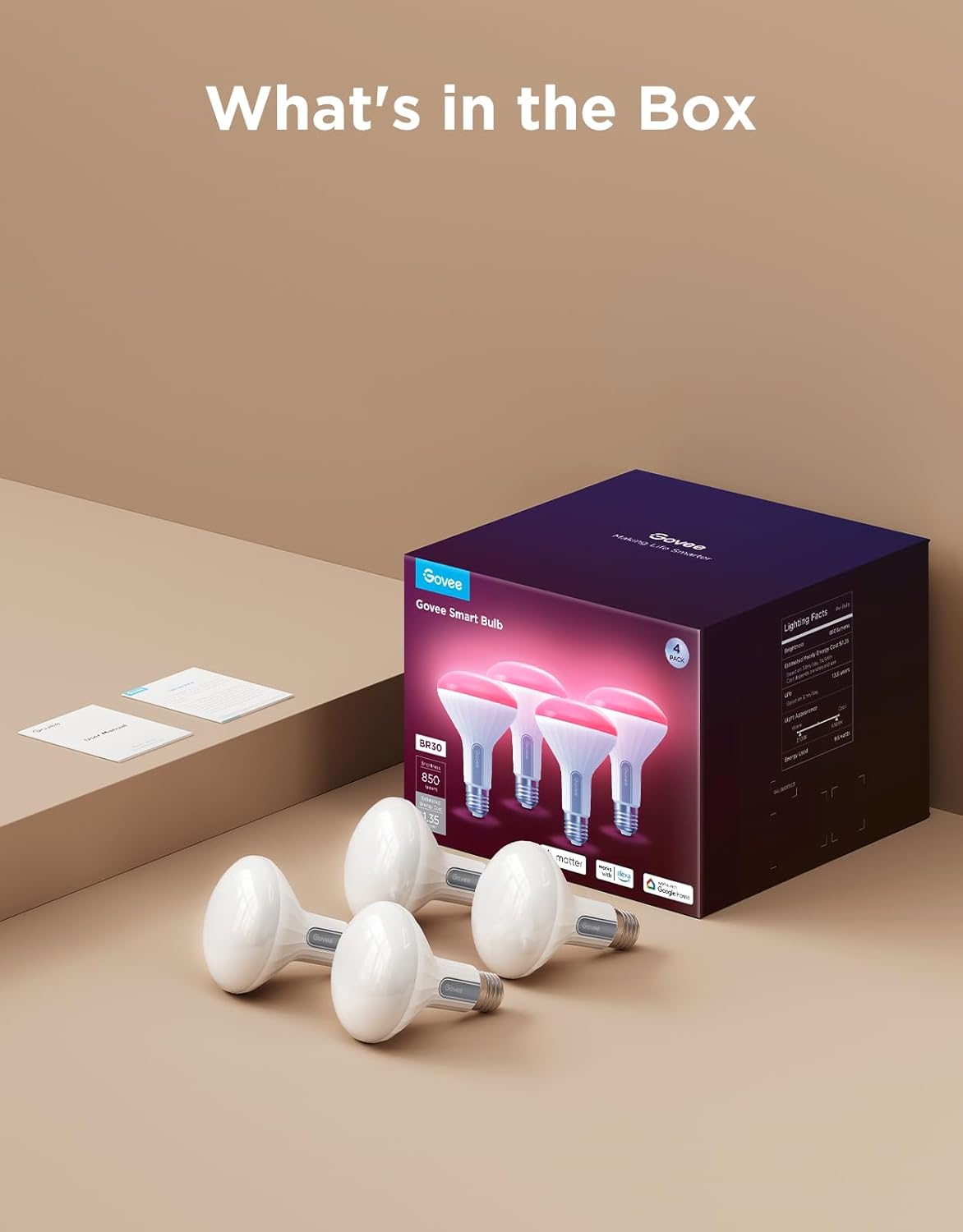
Image: The Govee BR30 Smart Light Bulbs and user manual as they appear when unboxed.
2. Setup and Installation
Initial Installation
- Ensure the power to the light fixture is turned off before installation.
- Carefully screw the Govee BR30 Smart Light Bulb into a standard E26 bulb base.
- Turn on the power to the light fixture. The bulb should light up.
Connecting to the Govee App
To unlock the full features of your Govee BR30 Smart Light Bulbs, download and connect them via the Govee Home App.
- Download the Govee Home App from the App Store (iOS) or Google Play Store (Android).
- Register or log in to your Govee account.
- Ensure your phone or tablet is connected to a 2.4GHz Wi-Fi network. The bulbs only support 2.4GHz Wi-Fi.
- Open the Govee Home App, tap the '+' icon in the top right corner, and search for 'H6013' or 'BR30'.
- Follow the in-app instructions to pair your bulbs via Bluetooth and then connect them to your 2.4GHz Wi-Fi network.
Matter Compatibility and Setup
The Govee BR30 Smart Light Bulbs are Matter compatible, allowing for unified smart home control across different ecosystems.

Image: Explanation of Matter compatibility for Govee lights.
Do I need a hub to set up Matter?

Image: Q&A regarding the necessity of a hub for Matter setup.
Yes, a Matter hub or a Matter controller is required to provide an ecosystem that can be paired with Matter-certified devices.
What should I prepare before connecting Matter?

Image: Q&A outlining preparations needed for Matter connection.
- Matter-compatible Govee products (your BR30 bulbs)
- A phone or tablet connected to a 2.4GHz network
- A Matter-certified hub or controller such as Apple, Google, Alexa, or Samsung
- An IPv6 network
3. Operating Instructions
Color and Brightness Control
The Govee BR30 bulbs offer 16 million colors and tunable white light from 2700K (warm candlelight) to 6500K (daylight). Brightness is adjustable from 1% to 100% (850 Lumens).

Image: Living room showcasing millions of color combinations from Govee smart bulbs.

Image: Adjustable brightness and color temperature demonstration.
Note: These bulbs are incompatible with traditional dimmer switches. Use the Govee App or voice control for dimming.
Voice Control
Control your Govee BR30 bulbs hands-free using voice commands with Alexa or Google Assistant.

Image: Hands-free voice control with Alexa.
Timers and Scheduling
Set custom schedules for your lights to automatically turn on or off, or to gradually brighten for wake-up routines. This feature can help save energy.

Image: Timers and scheduling for automatic light control.
Group Control
Sync multiple Govee BR30 bulbs across different rooms or areas with a single command for unified lighting control.

Image: Simple group control of multiple bulbs.
Music Sync and DreamView
Experience dynamic lighting that syncs with your music or extends the colors from your screen for an immersive entertainment experience with DreamView.

Image: Lights syncing with music.
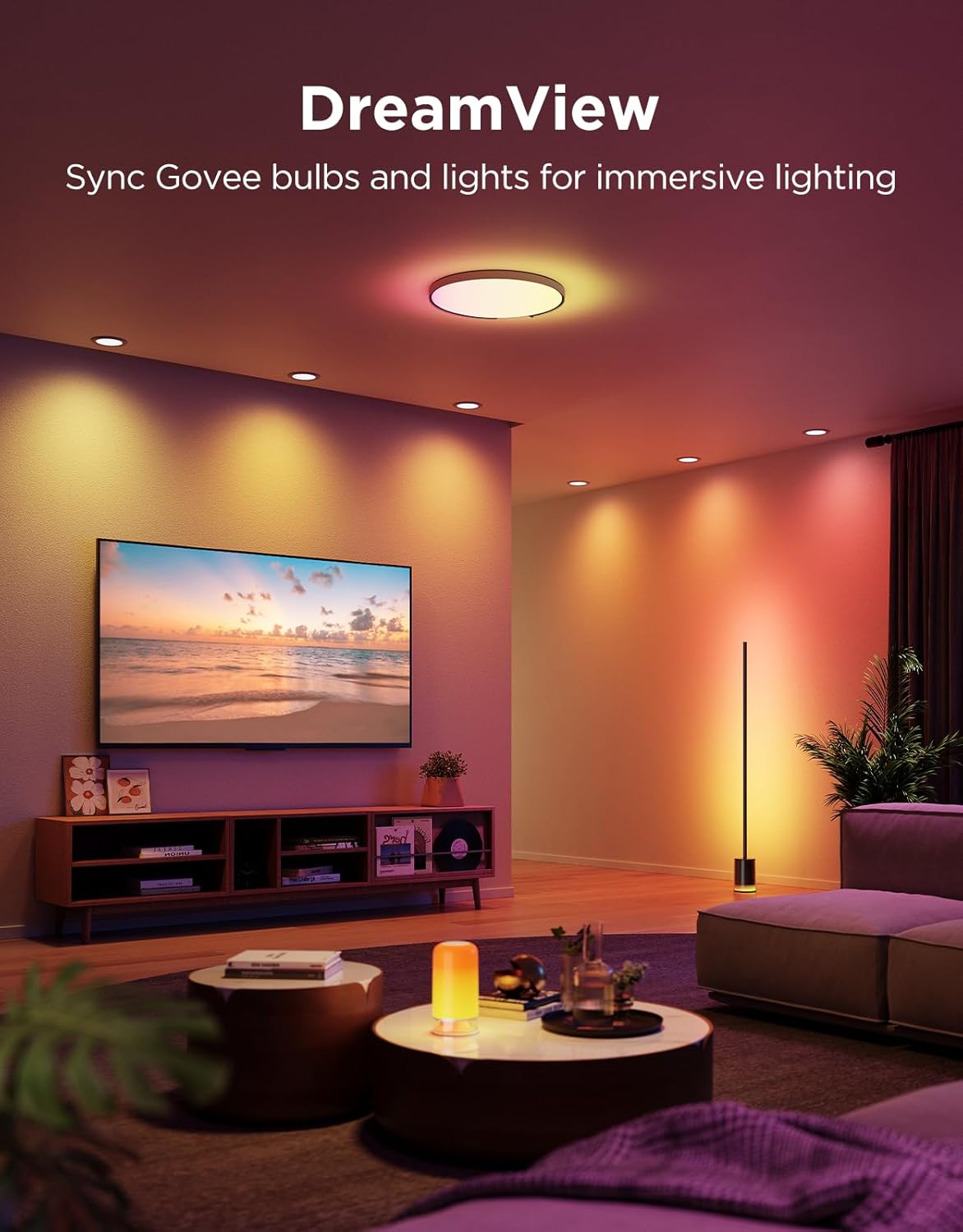
Image: DreamView immersive lighting.
4. Maintenance
To ensure the longevity and optimal performance of your Govee BR30 Smart Light Bulbs, follow these simple maintenance guidelines:
- Cleaning: Before cleaning, ensure the light fixture is turned off and the bulb has cooled down. Gently wipe the bulb with a soft, dry cloth. Do not use liquid cleaners or abrasive materials, as they may damage the bulb's surface or internal components.
- Environment: These bulbs are designed for indoor use only. Avoid exposing them to water, high humidity, or extreme temperatures.
- Handling: Handle the bulbs by their base when installing or removing them. Avoid touching the glass or plastic dome directly, as oils from your skin can leave residues.
5. Troubleshooting
If you encounter issues with your Govee BR30 Smart Light Bulbs, refer to the following common troubleshooting tips:
- Bulb not turning on:
- Ensure the light fixture has power and the bulb is screwed in correctly.
- Verify that the light switch is in the 'ON' position.
- Bulb not connecting to Wi-Fi/App:
- Confirm your Wi-Fi network is 2.4GHz. These bulbs do not support 5GHz networks.
- Ensure your phone's Bluetooth is enabled during the pairing process.
- Move closer to your Wi-Fi router and the bulb during setup.
- Try resetting the bulb by turning it off and on five times consecutively (each cycle lasting 1-2 seconds) until it flashes, indicating a successful reset.
- Incompatible with dimmer switches:
- Govee BR30 bulbs are not compatible with traditional dimmer switches. Using them with a dimmer switch may cause flickering or damage. Ensure the light fixture is connected to a standard ON/OFF switch.
- Control brightness exclusively through the Govee Home App or voice commands.
- Voice control not working:
- Ensure your Govee account is correctly linked to your Alexa or Google Assistant account.
- Check your internet connection and the status of your smart speaker/hub.
- Verify the bulb is online in the Govee Home App.
6. Specifications
| Feature | Detail |
|---|---|
| Brand | Govee |
| Model Number | H6013 |
| Light Type | LED |
| Bulb Shape Size | BR30 |
| Bulb Base | E26 |
| Wattage | 9.5 watts |
| Incandescent Equivalent Wattage | 60 Watts |
| Brightness | 850 Lumen |
| Light Color | RGBWW (Multiple Colors, Tunable White) |
| Color Temperature | 2700K - 6500K |
| Voltage | 120 Volts (AC) |
| Accepted Voltage Frequency | 100 to 120 Volts and 60 Hertz |
| Control Method | App, Voice |
| Material | Plastic |
| Indoor/Outdoor Usage | Indoor |
| Product Dimensions | 3.72"W x 5.11"H |
| Item Weight | 1.48 pounds (for 4-pack) |
| UPC | 810172720077 |
7. Warranty and Support
Limited Warranty
Govee products typically come with a limited warranty. For specific warranty terms and conditions, please refer to the warranty card included in your product packaging or visit the official Govee website.
Customer Support
For technical assistance, troubleshooting, or any product-related inquiries, please contact Govee Customer Support through the following channels:
- Govee Home App: Access support directly through the app's 'Feedback' or 'Help' section.
- Official Website: Visit www.govee.com for FAQs, support articles, and contact information.
- Email Support: Refer to the Govee website for the most current support email address.


