
1. Introduction
Thank you for purchasing the Generic APAYADO-M70 Wired Mini Low Profile Keyboard. This manual provides essential information for setting up, operating, and maintaining your new keyboard. Please read this manual thoroughly before use to ensure proper function and longevity of your device.
2. Product Overview
2.1 Key Features
- Compact Size: Slim and lightweight design (29×12×3.5cm; 220g) with a 78-key mini layout, saving desk space and enhancing portability.
- Low Profile Design: Keys feature a short travel distance for responsive keystrokes and a comfortable typing experience.
- Chocolate Keycaps: Alphanumeric translucent keycaps ensure letters and numbers are clearly visible.
- RGB Backlighting: Integrated LED backlighting for enhanced visibility and aesthetics.
- Quiet Keys: Bass buttons are designed for quiet operation, reducing typing noise.
2.2 Package Contents
Please check the package for the following items:
- APAYADO-M70 Wired Mini Low Profile Keyboard
- USB Cable (integrated)
- User Manual (this document)
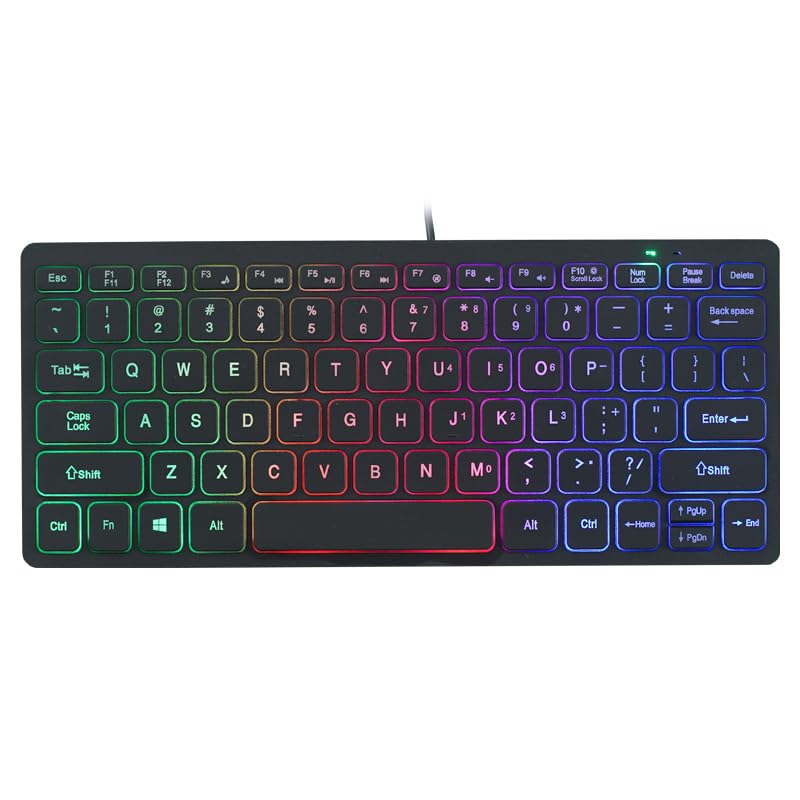
Image: The APAYADO-M70 Wired Mini Low Profile Keyboard, illustrating its compact form factor and illuminated keys.
3. Setup Instructions
- Unpack the Keyboard: Carefully remove the keyboard from its packaging.
- Connect to Computer: Locate an available USB port on your computer (PC or Laptop). Insert the USB connector of the keyboard into the USB port.
- Driver Installation: The keyboard is plug-and-play. Your operating system (Windows, macOS, Linux) should automatically detect and install the necessary drivers. No additional software installation is typically required.
- Verify Functionality: Open a text editor or word processor and type to ensure the keyboard is functioning correctly.
4. Operating Instructions
4.1 Basic Typing
The APAYADO-M70 functions as a standard US English layout keyboard. Simply press the desired keys to input characters.
4.2 RGB Backlighting Control
The keyboard features integrated RGB backlighting. To control the backlighting:
- Turn On/Off Backlighting: Press the FN key simultaneously with the F10 key (FN + F10) to toggle the LED lights on or off.
- Note: Specific RGB modes or brightness adjustments are not detailed in the product information. The FN+F10 combination is for basic on/off functionality.
5. Maintenance
Proper maintenance ensures the longevity and performance of your keyboard.
- Cleaning:
- Disconnect the keyboard from your computer before cleaning.
- Use a soft, lint-free cloth slightly dampened with water or a mild cleaning solution to wipe the keycaps and surface.
- Avoid using harsh chemicals, abrasive cleaners, or solvents.
- Use compressed air to remove dust and debris from between the keys.
- Storage: Store the keyboard in a clean, dry environment away from extreme temperatures and direct sunlight.
- Handling: Avoid dropping the keyboard or exposing it to liquids. Do not attempt to disassemble the keyboard, as this will void any warranty.
6. Troubleshooting
| Problem | Possible Cause | Solution |
|---|---|---|
| Keyboard not responding | Loose USB connection, faulty USB port, driver issue. |
|
| Backlighting not working | Backlight turned off, power issue. |
|
| Keys are sticky or unresponsive | Debris under keycaps, liquid spill. |
|
7. Specifications
| Model | APAYADO-M70 |
| Manufacturer | APAYADO |
| Brand | Generic |
| Connectivity Technology | Wired USB |
| Keyboard Description | Membrane, Low-Profile |
| Special Features | Backlit, Lightweight, Low-Profile Key |
| Dimensions (L x W x H) | 29 × 12 × 3.5 cm (approx.) |
| Weight | 220 g (approx.) |
| Compatible Devices | Laptop, PC |
| Color/Backlight | Mixed Light (RGB) |
8. Warranty and Support
This product is covered by a standard manufacturer's warranty. Please refer to the retailer's return policy or contact the seller for specific warranty terms and conditions. For technical support or inquiries, please contact your point of purchase or the manufacturer directly.
Keep your purchase receipt as proof of purchase for warranty claims.
