
1. Introduction
The Mares Puck Pro Ultra is an advanced dive computer designed for recreational divers. It provides essential dive data including depth, decompression limits, temperature, and dive time, ensuring a safe and informed underwater experience. This manual provides detailed instructions for the proper setup, operation, and maintenance of your dive computer.
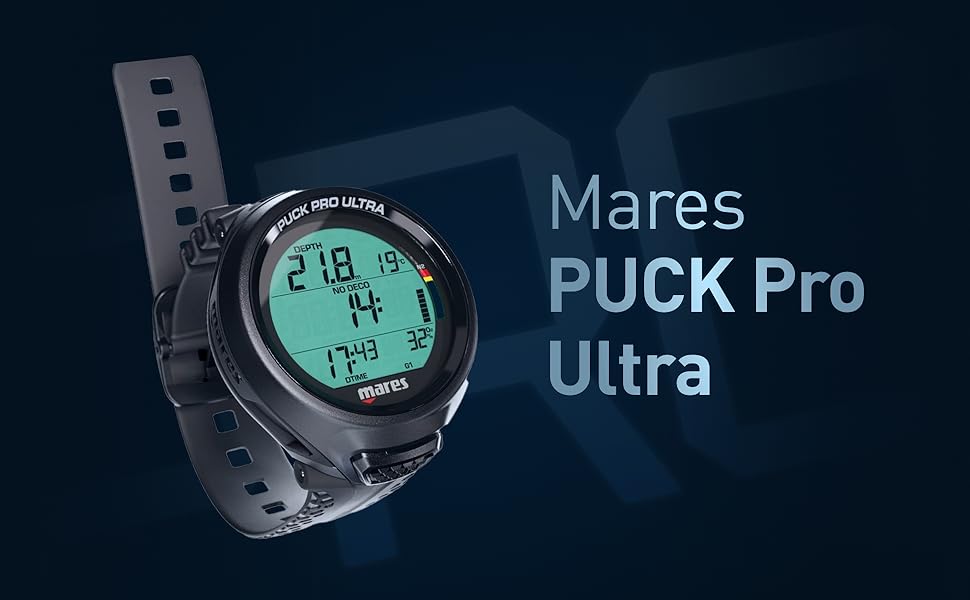
Image: The Mares Puck Pro Ultra Dive Computer, showcasing its clear display and robust design.
Key Features:
- Enhanced Visibility: Features a clear, high-contrast screen for effortless readability of dive data.
- Versatile Gas Options: Offers single gas Nitrox compatibility (21%-50%) for optimal safety.
- Advanced Algorithm: Utilizes the Buhlmann ZH-L16C algorithm with dual gradient factors for reliable decompression calculations.
- Extended Battery Life: Equipped with a CR 2450 user-replaceable battery that lasts up to 100 dives.
- Seamless Connectivity: Integrated Bluetooth for effortless data transfer to smart devices and dive log analysis.
2. Setup
2.1 Initial Inspection
Before first use, carefully inspect the Mares Puck Pro Ultra for any signs of damage. Ensure the strap is securely attached and the battery compartment is properly sealed.
2.2 Battery Installation
The Mares Puck Pro Ultra uses a user-replaceable CR 2450 battery. To install or replace the battery:
- Locate the battery compartment cover on the back of the dive computer.
- Using a coin or appropriate tool, carefully unscrew the battery cover counter-clockwise.
- Remove the old battery (if applicable) and insert the new CR 2450 battery with the positive (+) side facing up.
- Ensure the O-ring seal is clean and properly seated in its groove. Apply a thin layer of silicone grease if necessary.
- Screw the battery cover back on clockwise until it is finger-tight. Do not overtighten.

Image: The rear view of the Mares Puck Pro Ultra, highlighting the user-replaceable battery compartment.
2.3 Initial Settings
Upon first power-on or after battery replacement, you may need to set the time, date, and measurement units (metric/imperial). Refer to the operating section for navigation instructions using the single button.
3. Operating the Dive Computer
The Mares Puck Pro Ultra features a single-button interface for navigation and mode selection. Familiarize yourself with its operation before diving.
3.1 Single-Button Navigation
Press the single button to cycle through display screens and menu options. A long press typically activates a menu or confirms a selection. The display will show options like LOG, PLAN, INFO, and BLE (Bluetooth).
3.2 Dive Modes
The computer supports Air and Nitrox modes. Ensure the correct gas mixture (21%-50% Oxygen for Nitrox) is set before each dive. Incorrect settings can lead to serious injury or death.
3.3 Display Information During a Dive
During a dive, the display provides real-time information including:
- Current Depth
- Maximum Depth
- No Decompression Limit (NDL)
- Dive Time
- Water Temperature
- Ascent Rate Indicator
- Nitrogen Bar Graph
3.4 Post-Dive Data Transfer (Bluetooth)
The integrated Bluetooth allows you to transfer dive data to your smart device using the Mares app. This enables detailed dive log analysis and sharing of your diving experiences.
Video: A divemaster demonstrates the Mares Puck Pro Ultra's display navigation and its connectivity with the Mares app for dive log review.
4. Maintenance
4.1 Cleaning and Rinsing
After each dive, rinse your Mares Puck Pro Ultra thoroughly with fresh water to remove salt, sand, and other debris. Ensure the button is pressed several times during rinsing to flush out any trapped particles. Allow it to air dry completely before storage.
4.2 Battery Care
Replace the CR 2450 battery as indicated by the low battery warning or approximately every 100 dives. Always use a new, high-quality battery and ensure the O-ring is clean and properly sealed during replacement to maintain water integrity.
4.3 Storage
Store the dive computer in a cool, dry place away from direct sunlight and extreme temperatures. Avoid storing it with chemicals or solvents that could damage the casing or seals.
5. Troubleshooting
If you encounter issues with your Mares Puck Pro Ultra, refer to the following common problems and solutions:
- Display Not Working: Check the battery. If the battery is low or depleted, replace it. Ensure the battery is inserted correctly.
- Inaccurate Depth/Time: Ensure the computer is properly activated for diving. If issues persist, contact Mares support.
- Bluetooth Connectivity Issues: Ensure Bluetooth is enabled on both the dive computer and your smart device. Restart both devices and try pairing again. Make sure the Mares app is up to date.
- Water Leakage: Immediately cease use. This indicates a compromised seal. Do not attempt to repair yourself. Contact Mares authorized service center.
6. Specifications
| Feature | Detail |
|---|---|
| Brand | Mares |
| Model | Puck Pro Ultra |
| Material | Plastic |
| Item Dimensions (L x W x H) | 6.7 x 5.5 x 5.4 inches |
| Item Weight | 0.75 Pounds |
| Nitrox Compatibility | 21%-50% Oxygen |
| Algorithm | Buhlmann ZH-L16C with dual gradient factors |
| Battery Type | CR 2450 (User-replaceable) |
| Battery Life | Up to 100 dives |
| Connectivity | Integrated Bluetooth |
7. Warranty
Mares products are covered by a manufacturer's warranty against defects in materials and workmanship. The specific terms and duration of the warranty may vary by region. Please retain your proof of purchase for warranty claims. For detailed warranty information, refer to the official Mares website or contact your local Mares dealer.
8. Support
For further assistance, technical support, or service inquiries regarding your Mares Puck Pro Ultra Dive Computer, please visit the official Mares website at www.mares.com or contact your authorized Mares dealer. You can also find FAQs and additional resources online.
