
1. Product Overview
The WASOCA UFO4 Bluetooth Hearing Aids are designed to provide enhanced listening and communication capabilities. They combine hearing aid functionality with Bluetooth connectivity, offering features such as automatic noise reduction, volume control, and voice assistant integration.

Image 1: WASOCA UFO4 Bluetooth Hearing Aids (Pair)
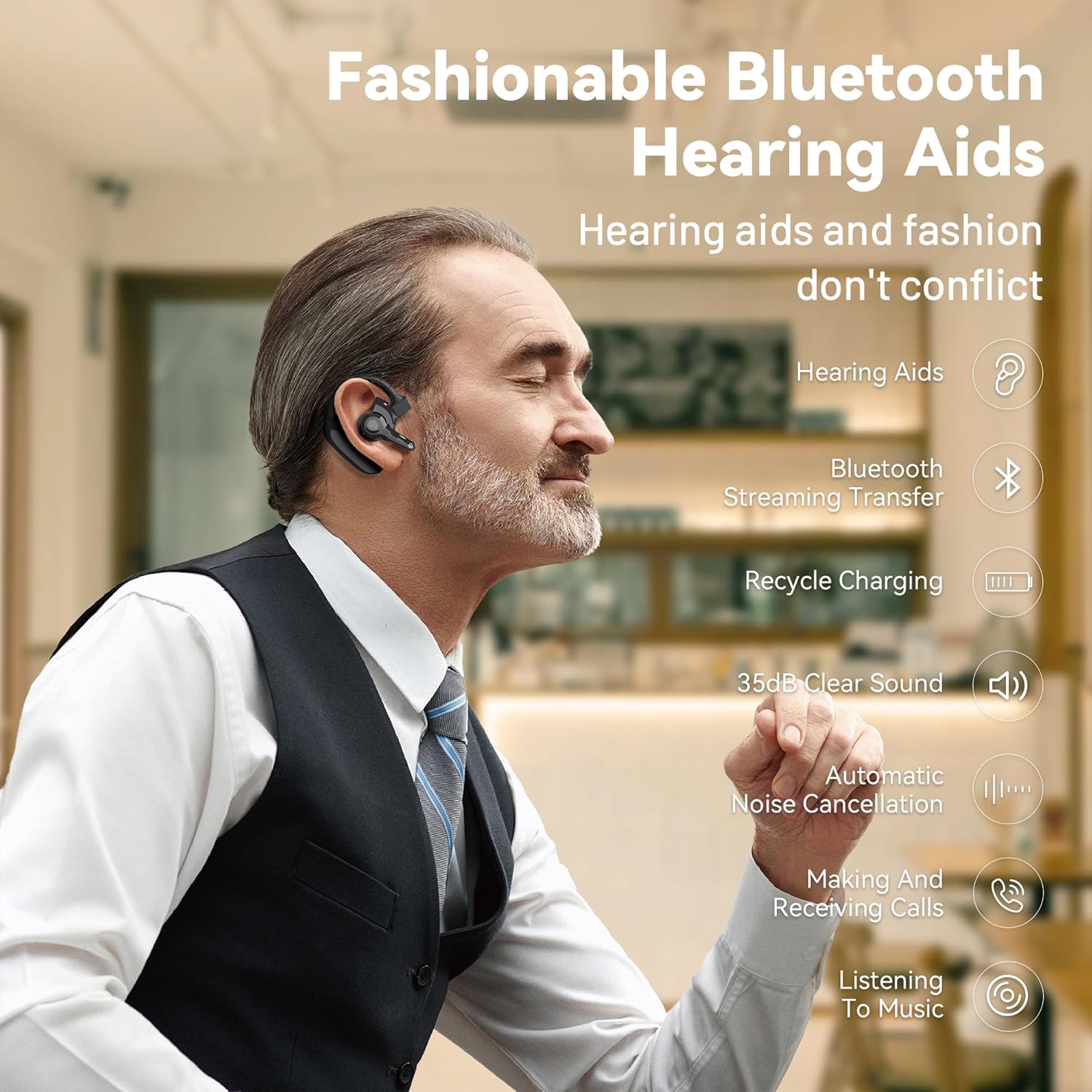
Image 2: User wearing a WASOCA UFO4 hearing aid, illustrating its discreet design and integrated features.
2. Package Contents
Please verify that all items are present in the package:
- WASOCA UFO4 Hearing Aids (2 units for a pair)
- Charging Case
- USB Charging Cable
- Spare Ear Caps (S/M/L sizes)
- Instruction Manual
- Storage Bags (2 units)

Image 3: Illustration of all items included in the WASOCA UFO4 package.
3. Setup and First Use
3.1 Charging the Hearing Aids
Before first use, fully charge the hearing aids and the charging case.
- Place the hearing aids into the charging case.
- Connect the USB charging cable to the charging case and a power source.
- The indicator lights on the hearing aids will show charging status.
- A full charge provides up to 28 hours of battery life in hearing aid mode.
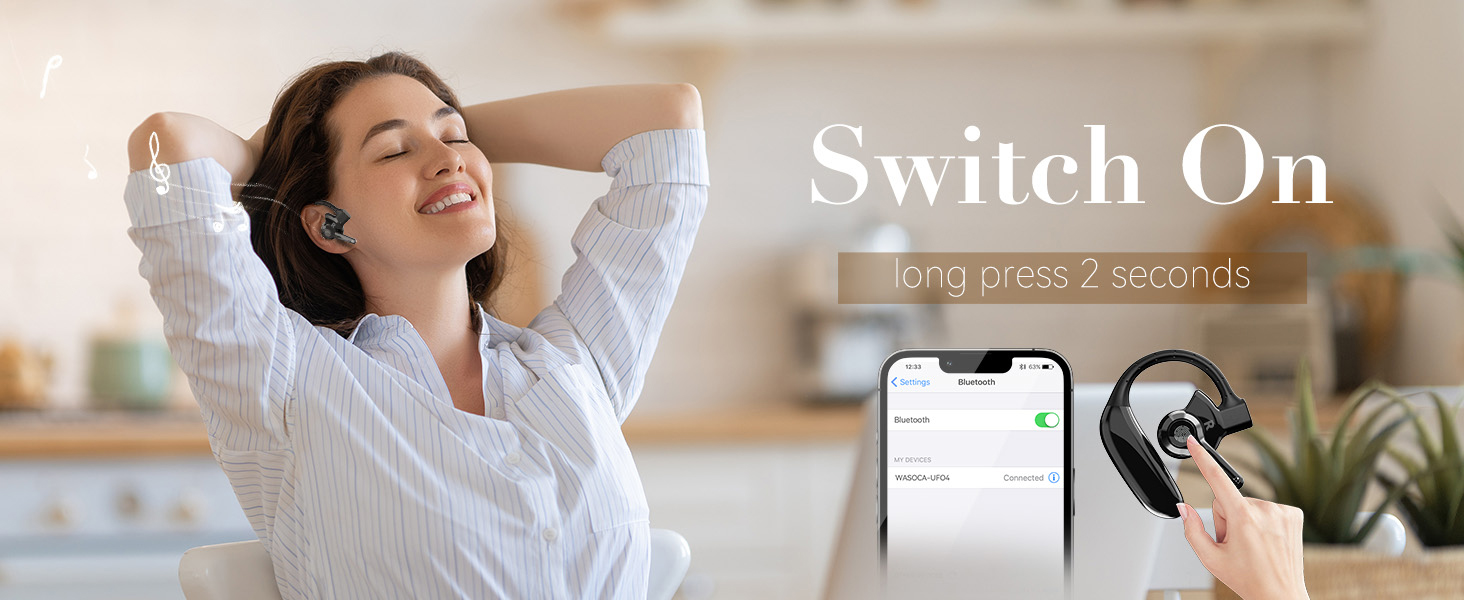
Image 4: Visual representation of battery life and charging method for the UFO4 hearing aids.
3.2 Wearing the Hearing Aids
Proper placement ensures optimal sound quality and comfort.
- Wear the headset from front to back, with the battery unit hanging behind the ear.
- Embed the ear cap into the cochlea.
- Adjust the microphone so it is aimed towards the sound emitting point for clearer sound.
- Adjust the wearing angle of the hearing aid to maximize comfort.

Image 5: Step-by-step guide for correctly wearing the WASOCA UFO4 hearing aids.
3.3 Powering On and Pairing
- Remove the hearing aids from the charging case.
- Long press the touch area for 2 seconds to turn on the hearing aids. The indicator light will flash 3 times.
- The two hearing aids will automatically pair with each other.
- To connect to a Bluetooth device (e.g., smartphone), open your device's Bluetooth settings and select "WASOCA-UFO4" from the available devices.

Image 6: Instructions for powering on the hearing aids and connecting via Bluetooth.
4. Operating Instructions
4.1 Smart Touch Controls
The hearing aids feature intuitive touch controls for various functions:
- Power On: Long press for 2 seconds.
- Power Off: Long press for 5 seconds.
- Adjust Volume: Double-click to cycle through 25dB, 30dB, and 35dB levels.
- Answer Call: Click once.
- Reject Incoming Call: Double-click.
- Hang Up Call: Double-click.
- Activate Voice Assistant (Siri/Google Assistant): Click 4 times.

Image 7: Diagram illustrating the touch control functions of the WASOCA UFO4 hearing aids.
4.2 Volume Control
The UFO4 offers three distinct volume levels suitable for mild to moderate hearing loss:
- 25dB
- 30dB
- 35dB
Double-click the touch area to cycle through these volume settings.

Image 8: Visual representation of the three adjustable volume levels (25dB, 30dB, 35dB).
4.3 Noise Reduction
The hearing aids feature automatic and strong noise reduction technology, utilizing a technology chip and AI intelligence to filter out environmental sounds. This ensures clear sound in various environments, from quiet homes to busy offices or parties.

Image 9: Illustration of the intelligent noise reduction feature, showing sound clarity before and after processing.
4.4 Voice Assistant Functionality
Activate your device's voice assistant (Siri, Google Assistant, Cortana) by clicking the touch area 4 times. This allows for hands-free control, such as switching navigation or making calls while driving, enhancing safety.

Image 10: Demonstrates activating the voice assistant for hands-free control, such as navigation.
4.5 Left and Right Ear Switching
The hearing aid can be configured for either left or right ear use. Follow these steps to switch:
- If currently worn on the left ear, detach the host unit.
- Rotate the host unit 180 degrees.
- Link the host unit to the ear hook for right ear wear.
- Adjust the microphone for optimal sound.

Image 11: Step-by-step guide for switching the hearing aid between left and right ear configurations.
5. Maintenance and Care
To ensure the longevity and optimal performance of your WASOCA UFO4 hearing aids, follow these maintenance guidelines:
- Cleaning: Regularly clean the hearing aids with a dry cloth to remove any earwax or debris. Do not use liquids or abrasive cleaners.
- Storage: When not in use, store the hearing aids in their charging case to protect them from dust and damage.
- Charging: Always use the provided USB cable for charging. Avoid overcharging.
- Avoid Moisture: Keep the hearing aids dry. Avoid exposure to excessive moisture or humidity.
6. Troubleshooting
If you encounter issues with your WASOCA UFO4 hearing aids, please refer to the following common solutions:
- No Sound: Ensure the hearing aids are powered on and charged. Check the volume level. Verify Bluetooth connection if streaming audio.
- Poor Sound Quality/Feedback: Ensure the ear caps are properly seated in your ear canal. Clean any earwax or debris from the ear caps and microphone. Adjust the wearing angle.
- Bluetooth Connectivity Issues: Ensure the hearing aids are in pairing mode and within range of your device. Try turning Bluetooth off and on again on your device.
- Battery Not Charging: Ensure the charging cable is securely connected to both the case and the power source. Check if the charging case itself has power.
- Voice Assistant Not Responding: Ensure you are clicking the touch area 4 times correctly. Verify your phone's voice assistant is enabled.
If problems persist after attempting these solutions, please contact WASOCA customer support for further assistance.
7. Specifications
| Feature | Specification |
|---|---|
| Model Name | UFO4 |
| Brand | WASOCA |
| Material | Plastic |
| Connectivity | Wireless (Bluetooth 5.3) |
| Battery Type | Lithium Ion |
| Battery Life (Hearing Aid Mode) | Up to 28 hours |
| Volume Levels | 25dB, 30dB, 35dB |
| Special Features | Noise Cancellation, Fast Charging, Portable, Noise Reduction, Voice Assistant |
| Item Weight | 7.8 ounces |
| Package Dimensions | 6.38 x 3.46 x 2.17 inches |
8. Warranty and Support
For warranty information, please refer to the documentation included with your product or visit the official WASOCA website. For customer support, inquiries, or technical assistance, please contact WASOCA directly through their official channels.
You can find more information about WASOCA products and support at the WASOCA Store on Amazon.