
JBMJGKYMA-A
User Manual
66 Inch Large Computer Desk with Power Outlet and USB Charging Port
1. Product Overview
This manual provides essential information for the assembly, operation, and maintenance of your new 66-inch large computer desk. Designed for home office or professional workspaces, this desk features a spacious desktop, an ergonomic monitor stand, integrated power outlets, and ample storage solutions.

Figure 1.1: Fully assembled 66-inch computer desk.
2. Safety Instructions
- Always follow assembly instructions carefully to prevent injury or damage.
- Do not overload the desk or shelves beyond their stated weight capacity.
- Ensure all screws and fasteners are securely tightened before use. Periodically check and re-tighten as needed.
- Keep liquids away from the integrated power outlet and USB ports to avoid electrical hazards.
- Place the desk on a level surface to ensure stability.
- Keep small parts away from children during assembly.
3. Package Contents
Before beginning assembly, verify that all components listed below are present and undamaged. If any parts are missing or damaged, please contact customer support.
| Part | Description | Quantity |
|---|---|---|
| A | Main Desktop Panel | 1 |
| B | Monitor Stand Panel | 1 |
| C | Side Shelf Panels | 2 |
| D | Metal Frame Legs | 4 |
| E | Crossbar Supports | 2 |
| F | Mobile File Drawer | 1 |
| G | Power Outlet Unit | 1 |
| H | Hardware Pack (Screws, Allen Wrench, etc.) | 1 |
4. Setup and Assembly
Follow these steps to assemble your computer desk. It is recommended to have two people for assembly.
- Unpack and Identify Parts: Lay out all components on a clean, soft surface to prevent scratches. Refer to the "Package Contents" section to identify each part.
- Assemble the Main Frame: Attach the metal frame legs (D) to the main desktop panel (A) using the provided screws from the hardware pack (H). Do not fully tighten screws yet.
- Install Crossbar Supports: Secure the crossbar supports (E) between the metal frame legs to enhance stability. Tighten all frame screws once the frame is stable.
- Attach Side Shelves: Mount the side shelf panels (C) to the designated areas on the metal frame. Ensure they are level and secure.
- Install Monitor Stand: Place the monitor stand panel (B) onto the top of the desk frame, aligning it with the pre-drilled holes. Secure it with screws.
- Integrate Power Outlet: Insert the power outlet unit (G) into the recessed opening on the desktop. Ensure it sits flush and is securely in place.
- Assemble Mobile File Drawer: Follow the separate instructions provided with the mobile file drawer (F) for its assembly. Once assembled, it can be placed under the desk.
- Final Tightening: Once all components are in place, carefully tighten all screws and fasteners. Do not overtighten.

Figure 4.1: Desk dimensions and component layout.
5. Operating and Usage
Your computer desk is designed for versatile use in various settings. Here's how to best utilize its features:
- Monitor Stand: The elevated monitor stand is designed to hold up to two monitors, promoting an ergonomic viewing angle to reduce neck strain.
- Integrated Power Outlet: Use the built-in power strip with outlets and USB charging ports to conveniently power your devices directly from your desk. Ensure the desk's power cord is plugged into a grounded wall outlet.
- Storage Shelves: Utilize the open shelves on the sides for books, office supplies, or decorative items.
- Mobile File Drawer: The scrollable file drawer provides ample space for documents and can be moved as needed for flexible storage.
- PC Tower Space: A dedicated space is provided on the lower left shelf for a computer tower, keeping it off the floor and easily accessible.


Figure 5.1: Features: Recessed power strip and ample storage.
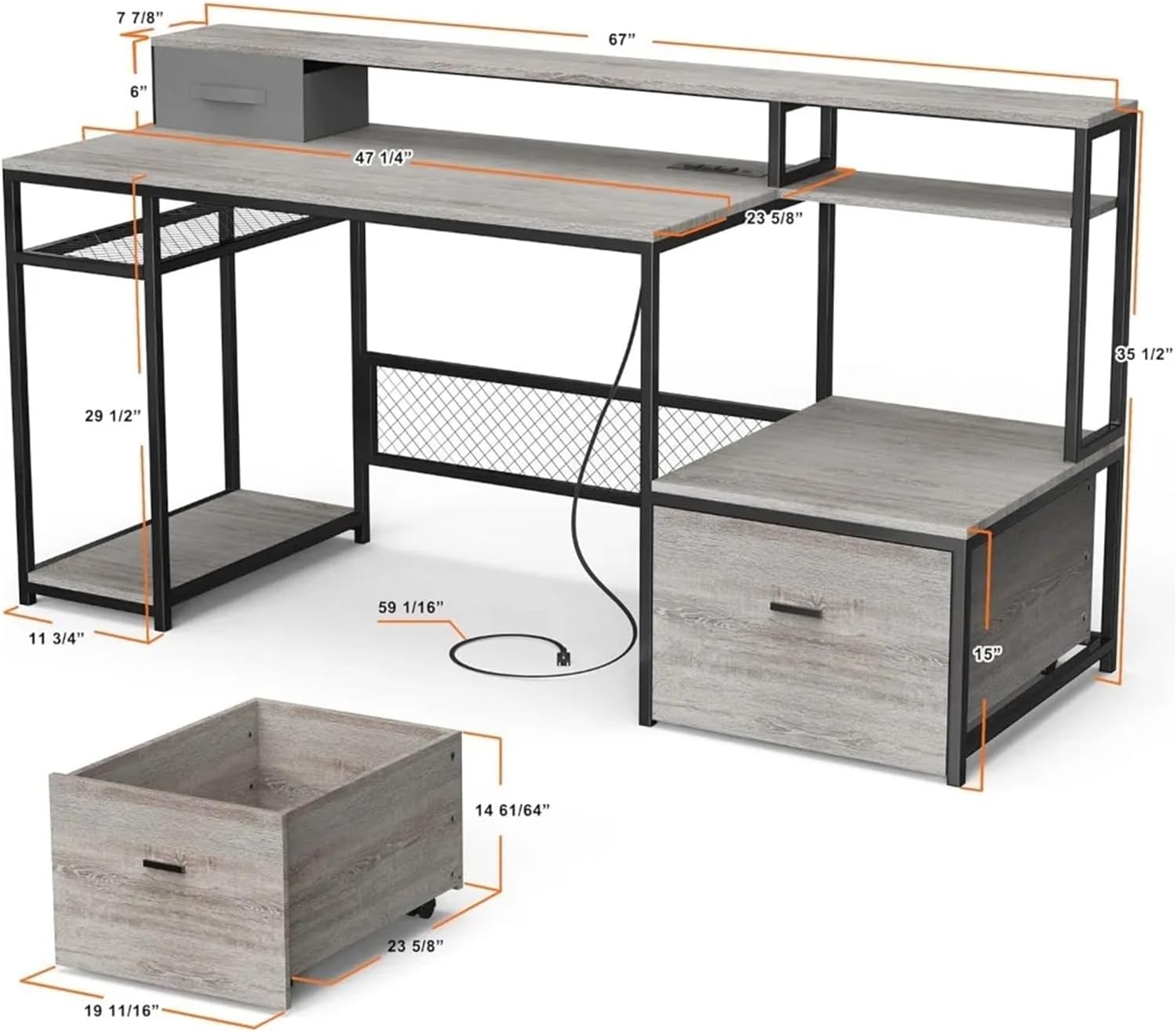
Figure 5.2: Ergonomic benefits of the monitor stand.
6. Maintenance
Proper care will extend the life and appearance of your desk.
- Cleaning: Wipe surfaces with a soft, damp cloth. Avoid harsh chemicals or abrasive cleaners that may damage the finish.
- Spills: Immediately wipe up any spills to prevent staining or damage to the wood finish.
- Fasteners: Periodically check all screws and bolts to ensure they remain tight. Re-tighten if necessary.
- Heat and Moisture: Avoid placing hot items directly on the desk surface. Use coasters for drinks.
7. Troubleshooting
| Problem | Possible Cause | Solution |
|---|---|---|
| Desk is wobbly | Uneven floor; loose fasteners | Adjust the leveling feet (if present) or place shims under legs. Tighten all assembly screws. |
| Power outlet not working | Not plugged in; circuit breaker tripped; faulty unit | Ensure the desk's power cord is securely plugged into a working wall outlet. Check your home's circuit breaker. If issues persist, contact customer support. |
| Drawer sticks or doesn't slide smoothly | Obstruction; misaligned rails; debris | Check for any items blocking the drawer. Ensure drawer rails are properly aligned and free of debris. |
8. Specifications
| Feature | Detail |
|---|---|
| Product Dimensions (L x W x H) | Approx. 66.9" x 23.6" x 35.5" (170cm x 60cm x 90cm) |
| Main Desktop Dimensions | Approx. 47.25" x 23.6" (120cm x 60cm) |
| Monitor Stand Dimensions | Approx. 67" x 7.87" (170cm x 20cm) |
| Material | Engineered Wood (MDF), Metal Frame |
| Color | Gray Oak |
| Power Outlet | Integrated with AC outlets and USB charging ports |
| Weight Capacity | (Not specified in input, general desk capacity) |
| Model Number | JBMJGKYMA-A |
Note: All dimensions are approximate and may vary slightly.
9. Warranty and Support
This product comes with a standard manufacturer's warranty against defects in materials and workmanship. For specific warranty details, please refer to the documentation included with your purchase or contact the retailer.
For technical support, missing parts, or any inquiries regarding your product, please contact the manufacturer or retailer directly. Please have your model number (JBMJGKYMA-A) and purchase information ready when contacting support.
Ask a question about this manual
Ask about setup, troubleshooting, compatibility, parts, safety, or missing instructions. Manuals+ will review the question and use this page’s manual context to help answer it.