
Zyyini Zyyiniaqci51g3sy-11
Zyyini Mobile Wi-Fi 6 Router User Manual
Model: RT2656 (Zyyiniaqci51g3sy-11)
Introduction
Thank you for choosing the Zyyini Mobile Wi-Fi 6 Router. This portable AX1800 dual-band router is designed to provide high-speed, stable wireless connectivity for various environments, including travel and home use. It supports Wi-Fi 6 technology, MU-MIMO, OFDMA, and BSS Color for enhanced performance and reduced interference. This manual provides detailed instructions for setup, operation, and maintenance to ensure you get the most out of your device.
Package Contents
Please verify that all items listed below are included in your package:
- 1 x Zyyini Mobile Wi-Fi 6 Router
- 1 x Type-C Power Cable
- 1 x Power Adapter (US Plug)
- 1 x User Manual
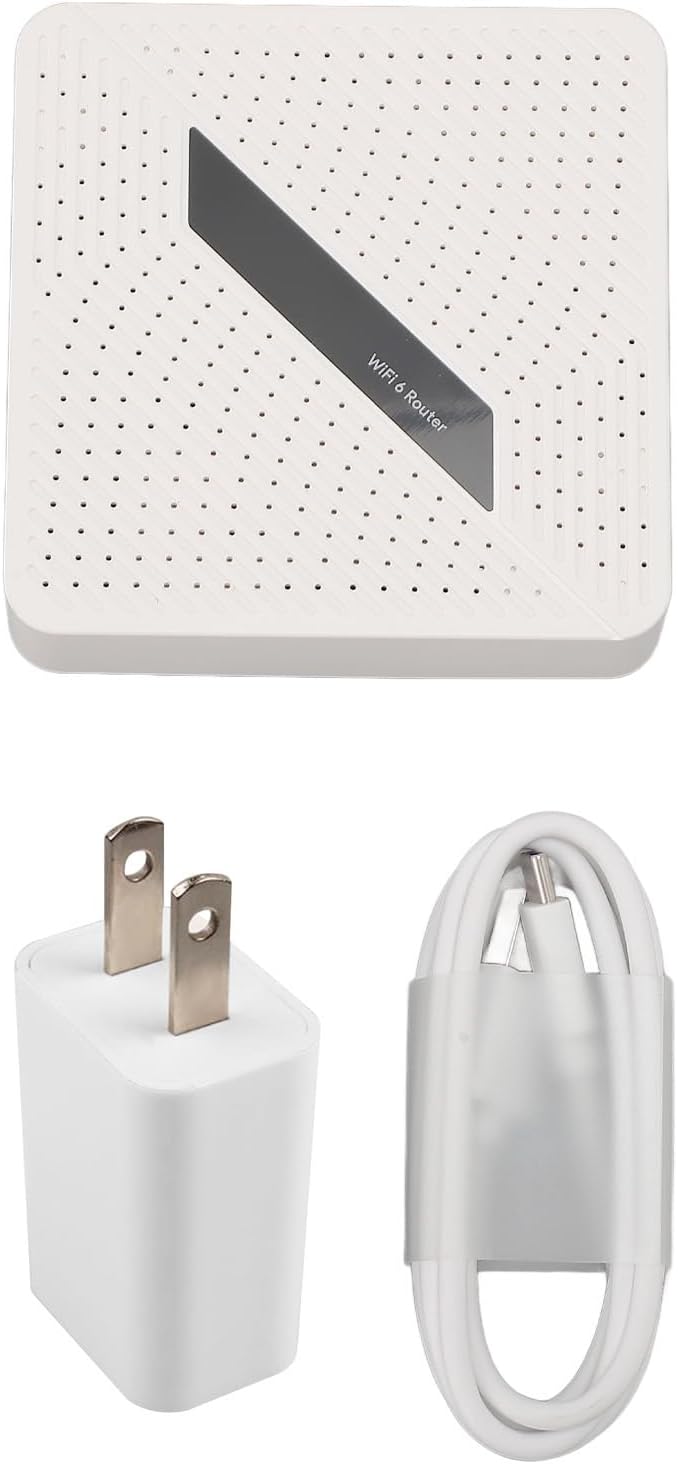
Image: The Zyyini Mobile Wi-Fi 6 Router, along with its Type-C power cable and power adapter.
Product Overview
Familiarize yourself with the ports and indicators on your router:

Image: Front view of the router, displaying the Reset button, WAN/LAN port, LAN port, USB 3.0 port, and Type-C power port.
- Reset Button: Used to restore factory settings.
- WAN/LAN Port: A versatile Gigabit Ethernet port that can function as either a WAN (Internet) input or a LAN output.
- LAN Port: A dedicated Gigabit Ethernet port for connecting wired devices.
- USB 3.0 Port: For connecting external storage devices to enable NAS functionality.
- Type-C Port: For power input to the router.
Setup Instructions
Follow these steps to set up your Zyyini Mobile Wi-Fi 6 Router:
- Power Connection: Connect the provided Type-C power cable to the router's Type-C port and the other end to the power adapter. Plug the adapter into a power outlet. The router will power on automatically.
- Internet Connection (Wired):
- For Hotel/Public Network: Connect an Ethernet cable from the hotel's network port to the WAN/LAN port on your router.
- For Home Network: Connect an Ethernet cable from your existing modem or router's LAN port to the WAN/LAN port on your new router.

Image: Top diagram shows connecting the router to a hotel network port. Bottom diagram shows connecting the router to a home router's LAN port for wired and Wi-Fi sharing.
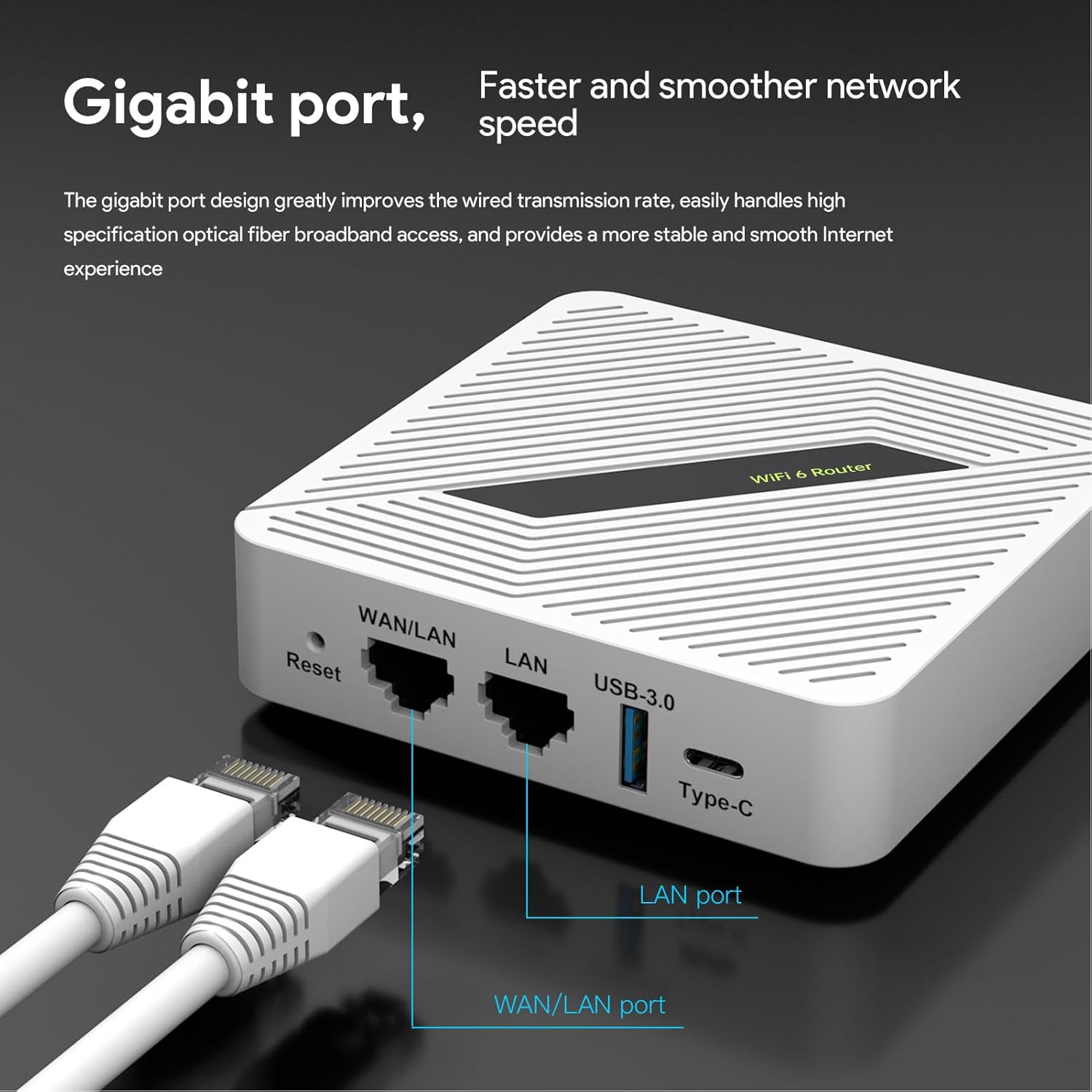
Image: A close-up view of the router's WAN/LAN and LAN ports with Ethernet cables connected, highlighting the Gigabit port design for faster network speed.
- Wireless Connection: Once powered on and connected to the internet source, the router will broadcast its Wi-Fi network. Look for the network name (SSID) printed on the router's label or in the user manual. Connect your devices (smartphones, laptops, tablets) to this Wi-Fi network using the provided password.
- Initial Configuration: For advanced settings or to change the Wi-Fi name/password, access the router's web interface. Open a web browser on a connected device and enter the default IP address (usually 192.168.1.1 or similar, check the router's label). Log in using the default username and password.

Image: The router can be powered by its original charger, a computer's USB port, or a mobile power supply via the Type-C port.
Operating Instructions
The Zyyini Mobile Wi-Fi 6 Router offers robust features for a seamless network experience:
- Dual-Band Wi-Fi: The router operates on both 2.4GHz and 5.8GHz bands, providing speeds up to 1800 Mbps (574 Mbps on 2.4GHz, 1201 Mbps on 5.8GHz). For general browsing and longer range, use 2.4GHz. For high-bandwidth activities like streaming and gaming, use 5.8GHz.
- MU-MIMO, OFDMA, BSS Color: These advanced technologies enhance network efficiency, allowing multiple devices to communicate simultaneously without significant slowdowns, reducing interference, and improving overall signal coverage.
- VPN Support: The router supports PPTP, L2TP, and OpenVPN protocols. You can configure VPN settings through the web interface to secure your network traffic and access geo-restricted content.
- File Sharing and NAS Functionality: Connect an external USB hard drive to the USB 3.0 port. Through the router's web interface, you can enable NAS (Network Attached Storage) functionality, supporting SAMBA and WebDav protocols. This allows for convenient file sharing and storage across your network.
Specifications
| Feature | Description |
|---|---|
| Item Type | Portable Wireless Router |
| Material | ABS |
| Wireless Fidelity Version | Wireless Fidelity 6 (Wi-Fi 6) |
| Wireless Speed | 1800Mbps (574Mbps 2.4GHz, 1201Mbps 5.8GHz) |
| Ports | 1 x 1000Mbps RJ45 (WAN/LAN), 1 x 1000Mbps RJ45 (LAN), 1 x USB 3.0, 1 x Type-C Power |
| Operating Channels | 2.4G, 5.8G |
| Data Encryption | WPA-PSK/WPA2-PSK, WPA/WPA2/WPA3 |
| Input Voltage | Type-C 5V-3A or DC 12V-1.5A |
| Dimensions | Approximately 4.33 x 4.33 x 2.76 inches |
| Item Weight | Approximately 11.9 ounces |
| Model Number | Zyyiniaqci51g3sy-11 (RT2656) |
Maintenance
To ensure the longevity and optimal performance of your router, consider the following maintenance tips:
- Placement: Place the router in an open area, away from obstructions, large metal objects, and other electronic devices that may cause interference.
- Cleaning: Gently wipe the router with a soft, dry cloth. Do not use liquid cleaners or aerosols.
- Firmware Updates: Periodically check the manufacturer's website for firmware updates. Keeping your firmware up-to-date can improve performance, add new features, and enhance security.
- Ventilation: Ensure the router's ventilation holes are not blocked to prevent overheating.
Troubleshooting
If you encounter issues with your router, try the following troubleshooting steps:
- No Internet Connection:
- Check if the Ethernet cable is securely connected to the WAN/LAN port and the internet source.
- Restart your modem/router and then the Zyyini router.
- Verify your internet service provider (ISP) connection is active.
- Slow Wi-Fi Speed:
- Ensure your devices are connected to the appropriate band (5.8GHz for faster speeds, 2.4GHz for better range).
- Reduce the number of connected devices or bandwidth-intensive activities.
- Check for interference from other electronic devices.
- Relocate the router to a more central position.
- Cannot Access Router Web Interface:
- Ensure your device is connected to the router's Wi-Fi or via an Ethernet cable to a LAN port.
- Verify you are entering the correct IP address (e.g., 192.168.1.1) and login credentials.
- Try clearing your browser's cache or using a different browser.
- Forgot Wi-Fi Password or Login Credentials:
- Perform a factory reset by pressing and holding the Reset button for approximately 10 seconds until the indicators flash. This will revert all settings to default, including Wi-Fi name and password.
Warranty and Support
For warranty information and technical support, please refer to the documentation included with your purchase or visit the official Zyyini website. Keep your purchase receipt as proof of purchase for warranty claims.
Related Documents - Zyyiniaqci51g3sy-11
 |
marsboy AX1800 Dual Band Wi-Fi 6 Router User Guide This user guide provides comprehensive instructions for setting up, configuring, and managing the marsboy AX1800 Dual Band Wi-Fi 6 Router. It covers hardware connection, internet setup, network customization, security settings, guest network configuration, VPN server setup, router management, and troubleshooting. |
 |
HUAWEI B530-336 LTE CPE Router: Device Description and Technical Specifications Comprehensive guide to the HUAWEI B530-336 LTE CPE router, covering its features, technical specifications, services, applications, system architecture, and package contents. Learn about its connectivity options, security features, and performance. |
 |
Simplecom NW812 AX1800 Dual Band WiFi 6 USB Adapter Quick Installation Guide Quick installation guide for the Simplecom NW812 AX1800 Dual Band WiFi 6 USB Adapter. Learn how to install drivers, connect to WiFi, and check device manager on Windows 10 and 11. |
 |
Proxicast LAN-Cell 3 User's Guide: 4G/3G Cellular Router, VPN & Firewall Comprehensive user guide for the Proxicast LAN-Cell 3, a secure 4G/3G cellular router. Learn about setup, configuration, VPN, firewall, and advanced networking features for reliable connectivity. |
 |
Wi-Fi 6 AX1800 Dual-Band Outdoor AP/Repeater/Mesh Extender Safety and Technical Data Comprehensive safety instructions, intended use, usage restrictions, and technical specifications for the Wavlink Wi-Fi 6 AX1800 Dual-Band Outdoor AP/Repeater/Mesh Extender (Item No. 3062490). |
 |
Predator Connect W6d Dual-band WiFi 6 Router User Guide Comprehensive user guide for the Acer Predator Connect W6d Dual-band WiFi 6 Router, covering installation, setup, configuration, features like WiFi, LAN, WAN, security, QoS, and troubleshooting. |