
1. Introduction
This manual provides detailed instructions for the installation, operation, and maintenance of your VECHTEL 4G+64G Android 15 Double Din Car Stereo. Please read this manual thoroughly before using the product to ensure proper functionality and safety. This device is designed to enhance your driving experience with advanced features such as Wireless Carplay, Android Auto, GPS navigation, and multimedia capabilities.
2. Safety Information
- Always operate the device responsibly and in accordance with local traffic laws.
- Do not attempt to install or repair the unit yourself if you are not qualified. Consult a professional installer.
- Ensure all wiring connections are secure to prevent short circuits or damage.
- Avoid prolonged exposure to direct sunlight or extreme temperatures.
- Keep the screen clean and free from obstructions.
3. Package Contents
Verify that all items listed below are included in your package:
- VECHTEL 4G+64G Android 15 Double Din Car Stereo Unit
- Backup Camera
- CANBUS box
- GPS Antenna
- Power Harness
- RCA Cable
- Rear Camera Input Cable
- USB Cable
- User Manual
- Radio Antenna
- Microphone (MIC)

Image: Contents of the VECHTEL car stereo package.
4. Compatibility
This car stereo is designed for specific Volkswagen, SEAT, and Skoda models. Please ensure your vehicle's dashboard and wiring harness are compatible before installation.
4.1 Applicable Vehicle Models
- For VW: SAGITAR/JETTA, MAGOTAN/MAGOTAN V6, PASSAT B6, PASSAT V6, MAGOTAN VARIANT, PASSAT B7, PASSAT NMS, PASSAT CC, PASSAT TSI, TOURAN, GOLF V, GOLF VI, TIGUAN/TIGUAN GP, SHARAN, CADDY, POLO, EOS, SCIROCCO, a part of VW/T5/TRANSPORTER, VR/R36 VARIANT, BEETLE, MULTZVAN, GOLF BLUE MOTION, SPORTLINE, BORA, AMAROK.
- For SEAT: ALTEA AB 05/2004, TOLEDO AB 12/2004, LEON AB 09/2005, ALTEA XL AB 04/2007, ALHAMBRA AB 2010.
- For SKODA: FABIA LIMOUSINE AB 02/2007 BIS 2012, FABIA COMBI AB 04/2007 BIS 2012, PRACTIC AB 04/2007 BIS 2012, ROOMSTER AB 04/2006 BIS 2012, YETI AB 2009 BIS 2012.

Image: Adaptable vehicle models for the car stereo.
4.2 Wiring Harness Compatibility
The package includes 36-pin and 40-pin wiring harnesses. If your vehicle requires a 52-pin connector, please contact customer support for assistance.

Image: Wiring harness compatibility guide.

Image: Wiring harness determination and CANBUS connection.
5. Setup and Installation
Professional installation is recommended. Ensure the vehicle's power is disconnected before beginning installation.
5.1 General Installation Steps
- Remove the original car stereo unit from your dashboard.
- Connect the appropriate power harness (36-pin or 40-pin) to the new stereo and the vehicle's wiring.
- If your vehicle is a high-end model with features like multi-function steering wheel, display of door status/fuel consumption, or factory-installed dynamic reverse guidelines, the CANBUS box needs to be installed. Connect the CANBUS box as per the wiring diagram.
- Connect the GPS antenna and route it to a location with a clear view of the sky (e.g., on the dashboard).
- Connect any additional accessories like the USB cable, radio antenna, and microphone.
- Carefully slide the new stereo unit into the dashboard opening and secure it.
- Reconnect the vehicle's power and test all functions.
5.2 Backup Camera Installation
The included backup camera provides enhanced safety when reversing.
- Mount the backup camera at the rear of your vehicle, ensuring a clear view.
- Connect the red cable (1 and 3) to the positive (+) of the car's reverse light power supply.
- Connect the black cable (2) to the negative (-) of the car's reverse light power supply.
- Connect the black cable (4) to the reverse trigger wire on the power harness of the car stereo.
- Connect the video RCA cable from the camera to the "Rear Camera Input" on the stereo unit.

Image: Backup camera wiring diagram.
6. Operating Instructions
Your VECHTEL car stereo features an intuitive Android 15 operating system with an 8-inch touchscreen.
6.1 Basic Operation
- Power On/Off: Press and hold the power button (usually VOL knob) to turn the unit on or off.
- Volume Control: Use the VOL knob or touchscreen controls to adjust the volume.
- Navigation: Tap icons on the 8-inch HD IPS touchscreen (1280*720P resolution) to access various functions and applications.
- UI Themes: Customize the interface with dozens of available UI themes. Icons can also be rearranged.

Image: 8-inch HD IPS Screen display.
6.2 Wireless Carplay / Android Auto
Connect your smartphone wirelessly for seamless integration of navigation, music, and communication features.
- Ensure Bluetooth is enabled on your smartphone and the car stereo.
- Pair your phone with the car stereo via Bluetooth.
- Once connected, select the Carplay or Android Auto icon on the stereo's screen.
- Follow on-screen prompts to complete the setup. You can now use voice controls for navigation, calls, and music.
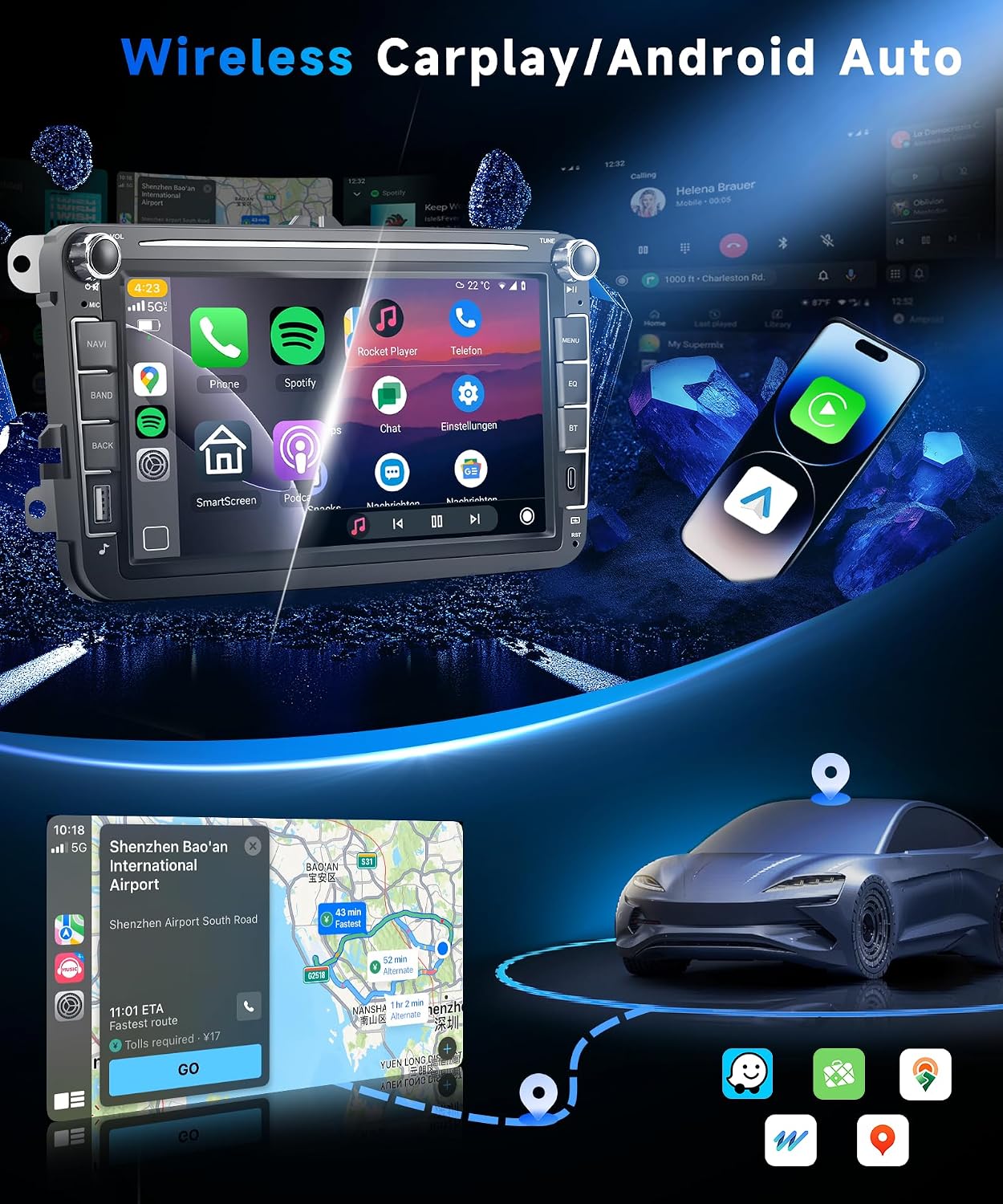
Image: Wireless Carplay and Android Auto in use.

Image: Wireless Carplay and Android Auto interfaces.
6.3 WiFi / GPS Navigation
Access online content and navigation services by connecting to a WiFi network.
- WiFi Connection: Go to Settings > Network & Internet > Wi-Fi. Select your desired network and enter the password.
- GPS Navigation: Use pre-installed navigation apps or download others from the app store. The unit supports online maps and allows downloading offline maps via applications like Herewego.

Image: GPS, WiFi, and Mirror Link features.
6.4 Bluetooth 5.0 / Steering Wheel Control (SWC)
- Bluetooth 5.0: Pair your phone to enjoy hands-free calling and Bluetooth audio streaming. Access your phonebook directly from the stereo.
- Steering Wheel Control: If your vehicle supports it and the CANBUS is correctly installed, you can control volume, track skipping, and answer/end calls directly from your steering wheel buttons.

Image: Backup Camera and Steering Wheel Control functions.
6.5 Mirror Link
Synchronize your smartphone's screen to the car stereo display.
- Open the Mirror Link application on the car stereo.
- Follow the instructions on the screen to connect your Android or iOS device.
- Once connected, your phone's display will be mirrored on the car stereo, allowing you to view videos and other content.
6.6 FM/RDS Radio
Enjoy a variety of radio stations with clear reception.
- Access the FM Radio application from the main menu.
- Use the scan function to find available stations or manually tune to a frequency.
- RDS (Radio Data System) provides additional information such as station name and song title where available.

Image: FM/RDS Radio and Split Screen functionality.
6.7 Audio Equalizer (32 EQ)
Customize your audio experience with the built-in 32-band equalizer.
- Access the EQ settings from the audio menu.
- Adjust frequency bands to match your preferred music style or vehicle acoustics.
6.8 Split Screen
Operate two applications simultaneously on the screen.
- Drag an app icon to one side of the screen to activate split-screen mode.
- Select another app to occupy the other half of the screen.

Image: Overview of key features including screen resolution, Mirror Link, Voice Control, Android 15, Bluetooth 5.0, FM/RDS Radio, Desktop Themes, and 32 EQ.
7. Maintenance
- Screen Cleaning: Use a soft, lint-free cloth to clean the touchscreen. Do not use abrasive cleaners or solvents.
- Software Updates: Periodically check for system updates to ensure optimal performance and access to new features. Connect to WiFi and navigate to system settings for updates.
- General Care: Avoid spilling liquids on the unit. Protect it from extreme temperatures and direct sunlight when parked for extended periods.
8. Troubleshooting
- Unit does not power on: Check all power connections and fuses. Ensure the vehicle's ignition is on.
- No sound: Verify speaker connections. Check volume levels and audio settings (EQ, balance, fader).
- GPS signal lost: Ensure the GPS antenna has a clear view of the sky and is securely connected.
- Bluetooth connection issues: Ensure Bluetooth is enabled on both devices. Try unpairing and re-pairing the devices.
- Touchscreen unresponsive: Try restarting the unit. If the issue persists, a factory reset might be necessary (note: this will erase all user data).
- Backup camera not displaying: Check camera wiring, especially the reverse trigger wire connection. Ensure the camera is receiving power.
9. Specifications
| Feature | Specification |
|---|---|
| Operating System | Android 15 |
| RAM | 4GB |
| ROM | 64GB |
| Screen Size | 8 inches |
| Screen Resolution | 1280 x 720P HD IPS |
| Connectivity | Bluetooth 5.0, USB, Wi-Fi |
| Special Features | 8-CORE Processor, Wireless CarPlay, Android Auto, Touchscreen, GPS, FM/RDS Radio, 32-band EQ, Split Screen, Mirror Link |
| Compatible Devices | iOS and Android smartphones |
| Audio Output Mode | Stereo |
| Item Weight | 3.3 pounds (1.5 kg) |
| Package Dimensions | 9.84 x 9.06 x 3.54 inches |
10. Warranty and Support
VECHTEL products are designed for quality and reliability. For any questions, technical support, or warranty inquiries, please contact VECHTEL customer service.
10.1 How to Contact Support
You can typically find support by navigating to the product page on the retailer's website (e.g., Amazon), clicking on the seller's name (VECHTEL), and then selecting the "Ask a question" option.

Image: Steps to contact VECHTEL technical support.