
OOSSXX 4-Cams 2TB
OOSSXX 4K PoE Security Camera System User Manual
Model: 4-Cams 2TB
1. Introduction
This manual provides comprehensive instructions for the installation, operation, and maintenance of your OOSSXX 4K PoE Security Camera System. Please read this manual thoroughly before using the product to ensure proper setup and functionality. Keep this manual for future reference.
2. What's in the Box
Upon unboxing, please verify that all components listed below are present and in good condition:
- 8.0Megapixel / 4K PoE Security Camera X 4
- 8-Channel 4K PoE NVR 2TB Hard Drive X 1
- 60FT Network Cable for Camera X 4
- 3FT Cable 48V Power Supply for NVR X 1
- Remote X 1

Image: Overview of the OOSSXX 4K PoE Security Camera System components included in the package.
3. Product Features
The OOSSXX 4K PoE Security Camera System offers advanced features for comprehensive surveillance:
- 4K Ultra HD Resolution: 8MP (3840 × 2160) IP cameras provide exceptional clarity, four times that of 1080p.
- Two-Way Audio: Communicate remotely via the built-in microphone and speaker. Supports simultaneous viewing by up to 4 users.
- Advanced H.265+ Technology: Efficient video compression saves up to 50% on storage and bandwidth while maintaining high video quality.
- PIR & Smart AI Two-Way Detection: Reduces false alarms by distinguishing human movement from environmental factors like leaves or animals.
- Plug and Play PoE System: Simplified installation with power and data transmitted over a single Ethernet cable.
- Free Mobile App: "Honestview" app (iOS/Android) allows remote viewing and control without monthly fees.
- IP67 Waterproof: Cameras are designed for both indoor and outdoor use, resistant to dust and water.
- 24/7 Recording: Reliable continuous recording support for up to 8 cameras simultaneously.
4. Setup and Installation
4.1 System Overview and Connections
Familiarize yourself with the ports and components of your NVR and cameras before installation.
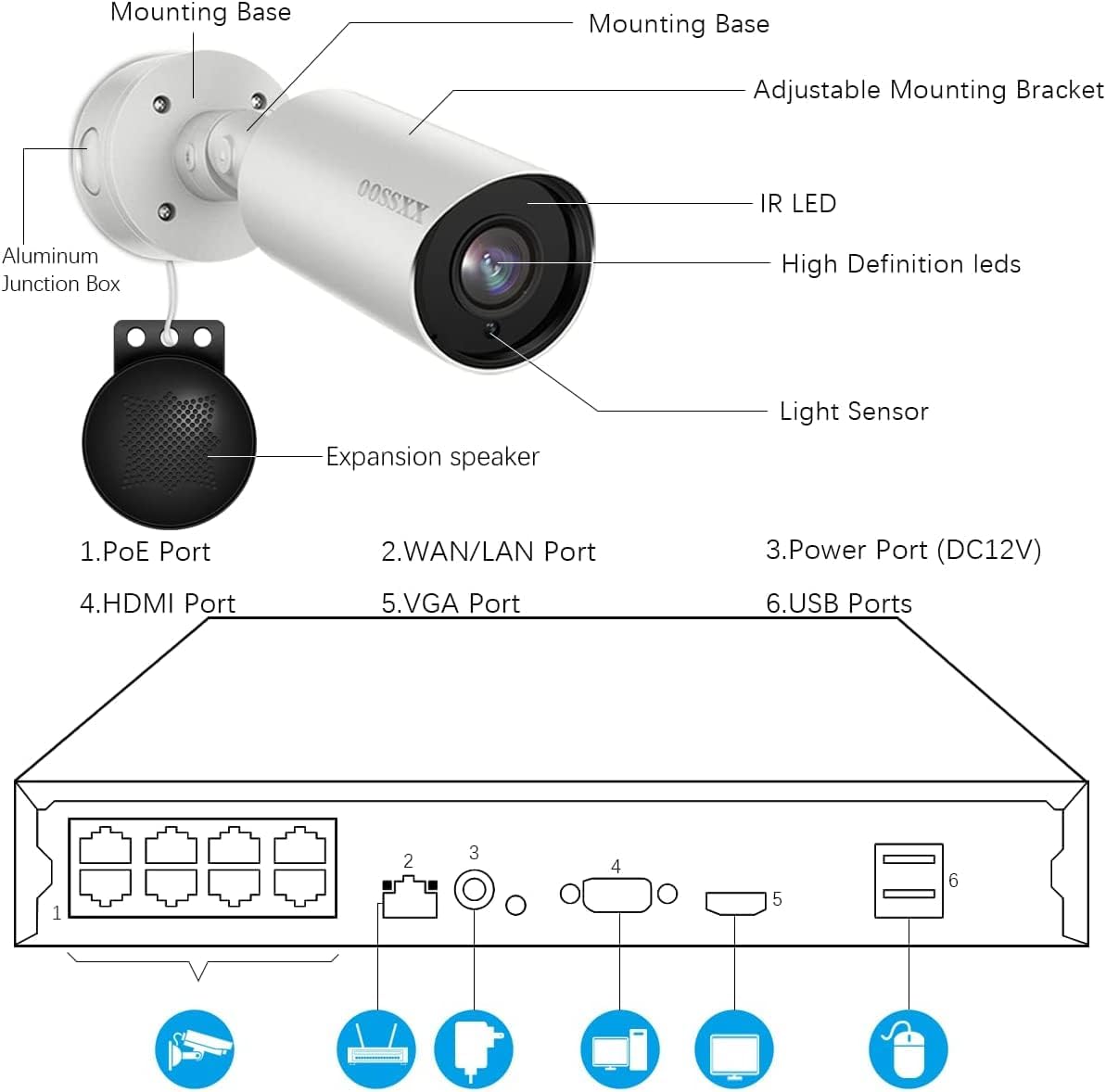
Image: Detailed diagram of the camera and NVR ports and components.
4.2 Installation Steps
- Mounting the Cameras:
Select appropriate indoor or outdoor locations for your cameras. Use the adjustable mounting bracket to secure the camera to a wall or ceiling. Ensure the camera has a clear field of view and is within range of the provided 60ft network cables.

Image: Examples of indoor and outdoor camera placement, demonstrating its waterproof feature and night vision.
- Connecting Cameras to NVR:
Connect each PoE camera to the PoE ports on the 8-Channel NVR using the provided 60ft network cables. The PoE (Power over Ethernet) system allows both power and video data to be transmitted through a single cable, simplifying wiring.
- Connecting NVR to Display:
Connect the NVR to a monitor or TV using an HDMI or VGA cable. This will allow you to view the live feed and configure system settings.
- Connecting NVR to Power:
Connect the 48V power supply to the NVR's power input. Once powered on, the system will initiate. Recording and live views should be visible on your connected monitor within seconds.

Image: Simple connection diagram for the OOSSXX system, showing camera to NVR, NVR to power and display, and remote access via mobile devices.
- Network Connection (Optional for Remote Access):
For remote viewing, connect the NVR's WAN/LAN port to your router using an Ethernet cable. This enables internet access for the system.
5. Operating the System
5.1 Initial Setup and Configuration
Upon first boot, follow the on-screen prompts to set up basic configurations such as date/time, network settings, and password for the NVR.
5.2 Live View
Once cameras are connected, the live feed from all active cameras will be displayed on the connected monitor. You can switch between single-camera view and multi-camera grid view.
5.3 Recording
The NVR comes with a pre-installed 2TB hard drive for continuous 24/7 recording. You can configure recording schedules (continuous, motion-triggered, or scheduled) via the NVR's menu.

Image: Display of 24/7 recording capability on a monitor connected to the NVR.
5.4 Remote Access via "Honestview" App
To access your security system remotely from your smartphone, PC, or tablet:
- Download the "Honestview" app from the App Store (iOS) or Play Store (Android).
- Register an account and log in.
- Add your NVR device to the app by scanning the QR code on the NVR or manually entering its ID.
- Once added, you can view live feeds, play back recorded footage, and utilize two-way audio from anywhere with an internet connection.

Image: Remote access and smart playback features demonstrated on various devices using the "Honestview" app.
5.5 Smart Motion Alerts
The system utilizes PIR and Smart AI Two-Way Detection to minimize false alarms. When an abnormal action is detected, you will receive real-time alerts via push notifications to your smartphone, email alerts, and an NVR buzzer sound.
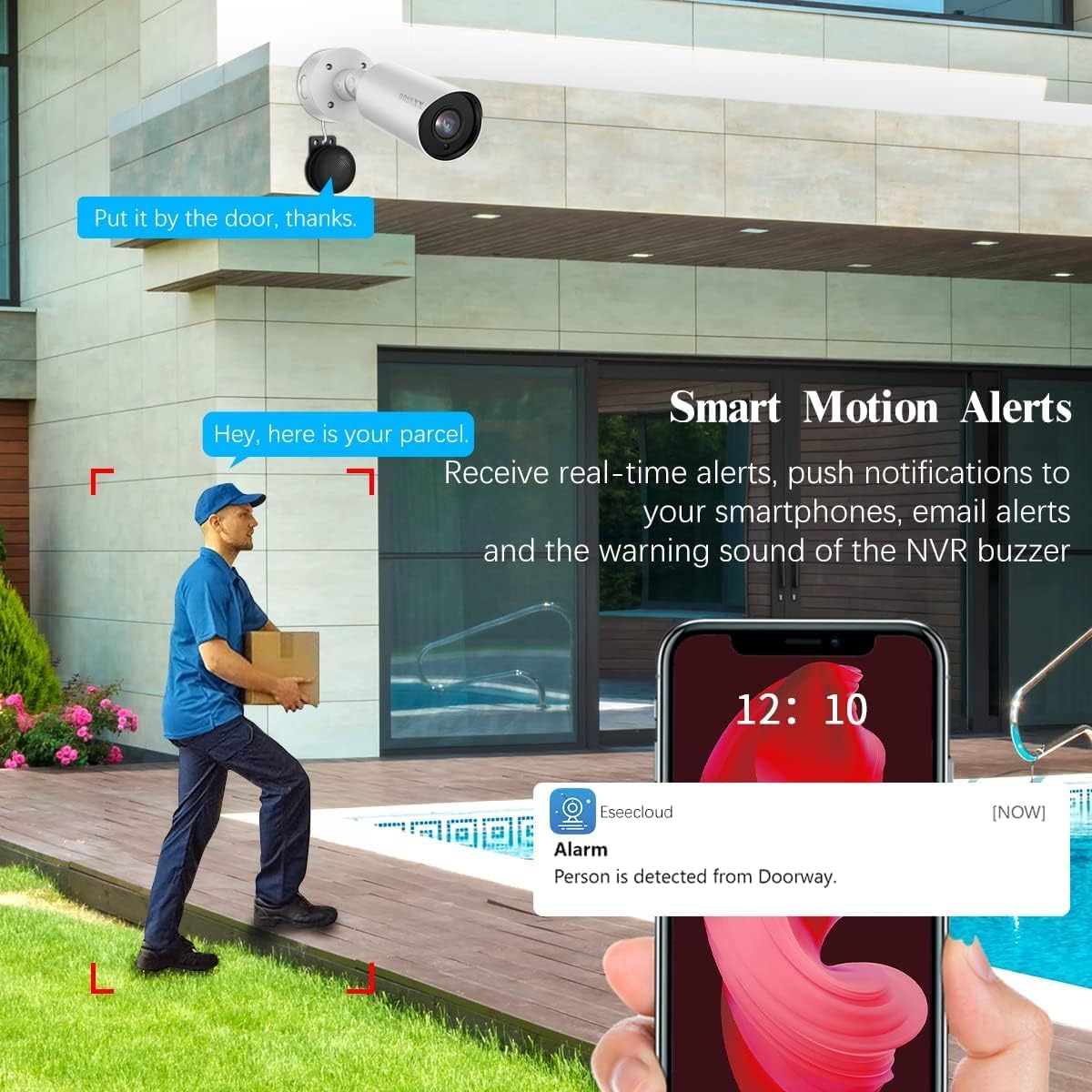
Image: Illustration of smart motion alerts, showing a notification on a smartphone when a person is detected.
6. Maintenance
- Camera Cleaning: Periodically clean the camera lenses with a soft, damp cloth to ensure clear image quality. Avoid abrasive cleaners.
- Firmware Updates: Check the OOSSXX official website or the "Honestview" app for available firmware updates for your NVR and cameras. Keeping firmware updated ensures optimal performance and security.
- Hard Drive Management: The 2TB hard drive provides ample storage. The H.265+ compression technology helps save space. If the hard drive becomes full, older footage will be overwritten automatically (loop recording). You can back up important footage to an external USB drive.
- Cable Inspection: Regularly inspect all cables for any signs of wear or damage, especially for outdoor installations, to prevent connectivity issues.
7. Troubleshooting
| Problem | Possible Cause | Solution |
|---|---|---|
| No video display on monitor. | NVR not powered on; HDMI/VGA cable loose or faulty; Monitor input not selected correctly. | Ensure NVR power adapter is connected and NVR is on. Check HDMI/VGA cable connections. Select correct input source on monitor. |
| Camera not showing video. | PoE cable disconnected or damaged; Camera faulty; NVR PoE port issue. | Check PoE cable connection at both camera and NVR ends. Try connecting the camera to a different PoE port. Ensure camera is receiving power (check indicator lights if any). |
| No remote access via app. | NVR not connected to internet; App not configured correctly; Network issues. | Ensure NVR is connected to your router via Ethernet cable. Verify network settings on NVR. Re-add device in "Honestview" app. Check your home internet connection. |
| Frequent false motion alerts. | Sensitivity too high; Environmental factors (trees, shadows, animals). | Adjust motion detection sensitivity settings in the NVR menu or app. Reposition camera to avoid areas with frequent non-human movement. |
| Two-way audio not working. | Microphone/speaker blocked; Volume settings too low; App permissions. | Ensure nothing is obstructing the camera's microphone or speaker. Check volume settings in the app. Grant microphone permissions to the "Honestview" app on your smartphone. |
8. Specifications
| Feature | Detail |
|---|---|
| Brand | OOSSXX |
| Model Number | 4-Cams 2TB |
| Connectivity Technology | Wired, IEEE 802.11at/af (PoE) |
| Video Capture Resolution | 8.0 Megapixel (3840 x 2160), 4K UHD 2160p |
| Special Features | Free APP, 2-Way Audio, PIR & Smart AI Two-Way Detected, IP67 Waterproof and Dustproof, 4K 8.0Megapixel Ultra HD |
| Number of Channels | 8 (NVR) |
| Memory Storage Capacity | 2 TB (Pre-installed HDD) |
| Color | White (Cameras) |
| Power Source | Corded Electric |
| Item Dimensions (L x W x H) | 11 x 7 x 13 inches (NVR) |
| Operating System | Linux |
| Recommended Uses | Outdoor / Indoor Surveillance Camera System |
| Compatible Devices | Personal Computers, TV, Tablets, Cameras, Laptops |
| Signal Format | Digital |
| Low Light Technology | Night Vision |
| Night Vision Range | 65 Feet |
| Frame Rate | 15 fps |
| Recording Mode | Schedule, Event |
| Optical Sensor Technology | CMOS |
| Total USB Ports | 2 |
| Hardware Interface | VGA, USB, HDMI |
| Lens Type | Wide Angle |
| Video Input | IP Camera Input |
| Viewing Angle | 90 Degrees |
| Item Weight | 7 pounds |

Image: Illustration of H.265+ compression efficiency, demonstrating significant storage savings.
9. Warranty and Support
For warranty information and technical support, please refer to the official OOSSXX website or contact their customer service. Keep your purchase receipt as proof of purchase for warranty claims.
Visit the OOSSXX Store: OOSSXX Official Store
Ask a question about this manual
Ask about setup, troubleshooting, compatibility, parts, safety, or missing instructions. Manuals+ will review the question and use this page’s manual context to help answer it.