
NOOX NOOX-C23USB
NOOX Wired 10-Key USB Keypad Number Pad
User Manual
Model: NOOX-C23USB | Brand: NOOX
1. Introduction and Overview
The NOOX Wired 10-Key USB Keypad Number Pad is designed to enhance data entry efficiency and convenience for users of laptops, PCs, and desktops, especially those without an integrated numeric keypad. Its compact and ergonomic design makes it an ideal accessory for various professional and personal computing environments.

Figure 1: The NOOX Wired 10-Key USB Keypad, showcasing its sleek black design and full numeric layout with function keys.
Key Features:
- Efficient Data Entry: Full-size 23-key layout for enhanced speed and accuracy, suitable for spreadsheets, accounting, and databases.
- Plug-and-Play Convenience: No drivers or software required; simply connect via USB.
- Ergonomic and Quiet: Features a slight ergonomic tilt and soft, quiet keys for comfortable, long work sessions.
- Portable and Lightweight: Slim design for easy transport, perfect for home, office, or travel.
- Wide Compatibility: Compatible with Windows 2000/XP/Vista/7/8/10/11+, Android, Chromebooks, and MacBooks (with adapter).
2. Setup
Setting up your NOOX Wired 10-Key USB Keypad is straightforward due to its plug-and-play design. No complex installation or software is needed.
Connecting the Keypad:
- Locate an available USB-A port on your computer (laptop, PC, desktop, Chromebook, etc.).
- Insert the USB connector of the NOOX keypad firmly into the USB-A port.
- Your operating system should automatically detect and install the necessary drivers. The keypad will be ready for use within seconds.
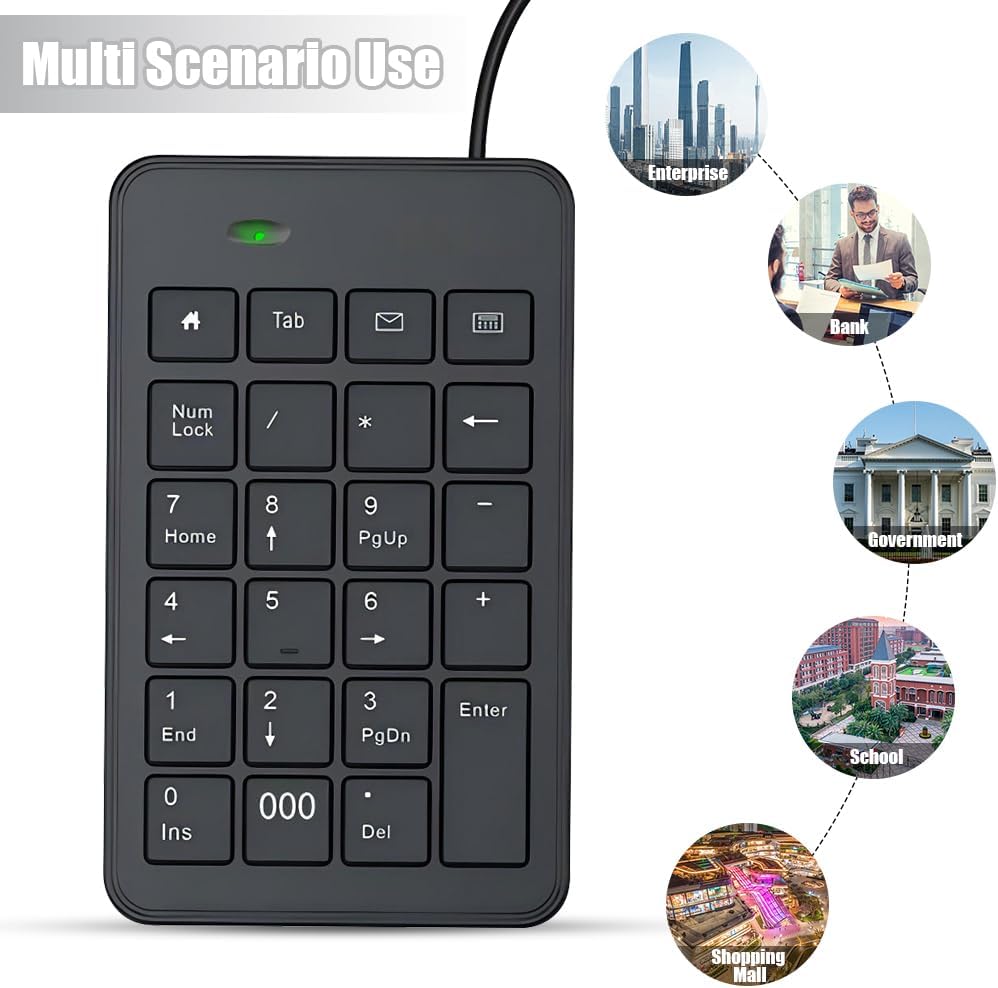
Figure 2: The USB connector of the keypad being plugged into a laptop's USB port, illustrating the simple plug-and-play setup.
Compatibility:
- Windows: Fully compatible with Windows 2000, XP, Vista, 7, 8, 10, and 11+.
- Android: Supports Android tablets and devices with USB OTG (On-The-Go) support and a USB-A port or adapter.
- Chromebooks: Fully compatible, providing efficient number input.
- MacBooks: Works with MacBook Air and MacBook Pro (M1, M2, Intel versions) when using a USB-C to USB-A adapter. Note: Numeric functions work, but hotkeys may not be fully supported.
3. Operating Instructions
The NOOX keypad functions like a standard numeric keypad, providing a comfortable and efficient way to input numerical data.
Basic Operation:
- Numeric Input: Use the number keys (0-9) for numerical data entry.
- Arithmetic Operations: Utilize the +, -, *, / keys for calculations.
- Enter Key: Functions as a standard Enter key.
- Num Lock: Press the "Num Lock" key on the keypad. The Num Lock indicator light should illuminate when active.
- Special Keys: Keys like "Tab", "Home", "End", "PgUp", "PgDn", "Ins", and "Del" provide additional functionality for navigation and editing.

Figure 3: A close-up view of the keypad's slim, notebook-style keys, highlighting the scissor-switch mechanism for quiet and responsive feedback.

Figure 4: An illustration demonstrating the silent and comfortable typing experience provided by the keypad's scissor-switch key design.

Figure 5: The keypad positioned next to a laptop, illustrating its utility as a "Good Office Helper" for efficient data entry.
4. Maintenance
To ensure the longevity and optimal performance of your NOOX Wired 10-Key USB Keypad, follow these simple maintenance guidelines:
- Cleaning: Use a soft, dry cloth to wipe down the surface of the keypad. For stubborn dirt, a slightly damp cloth with mild soap can be used, ensuring no liquid enters the keys or internal components.
- Avoid Liquids: Do not spill liquids on the keypad. If a spill occurs, immediately disconnect it from your computer and allow it to dry completely before reconnecting.
- Storage: When not in use, store the keypad in a clean, dry environment away from extreme temperatures and direct sunlight.
- Handling: Avoid dropping the keypad or subjecting it to excessive force, as this can damage internal components or keys.
5. Troubleshooting
If you encounter issues with your NOOX Wired 10-Key USB Keypad, try the following troubleshooting steps:
| Problem | Solution |
|---|---|
| Keypad is not responding. |
|
| Numbers are not typing, but other keys work. |
|
| Keypad is recognized but inputs are incorrect. |
|
6. Specifications
Detailed technical specifications for the NOOX Wired 10-Key USB Keypad:

Figure 6: A visual representation of the keypad's dimensions, highlighting its compact and portable size.
- Model Number: NOOX-C23USB
- Connectivity: Wired USB
- Number of Keys: 23
- Color: Black
- Dimensions (L x W x H): 7.48 x 4.45 x 1.14 inches
- Item Weight: 4.6 ounces
- Special Feature: Non-Slip Base (four rubberized feet)
- Included Components: 1 x USB Cable (integrated)
- Manufacturer: NOOX
7. Warranty and Support
NOOX stands behind the quality of its products. For specific warranty information, please refer to the product packaging or the official NOOX website. If you require technical assistance or have questions about your keypad, please contact NOOX customer support through their official channels.
For the latest support information and FAQs, visit the NOOX Store on Amazon.
Ask a question about this manual
Ask about setup, troubleshooting, compatibility, parts, safety, or missing instructions. Manuals+ will review the question and use this page’s manual context to help answer it.