
1. Introduction
This manual provides comprehensive instructions for the installation, operation, and maintenance of your VIKNAN Android Car Radio Upgrade Head Unit. This unit is designed to enhance your in-car entertainment and navigation experience, offering a high-definition touch screen with advanced features such as Android Auto, Apple CarPlay, GPS navigation, and robust multimedia capabilities. Please read this manual thoroughly before installation and use to ensure proper functionality and safety.
2. Safety Information
- Ensure the vehicle's engine is off and the battery is disconnected before beginning any installation procedures.
- Improper installation can lead to vehicle damage or personal injury. If you are unsure about any step, seek professional assistance.
- Do not operate the device in a manner that distracts you from driving. Always prioritize road safety.
- Keep the unit away from water, moisture, and extreme temperatures.
- Use only approved accessories and cables with this unit.
3. Package Contents
Verify that all items listed below are included in your package:
- VIKNAN Android Car Radio Upgrade Head Unit
- All necessary cable accessories
- Installation Manual
- Owner's Manual (this document)

Figure 3.1: Included components and cables for the head unit.
4. Setup and Installation
The VIKNAN Android Car Radio is designed for a plug-and-play installation, integrating seamlessly with your Mercedes Benz GL ML Class W164 X164 (2012-2015) dashboard. While the installation process is designed to be straightforward, professional installation is recommended if you are not familiar with car audio system wiring.
4.1 Pre-Installation Steps
- Disconnect Battery: Before starting, disconnect the negative terminal of your vehicle's battery to prevent electrical shorts.
- Remove Original Head Unit: Carefully remove the existing car radio and dashboard trim according to your vehicle's specific instructions.
4.2 Connecting the Unit
- Connect Wiring Harness: Connect the provided wiring harness to the vehicle's factory harness. Ensure all connections are secure.
- Connect GPS Antenna: Install the GPS antenna in a location with a clear view of the sky, typically on the dashboard or under the windshield.
- Connect USB Cables: Route the USB cables to an accessible location for connecting external devices.
- Connect Reverse Camera (Optional): If installing a reverse camera, connect its video and power cables to the designated inputs on the head unit.
4.3 Mounting the Unit
- Secure Head Unit: Carefully place the new Android head unit into the dashboard opening, ensuring all cables are properly routed and not pinched.
- Reinstall Trim: Reattach any removed dashboard trim pieces.
4.4 Post-Installation
- Reconnect Battery: Reconnect the negative terminal of the vehicle's battery.
- Test Functionality: Turn on the vehicle and test all functions of the head unit, including audio, navigation, Bluetooth, and steering wheel controls.
5. Operating Instructions
Your VIKNAN Android Car Radio features an intuitive touch screen interface. Below are instructions for key functions.
5.1 Android Auto and Apple CarPlay
The unit supports both wired and wireless Android Auto and Apple CarPlay. This allows you to mirror your smartphone's content onto the screen, accessing navigation, music, messages, and calls safely.
- Connection: Connect your Android phone or iPhone via USB cable or wirelessly via Bluetooth/Wi-Fi.
- Activation: Once connected, the Android Auto or Apple CarPlay interface will automatically launch or can be selected from the main menu.
- Usage: Use the smart voice assistant or touch the display to navigate, make calls, send messages, and enjoy music.

Figure 5.1: Apple CarPlay interface displayed on the head unit.
5.2 GPS Navigation
The head unit includes a built-in GPS navigation module, supporting both online and offline maps for accurate positioning.
- Access Navigation: Tap the "Navi" icon on the main screen to open the navigation application.
- Map Selection: Choose between pre-installed offline maps or download online maps using Wi-Fi or 4G connectivity.
- Route Planning: Enter your destination to receive turn-by-turn directions and real-time traffic updates (if using online maps).
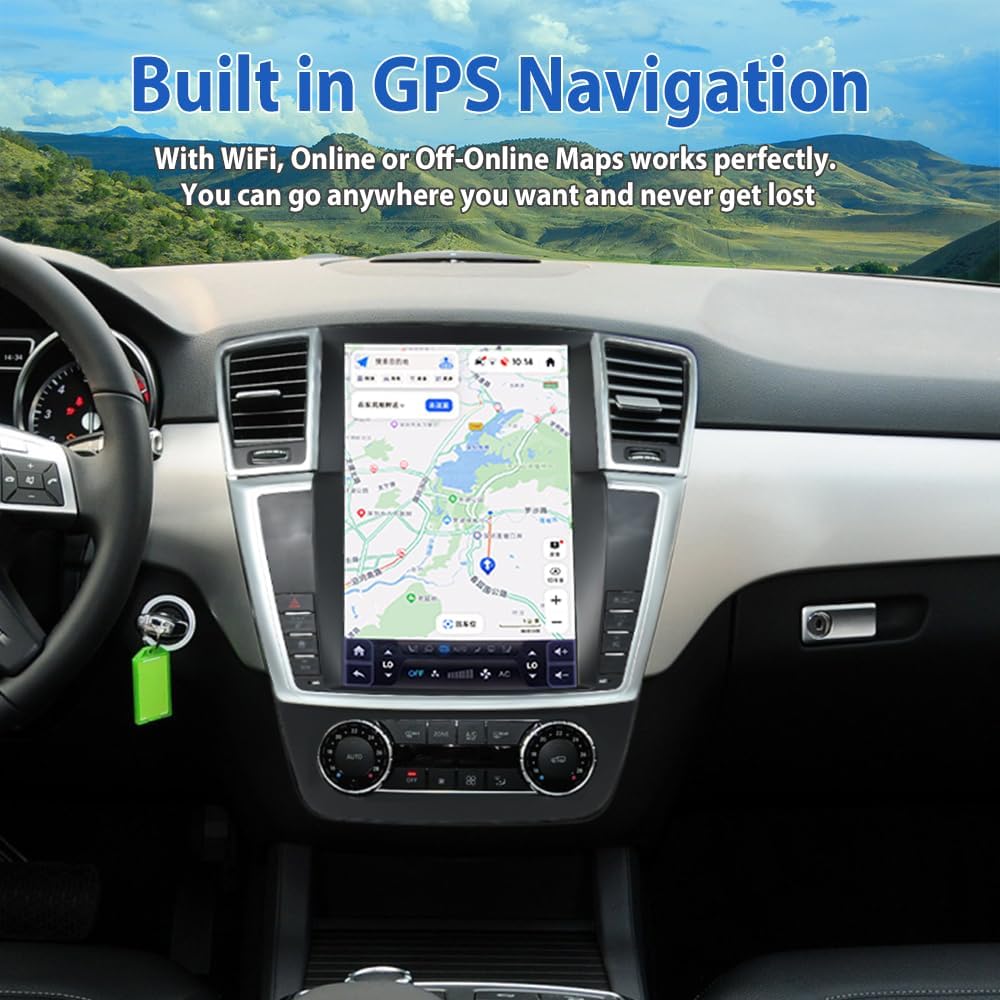
Figure 5.2: GPS navigation map displayed on the head unit.
5.3 Bluetooth Connectivity
Connect your mobile phone via Bluetooth for hands-free calling and audio streaming.
- Enable Bluetooth: Go to "Settings" and enable Bluetooth on the head unit.
- Pair Device: On your mobile phone, search for available Bluetooth devices and select the head unit (e.g., "VIKNAN Car Audio"). Confirm the pairing code if prompted.
- Functions: Once paired, you can make/receive calls, access your phonebook, and stream music directly to the car's speakers.

Figure 5.3: Bluetooth music playback screen on the head unit.
5.4 Multimedia Playback
The 12-inch high-definition touch screen (1920*1200 resolution) supports various multimedia formats, including 4K video decoding.
- Audio/Video Files: Play audio and video files from USB drives or internal storage.
- Streaming Apps: Download and use streaming applications from the Play Store (e.g., YouTube, Netflix) via Wi-Fi or 4G.
5.5 Other Functions
- Steering Wheel Control: The unit supports original steering wheel controls for convenient operation.
- Reverse Camera/360 Camera: Supports original and aftermarket reverse cameras, including 360-degree camera systems and parking sensors.
- External Devices: Compatibility with car DVR, external TV, TPMS (Tire Pressure Monitoring System), and OBD (On-Board Diagnostics) devices.
6. Maintenance
- Cleaning the Screen: Use a soft, lint-free cloth to gently wipe the touch screen. Avoid abrasive cleaners or solvents.
- Software Updates: Periodically check for software updates to ensure optimal performance and access to new features.
- General Care: Avoid exposing the unit to direct sunlight for extended periods or extreme temperatures.
7. Troubleshooting
If you encounter issues with your head unit, refer to the following common solutions:
- No Power: Check all power connections and ensure the vehicle's battery is properly connected. Verify fuses.
- No Sound: Check speaker connections, volume settings, and ensure the correct audio source is selected.
- GPS Signal Loss: Ensure the GPS antenna has a clear view of the sky and is securely connected.
- Bluetooth Connection Issues: Ensure Bluetooth is enabled on both devices and try re-pairing. Clear previous pairings if necessary.
- Touch Screen Unresponsive: Try restarting the unit. If the issue persists, a factory reset might be necessary (consult customer support before performing a factory reset).
For persistent issues or complex problems, please contact VIKNAN customer service.
8. Specifications
| Item Weight | 7.83 pounds |
| Product Dimensions | 5 x 7 x 9 inches |
| Display Size | 12.3 Inches |
| Screen Resolution | 1920*1200 |
| Operating System | Android |
| Connectivity Technology | Wi-Fi, Bluetooth, 4G SIM card |
| Special Features | Android Auto, Apple CarPlay, GPS Navigation, Touchscreen |
| Vehicle Service Type | Car (Mercedes Benz GL ML Class W164 X164 2012-2015) |
| Included Components | Owner's Manual, Cable accessories |
9. Warranty and Support
Your VIKNAN Android Car Radio Upgrade Head Unit comes with a 1-year warranty from the date of purchase.
For any questions during installation or operation, or for technical support, please contact VIKNAN customer service:
- Email: viknan007@outlook.com
- Support: Lifetime technical support
- Response Time: 24 hours quick response
Installation manuals and videos may also be available upon request or through our support channels.