
FASTWD T181-EEA
FASTWD 14-inch Android 14 Tablet User Manual
Model: T181-EEA
1. Introduction
Welcome to the user manual for your new FASTWD 14-inch Android 14 Tablet. This guide provides essential information on setting up, operating, maintaining, and troubleshooting your device. Please read this manual thoroughly to ensure optimal performance and longevity of your tablet.
1.1 Package Contents
- FASTWD 14-inch Android 14 Tablet (Model T181-EEA)
- Power Adapter
- USB-C Charging Cable
- Stylus
- Protective Case
- Quick Start Guide

Image 1.1: FASTWD 14-inch Android 14 Tablet overview.
2. Initial Setup
2.1 Charging the Tablet
Before first use, fully charge your tablet. Connect the USB-C charging cable to the tablet's charging port and the power adapter to a wall outlet. The battery indicator on the screen will show charging progress. A full charge typically takes several hours.

Image 2.1: Tablet charging and battery life indicators.
2.2 Powering On/Off
- To Power On: Press and hold the Power button located on the side of the tablet until the FASTWD logo appears.
- To Power Off: Press and hold the Power button until the power options menu appears. Select 'Power off' and confirm.
- To Restart: From the power options menu, select 'Restart'.
2.3 Initial Configuration
Upon first power-on, follow the on-screen prompts to set up your tablet:
- Select your preferred language.
- Connect to a Wi-Fi network.
- Sign in with your Google account or create a new one. This is necessary to download apps from the Google Play Store.
- Review and accept the terms and conditions.
- Set up screen lock (PIN, pattern, or password).
3. Operating Your Tablet
3.1 Touchscreen Gestures
- Tap: Select an item or open an application.
- Touch and Hold: Access contextual menus or move items.
- Swipe: Navigate through screens or scroll content.
- Pinch-to-Zoom: Zoom in or out on images and web pages.
3.2 Navigation
The Android 14 operating system provides intuitive navigation:
- Home Button: Returns to the home screen.
- Back Button: Returns to the previous screen.
- Recent Apps Button: Displays recently used applications for quick switching.

Image 3.1: Android 14 interface with key features.
3.3 Connectivity
- Wi-Fi: Connect to wireless networks for internet access. Supports 5G WiFi (802.11ac) for faster speeds. Go to Settings > Network & internet > Wi-Fi.
- Bluetooth 5.0: Pair with wireless headphones, speakers, or other Bluetooth devices. Go to Settings > Connected devices > Connection preferences > Bluetooth.
- GPS: Utilize the built-in GPS for navigation and location-based services.
3.4 Camera Functions
Your tablet is equipped with an 8MP front camera and a 13MP rear camera.
- Open the Camera app from the home screen or app drawer.
- Switch between front and rear cameras using the icon on the screen.
- Tap to focus and press the shutter button to capture photos or videos.
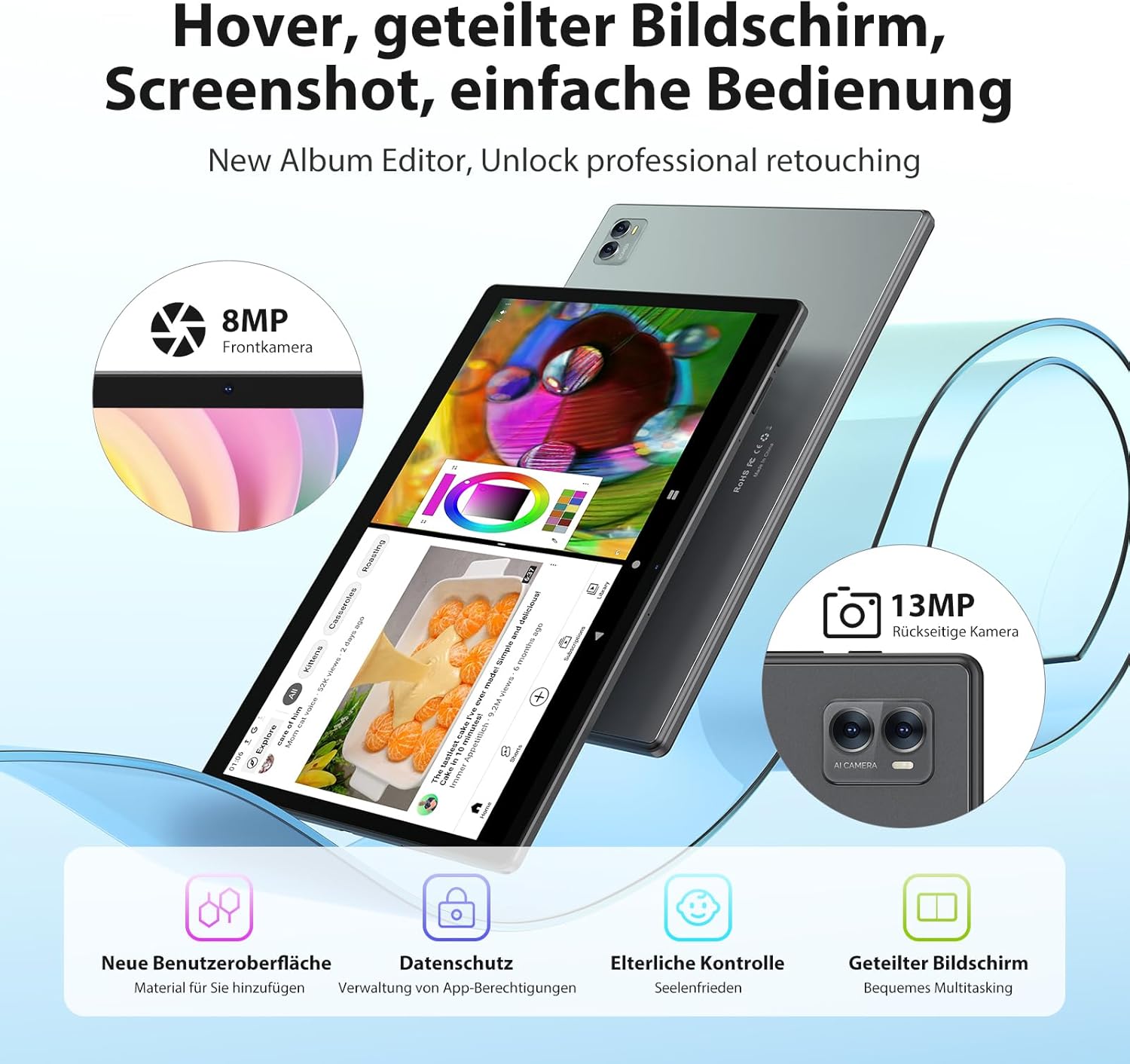
Image 3.2: Camera specifications and split-screen functionality.
3.5 Storage Management
The tablet comes with 256GB of internal storage. You can expand this up to 1TB using a TF (microSD) card. Insert the TF card into the designated slot on the side of the tablet.
3.6 Split-Screen Multitasking
Android 14 supports split-screen mode, allowing you to use two applications simultaneously. To activate:
- Open the first app.
- Tap the Recent Apps button.
- Touch and hold the app icon at the top of the app's preview.
- Select 'Split screen' and choose the second app.
3.7 Display Features
The 14.1-inch display features a 2000x1200 HD resolution. It also incorporates anti-glare technology and a blue light filter to reduce eye strain.

Image 3.3: Blue light blocking and anti-glare display.
4. Maintenance
4.1 Battery Care
- Avoid fully discharging the battery frequently.
- Do not expose the tablet to extreme temperatures (hot or cold).
- Use only the provided charger and cable.
4.2 Cleaning
- Use a soft, lint-free cloth to clean the screen and body.
- For stubborn smudges, slightly dampen the cloth with water or a screen cleaner.
- Avoid using harsh chemicals or abrasive materials.
4.3 Software Updates
Regularly check for and install software updates to ensure your tablet has the latest features, security patches, and performance improvements. Go to Settings > System > System update.
5. Troubleshooting
5.1 Tablet Not Turning On
- Ensure the battery is charged. Connect the charger and wait a few minutes before attempting to power on.
- Perform a forced restart by holding the Power button for 10-15 seconds.
5.2 Wi-Fi Connection Issues
- Toggle Wi-Fi off and on in Settings.
- Restart your Wi-Fi router.
- Forget the network and reconnect by re-entering the password.
5.3 Slow Performance
- Close unnecessary background applications.
- Clear cache for frequently used apps (Settings > Apps > [App Name] > Storage & cache > Clear cache).
- Restart the tablet.
- Ensure sufficient free storage space.
5.4 Battery Draining Quickly
- Reduce screen brightness.
- Disable Wi-Fi, Bluetooth, and GPS when not in use.
- Identify and close power-intensive applications.
- Check for system updates.
6. Technical Specifications
| Feature | Specification |
|---|---|
| Model Number | T181-EEA |
| Display Size | 14.1 Inches |
| Screen Resolution | 2000x1200 HD |
| Processor | Octa-Core ARM, 2 GHz |
| RAM | 36GB (12GB physical + 24GB virtual) |
| Internal Storage | 256GB ROM |
| Expandable Storage | Up to 1TB via TF Card |
| Operating System | Android 14 |
| Battery Capacity | 11580mAh |
| Average Battery Life | 8 Hours |
| Rear Camera | 13MP |
| Front Camera | 8MP |
| Wi-Fi | 5G WiFi (802.11ac) |
| Bluetooth | Bluetooth 5.0 |
| GPS | Integrated GPS |
| GMS Certified | Yes |
| Dimensions | 41.5 x 25 x 4 cm |
| Item Weight | 2.09 Kilograms |

Image 6.1: Key features and specifications overview.
7. Warranty and Support
For warranty information, please refer to the warranty card included in your product packaging or contact your retailer. For technical support or service inquiries, please reach out to the FASTWD customer support team through the contact information provided with your purchase or on the official FASTWD website.
Related documentsT181-EEA

Ask a question about this manual
Ask about setup, troubleshooting, compatibility, parts, safety, or missing instructions. Manuals+ will review the question and use this page’s manual context to help answer it.