
1. Introduction
This manual provides essential information for the installation, operation, maintenance, and troubleshooting of your Generic DDR4 SDRAM 8GB 288-UDIMM memory module. Please read this manual thoroughly before installation to ensure proper function and to prevent damage to the module or your system.
The DDR4 SDRAM 8GB 288-UDIMM is a high-performance memory module designed to enhance the speed and efficiency of compatible desktop computer systems. It features 8GB of capacity and operates at a transfer rate of 2666 MT/s.
2. Safety Information
- Always disconnect the power from your computer before opening the case or handling internal components.
- Wear an anti-static wrist strap or frequently touch a grounded metal object (like the unpainted metal chassis of your computer) to discharge static electricity before handling the memory module. Static discharge can damage electronic components.
- Handle the memory module by its edges only. Avoid touching the gold connector pins or the integrated circuit chips.
- Keep the memory module away from liquids and extreme temperatures.
- Ensure proper ventilation around your computer system to prevent overheating.
3. Package Contents
Your package should contain the following item:
- 1x Generic DDR4 SDRAM 8GB 288-UDIMM Memory Module
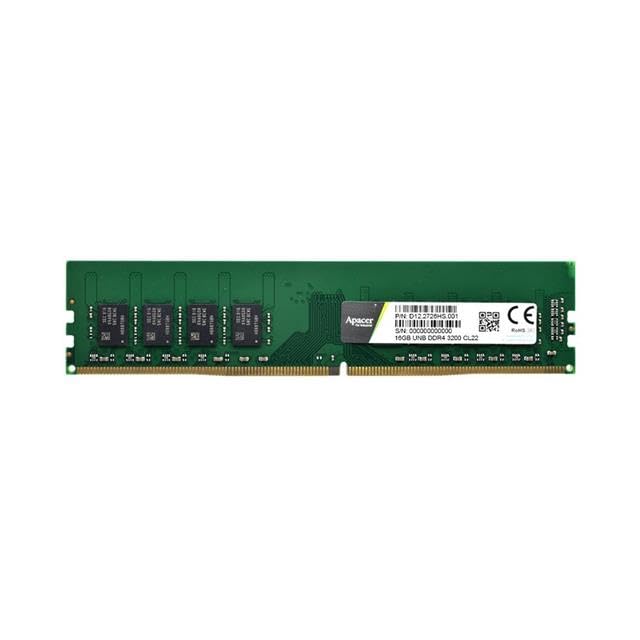
Image: The Generic DDR4 SDRAM 8GB 288-UDIMM Memory Module, showing its typical form factor and components.
4. Setup and Installation
Follow these steps carefully to install your new memory module:
- Prepare Your System: Shut down your computer completely and disconnect the power cord from the wall outlet. Press the power button a few times to drain any residual power.
- Open the Computer Case: Remove the side panel of your computer case to access the motherboard. Refer to your computer's or motherboard's manual for specific instructions on how to open the case.
- Locate DIMM Slots: Identify the DDR4 DIMM slots on your motherboard. These are typically long slots with clips on either end. Note the existing memory configuration if you are adding to or replacing modules.
- Release Clips: Gently push the clips at both ends of the DIMM slot outwards to open them.
- Align the Module: Hold the memory module by its edges. Align the notch on the bottom edge of the module with the key in the DIMM slot. DDR4 modules have a single notch that is offset from the center. Do not force the module if it does not align.
- Insert the Module: With the module correctly aligned, place it into the slot and press down firmly and evenly on both ends of the module until the clips snap into place. You should hear a click as the clips secure the module.
- Verify Installation: Ensure both clips are fully engaged and the module is seated securely and evenly in the slot.
- Close the Case: Replace the computer's side panel and reconnect the power cord.
- Power On: Turn on your computer. The system should automatically detect the new memory.
Image: Illustrative diagram of a memory module being inserted into a DIMM slot on a motherboard. Note: This image is a placeholder for a specific installation diagram.
5. Operating
Once installed, the DDR4 SDRAM 8GB 288-UDIMM memory module operates automatically with your computer's operating system. No specific software installation is required for the memory module itself.
Upon first boot after installation, your system's BIOS/UEFI may take a moment longer to initialize as it detects the new memory configuration. You can verify the installed memory in your system's BIOS/UEFI settings or through your operating system's system information utility (e.g., Task Manager in Windows, About This Mac in macOS, or free -h command in Linux).
6. Maintenance
Memory modules generally require minimal maintenance. To ensure optimal performance and longevity:
- Keep Clean: Periodically clean the interior of your computer case to prevent dust buildup, which can impede airflow and lead to overheating. Use compressed air to gently remove dust from components, including around the memory modules.
- Environmental Control: Operate your computer in a clean, dry environment with stable temperatures. Avoid extreme heat or cold, and high humidity.
- Physical Handling: Avoid unnecessary removal or reinstallation of the memory module once it is properly seated, as repeated handling increases the risk of static discharge or physical damage.
7. Troubleshooting
If you encounter issues after installing the memory module, consider the following troubleshooting steps:
- System Does Not Boot or No Display:
- Ensure the memory module is fully seated in its slot. Gently press down on both ends until the clips snap into place.
- Try reseating the module in a different DIMM slot if available.
- If installing multiple modules, try installing one module at a time to identify a potentially faulty module or slot.
- Verify that your motherboard supports DDR4 memory and the specific speed (2666 MT/s) and capacity (8GB) of the module. Consult your motherboard's manual.
- System Boots but Shows Incorrect Memory Amount:
- Check your system's BIOS/UEFI settings to confirm the detected memory.
- Ensure your operating system is 64-bit, as 32-bit operating systems cannot fully utilize more than 4GB of RAM.
- Update your motherboard's BIOS/UEFI to the latest version, as this can improve memory compatibility and detection.
- System Instability or Blue Screens (BSODs):
- Run a memory diagnostic tool (e.g., Windows Memory Diagnostic, MemTest86) to check for errors.
- Ensure the memory module is compatible with your existing modules if you are mixing brands or models. It is generally recommended to use identical modules for best stability.
8. Specifications
| Feature | Specification |
|---|---|
| Memory Type | DDR4 SDRAM |
| Memory Size | 8GB |
| Form Factor | 288-pin UDIMM |
| Transfer Rate | 2666 MT/s (MHz) |
| Brand | Generic |
| Manufacturer | Apacer |
9. Warranty and Support
This Generic DDR4 SDRAM 8GB 288-UDIMM memory module is typically covered by a manufacturer's warranty against defects in materials and workmanship. Please refer to the specific warranty terms provided at the point of purchase or contact the seller for detailed information regarding warranty duration and claims procedures.
For technical support or further assistance, please contact the retailer or manufacturer through their official support channels. When contacting support, please have your product model number (DDR4 SDRAM 8GB 288-UDIMM) and purchase information readily available.