
1. Introduction
Thank you for choosing the Tongtion Wireless HDMI Transmitter and Receiver Kit. This device allows you to wirelessly transmit high-definition video and audio signals from your source device to a display, eliminating the need for long HDMI cables. It supports 1080P@60Hz resolution, operates on dual 2.4G/5G bands, and offers a plug-and-play experience for various applications, including home entertainment and office presentations.
2. Safety Information
- Do not expose the device to moisture, extreme temperatures, or direct sunlight.
- Avoid disassembling or modifying the device, as this will void the warranty and may cause damage.
- Use only the provided power cables and adapters.
- Ensure proper ventilation to prevent overheating.
- Keep out of reach of children.
3. Package Contents
Please check the package contents to ensure all items are present:
- 1x HDMI Transmitter (TX)
- 1x HDMI Receiver (RX)
- 1x USB Type-C to HDMI Adapter (supports max 4K input)
- 1x Mini HDMI Adapter
- 1x Micro HDMI Adapter
- 2x USB Type-C Power Cables
- 1x User Manual

Image: Contents of the Tongtion Wireless HDMI Transmitter and Receiver Kit, including the transmitter, receiver, various adapters, and cables.
4. Product Overview
The Tongtion Wireless HDMI Kit consists of a Transmitter (TX) and a Receiver (RX). Both units are compact and designed for ease of use.
4.1 Transmitter (TX)
The Transmitter connects to your source device (e.g., laptop, PC, game console). It features an HDMI output and a USB-C port for power. For laptops manufactured after 2022, the transmitter may draw power directly from the HDMI port, eliminating the need for a separate power cable.
4.2 Receiver (RX)
The Receiver connects to your display device (e.g., TV, projector, monitor). It has an HDMI input and a USB-C port for power. The receiver typically requires external power via the USB-C cable.

Image: Front view of the Tongtion Wireless HDMI Transmitter and Receiver units.

Image: Side view of the Tongtion Wireless HDMI Transmitter and Receiver, highlighting the HDMI and USB-C ports.
5. Setup Instructions
Follow these steps for a quick and easy setup:
- Connect the Receiver (RX) to your Display: Plug the HDMI end of the Receiver into an available HDMI port on your TV, projector, or monitor. Connect the USB-C power cable to the Receiver and then to a USB power source (e.g., TV's USB port, USB wall adapter).
- Connect the Transmitter (TX) to your Source Device: Plug the HDMI end of the Transmitter into the HDMI output port of your laptop, PC, game console, or other source device. If your source device is a laptop manufactured after 2022, it may power the transmitter directly. Otherwise, connect the USB-C power cable to the Transmitter and then to a USB power source.
- Power On Devices: Ensure both your source device and display device are powered on.
- Automatic Pairing: The Transmitter and Receiver are pre-paired from the factory. They should automatically connect within a few seconds. The display will show the content from your source device.
- Using Adapters: For devices with Mini HDMI, Micro HDMI, or USB Type-C video output, use the included adapters to connect the Transmitter.

Image: Diagram illustrating the simple plug-and-play connection of the Transmitter to a laptop and the Receiver to a TV.
Image: Visual representation of compatible source devices (laptop, TV box, PC, phone/touch screen, camera) with the Transmitter, and compatible display devices (projector, display, TV) with the Receiver.
Video: A demonstration of the Tongtion Wireless HDMI Transmitter and Receiver setup, highlighting its plug-and-play functionality, dual-band support, and compatibility with various devices and display modes.
6. Operating Instructions
6.1 Display Modes (Mirror/Extend)
The system supports both Mirror Mode and Extend Mode, depending on your operating system settings:
- Mirror Mode: The display shows the exact same content as your source device's screen. This is ideal for presentations or sharing content directly.
- Extend Mode: The display acts as a secondary monitor, extending your desktop. This allows you to have different content on your source device and the external display, improving multitasking.
To switch between modes, adjust the display settings on your source device (e.g., Windows Display Settings, macOS System Settings > Displays).

Image: Illustration showing a laptop connected to a large screen, demonstrating both Mirror Mode (duplicate display) and Extend Mode (extended desktop).
6.2 Multiple Transmitters (Optional)
The system supports connecting up to 4 Transmitters (TX) to 1 Receiver (RX). To switch the video signal from another transmitter, simply press the button on that transmitter to initiate the switch.

Image: A meeting room setup showing multiple laptops connected via transmitters to a single receiver, displaying content on a large screen.
6.3 Transmission Range and Performance
The device offers a transmission range of up to 30 meters (98 feet) in an open environment. Performance may vary based on environmental factors:
- Obstacles such as walls, furniture, or other electronic devices can reduce the transmission distance and signal quality.
- Interference from other wireless devices (e.g., Wi-Fi routers, Bluetooth devices) operating on the 2.4G or 5G bands can affect performance.
- For optimal performance, ensure a clear line of sight between the Transmitter and Receiver.
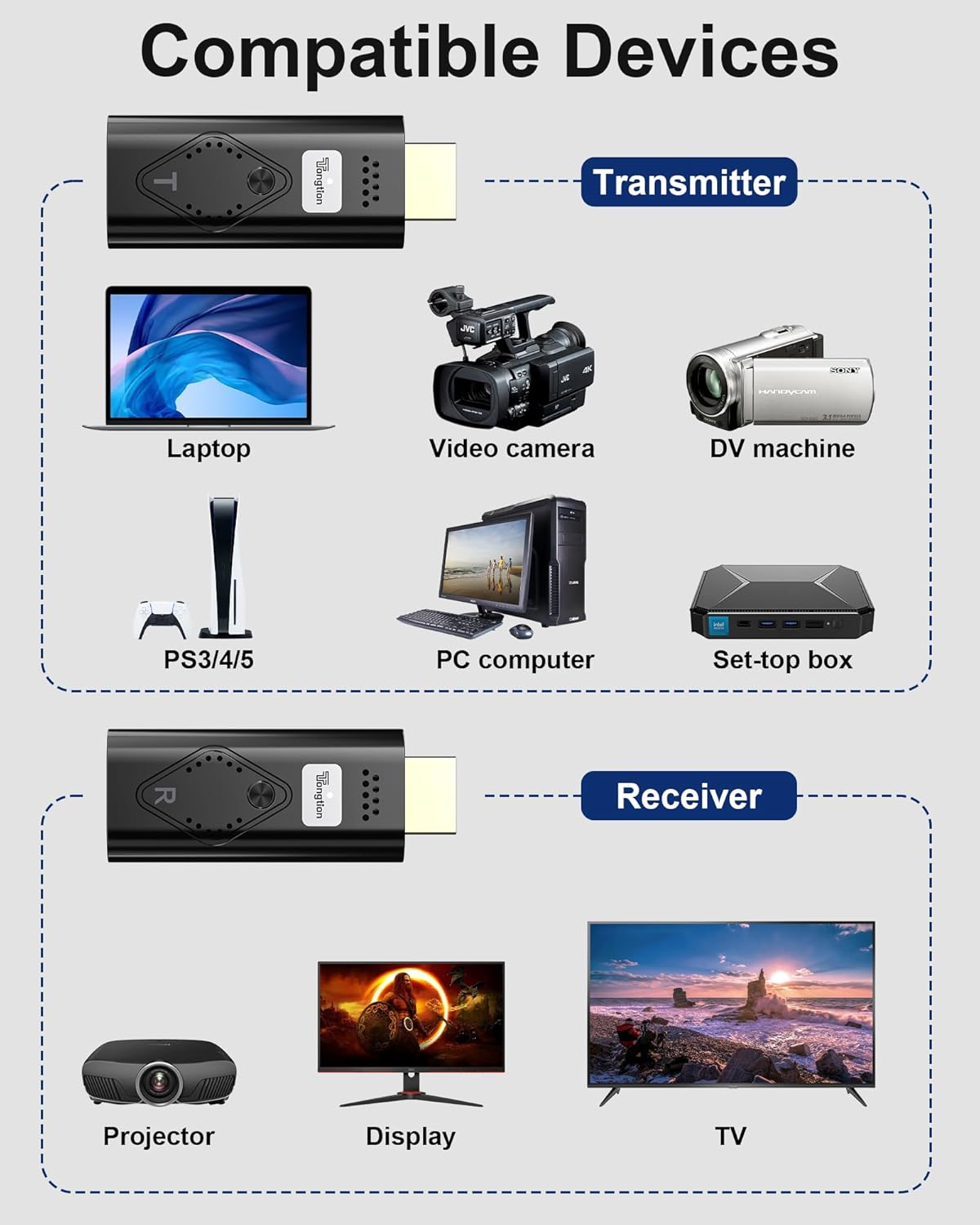
Image: A visual representation of the wireless transmission range, showing a laptop (TX) transmitting to a projector (RX) across a distance of 30 meters (98 feet) with low latency.
7. Specifications
| Feature | Description |
|---|---|
| Brand | Tongtion |
| Model | Wireless HDMI Transmitter & Receiver Kit |
| Color | Black |
| Resolution Support | Input up to 4K, Output 1080P@60Hz |
| Wireless Frequency | 2.4G/5G Dual Band |
| Transmission Distance | Up to 30m (98ft) in open environment |
| Latency | <0.1 seconds |
| HDCP Support | HDCP1.2 Certified |
| Compatible Devices (Source) | Laptop, PC, Game Consoles (PS3/4/5), Blu-ray Players, Smartphones, Tablets, Video Cameras, Set-top boxes |
| Compatible Devices (Display) | Television, Projector, Monitor |
| Ports | HDMI, USB Type-C (for power) |
| Included Adapters | USB Type-C to HDMI (max 4K), Mini HDMI, Micro HDMI (max 8K) |
8. Troubleshooting
If you encounter issues, please refer to the following common solutions:
- No Signal on Display:
- Ensure both Transmitter (TX) and Receiver (RX) are properly connected and powered.
- Verify that the HDMI input on your display is set to the correct port where the Receiver is connected.
- Check all cable connections for looseness.
- Try restarting both the source device and the display.
- Poor Video/Audio Quality or Intermittent Signal:
- Reduce the distance between the Transmitter and Receiver.
- Remove any obstacles (walls, large furniture) between the units.
- Minimize interference from other wireless devices by moving them further away.
- Ensure both units are receiving adequate power.
- Transmitter Not Powering On (for laptops):
- If your laptop is older than 2022, it may not provide sufficient power via HDMI. Connect the USB-C power cable to the Transmitter.
- Ensure the USB-C power cable is connected to a reliable power source.
- Cannot Switch Between Multiple Transmitters:
- Ensure all Transmitters are powered on and within range of the Receiver.
- Press the button on the desired Transmitter firmly to initiate the switch.
9. Maintenance
To ensure the longevity and optimal performance of your device:
- Clean the device with a soft, dry cloth. Do not use liquid cleaners or aerosols.
- Store the device in a cool, dry place when not in use.
- Avoid dropping or subjecting the device to strong impacts.
10. Warranty and Support
Tongtion products come with a standard manufacturer's warranty. For detailed warranty information, technical support, or customer service, please refer to the contact information provided on the product packaging or the official Tongtion website. Please retain your proof of purchase for warranty claims.