
Introduction
This user manual provides detailed instructions for the Generic Wireless Headset with Mic, Model BT881C-D-BG. Designed for optimal performance in various professional and personal settings, this headset features Bluetooth 5.3 technology, AI noise-cancelling microphone, and dual device connectivity. Please read this manual thoroughly to ensure proper use and maintenance of your device.
Package Contents
Please verify that all items listed below are included in your package:
- Single-ear Headset
- Charging Station
- Type-C Charging Cable
- User Manual
- USB Dongle

Image: The complete package contents of the wireless headset, showing the headset, charging station, USB dongle, Type-C cable, and user manual.
Product Overview
Familiarize yourself with the various components of your wireless headset:
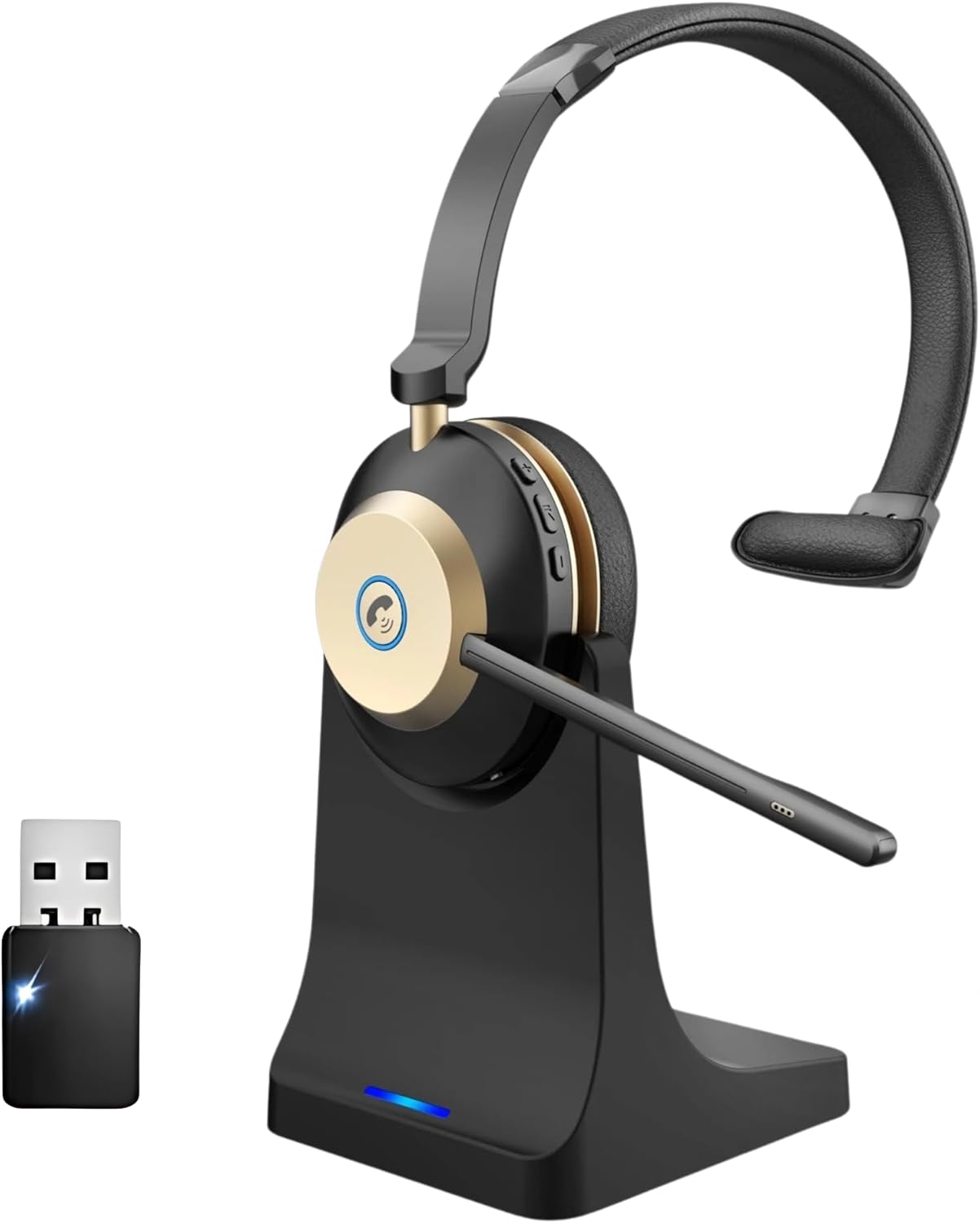
Image: Front view of the headset on its charging station with the USB dongle.

Image: Side profile of the headset, showing the earcup and adjustable microphone boom.

Image: Detailed view of the earcup and microphone, indicating control buttons.
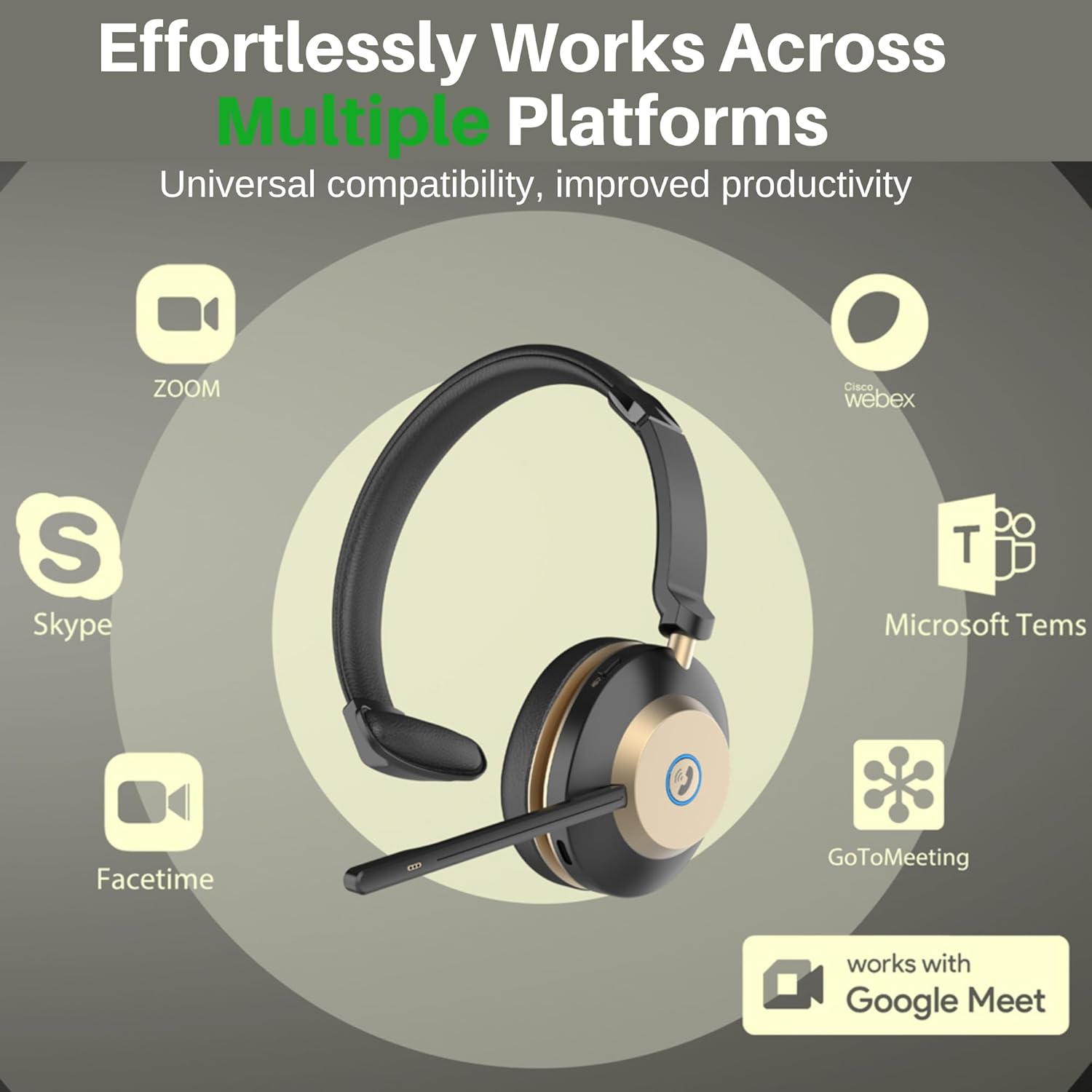
Image: A close-up of the dedicated mute button located on the headset.
Setup
Charging the Headset
Before first use, fully charge the headset. You can charge it using the provided Type-C cable or by placing it on the charging station.
- Connect the Type-C cable to the headset's charging port or place the headset securely on the charging station.
- Connect the other end of the cable to a USB power source (e.g., computer USB port, wall adapter).
- The charging indicator light will illuminate. A full charge takes approximately 2 hours.
- A full charge provides over 45 hours of talk time and 200+ hours of standby time.
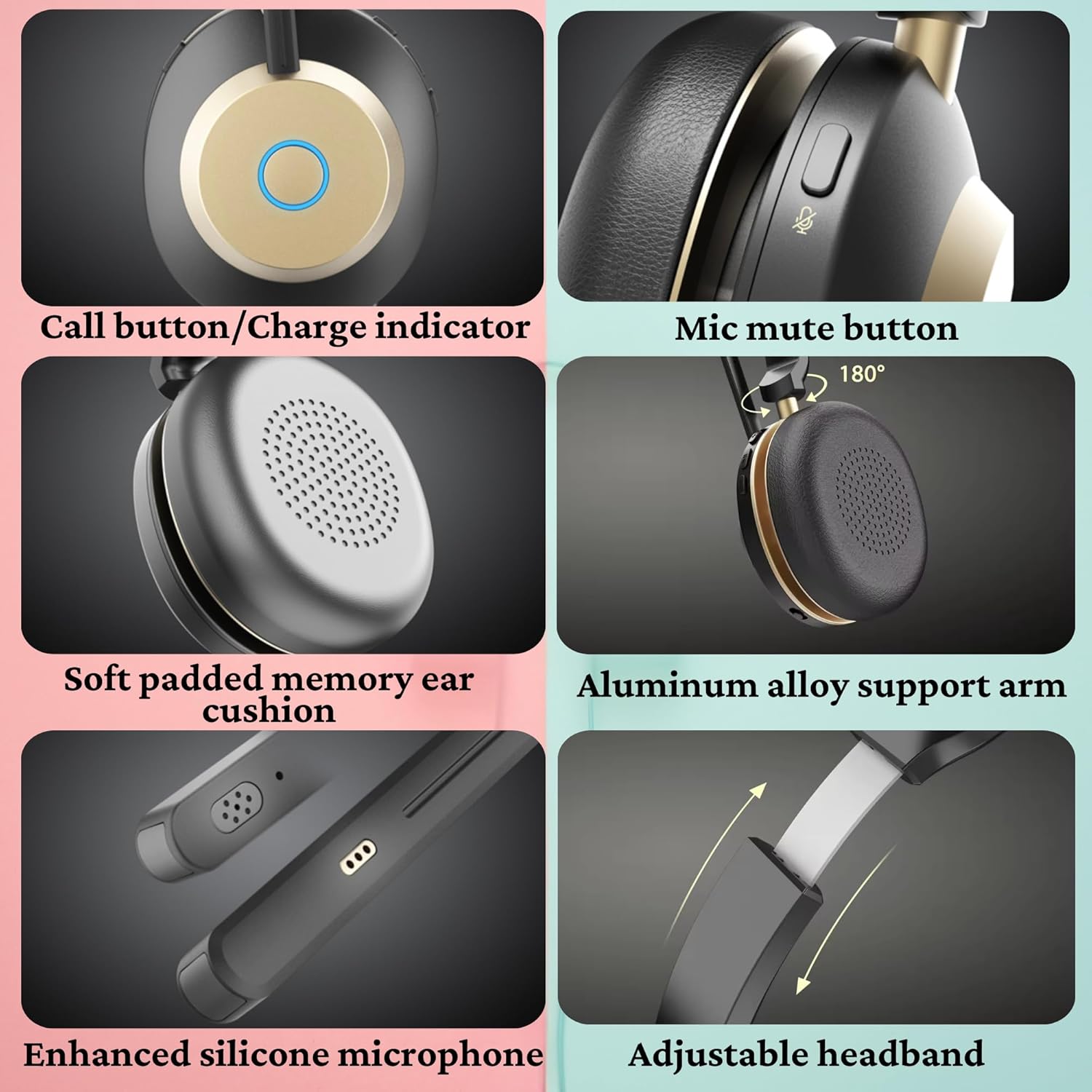
Image: Visual representation of the headset's impressive battery life statistics.
Initial Pairing (Bluetooth)
To pair your headset with a Bluetooth-enabled device:
- Ensure the headset is charged and powered off.
- Press and hold the Multi-function Button (MFB) until the indicator light flashes blue and red, indicating pairing mode.
- On your device (smartphone, tablet, computer), enable Bluetooth and search for new devices.
- Select "BT881C-D-BG" from the list of available devices.
- Once connected, the indicator light will turn solid blue or flash blue slowly.
Connecting via USB Dongle
For devices without Bluetooth or for a more stable connection, use the provided USB dongle:
- Plug the USB dongle into an available USB port on your computer or laptop.
- Power on the headset. It will automatically attempt to connect to the USB dongle.
- The indicator light on the dongle and headset will show a stable connection once paired.
- Note: If both the USB dongle and Bluetooth are connected to the same device, the USB connection will take priority.

Image: The wireless headset positioned next to its USB dongle, demonstrating the connection method.
Operating Instructions
Power On/Off
- Power On: Press and hold the MFB for approximately 3 seconds until you hear a power-on prompt and the indicator light flashes blue.
- Power Off: Press and hold the MFB for approximately 5 seconds until you hear a power-off prompt and the indicator light turns off.
Making and Receiving Calls
- Answer Call: Press the MFB once when an incoming call rings.
- End Call: Press the MFB once during a call to hang up.
- Reject Call: Press and hold the MFB for 2 seconds when an incoming call rings.
- Redial Last Number: Double-press the MFB when not on a call.
Mute Function
The headset features an easy-to-use mute button for privacy during calls.
- Mute Microphone: Press the dedicated mute button on the earcup during a call. You will hear an audible prompt or see an indicator light change.
- Unmute Microphone: Press the mute button again to resume audio transmission.
Image: A detailed view of the microphone mute button on the side of the headset.
Dual Device Connectivity
The headset supports simultaneous connection to two devices, allowing seamless switching between them.
- Pair the headset with your first device (e.g., laptop).
- Disconnect Bluetooth on the first device temporarily, then put the headset back into pairing mode to connect to the second device (e.g., smartphone).
- Once the second device is paired, re-enable Bluetooth on the first device. The headset should now be connected to both.
- The headset will automatically switch to the device that is actively playing audio or receiving a call.

Image: A visual representation of the headset's ability to connect to two devices simultaneously, such as a laptop and a smartphone.
Noise Cancelling Microphone
The integrated AI noise-cancelling microphone effectively filters out up to 99% of background noise, ensuring crystal-clear voice transmission during calls, even in noisy environments.

Image: A user clearly communicating with the headset's AI noise-cancelling microphone, illustrating its effectiveness in a busy environment.
Comfort and Adjustments
The headset is designed for all-day comfort with several adjustable features:
- Adjustable Headband: Extend or retract the headband to fit various head sizes comfortably.
- 180° Swivel Ear Cup: The earcup can swivel 180 degrees for a personalized fit and easy storage.
- 270° Flexible Boom Mic: The microphone boom can be rotated 270 degrees to position the microphone optimally for your voice.
- Soft Padded Ear Cushion: The ear cushion is made of super soft padded material to prevent ear fatigue during long sessions.
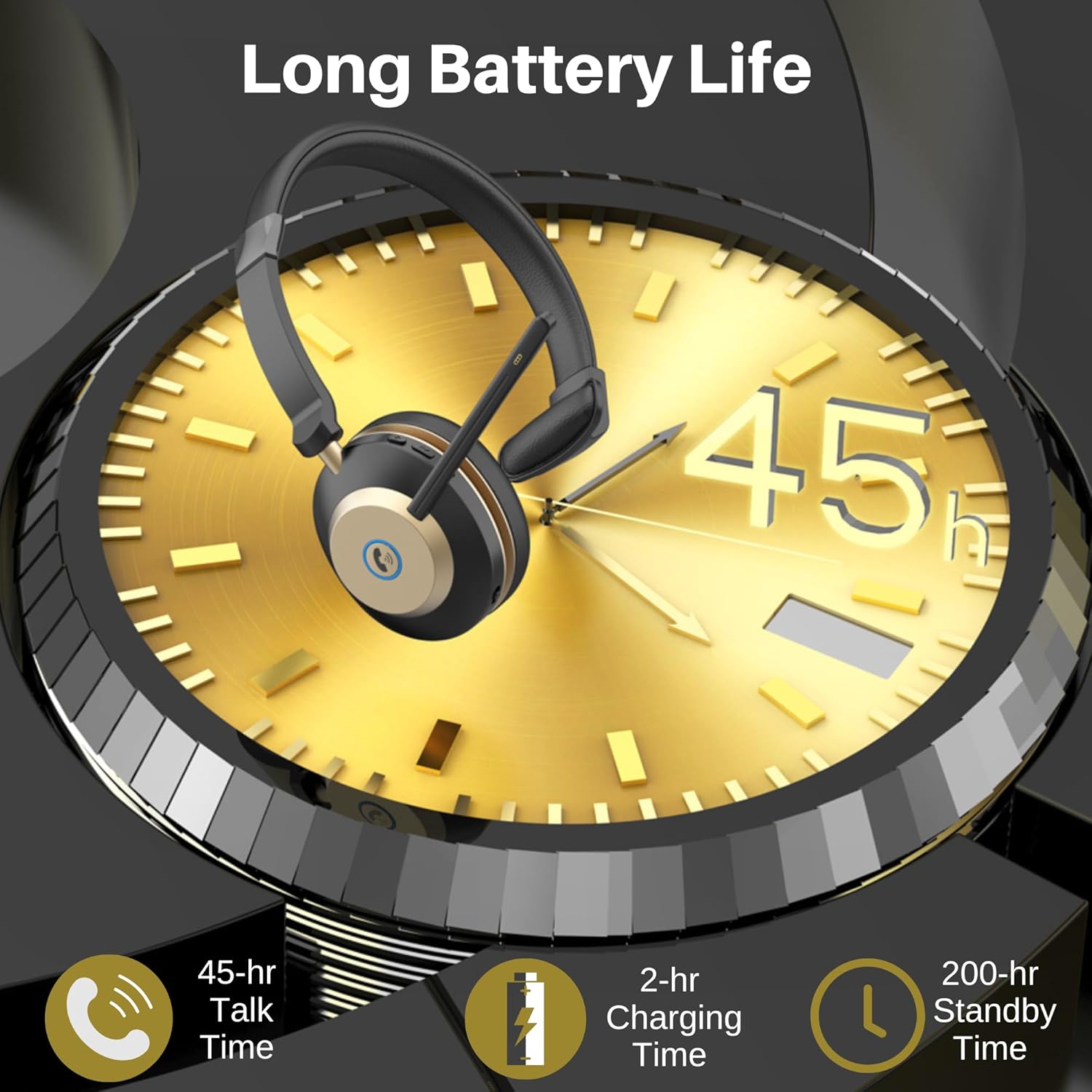
Image: Detail of the adjustable headband, showing its extension mechanism.

Image: A close-up view of the soft, padded ear cushion designed for comfort.
Maintenance
Proper care and maintenance will extend the life of your headset:
- Cleaning: Use a soft, dry cloth to wipe down the headset and charging station. Do not use abrasive cleaners or solvents.
- Storage: When not in use, store the headset in a cool, dry place, away from direct sunlight and extreme temperatures.
- Battery Care: Avoid fully discharging the battery frequently. Charge the headset regularly, even if not in use for extended periods, to maintain battery health.
- Avoid Moisture: The headset is not water-resistant. Keep it away from liquids and high humidity.
Troubleshooting
If you encounter issues with your headset, refer to the table below for common problems and solutions:
| Problem | Possible Cause | Solution |
|---|---|---|
| Headset does not power on. | Low battery. | Charge the headset for at least 2 hours. |
| Cannot pair with device. | Headset not in pairing mode; device Bluetooth off; too far from device. | Ensure headset is in pairing mode (flashing blue/red). Turn on device Bluetooth. Move headset closer to device (within 10m/33ft). |
| No sound from headset. | Volume too low; headset not selected as audio output; headset not connected. | Increase headset volume. Check device audio settings to ensure headset is selected. Reconnect headset. |
| Microphone not working. | Microphone muted; incorrect microphone selected in software. | Press the mute button to unmute. Check software (e.g., Zoom, Teams) microphone settings. |
| Intermittent connection. | Interference; too far from device; low battery. | Move away from other wireless devices. Stay within range. Charge headset. |
Specifications
| Feature | Detail |
|---|---|
| Model Name | BT881C-D |
| Item Model Number | BT881C-D-BG |
| Connectivity Technology | Bluetooth, Dual Connection, Wireless |
| Wireless Communication Technology | Bluetooth 5.3 |
| Bluetooth Range | Up to 49-65FT (15-20M) in typical use; up to 130FT (40M) in open area |
| Noise Control | Active Noise Cancellation (AI Noise Cancelling Mic) |
| Battery Life | 45+ Hours (Talk Time) |
| Standby Time | 200+ Hours |
| Charging Time | 2 Hours |
| Audio Driver Size | 40 Millimeters |
| Frequency Range | 20 Hz - 20,000 Hz |
| Ear Placement | On Ear |
| Material | Leather, Plastic |
| Item Weight | 1.19 pounds |
| Included Components | Charging Station, Headset, Type-C Cable, USB Dongle, User Manual |
Warranty and Support
For warranty information and customer support, please refer to the warranty card included in your package or visit the manufacturer's official website. If you require further assistance, please contact the seller directly through your purchase platform.