
1. Introduction
This manual provides detailed instructions for the installation, operation, and maintenance of your Inefala 9-inch Android Car Stereo. Please read this manual thoroughly before using the product to ensure proper function and safety. Keep this manual for future reference.
2. Safety Information
- Ensure the vehicle is turned off and the battery is disconnected before installation to prevent electrical shock or damage.
- Professional installation is recommended for optimal performance and safety.
- Do not operate the device in a way that distracts you from driving. Always prioritize road safety.
- Avoid exposing the unit to extreme temperatures, direct sunlight for prolonged periods, or excessive moisture.
- Use only specified accessories and parts.
3. Package Contents
Verify that all items listed below are included in your package:
- 1 x Android Car Stereo
- 1 x Power Cable (for Low Configuration)
- 1 x Power Cable (for High Configuration)
- 1 x GPS Antenna
- 1 x Radio Antenna
- 1 x Backup Camera Input Cable
- 1 x RCA Cable
- 2 x USB Cables
- 2 x Mounting Brackets
- 2 x Parts (accessories)
- 1 x Installation Tool
- 1 x External Microphone
- 1 x Backup Camera
- 1 x Canbus (if applicable for your vehicle model)

Image: All components included in the Inefala Android Car Stereo package, including the main unit, various cables, antennas, mounting hardware, and a backup camera.
4. Setup and Installation
4.1. Pre-Installation Check
Before beginning installation, ensure your vehicle's power is disconnected. Identify the correct power cable for your Hyundai Santa Fe (2013-2017) based on its configuration (low or high).
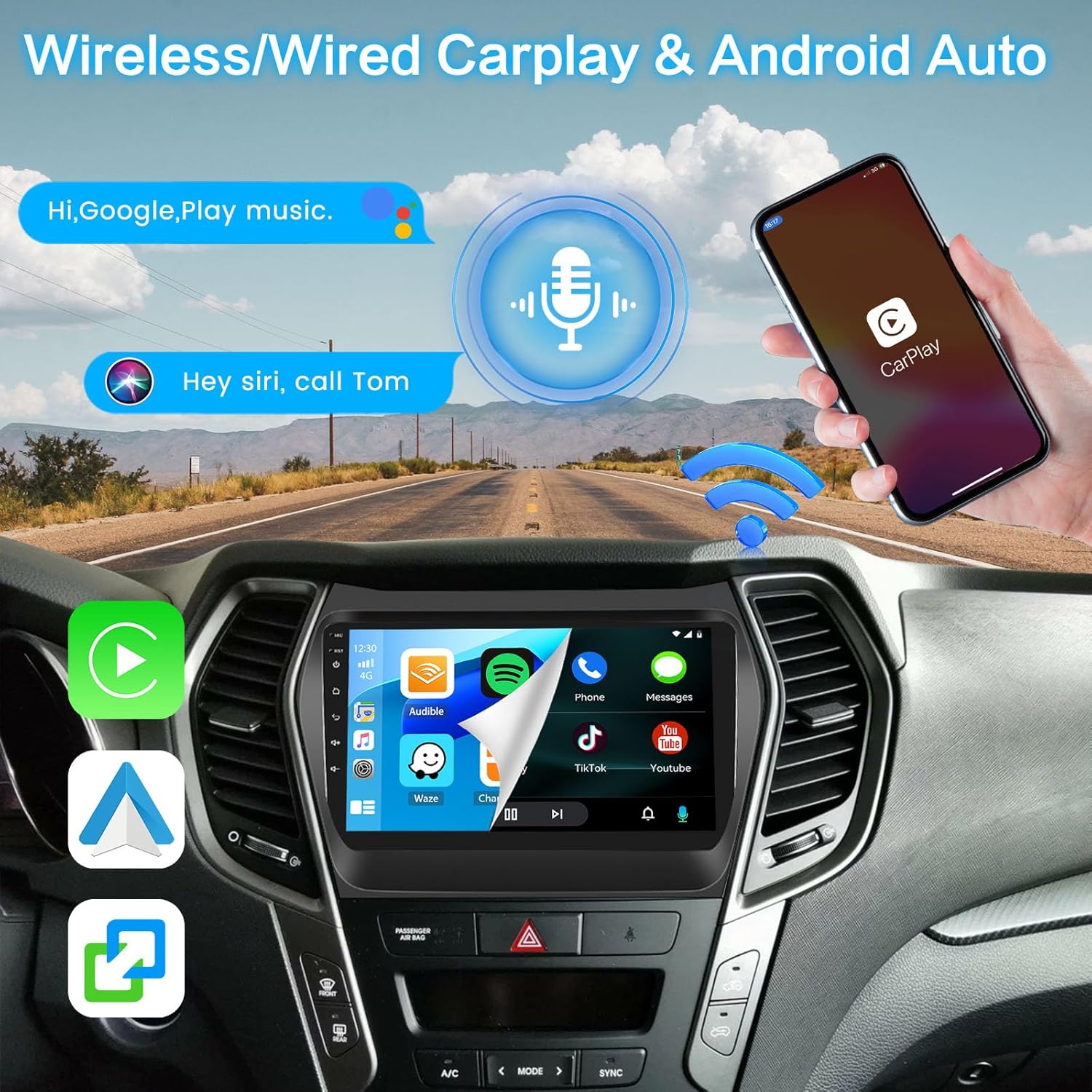
Image: Visual comparison of a Hyundai Santa Fe dashboard before and after the installation of the Inefala Android Car Stereo, showing both low and high configuration examples.
4.2. Connecting Cables
Follow the wiring diagram provided with your unit. The main connections include:
- Power Cable: Connect the appropriate power cable to the main unit.
- GPS Antenna: Connect the GPS antenna for navigation functionality.
- Radio Antenna: Connect the radio antenna for FM/RDS reception.
- USB Cables: Connect the two USB cables for external device connectivity and data transfer.
- Rear Camera Input Cable: Connect this cable for the backup camera.
- RCA Cable: Use for audio/video output, such as connecting to headrest monitors.
- External Microphone: Connect the external microphone for improved call quality.
- Canbus: If your vehicle requires it, connect the Canbus for steering wheel controls and other vehicle data integration.
Video: This video demonstrates the process of connecting the included backup camera to the Inefala Android Car Stereo, showing the necessary cable connections and testing the display.

Image: A detailed diagram illustrating the wiring connections for the rearview camera, including positive, negative, and input cable connections to the car stereo system.
5. Operating Instructions
5.1. User Interface Overview
The 9-inch HD capacitive touchscreen provides access to various functions. The main screen displays navigation, music, and quick access icons. Swipe left or right to access additional applications and settings.
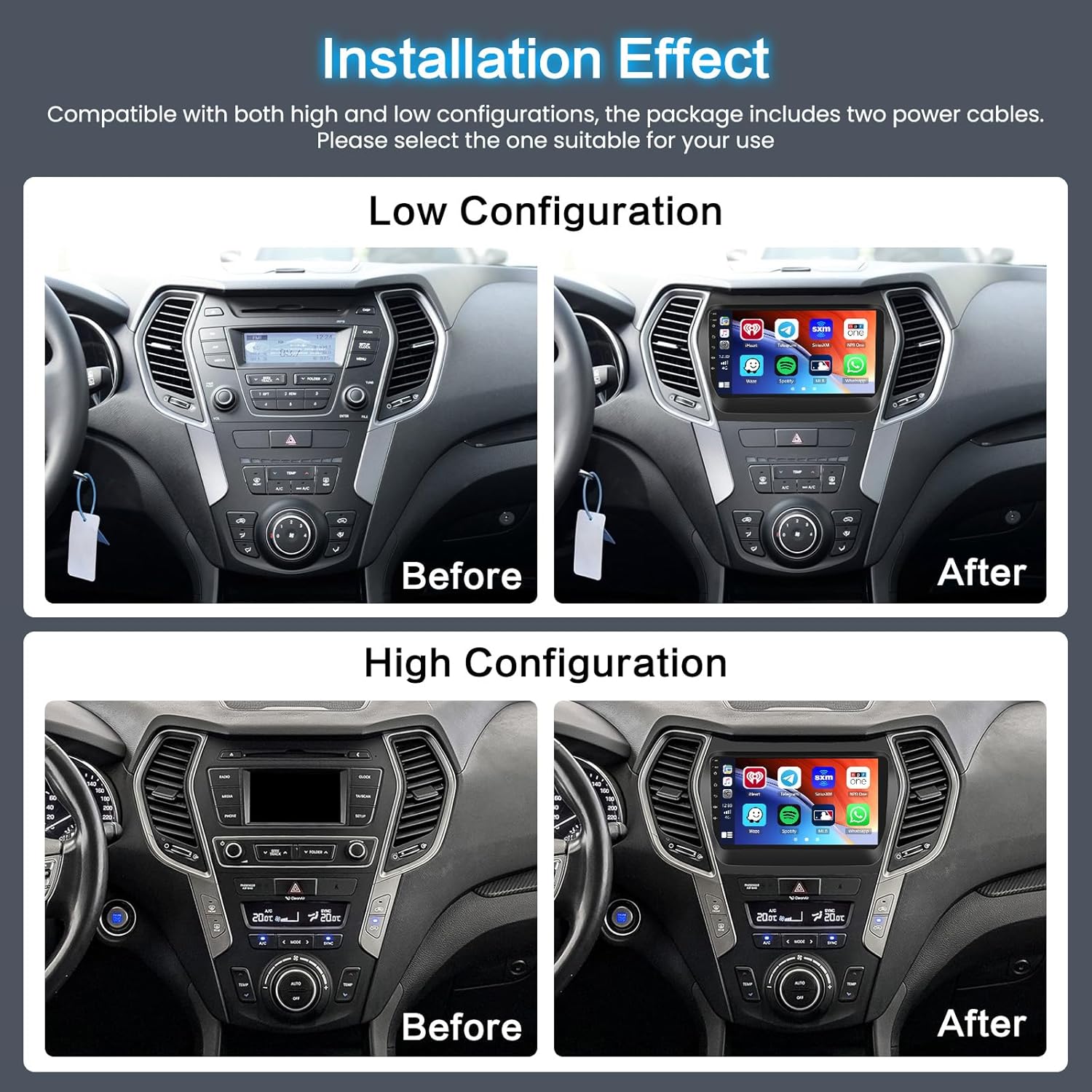
Image: The main home screen of the car stereo, featuring a speedometer widget, music player, and quick access icons for radio, Bluetooth music, video, car info, and Chrome.

Image: A collage showcasing 28 different desktop themes available for customization on the Inefala Android Car Stereo, offering various visual styles for the user interface.
5.2. Wireless CarPlay / Android Auto
The unit supports both wireless and wired CarPlay/Android Auto. This feature allows seamless integration of your smartphone for navigation, calls, messages, and music.
- Connection: Connect your smartphone via USB or wirelessly through Bluetooth and Wi-Fi. Follow the on-screen prompts to establish the connection.
- Functionality: Access compatible apps directly from the car stereo display.
Video: This video demonstrates the various functions of the Inefala Android Car Stereo, including how to connect and use both Apple CarPlay and Android Auto for smartphone integration.

Image: The car stereo display showing the Wireless CarPlay and Android Auto interfaces, highlighting USB/WiFi connectivity options and app icons.
5.3. GPS Navigation
The unit features built-in GPS for accurate navigation. You can use pre-installed maps or download your preferred navigation apps like Google Maps or Waze via Wi-Fi.

Image: A multi-panel display showing the GPS navigation interface, WiFi connection options, Bluetooth call screen, and FM/RDS radio interface.

Image: The GPS navigation screen displaying a map with route information and icons for various navigation applications like Waze and Sygic.
5.4. WiFi Connection
Connect the car stereo to a Wi-Fi network or your phone's hotspot to access online content, download apps, and use online navigation services.

Image: The WiFi connection screen displaying various online applications like YouTube, Instagram, and Facebook, indicating internet connectivity.
5.5. Bluetooth Functionality
Pair your phone via Bluetooth for hands-free calling, phonebook synchronization, and audio streaming.

Image: The Bluetooth interface showing options for phone calls and music playback, with a driver interacting with the system.
5.6. FM/RDS Radio
Enjoy FM radio with RDS (Radio Data System) for station information and traffic updates. The unit supports 30 preset stations.

Image: The FM/RDS radio interface displaying frequency, preset buttons, and an equalizer for sound adjustments.
5.7. Steering Wheel Controls (SWC)
Configure your steering wheel controls for convenient operation. This requires correct Canbus settings.
Note:
- Upon connecting the Canbus, it is essential to configure the Canbus settings correctly to enable functionality of your steering wheel controls.
- Follow these steps: Go to Settings > Factory Setup and enter the password 1234 > Car settings, select Hiworld + your car's year and model.
- Proceed to "Steering Learning" under Factory Setting to finalize the steering wheel button learning process.

Image: The steering wheel control learning interface, showing options to assign functions like volume, mode, and radio to physical buttons on the steering wheel.
5.8. Backup Camera
The included AHD backup camera provides a clear rearview image when the vehicle is in reverse, enhancing safety and ease of parking.
- Automatic Switching: The display automatically switches to the rearview image when the car is in reverse gear.
- Features: HD resolution, night vision, waterproof design, and a 170-degree viewing angle.

Image: A visual representation of the backup camera's features, including HD quality, waterproofing, night vision, and a 170-degree viewing angle, alongside a simulated rearview display.
5.9. Split Screen Display
Utilize the split-screen feature to run two applications simultaneously, such as navigation and music playback.

Image: The car stereo display showing a split screen, with navigation on one side and a music player on the other, demonstrating multitasking capability.
5.10. Audio Settings
Adjust the audio output using the built-in equalizer and sound field settings to customize your listening experience.

Image: The audio settings interface, featuring a graphic equalizer with adjustable frequency bands and options for sound effects and sound field customization.
6. Maintenance
- Screen Cleaning: Use a soft, lint-free cloth to clean the touchscreen. Do not use abrasive cleaners or solvents.
- Software Updates: Periodically check for software updates to ensure optimal performance and access to new features.
- General Care: Keep the unit free from dust and debris. Avoid spilling liquids on the device.
7. Troubleshooting
| Problem | Possible Cause | Solution |
|---|---|---|
| Unit does not power on | Incorrect wiring; Blown fuse; Vehicle battery low | Check power cable connections; Inspect and replace fuse if necessary; Check vehicle battery. |
| No sound | Volume too low; Speaker wires disconnected; Audio settings incorrect | Increase volume; Check speaker wiring; Adjust audio settings (equalizer, sound field). |
| GPS not working | GPS antenna not connected or faulty; Poor satellite signal | Ensure GPS antenna is securely connected and placed in an unobstructed location; Move to an open area for better signal. |
| Bluetooth not connecting | Bluetooth off; Incorrect pairing process; Device not discoverable | Ensure Bluetooth is enabled on both devices; Follow pairing instructions in section 5.5; Make sure your phone is in discoverable mode. |
| Backup camera not displaying | Camera input cable disconnected; Camera faulty; Reverse trigger wire not connected | Check backup camera input cable connection; Verify camera functionality; Ensure reverse trigger wire is correctly connected to the vehicle's reverse light. |
| Steering wheel controls not working | Canbus not connected or configured; Learning process not completed | Ensure Canbus is connected and configured correctly (refer to section 5.7); Perform the steering wheel learning process. |
8. Specifications
| Feature | Specification |
|---|---|
| Brand | Inefala |
| Vehicle Service Type | Hyundai Santa Fe 2013-2017 |
| Screen Size | 9 Inches |
| Operating System | Android (compatible with iOS for CarPlay) |
| RAM | 2GB |
| ROM (Memory Storage Capacity) | 64GB |
| CPU | Octa 4-core |
| Connectivity Technology | Bluetooth, USB, Wi-Fi |
| Special Features | Wireless/Wired CarPlay/Android Auto, Mirror Link, GPS Navigation, FM/RDS Radio, SWC, AHD Backup Camera, Touchscreen |
| Map Type | Worldwide |
| Audio Output Mode | Stereo |
| Mounting Type | Dashboard Mount |
| Touch Screen Type | Capacitive |
| Display Type | LCD |
| Human-Interface Input | Microphone, Touchscreen |
| Control Method | Touch, Voice |
| Item Dimensions L x W x H | 8.46"L x 0.78"W x 6.88"H |
9. Warranty and Support
Inefala provides the following support for your product:
- Warranty: 24 months quality assurance.
- Money-Back Guarantee: 30-day money-back policy.
- Online Consultation: Online consultation support with responses within 24 hours.
- Fitment Guarantee: If the harness does not fit, contact us for a suitable replacement.
For any questions or support, please contact Inefala-US directly at inefalatech@163.com.

Image: An overview of Inefala's customer service commitments, including 24/7 after-sales service, 30-day money-back, and 2-year after-sales support.