
Netzu 6210TB
Netzu Digital Alarm Clock Model 6210TB User Manual
Comprehensive Instructions for Setup and Operation
1. Introduction
This manual provides detailed instructions for the setup, operation, and maintenance of your Netzu Digital Alarm Clock, Model 6210TB. Please read this manual thoroughly before using the device to ensure proper function and longevity.
2. Safety Information
- Do not expose the device to extreme temperatures, direct sunlight, or high humidity.
- Avoid dropping or subjecting the device to strong impacts.
- Use only the provided power adapter or a compatible USB power source.
- Keep the device away from water and other liquids.
- Do not attempt to disassemble or repair the device yourself. Contact customer support for assistance.
- Ensure proper ventilation around the device.
3. Package Contents
- Netzu Digital Alarm Clock (Model 6210TB)
- USB Power Cable
- Power Adapter
- User Manual (this document)
4. Product Overview
Familiarize yourself with the main components and controls of your alarm clock.

Figure 4.1: Front view of the Netzu Digital Alarm Clock showing the display and a connected phone.
This image displays the Netzu Digital Alarm Clock from a slight angle, highlighting its large digital time display (red), smaller temperature (green), and date (orange) readouts. A smartphone is shown connected via a cable, indicating a charging function or power source connection. The clock features buttons on top for various functions.
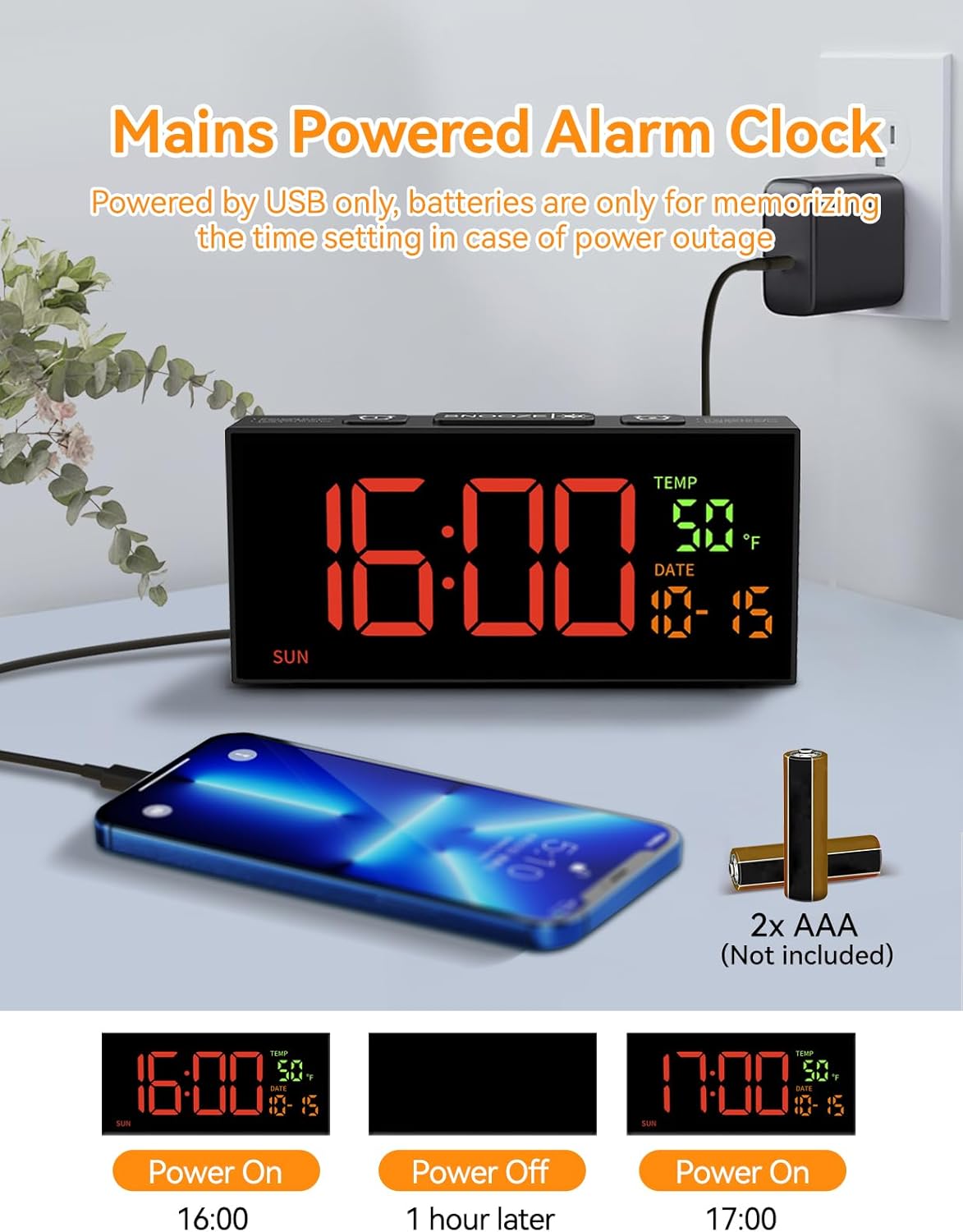
Figure 4.2: Power connection and battery backup illustration.
This image illustrates the power connection of the alarm clock, showing it plugged into a wall adapter. It also highlights the requirement for two AAA batteries (not included) for the memory backup function, ensuring settings are retained during power outages.
5. Setup
5.1 Power Connection
- Connect the provided USB power cable to the clock's power input port.
- Plug the other end of the USB cable into the power adapter.
- Insert the power adapter into a standard electrical outlet. The clock display will illuminate.
5.2 Battery Backup Installation
The clock requires 2 AAA batteries (not included) for memory backup. These batteries preserve your time and alarm settings during a power outage or if the clock is unplugged.
- Locate the battery compartment on the back of the clock.
- Open the battery compartment cover.
- Insert 2 AAA batteries, ensuring correct polarity (+ and -).
- Close the battery compartment cover securely.
6. Basic Settings
6.1 Setting Time and Date

Figure 6.1: Step-by-step guide to setting the clock's time and date.
This image provides a visual guide for setting the time and date. It shows pressing the 'SET' button to enter settings, then using '+' and '-' buttons to adjust hours, minutes, year, month, and day. Blinking digits indicate the adjustable field.
- Set Clock Time:
- Press and hold the SET button for 2 seconds to enter time setting mode. The hour digits will blink.
- Use the + or - buttons to adjust the hour.
- Press SET again. The minute digits will blink.
- Use the + or - buttons to adjust the minutes.
- Set Year:
- Press SET again. The year digits will blink.
- Use the + or - buttons to adjust the year.
- Set Month & Day:
- Press SET again. The month digits will blink.
- Use the + or - buttons to adjust the month.
- Press SET again. The day digits will blink.
- Use the + or - buttons to adjust the day.
- Press SET one last time to confirm all settings and exit the setting mode.
Note: The system default year is 2024. Please update it to the current year. If the year, month, and day are set correctly, the day of the week will be displayed automatically.
6.2 12/24 Hour Format
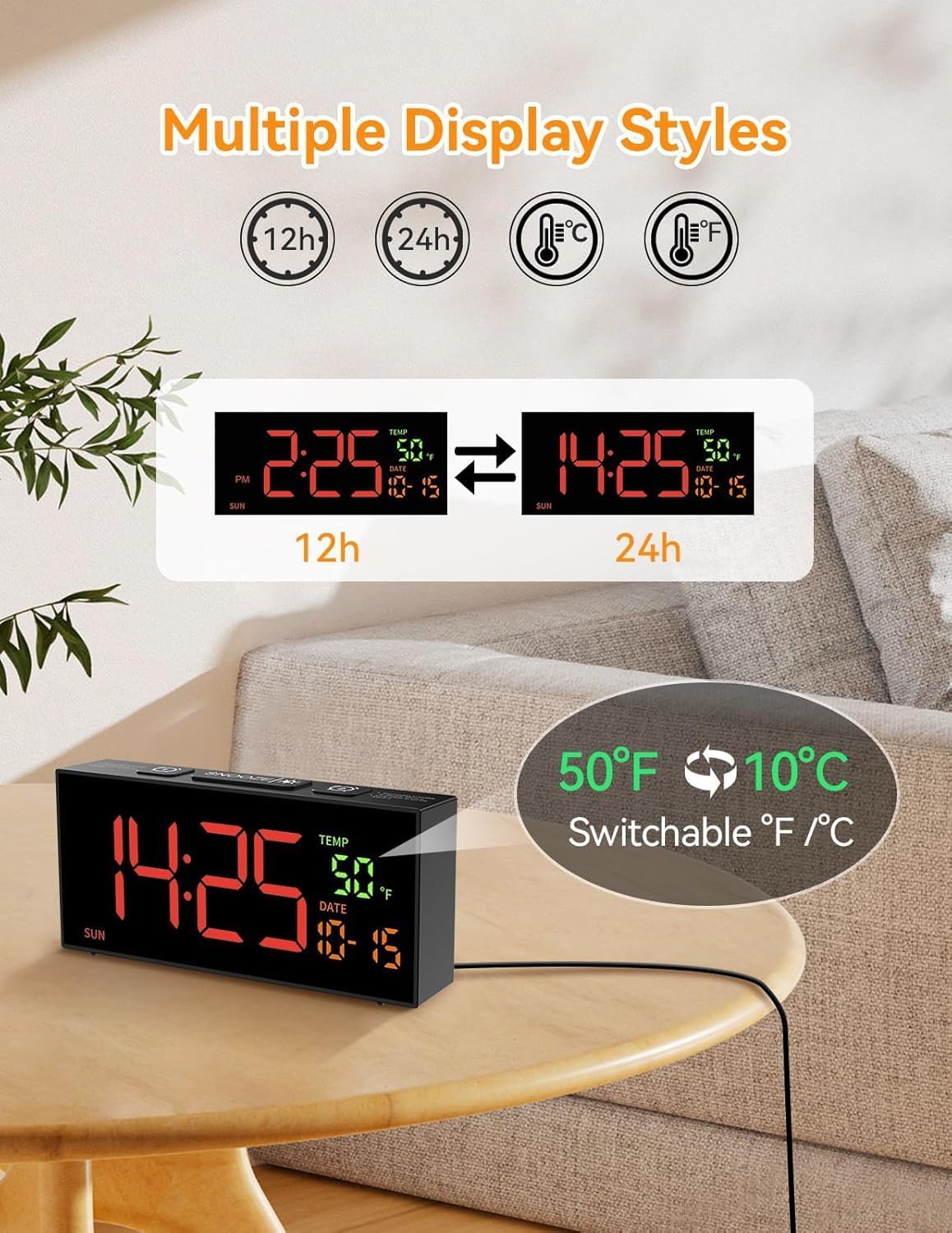
Figure 6.2: Switching between 12-hour and 24-hour time formats.
This image demonstrates the clock's ability to display time in either 12-hour (with AM/PM indicator) or 24-hour format. Two clock displays are shown side-by-side, illustrating the change from "2:25 PM" to "14:25".
To switch between 12-hour and 24-hour time formats, press the 12/24Hr button (often combined with the '+' button during setting). The display will change accordingly.
6.3 Temperature Unit (°C/°F)
To switch between Celsius (°C) and Fahrenheit (°F) temperature units, press the °C/°F button (often combined with the '-' button during setting). The temperature display will update.
6.4 Daylight Saving Time (DST) Adjustment

Figure 6.3: Manual adjustment for Daylight Saving Time.
This image illustrates the manual DST feature. It shows the clock display changing from 11:30 to 10:30 (or vice versa) with a long press of the 'DST' button, indicating the time shift for Daylight Saving Time.
To manually adjust for Daylight Saving Time:
- Press and hold the DST button.
- The time will move forward by one hour when DST starts, and backward by one hour when it ends.
- Release the button to set the new time.
7. Alarm Settings
7.1 Setting Alarms (Alarm 1 & Alarm 2)

Figure 7.1: Illustration of dual alarms and their operational modes.
This image highlights the clock's dual alarm capability, showing two different alarm times (6:00 and 15:00) set for different scenarios. It also visually represents the three alarm modes: Daily, Weekday (Mon-Fri), and Weekend (Sat-Sun).
The clock features two independent alarms (Alarm 1 and Alarm 2).
- Press the ALARM 1 or ALARM 2 button to select the desired alarm. The alarm time will appear and blink.
- Use the + or - buttons to adjust the hour.
- Press the ALARM button again. The minute digits will blink.
- Use the + or - buttons to adjust the minutes.
- Press the ALARM button one last time to confirm and activate the alarm. An alarm icon will appear on the display.
7.2 Alarm Modes
After setting the alarm time, you can select one of three alarm modes:
- Daily Mode (MON-SUN): The alarm will sound every day.
- Weekday Mode (MON-FRI): The alarm will sound only on weekdays.
- Weekend Mode (SAT-SUN): The alarm will sound only on weekends.
To cycle through alarm modes, press the ALARM button repeatedly after setting the alarm time, until the desired mode is displayed.
7.3 Alarm Tone Selection

Figure 7.2: Options for alarm tones and volume levels.
This image illustrates the variety of alarm tones (Chime, 7 Soft Music, Ring, Beep) and the four adjustable volume levels (90dB, 100dB, 105dB, 110dB) available on the Netzu alarm clock.
The clock offers 10 different alarm tones. To select an alarm tone:
- While in alarm setting mode (after setting time), press the + or - buttons to cycle through the available tones.
- The selected tone will play briefly for preview.
- Press the ALARM button to confirm your selection.
7.4 Volume Adjustment
There are 4 adjustable volume levels for the alarm. To adjust the volume:
- While in alarm setting mode (after selecting tone), press the + or - buttons to cycle through the volume levels.
- The volume will adjust, allowing you to hear the difference.
- Press the ALARM button to confirm your selection.
7.5 Snooze Function
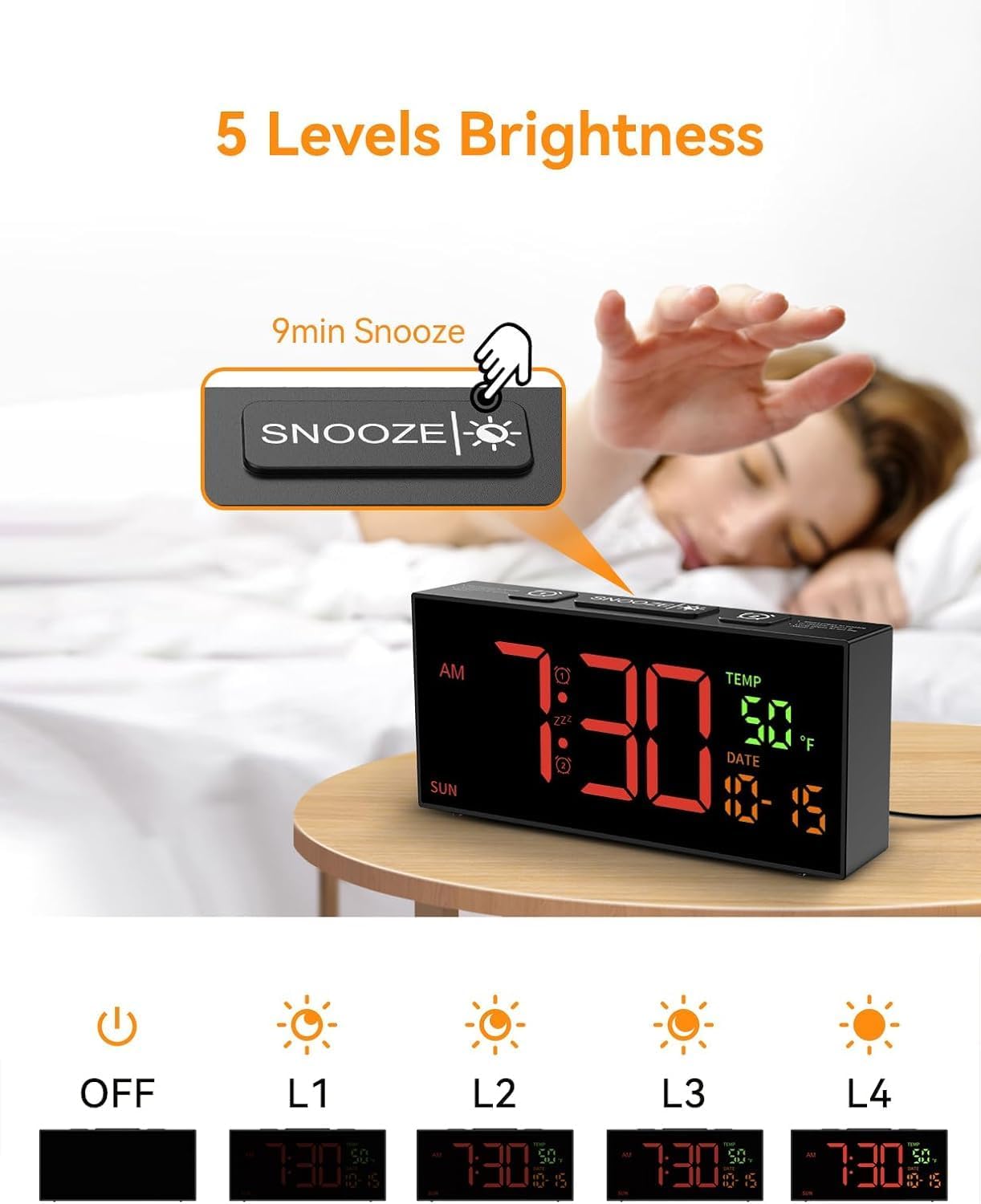
Figure 7.3: Snooze button and brightness adjustment options.
This image illustrates the large 'SNOOZE' button on top of the clock, which also functions as a brightness control. It shows a hand pressing the button and depicts the five levels of display brightness, from off to maximum illumination.
When the alarm sounds, press the large SNOOZE button on top of the clock. The alarm will pause for 9 minutes and then sound again.
To turn off the alarm completely, press any other button on the clock (e.g., ALARM 1, ALARM 2, SET, +, -).
8. Display Settings
8.1 Brightness Adjustment
The clock offers 5 levels of display brightness, including an "OFF" setting.
- To adjust the brightness, press the SNOOZE/BRIGHTNESS button (the large button on top) repeatedly.
- Each press will cycle through the brightness levels (L4, L3, L2, L1, OFF).
- Select the level that is most comfortable for your environment.
9. Maintenance
- Cleaning: Use a soft, dry cloth to clean the clock's surface. Do not use abrasive cleaners or solvents.
- Storage: If storing the clock for an extended period, remove the AAA backup batteries to prevent leakage. Store in a cool, dry place.
10. Troubleshooting
| Problem | Possible Cause | Solution |
|---|---|---|
| Clock display is off. | No power supply. | Ensure the power adapter is securely plugged into the clock and a working electrical outlet. Check if the brightness is set to "OFF". |
| Alarm does not sound. | Alarm not set, volume too low, or incorrect alarm mode. | Verify alarm time and mode are correctly set. Increase alarm volume. Ensure the alarm icon is visible on the display. |
| Settings lost after power outage. | Backup batteries not installed or depleted. | Install 2 new AAA batteries in the battery compartment. |
| Time is incorrect after DST. | DST not adjusted. | Manually adjust DST by pressing and holding the DST button. |
11. Specifications
- Model: 6210TB
- Display Type: Digital LED
- Power Source: Corded Electric (USB cable and adapter included)
- Battery Backup: 2 x AAA batteries (not included)
- Product Dimensions: 6.89"W x 3.1"H
- Weight: 10.6 ounces (approximately 0.3 kg)
- Alarm Features: Dual alarms, 3 alarm modes (Daily, Weekday, Weekend), 10 alarm tones, 4 volume levels, 9-minute snooze.
- Display Features: 5 brightness levels, 12/24 hour format, °C/°F temperature display, date, day of week.
- Special Features: Manual DST adjustment.
12. Warranty and Support
For warranty information or technical support, please refer to the contact details provided with your purchase documentation or visit the official Netzu website. Please retain your proof of purchase for warranty claims.
Contact Information:
- Manufacturer: Netzu
- Email: netzuserservice@outlook.com
Related documents6210TB

Ask a question about this manual
Ask about setup, troubleshooting, compatibility, parts, safety, or missing instructions. Manuals+ will review the question and use this page’s manual context to help answer it.