
Afaartcci B0DKFGJDCN
Afaartcci Wireless Bluetooth Mouse User Manual
Model: B0DKFGJDCN
Introduction
This manual provides detailed instructions for the Afaartcci Wireless Bluetooth Mouse, Model B0DKFGJDCN. This versatile mouse features dual-mode connectivity (Bluetooth 5.2/3.0 and 2.4GHz USB receiver), a rechargeable battery, silent click buttons, and a colorful LED breathing light. Its ultra-thin and portable design makes it ideal for various computing environments, including laptops, iPads, MacBooks, and other compatible devices.
What's in the Box
Please check the package contents to ensure all items are present:
- 1 x Dual Mode Optical Computer Mouse
- 1 x 2.4G USB Receiver (Note: The USB receiver is conveniently stored inside the back of the mouse.)
- 1 x USB Charging Cable (Important: Do not use a high-power or fast charger to charge the mouse.)
- 1 x User Manual
Setup
1. Charging the Mouse
Before first use, it is recommended to fully charge the mouse. The mouse is equipped with a 500mAh lithium-ion battery.
- Locate the USB charging port on the front of the mouse.
- Connect the provided USB charging cable to the mouse and to a standard USB power source (e.g., computer USB port, low-power USB wall adapter).
- A full charge typically takes approximately 2 hours.
- When fully charged, the mouse can operate for over 7 days of continuous use and remain on standby for up to 30 days.
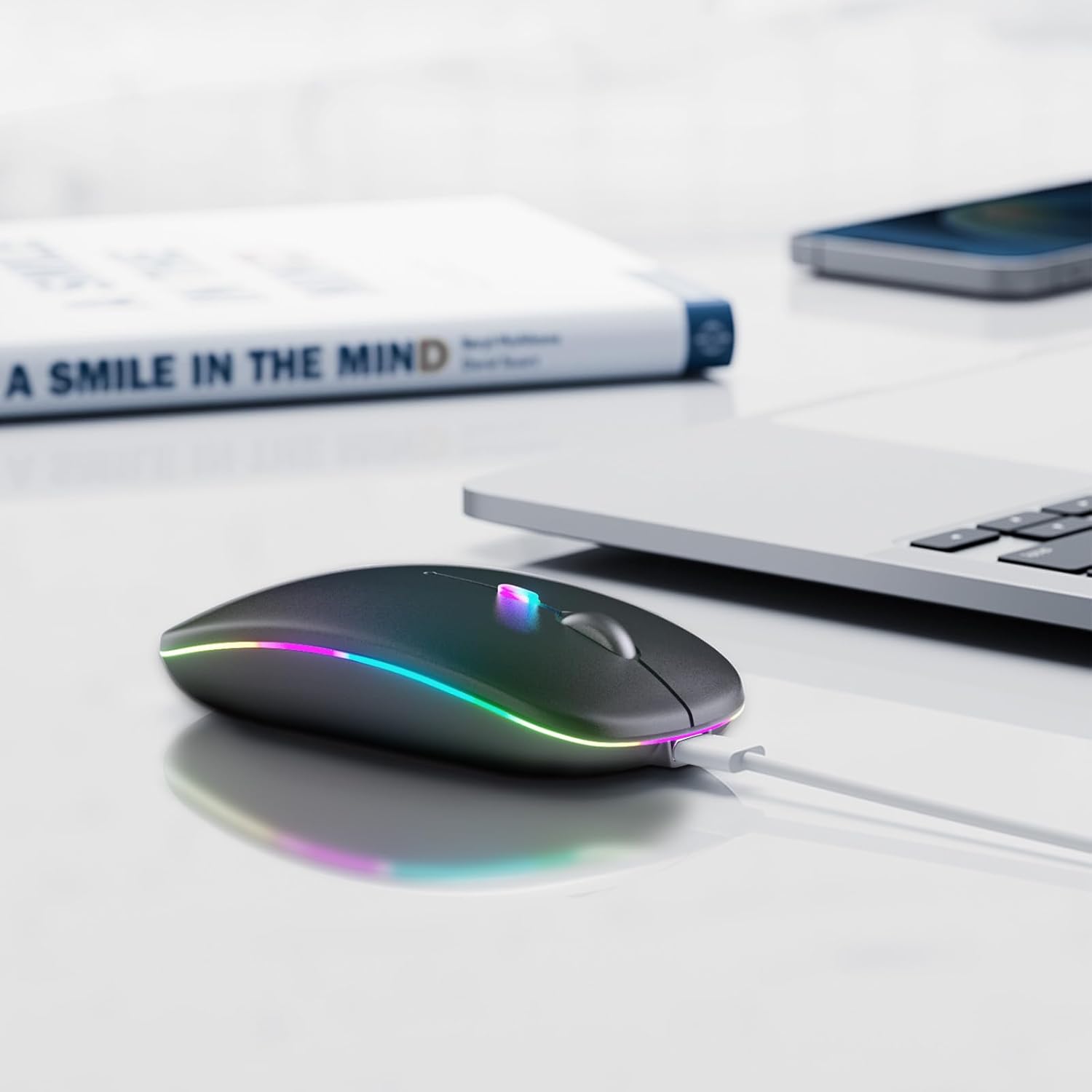
Image: The Afaartcci mouse connected to a laptop via its USB charging cable, illustrating how to charge the device.
2. Connecting via 2.4G USB Receiver
This mode provides a stable wireless connection without the need for Bluetooth pairing.
- Retrieve the 2.4G USB receiver from its storage slot at the bottom of the mouse.
- Plug the USB receiver into an available USB port on your computer or device.
- Turn on the mouse using the mode switch located on the bottom. Ensure it is set to the 2.4G mode (usually indicated by a specific position or icon).
- The mouse should automatically connect to your device. No additional drivers are typically required.
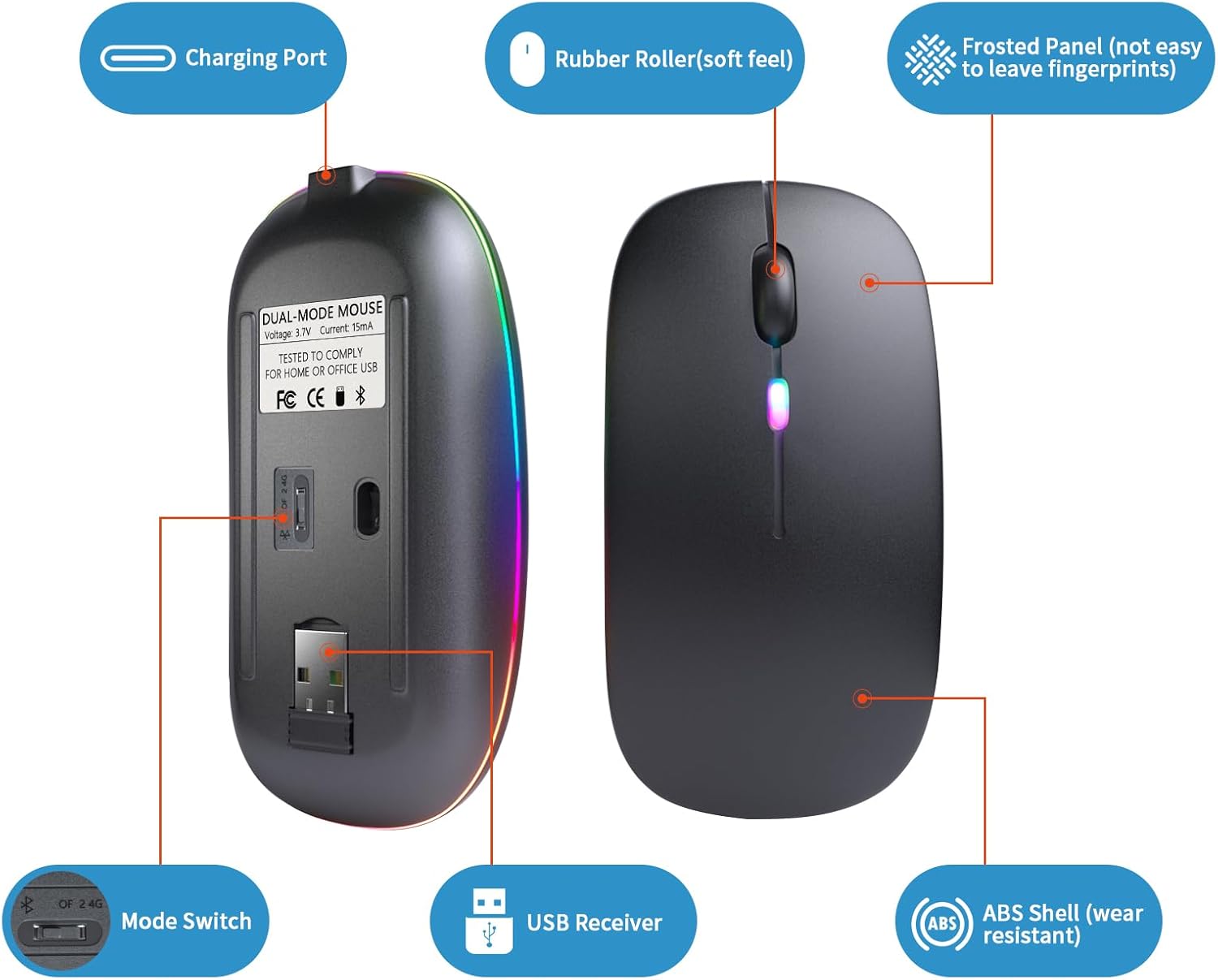
Image: A detailed view of the mouse's underside, highlighting the location of the USB receiver storage slot and the mode switch.
3. Connecting via Bluetooth (BT5.2/3.0)
The mouse supports both Bluetooth 5.2 and Bluetooth 3.0 for wide compatibility.
- Turn on the mouse using the mode switch on the bottom and set it to the Bluetooth mode (usually indicated by a Bluetooth icon).
- On your device (laptop, tablet, smartphone), navigate to the Bluetooth settings.
- Enable Bluetooth and search for new devices.
- Select "Afaartcci Mouse" or a similar name from the list of available devices to pair.
- Once paired, the mouse is ready for use.

Image: A visual representation of the mouse connecting to different devices using its dual Bluetooth and 2.4G wireless modes.
Operating Instructions
1. Dual Mode Switching
The Afaartcci mouse allows seamless switching between two connected devices. You can connect one device via Bluetooth and another via the 2.4G USB receiver. Use the mode switch on the bottom of the mouse to toggle between these two connection types. Please note that both modes cannot be used simultaneously.
2. Power Saving Mode
To conserve battery life, the mouse will automatically enter a sleep mode after 5 minutes of inactivity. To wake the mouse, simply click any button.
3. Colorful LED Breathing Light
The mouse features 7 colorful LED lights that cycle randomly, providing a dynamic visual effect during use.
4. DPI Adjustment
The mouse supports adjustable DPI (Dots Per Inch) settings, allowing you to change the cursor speed and sensitivity. Typically, a button near the scroll wheel or on the underside of the mouse is used to cycle through different DPI levels. Refer to the specific button layout on your mouse for exact functionality.
5. Silent Click Feature
The mouse is designed with silent click buttons, significantly reducing noise during operation. This feature is beneficial in quiet environments, ensuring you do not disturb others.

Image: An illustration demonstrating the silent click feature of the mouse, highlighting its suitability for quiet environments.
Maintenance
Proper maintenance ensures the longevity and optimal performance of your mouse.
- Cleaning: Use a soft, dry cloth to wipe the surface of the mouse. For stubborn dirt, a slightly damp cloth can be used, but ensure no moisture enters the internal components. Avoid harsh chemicals or abrasive cleaners.
- Battery Care: To maximize battery lifespan, avoid fully discharging the mouse frequently. Charge it when the battery indicator suggests low power. As mentioned, use only the provided USB charging cable or a low-power USB charger.
- Storage: When not in use for extended periods, store the mouse in a cool, dry place. If transporting, consider using a protective pouch to prevent scratches or damage.
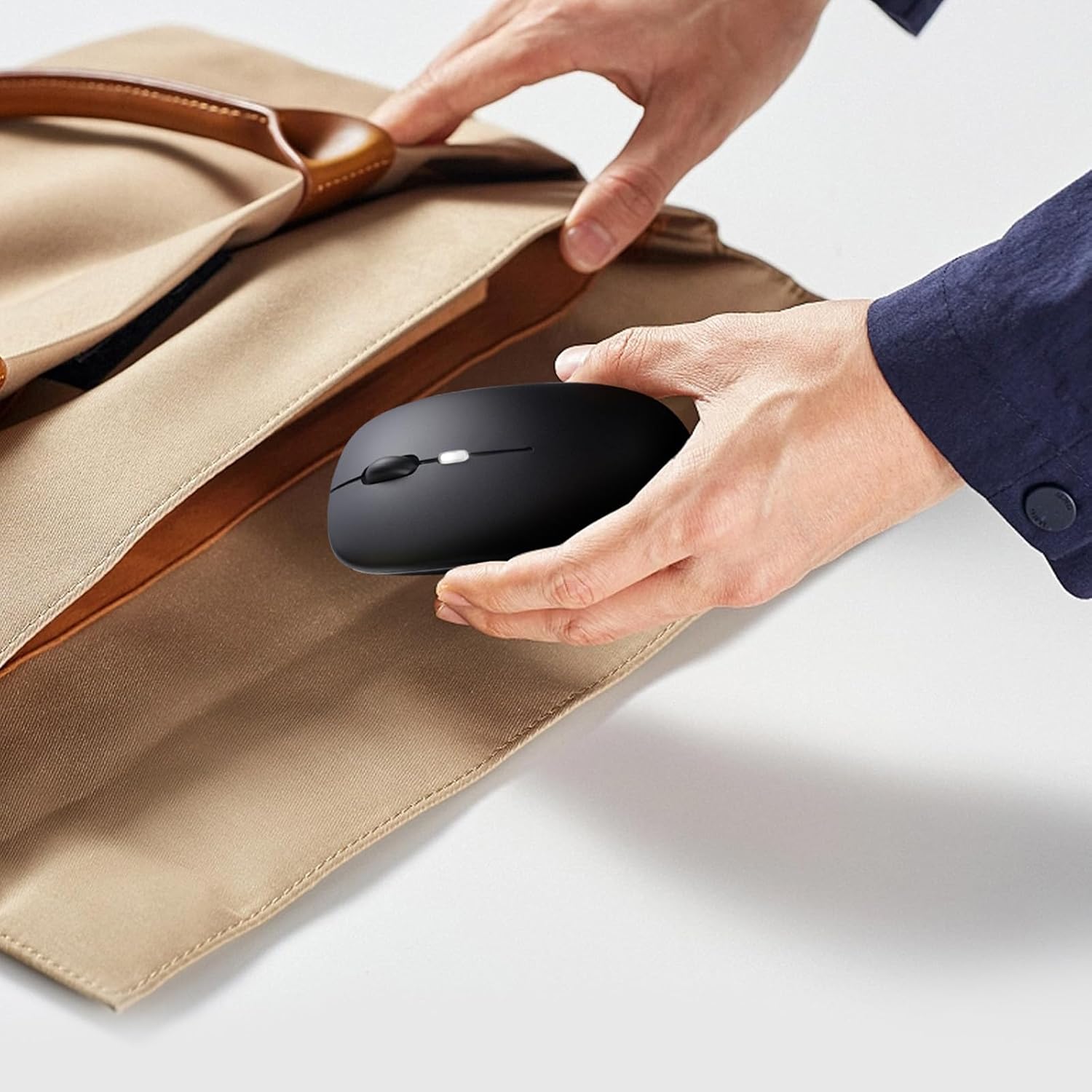
Image: The mouse being placed into a bag, illustrating its compact size for easy storage and transport.
Troubleshooting
| Problem | Possible Cause | Solution |
|---|---|---|
| Mouse not responding | Low battery; Incorrect mode selected; USB receiver not properly connected; Bluetooth not paired. | Charge the mouse; Ensure the mode switch is set correctly (2.4G or Bluetooth); Re-insert the USB receiver; Re-pair Bluetooth. |
| Lagging or intermittent connection | Interference; Distance from receiver/device; Low battery. | Move closer to the device (within 33 feet); Remove obstacles; Charge the mouse; Try a different USB port. |
| LED lights not working | Mouse is off or in sleep mode; Malfunction. | Wake the mouse by clicking; Ensure mouse is powered on. If issue persists, contact support. |
| Cannot pair via Bluetooth | Bluetooth on device is off; Mouse not in pairing mode; Interference. | Ensure Bluetooth is enabled on your device; Set mouse to Bluetooth mode; Try restarting both mouse and device. |
Specifications
| Feature | Detail |
|---|---|
| Product Dimensions | 4.4 x 2.3 x 0.1 inches |
| Item Weight | 2.39 ounces |
| Connectivity Technology | Wireless (2.4G USB Receiver), Bluetooth (BT5.2/3.0) |
| Movement Detection | Optical |
| Special Features | Rechargeable, Portable, Silent Click, LED Breathing Light |
| Battery Type | 500mAh Lithium-ion |
| Charging Time | Approx. 2 hours |
| Operating Time | Over 7 days (continuous use) |
| Standby Time | Up to 30 days |
| Compatibility | Android, Windows, Mac (Laptops, PCs, Tablets, Smartphones) |
| Manufacturer | Afaartcci |
| Country of Origin | China |
Warranty and Support
For any questions, concerns, or technical support regarding your Afaartcci Wireless Bluetooth Mouse, please contact Afaartcci customer service. Refer to the contact information provided with your product packaging or visit the official Afaartcci website for support details.
Ask a question about this manual
Ask about setup, troubleshooting, compatibility, parts, safety, or missing instructions. Manuals+ will review the question and use this page’s manual context to help answer it.