
Introduction
This manual provides detailed instructions for the installation, operation, and maintenance of your MECHANIC MASTER 8025 ARGB PWM Case Fan. Please read this manual thoroughly before installation and retain it for future reference.
Package Contents
Verify that all items listed below are present in your package:
- MECHANIC MASTER 8025 ARGB PWM Case Fans (2 units)
- Mounting Screws
- Fan Connection Cables (4-pin PWM and 3-pin ARGB)
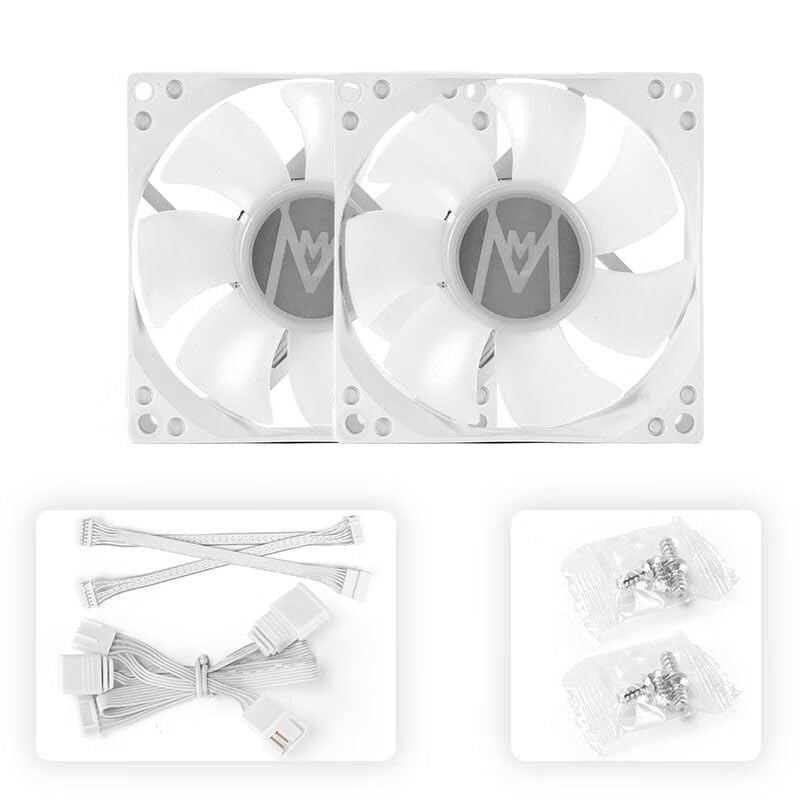
Image: The package includes two white 80mm case fans, various connection cables for power and ARGB, and a set of mounting screws.
Product Features
- ARGB Lighting: Addressable RGB lighting for customizable visual effects.
- PWM Control: Pulse Width Modulation for precise temperature-controlled speed regulation.
- Compact Design: Small size (80x80x25mm) suitable for ITX/Matx cases.
- Daisy Chain Capability: Both 4-pin PWM and 3-pin ARGB power supplies are equipped with serial interfaces for connecting multiple fans.
- Quiet Operation: Designed for silent computer cooling with low noise levels.
- High Airflow: Efficient air movement for optimal cooling performance.

Image: A close-up view of the fan blade, highlighting the ARGB lighting and large blade design for effective airflow.
Specifications
| Feature | Detail |
|---|---|
| Model | 8025 (S8A) |
| Dimensions | 80mm x 80mm x 25mm (3.6"L x 3.6"W x 0.9"H) |
| Power Connector | 4-pin PWM (12V), 3-pin ARGB (5V) |
| Cooling Method | Air |
| Compatible Devices | Desktop PCs (ITX/Matx cases recommended) |
| Noise Level | 32 Decibels (Max) |
| Rotational Speed | 600-2850 RPM ±10% |
| Air Flow Capacity | 15-40 CFM |
| Bearing Type | Hydraulic bearing |
| UPC | 789091713593 |
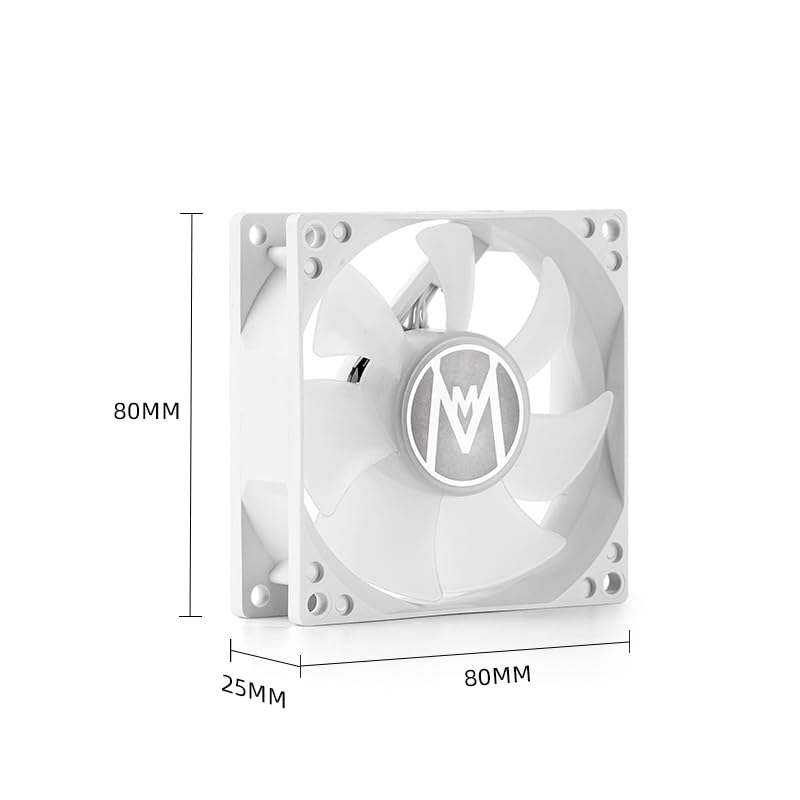
Image: A technical diagram illustrating the precise dimensions of the 80mm case fan.
Setup and Installation
- Prepare Your System: Ensure your computer is powered off and unplugged from the wall outlet. Open your PC case to access the fan mounting locations.
- Identify Mounting Location: Locate an available 80mm fan mounting point within your PC case.
- Mount the Fan: Position the fan in the desired location, ensuring proper airflow direction (typically blowing air out of the case for exhaust or into the case for intake). Secure the fan using the provided mounting screws.
- Connect PWM Cable: Connect the 4-pin PWM cable from the fan to an available 4-pin fan header on your motherboard. If connecting multiple fans in series, connect the first fan to the motherboard and subsequent fans to the serial interface of the previous fan.
- Connect ARGB Cable: Connect the 3-pin ARGB cable from the fan to an available 3-pin 5V ARGB header on your motherboard or a compatible ARGB controller. Ensure the voltage is 5V to prevent damage. If connecting multiple fans, use the serial interface for ARGB as well.
- Cable Management: Route cables neatly to avoid interference with other components and to improve airflow.
- Close Case: Once all connections are secure, close your PC case and reconnect power.
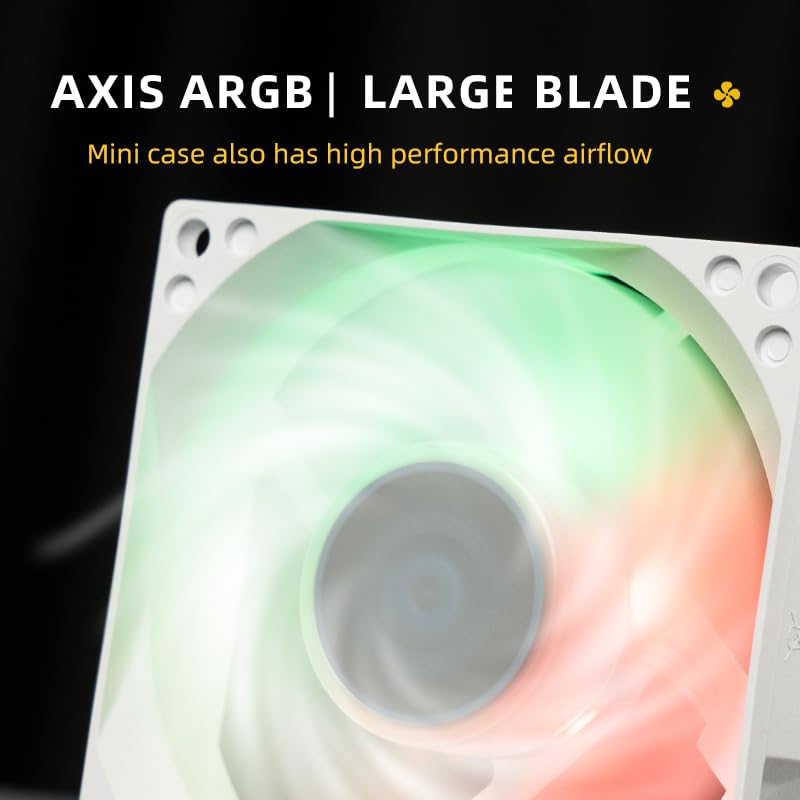
Image: An illustration showing how multiple fans can be connected in series using the provided cables for simplified wiring.
Operating Instructions
After successful installation, power on your computer. The fan will begin operating. The PWM function allows your motherboard to automatically adjust fan speed based on system temperature, optimizing cooling performance and noise levels.
ARGB Lighting Control:
If connected to a compatible motherboard ARGB header, you can control the lighting effects using your motherboard's RGB software (e.g., ASUS Aura Sync, MSI Mystic Light Sync, GIGABYTE RGB Fusion, ASRock Polychrome Sync). Refer to your motherboard manual for specific software instructions.
If connected to an external ARGB controller, use the controller's interface to manage lighting effects.

Image: Two ARGB fans installed in a PC case, showcasing their vibrant blue illumination.
Maintenance
- Dust Cleaning: Periodically clean dust from the fan blades and housing using compressed air or a soft brush. Ensure the computer is powered off and unplugged before cleaning.
- Cable Inspection: Regularly check all fan cables for secure connections and signs of wear or damage.
- Bearing Longevity: The hydraulic bearing design offers extended lifespan and quiet operation. No lubrication is required.
Troubleshooting
- Fan Not Spinning:
- Ensure the 4-pin PWM cable is securely connected to the motherboard fan header.
- Check BIOS/UEFI settings to ensure the fan header is enabled and configured correctly.
- Test the fan on a different fan header or with a fan tester if available.
- ARGB Lights Not Working:
- Verify the 3-pin ARGB 5V cable is correctly connected to a compatible 5V ARGB header (not 12V RGB).
- Check your motherboard's RGB software or external controller settings.
- Ensure all serial connections between fans are secure.
- Excessive Noise:
- Ensure the fan is securely mounted and not vibrating against the case.
- Clean any dust buildup on the fan blades.
- Check BIOS/UEFI settings for fan speed curves; adjust to a lower speed if noise is a concern and temperatures allow.
Warranty and Support
MECHANIC MASTER products are manufactured to high-quality standards. For warranty information or technical support, please refer to the official MECHANIC MASTER website or contact your retailer. Please have your product model (8025) and UPC (789091713593) available when seeking support.
For further assistance, you may visit the MECHANIC MASTER Store on Amazon.