
1. Introduction
This manual provides comprehensive instructions for the installation, operation, and maintenance of your ETLFUCyber Android 13 Car Stereo. This unit is specifically designed for Ford Fiesta models manufactured between 2006 and 2011. It features a 9-inch touchscreen, Android 13 operating system, 2GB RAM, 64GB ROM, Wireless CarPlay, Android Auto, WiFi, GPS, FM RDS radio, Bluetooth, and AHD rear camera compatibility. Please read this manual thoroughly before use to ensure proper installation and optimal performance.
2. Safety Information
- Always disconnect the vehicle's battery before performing any electrical work to prevent short circuits and damage.
- Ensure all wiring connections are secure and properly insulated to avoid electrical hazards.
- Do not operate the device in a way that distracts you from driving. Always prioritize road safety.
- Avoid exposing the unit to extreme temperatures, direct sunlight for prolonged periods, or excessive moisture.
- If you are unsure about any installation steps, consult a qualified professional.
3. Package Contents
Verify that all items are present in the package:
- ETLFUCyber Android 13 Car Stereo Unit
- Power Harness (ISO connector)
- GPS Antenna
- USB Cables (2 ports)
- RCA Cables (for audio/video input/output)
- AHD Rear Camera (if included in package)
- External Microphone
- Installation Brackets and Screws
- User Manual (this document)
4. Setup and Installation
This car stereo is designed for a direct fit in Ford Fiesta models from 2006 to 2011. Professional installation is recommended.
4.1 Compatibility Check
Before installation, confirm that your vehicle's center console matches the design shown in the 'After Installation' image. This unit is compatible with Ford Fiesta models from 2006, 2007, 2008, 2009, 2010, and 2011.
4.2 Installation Steps
- Disconnect Battery: Turn off the ignition and disconnect the negative terminal of your vehicle's battery.
- Remove Old Unit: Carefully remove the existing car radio and any trim panels. Refer to your vehicle's service manual for specific instructions.
- Connect Wiring: Connect the provided power harness, GPS antenna, USB cables, and RCA cables to the corresponding ports on the new car stereo. Ensure all connections are secure. If installing an AHD rear camera, connect its video and power cables.
- Test Connections: Before fully mounting, temporarily reconnect the battery and power on the unit to test basic functions (power, sound, touchscreen, radio).
- Mount New Unit: Secure the new car stereo into the dashboard using the provided brackets and screws. Reinstall any removed trim panels.
- Reconnect Battery: Reconnect the negative terminal of the vehicle's battery.

Image 4.1: Comparison of the Ford Fiesta dashboard before and after installing the ETLFUCyber Android 13 Car Stereo. The new unit seamlessly integrates into the existing console.
5. Operating Instructions
5.1 Power On/Off
Press the power button (usually located on the front panel or a soft button on the screen) to turn the unit on or off. The unit will automatically power on when the vehicle's ignition is turned on.
5.2 Touchscreen Operation
The 9-inch capacitive touchscreen supports multi-touch gestures. Tap to select, swipe to scroll, and pinch to zoom (where applicable, e.g., maps).
5.3 Main Interface Navigation
The main interface displays various applications and widgets. Swipe left or right to access additional screens. Tap on an icon to launch the corresponding application.
5.4 Wireless CarPlay & Android Auto
Connect your smartphone wirelessly or via USB to access CarPlay or Android Auto. This allows you to use navigation, make calls, send messages, and play music directly from your phone's interface on the car stereo screen.

Image 5.1: Examples of the Wireless CarPlay and Android Auto interfaces, showing navigation, music playback, and app access.
5.5 GPS Navigation & WiFi Hotspot
The unit includes a GPS receiver for accurate navigation. Connect to a WiFi hotspot (e.g., from your smartphone) to download maps, traffic information, and use online navigation applications like Waze or Google Maps.

Image 5.2: Display of GPS navigation with real-time route guidance and a visual representation of WiFi hotspot connectivity for online services.
5.6 Bluetooth Functionality
Pair your smartphone via Bluetooth for hands-free calling, phonebook synchronization, and audio streaming. Access the Bluetooth menu to search for devices and connect.
5.7 FM RDS Radio
Tune into FM radio stations. The RDS (Radio Data System) feature displays station information, song titles, and traffic announcements where available. The frequency range is 87.5 to 108.0 MHz.
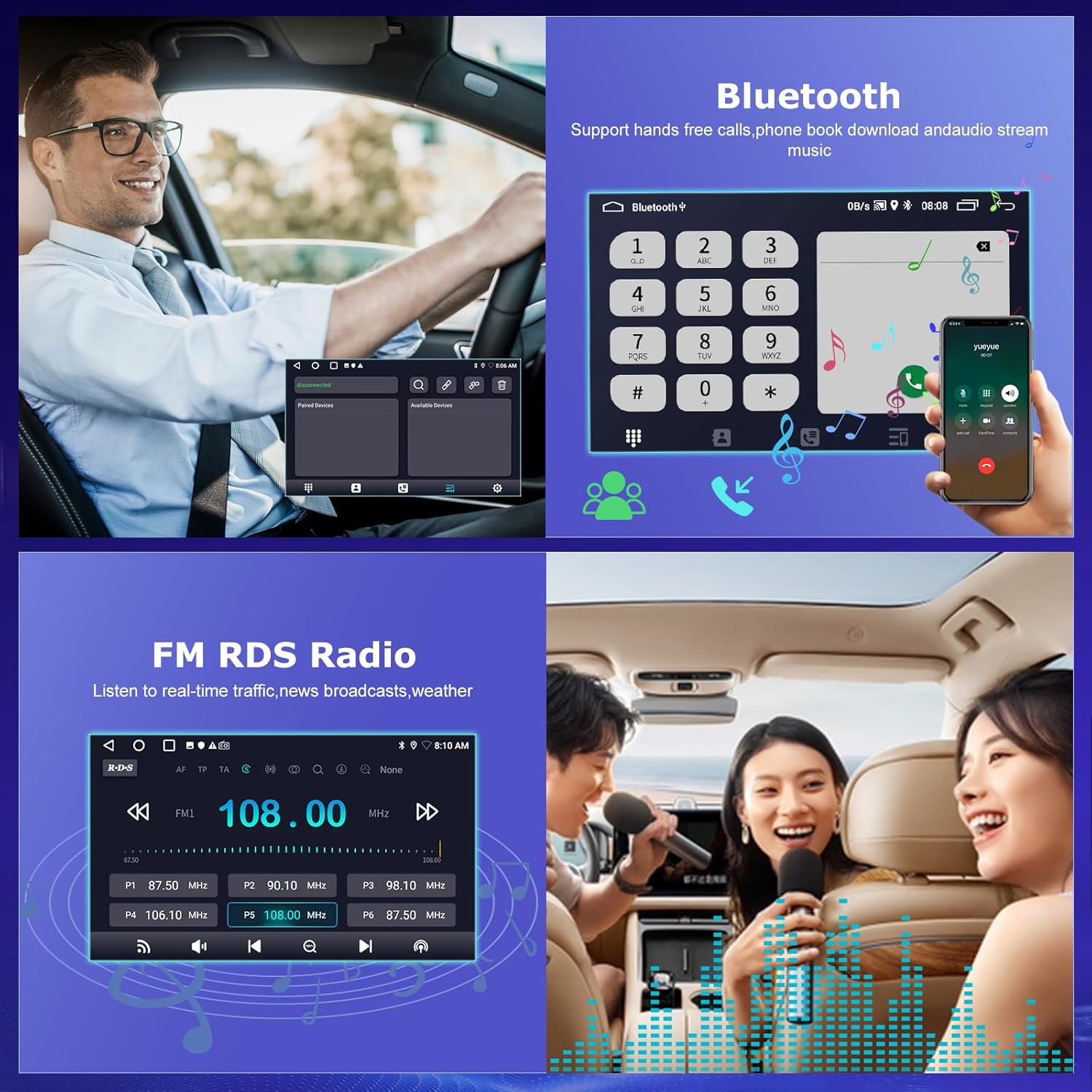
Image 5.3: Screenshots showing the Bluetooth phone interface for calls and the FM RDS radio display with station presets.
5.8 Rear View Camera (AHD)
When the vehicle is shifted into reverse, the display automatically switches to the rear view camera feed, providing a clear view of the area behind your vehicle. This unit supports AHD cameras for high-definition video.
5.9 Steering Wheel Controls
The unit supports integration with your vehicle's existing steering wheel controls. Access the steering wheel control settings in the system menu to program the buttons for various functions (e.g., volume, track skip, mode).

Image 5.4: The top panel shows the rear view camera display with parking guidelines. The bottom panel illustrates the interface for configuring steering wheel controls.
6. Maintenance
- Cleaning: Use a soft, dry cloth to clean the screen and unit. Do not use abrasive cleaners or solvents.
- Software Updates: Periodically check for software updates to ensure optimal performance and access to new features. Updates can usually be performed via WiFi.
- Avoid Liquids: Prevent liquids from entering the unit, as this can cause severe damage.
7. Troubleshooting
If you encounter issues, refer to the following common problems and solutions:
- No Power:
Solution: Check all power connections, including the fuse. Ensure the vehicle's ignition is on. - No Sound:
Solution: Verify speaker connections. Check volume levels and audio settings. Ensure the mute function is not active. - GPS Not Working/Inaccurate:
Solution: Ensure the GPS antenna is properly connected and has a clear view of the sky. Check GPS settings in the system menu. - Bluetooth Connection Issues:
Solution: Ensure Bluetooth is enabled on both the car stereo and your smartphone. Delete previous pairings and try reconnecting. - Touchscreen Unresponsive:
Solution: Restart the unit. If the problem persists, a factory reset might be necessary (note: this will erase all user data). - CarPlay/Android Auto Not Connecting:
Solution: Ensure your phone's operating system is up to date. Try a different USB cable if connecting wired. Check app permissions on your phone.
For persistent issues, contact customer support.
8. Specifications
| Model Number | ETLFUCyber_AV_RECEIVER_48dbb91a |
| Operating System | Android 13 |
| RAM | 2GB |
| ROM | 64GB |
| Screen Size | 9 Inches |
| Connectivity Technology | Bluetooth, USB, Wi-Fi |
| Special Features | Wireless CarPlay, Android Auto, WiFi/GPS, Bluetooth, AHD Rear Camera, Touchscreen |
| Compatible Devices | Smartphone, Tablet, Amplifier, Speaker |
| Audio Output Mode | Stereo |
| Surround Sound Channels | 5.1 |
| Output Power | 100 Watts |
| Number of Channels | 6 |
| Connector Type | ISO, RCA, 3.5 mm Jack, USB, FM/AM Antenna |
| Video Encoding | H.264, H.265/HEVC |
| Country of Origin | China |
9. Warranty and Support
9.1 Warranty Information
This product comes with a 2-year warranty from the date of purchase. This warranty covers manufacturing defects and malfunctions under normal use. Please retain your proof of purchase for warranty claims.
9.2 Customer Support
For any questions, technical assistance, or warranty claims, please contact our customer support team. We offer:
- 24-hour email response service
- 30-day unconditional refund policy
- 2 years technical support guarantee
Our professional technical team is available to help resolve any product-related issues.

Image 9.1: Overview of ETLFUCyber's service guarantee, highlighting 24-hour email response, 30-day refund policy, and 2-year technical support.