
COUTSALL AU75
COUTSALL Aula AU75 Wireless Mechanical Keyboard User Manual
Model: AU75
Introduction
This manual provides detailed instructions for the setup, operation, and maintenance of your COUTSALL Aula AU75 Wireless Mechanical Keyboard. Please read this manual thoroughly to ensure proper use and to maximize your keyboard's performance and longevity.

Image: Top-down view of the COUTSALL Aula AU75 Wireless Mechanical Keyboard, showcasing its 75% layout with 81 keys, black and yellow keycaps, and a multi-function knob.
What's in the Box
Verify that all items are present in the package:
- Wireless Mechanical Keyboard
- Keycap Puller
- USB Cable (Type-C)
- User Manual (this document)
Setup
1. Initial Charging
Before first use, fully charge the keyboard using the provided USB-C cable. Connect the cable to the keyboard's USB-C port and to a power source (e.g., computer USB port, USB wall adapter). The charging indicator will show the charging status.
2. Connectivity Modes
The Aula AU75 keyboard supports three connection modes: 2.4GHz Wireless, Bluetooth 5.0, and USB-C Wired. A switch on the keyboard allows selection between these modes.

Image: Diagram illustrating the multi-device connection capabilities of the keyboard, showing icons for PC, Laptop, Tablet, Xbox, Switch, and PlayStation, connected via Bluetooth, 2.4GHz, or USB-C.
2.1. 2.4GHz Wireless Connection
- Locate the 2.4GHz USB receiver, typically stored in a compartment on the keyboard.
- Plug the USB receiver into an available USB port on your computer or device.
- Set the keyboard's mode switch to '2.4G'. The keyboard should connect automatically.
2.2. Bluetooth 5.0 Connection
The keyboard can connect to up to three Bluetooth devices.
- Set the keyboard's mode switch to 'BT'.
- Press and hold Fn + 1, Fn + 2, or Fn + 3 for 3-5 seconds until the corresponding indicator light flashes rapidly. This indicates pairing mode.
- On your device (computer, tablet, smartphone), enable Bluetooth and search for new devices.
- Select 'Aula AU75' (or similar name) from the list of available devices to pair.
- Once paired, the indicator light will stop flashing and remain solid for a few seconds.
- To switch between paired Bluetooth devices, press Fn + 1, Fn + 2, or Fn + 3 briefly.
2.3. USB-C Wired Connection
- Connect the provided USB-C cable to the keyboard's USB-C port.
- Connect the other end of the USB-C cable to an available USB port on your computer.
- Set the keyboard's mode switch to 'USB' (or the wired mode position). The keyboard will be recognized as a standard USB keyboard.
3. Kickstand Adjustment
The keyboard features a 2-stage kickstand to adjust the typing angle for ergonomic comfort. Flip out the kickstands on the underside of the keyboard to select your preferred height.

Image: Close-up view of the keyboard's underside, showing the 2-stage adjustable kickstand for ergonomic height customization.
Operating Instructions
1. Basic Key Functions
The Aula AU75 features an 81-key 75% layout. Standard alphanumeric keys function as labeled. Function keys (F1-F12) often have secondary multimedia or system control functions accessible via the Fn key.
- Fn + F1-F12: Access multimedia controls (e.g., play/pause, volume, track skip) or system functions (e.g., brightness, search). Refer to the keycap legends for specific functions.
- Fn + Win: Locks/unlocks the Windows key.
- Fn + Alt: Switches between Windows and Mac layouts.
2. Multimedia Control Knob
The multi-function knob located on the top right of the keyboard provides quick access to volume and lighting adjustments.
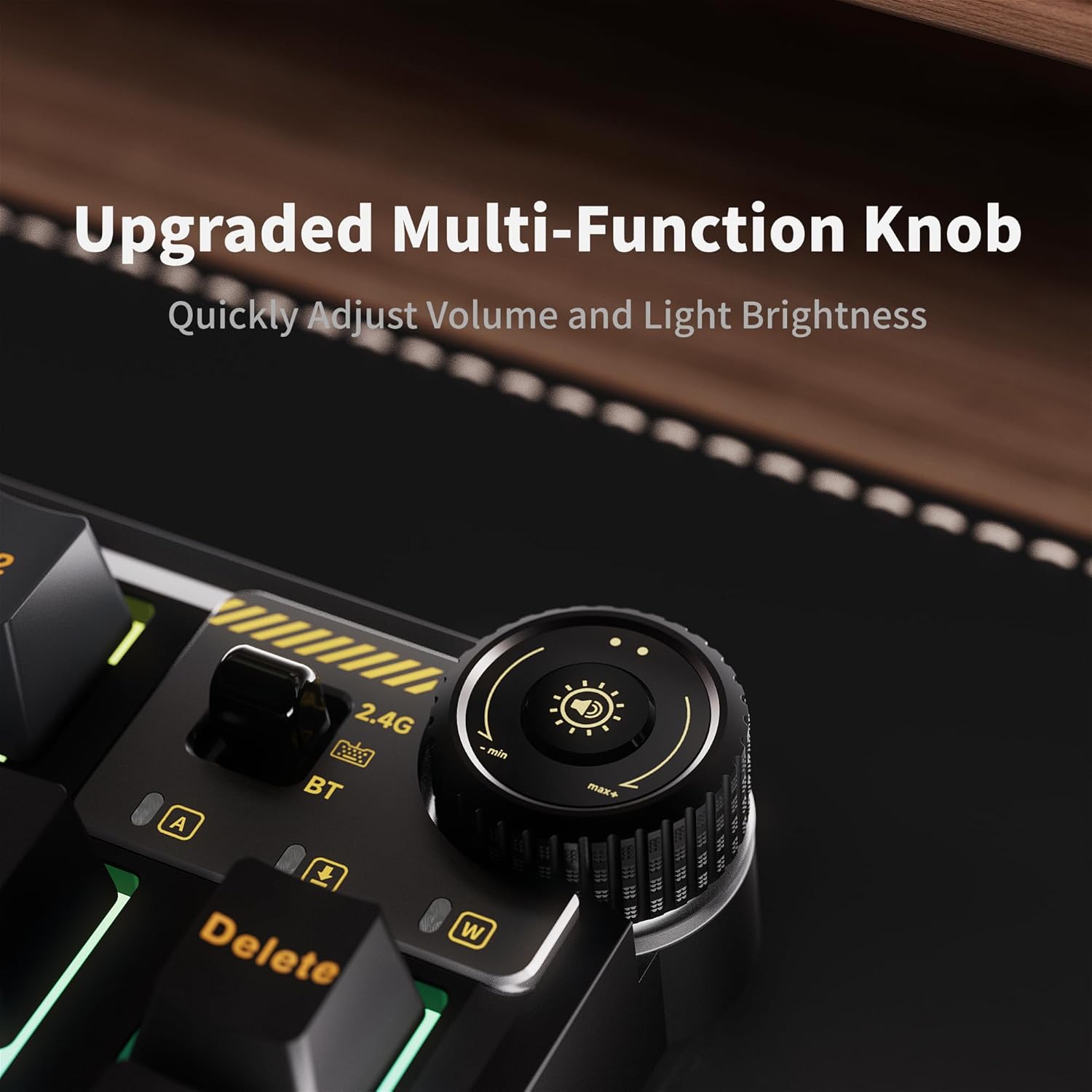
Image: Close-up view of the upgraded multi-function knob, showing symbols for volume and light brightness adjustment.
- Rotate Knob: Adjusts volume by default. In lighting mode, it adjusts brightness or speed.
- Press Knob: Mutes/unmutes audio. In lighting mode, it switches between lighting effects.
- Press and Hold Knob: Switches between volume control mode and lighting control mode.
3. RGB Backlighting
The keyboard features customizable RGB backlighting with multiple effects.

Image: The Aula AU75 keyboard on a desk, illuminated with vibrant RGB backlighting, highlighting its compact 75% layout and 4000mAh battery capacity.
- Adjusting Effects: Use the knob in lighting mode (press and hold knob to switch to lighting mode) or specific Fn + Key combinations (refer to manual or keycap legends for specific keys, e.g., Fn + \| for effect cycling).
- Adjusting Brightness: Rotate the knob in lighting mode or use Fn + Up/Down Arrow keys.
- Adjusting Speed: Use Fn + Left/Right Arrow keys to change the speed of dynamic lighting effects.
4. Hot-Swappable Switches
The Aula AU75 keyboard features hot-swappable sockets, allowing you to change mechanical switches without soldering. This enables customization of typing feel and sound.

Image: The Aula AU75 keyboard with several keycaps and switches removed, illustrating the hot-swappable switch sockets and the durable PBT keycap material.
- Removing Switches: Use the provided switch puller to carefully grip the switch from the top and bottom, then pull straight up.
- Installing Switches: Align the pins of the new switch with the holes on the PCB. Gently press down until the switch clicks into place. Ensure pins are not bent.
5. Gasket Structure
The keyboard incorporates a gasket-mounted design with multiple layers of sound-absorbing materials. This structure provides a softer, more cushioned typing feel and reduces acoustic resonance for a quieter and more pleasant sound profile.

Image: Exploded diagram illustrating the internal gasket structure of the keyboard, showing the various layers of padding and mounting points designed for enhanced typing feel and sound.
6. PBT Keycaps
The keyboard is equipped with double-shot PBT keycaps. PBT material is known for its durability, resistance to shine, and a textured feel that enhances typing comfort. The double-shot manufacturing process ensures legends will not fade over time.

Image: Close-up view of the keyboard's keycaps, highlighting the double-shot PBT construction which provides superior fingertip feel and exceptional durability with non-fading letters.
Maintenance
1. Cleaning
- Disconnect the keyboard from all devices before cleaning.
- Use a soft, lint-free cloth slightly dampened with water or a mild cleaning solution to wipe the keycaps and chassis.
- For deeper cleaning, use the provided keycap puller to remove keycaps and clean underneath with compressed air or a small brush.
- Avoid using harsh chemicals, abrasives, or excessive moisture.
2. Battery Care
The keyboard is equipped with a 4000mAh lithium polymer battery.
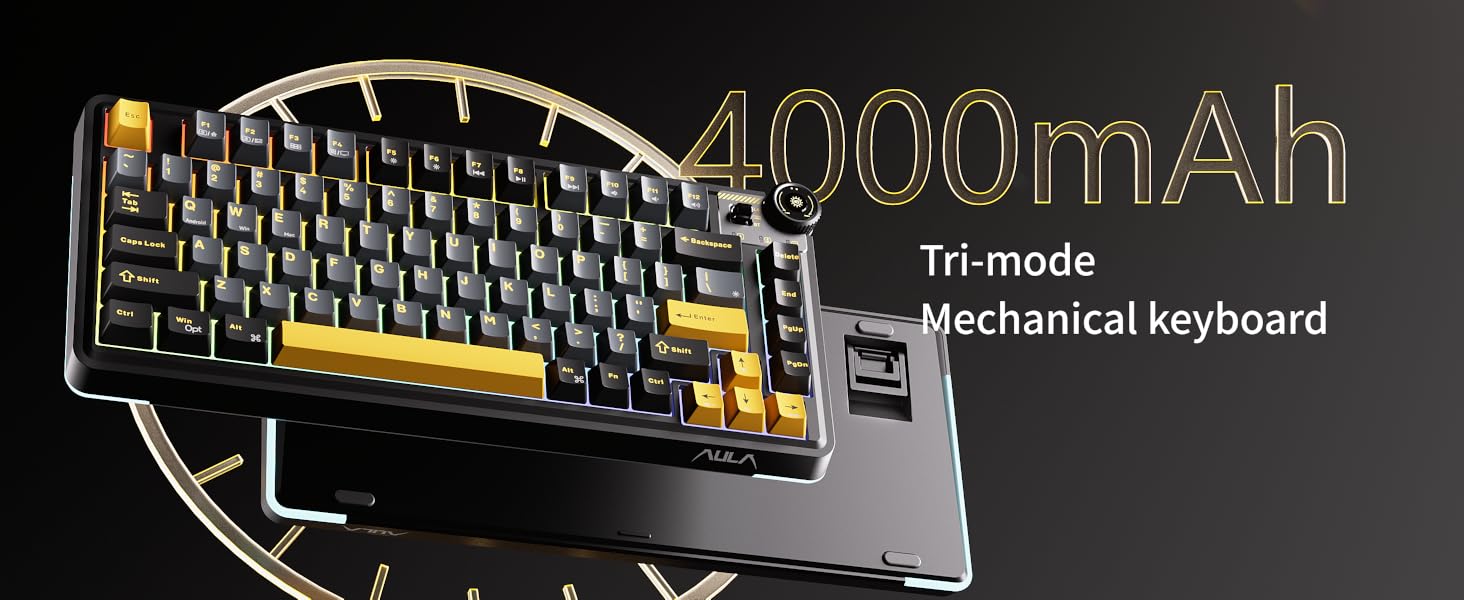
Image: The Aula AU75 keyboard highlighting its 4000mAh battery capacity and tri-mode mechanical keyboard features.
- Charge the keyboard regularly to maintain battery health.
- Avoid completely draining the battery frequently.
- Store the keyboard in a cool, dry place if not used for extended periods.
Troubleshooting
- Keyboard not responding:
- Ensure the keyboard is charged. Connect it via USB-C cable.
- Check the connection mode switch (2.4G, BT, USB) matches your intended connection.
- For 2.4GHz, ensure the USB receiver is securely plugged in.
- For Bluetooth, ensure it's paired correctly and selected (Fn+1/2/3). Try re-pairing.
- Try connecting via USB-C wired mode to rule out wireless issues. - RGB backlighting not working or stuck:
- Ensure the keyboard is powered on.
- Try adjusting brightness with the knob or Fn + Up/Down Arrow.
- Cycle through lighting effects using the knob (in lighting mode) or Fn + \|. - Keys not registering:
- If specific keys are not working, ensure the switches are properly seated. If hot-swappable, try reseating or replacing the switch.
- Clean any debris from under the keycaps. - Bluetooth connection unstable:
- Ensure the keyboard is within range of your device.
- Reduce interference from other wireless devices.
- Try re-pairing the keyboard.
Specifications
| Model Number | AU75 |
| Layout | 75% (81 Keys) |
| Connectivity | 2.4GHz Wireless, Bluetooth 5.0, USB-C Wired |
| Compatible Devices | PC, Laptop, Tablet, Smartphone, Gaming Console (Xbox, Switch, PlayStation) |
| Switches | Hot-Swappable Mechanical Switches (Linear) |
| Keycaps | Double-shot PBT |
| Backlighting | RGB (16.8 million colors, 16 preset effects) |
| Battery Capacity | 4000mAh Lithium Polymer |
| Item Weight | 2.15 pounds (approx. 0.97 kg) |
| Package Dimensions | 14.29 x 7.56 x 2.05 inches |
| Material | Plastic |
Warranty and Support
The COUTSALL Aula AU75 Wireless Mechanical Keyboard comes with a one-year free replacement service. For any issues or inquiries, please contact our 24-hour customer service for assistance.
Ask a question about this manual
Ask about setup, troubleshooting, compatibility, parts, safety, or missing instructions. Manuals+ will review the question and use this page’s manual context to help answer it.