
1. Introduction
The Acegeek Gimli Gaming Case (Model AG-GIMLI-BK-3F) is a mid-tower PC chassis designed for gamers and PC enthusiasts. It features a modern, minimalist aesthetic with a tempered glass side panel to showcase internal components. This manual provides essential information for the assembly, operation, and maintenance of your new gaming case.
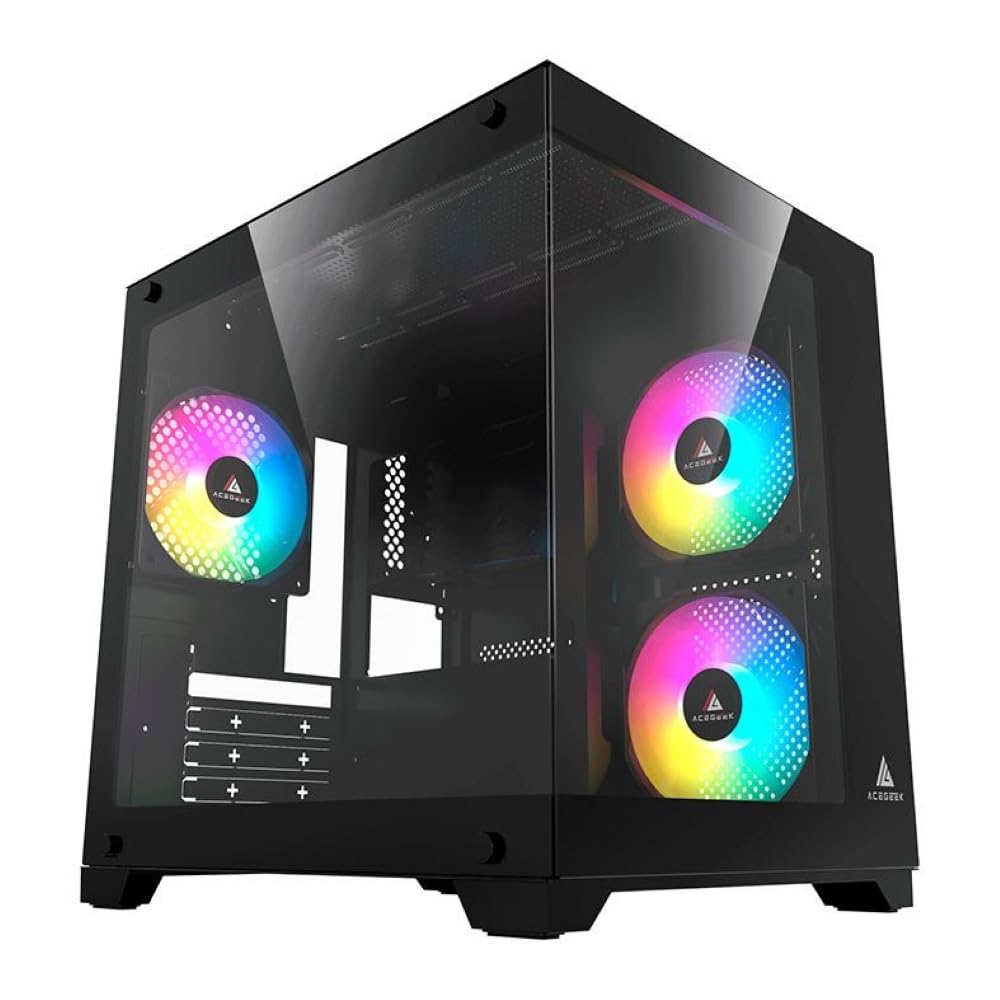
Figure 1: Front view of the Acegeek Gimli Gaming Case.
2. Key Features
- Mid-Tower Form Factor: Compatible with Micro-ATX and ITX motherboards.
- Tempered Glass Side Panel: Provides a clear view of internal components and RGB lighting.
- Pre-installed Fans: Includes 3 x 120mm fans (2 side, 1 rear) for efficient cooling.
- Storage Bays: Supports 1 x HDD + 1 x SSD or 2 x SSD configurations.
- Expansion Slots: Features 4 expansion slots for graphics cards and other add-on cards.
- Cooling Support:
- Fan Support: Front: 2 x 120mm, Top: 2 x 120mm, Rear: 1 x 120mm, PSU Cover: 2 x 120mm.
- Water Cooler Support: Side: 240mm, Top: 240mm.
- Component Clearance:
- CPU Cooler Height: Maximum 155mm.
- VGA Length: Maximum 340mm.
- Cable Management: 20mm space for organized cable routing.
- Power Supply Support: Up to 190mm length.

Figure 2: Internal layout showing fan placement and component space.
3. Setup Guide
3.1 Unpacking
Carefully remove the case from its packaging. Inspect for any damage during transit. Retain the packaging for future transport or warranty claims.
3.2 Removing Side Panels
The tempered glass side panel is typically secured with thumbscrews at the rear of the case. Unscrew these and carefully slide or lift the panel off. The opposite metal side panel may also be secured with thumbscrews.

Figure 3: Rear view of the case, showing thumbscrews for side panel removal.
3.3 Motherboard Installation
Install the appropriate standoffs for your Micro-ATX or ITX motherboard. Carefully place the motherboard into the case, aligning it with the standoffs and I/O shield opening. Secure with screws.
3.4 Power Supply Installation
Install your power supply unit (PSU) into the designated PSU shroud area, typically at the bottom rear of the case. Secure it with screws from the rear of the case.
3.5 Storage Drive Installation
Utilize the dedicated bays for 2.5" SSDs and 3.5" HDDs. Refer to the case's internal structure for specific mounting points. The case supports 1 x HDD + 1 x SSD or 2 x SSD.
3.6 Graphics Card and Expansion Cards
Remove the necessary expansion slot covers at the rear of the case. Insert your graphics card or other expansion cards into the motherboard's PCIe slots and secure them with screws.
3.7 Cable Management
Route all power and data cables through the cutouts in the motherboard tray to the rear of the case. Utilize the 20mm cable management space to neatly organize cables, improving airflow and aesthetics.

Figure 4: Internal view highlighting cable routing and component installation areas.
4. Operation
4.1 Power On/Off
Connect the power cable from your PSU to a wall outlet. Press the power button on the front I/O panel to turn on your system. To turn off, use the operating system's shutdown function or press and hold the power button for a few seconds.
4.2 Fan Control
The pre-installed fans are connected to the motherboard or a fan controller (if included or purchased separately). Fan speed and RGB lighting (if applicable) can typically be controlled via your motherboard's BIOS/UEFI settings or dedicated software provided by your motherboard manufacturer.

Figure 5: Angled view showcasing the pre-installed RGB fans.
5. Maintenance
5.1 Cleaning Dust Filters
Regularly clean the dust filters (if present) to maintain optimal airflow and cooling performance. Dust filters are typically located at the front, top, and bottom of the case. Remove them and clean with compressed air or water (ensure they are completely dry before reinstallation).
5.2 Cleaning Exterior Surfaces
Wipe down the exterior surfaces, including the tempered glass panel, with a soft, damp cloth. Avoid abrasive cleaners that may scratch the finish or glass.
5.3 Internal Dust Removal
Periodically open the case and use compressed air to remove dust from internal components, especially CPU coolers, GPU heatsinks, and case fans. Ensure the system is powered off and unplugged before performing internal cleaning.
6. Troubleshooting
6.1 System Not Powering On
- Check if the power cable is securely connected to both the PSU and the wall outlet.
- Ensure the PSU switch is in the "ON" position.
- Verify that the front panel power button cable is correctly connected to the motherboard.
- Confirm that all internal power connections (24-pin ATX, 8-pin CPU, PCIe for GPU) are securely seated.
6.2 Fans Not Spinning or RGB Not Working
- Check fan power cables and RGB cables (if applicable) are correctly connected to the motherboard or fan controller.
- Consult your motherboard manual for fan header locations and RGB control software.
- Ensure fan control settings in BIOS/UEFI or software are configured correctly.
6.3 Overheating Issues
- Ensure all case fans are spinning and oriented correctly for optimal airflow (intake/exhaust).
- Clean any dust filters and internal components as described in the Maintenance section.
- Verify that your CPU cooler and GPU cooling solutions are properly installed and functioning.
7. Specifications
| Feature | Detail |
|---|---|
| Brand | Acegeek |
| Model Name | Gimli |
| Part Number | AG-GIMLI-BK-3F |
| Case Type | Mid Tower |
| Motherboard Compatibility | Micro ATX, Mini ITX |
| Material | Steel Alloy |
| Color | Black |
| Dimensions (LxWxH) | 35.8 x 27.5 x 36 cm |
| Internal Bays | 1 x HDD + 1 x SSD or 2 x SSD |
| Expansion Slots | 4 |
| Pre-installed Fans | Side: 2 x 120mm, Rear: 1 x 120mm |
| Supported Fans (Max) | Front: 2 x 120mm, Top: 2 x 120mm, Rear: 1 x 120mm, PSU Cover: 2 x 120mm |
| Supported Water Cooler | Side: 240mm, Top: 240mm |
| Max CPU Cooler Height | 155mm |
| Max VGA Length | 340mm |
| Cable Management Space | 20mm |
| Supported PSU Length | 190mm |
| Cooling Method | Air |
| Recommended Uses | Gaming |

Figure 6: Case dimensions (Length x Width x Height).
8. Warranty and Support
The Acegeek Gimli Gaming Case comes with a 12-month warranty from the date of purchase. This warranty covers manufacturing defects and malfunctions under normal use. For warranty claims or technical support, please contact Acegeek customer service through their official website or the retailer where the product was purchased.
Please retain your proof of purchase for warranty validation.