Introduction
This manual provides detailed instructions for the setup, operation, and maintenance of your BOIFUN Additional Baby Camera. This camera is designed to be specifically compatible with the BOIFUN 7SM Baby Monitor system, offering advanced monitoring capabilities such as split-screen viewing, AI motion and sound detection, 4X zoom, and area alarm functions. Please read this manual thoroughly before use to ensure proper functionality and safety.

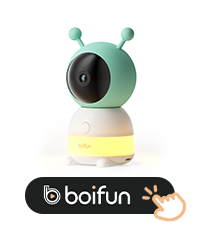
Figure 1: BOIFUN Baby 7SM Additional Camera
What's in the Box
Verify that all components are present in the package:
- 1 × BOIFUN Baby Camera
- 1 × Power Adapter
- 1 × Power Cable
- 3 × Screws
- 3 × Nuts
- 1 × Card Pin
- 1 × Product Manual (this document)
- 1 × Video Guide Card
Setup
1. Powering On
Connect the provided power cable to the camera and plug the power adapter into a standard electrical outlet. The camera will automatically power on.
2. Pairing with Monitor and App Connection
The camera is designed to seamlessly integrate with your existing BOIFUN 7SM Baby Monitor. Refer to your main monitor's manual for specific pairing instructions. For remote viewing and advanced features, download the BOIFUN app on your smartphone and follow the in-app instructions to connect the camera via 2.4 GHz Wi-Fi.

Figure 2: View your baby via the app (on the go) or the monitor (at home).
Video 1: Demonstrates the mobile app functions, including live view, recording, motion detection settings, and privacy lens control. This video is provided by the seller.
3. Mounting
The camera supports both wall mount and ceiling mount installations. Use the included screws and nuts for secure mounting. Ensure the camera is positioned to provide a clear view of the desired monitoring area.
Operating Instructions
1. Dual Camera and Split-Screen Functionality
When multiple BOIFUN cameras are connected, your monitor supports split-screen viewing, allowing you to see feeds from two cameras simultaneously. This feature is ideal for monitoring multiple children or different areas of a room.

Figure 3: Monitor two rooms with dual cameras and split-screen view.
2. AI Motion & Sound Detection
The camera is equipped with AI-powered motion and sound detection. When enabled, the system will alert you via the monitor or app if movement or significant sound is detected in the monitored area. Sensitivity levels can be adjusted in the app settings.

Figure 4: Smart care features include movement and sound detection.
3. Area Alarm
Define specific 'Alarm Areas' within the camera's view using the app. If your baby enters or exits this designated area, you will receive an immediate alarm notification, providing an extra layer of safety.
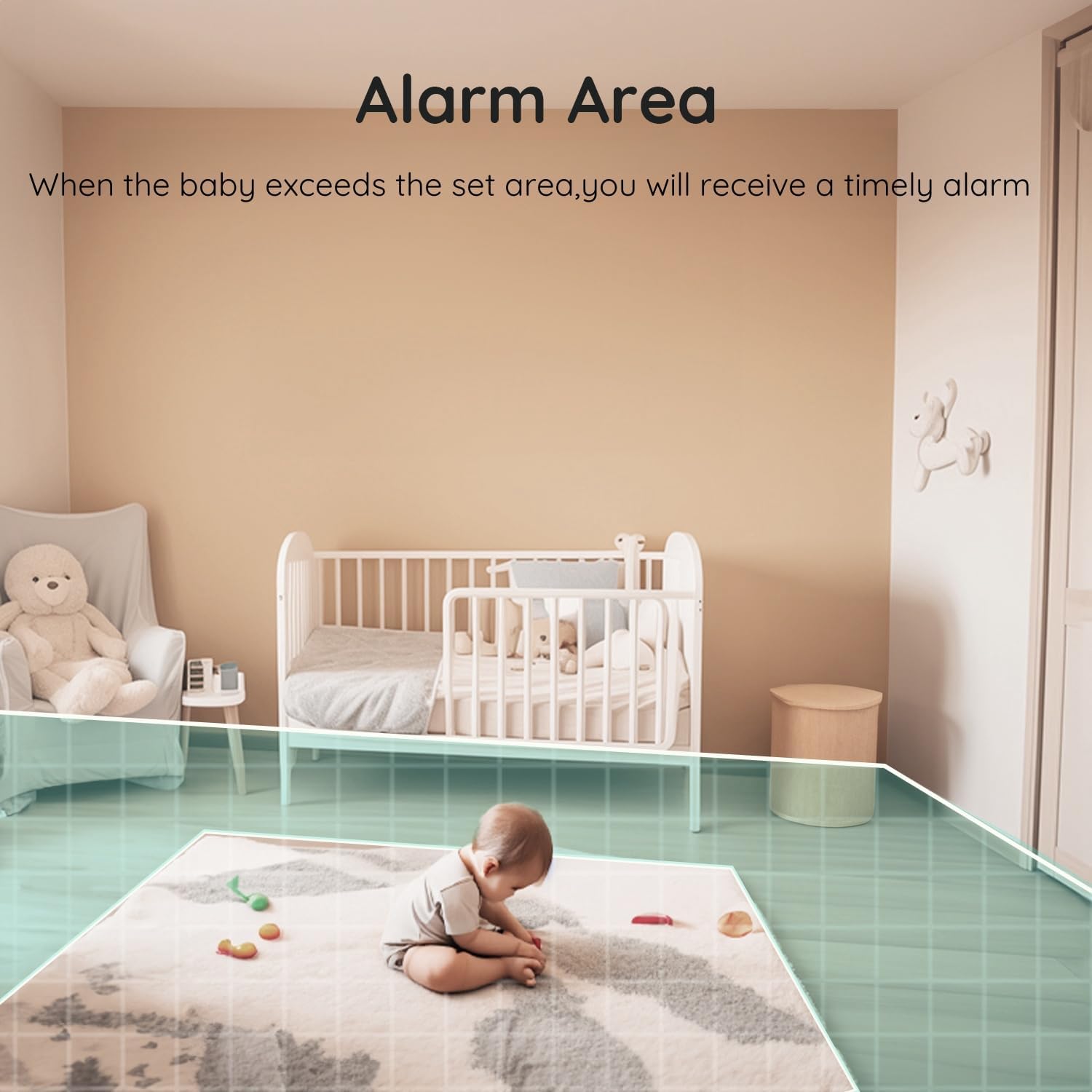
Figure 5: Set an alarm area to be notified if your baby moves beyond a safe zone.
4. Two-Way Audio
Utilize the two-way audio feature to communicate with your baby or other family members through the camera. Press and hold the microphone button on the monitor or use the intercom function in the app to speak.

Figure 6: Seamless two-way audio communication with your baby.
5. Night Vision
The camera features 940nm invisible infrared light for clear night vision without disturbing your baby. This ensures continuous monitoring even in complete darkness.

Figure 7: Invisible infrared light for clear night vision, protecting your baby's eye health.
6. 4X Digital Zoom
Zoom in up to 4 times digitally to view finer details of your baby or the monitored environment. This function is accessible via the monitor or the app.
7. Feeding Reminder
Set up feeding reminders through the monitor or app to help you keep track of your baby's feeding schedule.
8. Privacy Protection
The camera offers privacy features, including the ability to turn the lens ON/OFF or set a privacy schedule to disable real-time monitoring and recording during specific periods. Video encryption is also supported to protect your data.
9. Recording Management
The camera supports recording to an SD card (not included) for continuous or event-based recording. Cloud storage service is also available for backup, even if your device or SD card is damaged.
Maintenance
To ensure the longevity and optimal performance of your BOIFUN Baby Camera, follow these maintenance guidelines:
- Cleaning: Gently wipe the camera lens and body with a soft, dry cloth. Do not use liquid cleaners or abrasive materials.
- Placement: Place the camera in a stable location, away from direct sunlight, heat sources, and moisture.
- Power: Disconnect the power adapter during electrical storms or when not in use for extended periods.
- Software Updates: Regularly check for firmware updates via the BOIFUN app to ensure the camera has the latest features and security enhancements.
Troubleshooting
| Problem | Possible Cause | Solution |
|---|---|---|
| No image/video on monitor or app. | Camera not powered on, not paired, or lens disabled. | Ensure camera is plugged in. Re-pair with monitor. Check app settings for 'Lens ON' or 'Privacy Schedule'. |
| Poor signal or connection issues. | Too far from monitor/router, interference, or weak Wi-Fi. | Move camera closer to monitor/router. Reduce interference from other electronic devices. Ensure strong 2.4 GHz Wi-Fi signal. |
| Motion/Sound detection not working. | Detection feature disabled or sensitivity too low. | Enable Motion/Sound Detection in app settings. Increase detection sensitivity. |
| Microphone not accessible in app. | App permissions not granted. | Go to your phone's settings, find the BOIFUN app, and allow microphone access. |
| Recording failed. | SD card full, corrupted, or not inserted correctly. | Check SD card status. Format or replace SD card if necessary. Ensure proper insertion. |
Specifications
| Feature | Detail |
|---|---|
| Brand | BOIFUN |
| Model Name | Baby 7SM |
| Connectivity Technology | Wireless (2.4 GHz Wi-Fi) |
| Video Capture Resolution | 1080p |
| Indoor/Outdoor Usage | Indoor |
| Power Source | Corded Electric (With Charging Cable) |
| Mounting Type | Wall Mount & Ceiling Mount |
| Item Dimensions (L x W x H) | 2.6 x 4.9 x 2.8 inches |
| Item Weight | 8.5 ounces |
| Special Features | Monitor and Mobile App Control, Sound Detection, Movement Detection, 4x Zoom, 1080P HD Night Vision, Dual Cameras, Split-Screen, Clear Interface and Button Design |
Warranty and Support
BOIFUN is committed to providing high-quality products and excellent customer service. Your BOIFUN Baby Camera comes with the following:
Professional After-Sales Team
90-Day Free Return Policy
2-Year Quality Guarantee
For any questions or support regarding your product, please contact us directly:
 admin@boifun.net