
Motorola DLR110
Motorola Solutions Curve Two-Way Radio User Manual
Model: DLR110
Introduction
This manual provides essential information for the proper setup, operation, and maintenance of your Motorola Solutions Curve Two-Way Radio. The Curve communication device is designed to enhance team productivity and connectivity through its advanced features, including a Wi-Fi-powered Voice Assistant Button (VAB) and robust push-to-talk communication capabilities. This bundle includes five Motorola DLR110 Curve 900 MHz Digital Business Radios.

Figure 1: Five Motorola DLR110 Curve Two-Way Radios with charging cradles.
Safety Information
Important Safety Instructions:
- Read all instructions carefully before operating the device.
- Do not operate the radio in explosive atmospheres (e.g., flammable gases, dust particles, metallic powders).
- Use only Motorola-approved batteries and accessories.
- Do not disassemble or modify the radio. Refer all servicing to qualified personnel.
- Keep the radio away from medical devices, such as pacemakers, to avoid interference.
- Avoid exposing the radio to extreme temperatures, direct sunlight, or excessive moisture.
- This device operates on the 900 MHz frequency band. Be aware of local regulations regarding radio frequency usage.
Setup
1. Unpacking
Your Motorola Curve bundle includes five DLR110 radios and their respective charging cradles. Carefully remove all components from the packaging and inspect them for any signs of damage. If any items are missing or damaged, contact your supplier immediately.
2. Charging the Battery
Before initial use, fully charge the radio's battery. To charge:
- Connect the power adapter to the charging cradle.
- Plug the power adapter into a wall outlet.
- Place the radio into the charging cradle. Ensure the radio is seated correctly and the charging indicator light illuminates (typically green or amber).
- A full charge may take several hours. The indicator light will change or turn off when charging is complete.

Figure 2: Motorola DLR110 Curve Radio in its charging cradle.
3. Powering On/Off
To power on the radio, press and hold the Power button (usually located on the side or top) until the radio powers on. To power off, press and hold the Power button again until the radio shuts down.
Operating
Basic Controls and Features
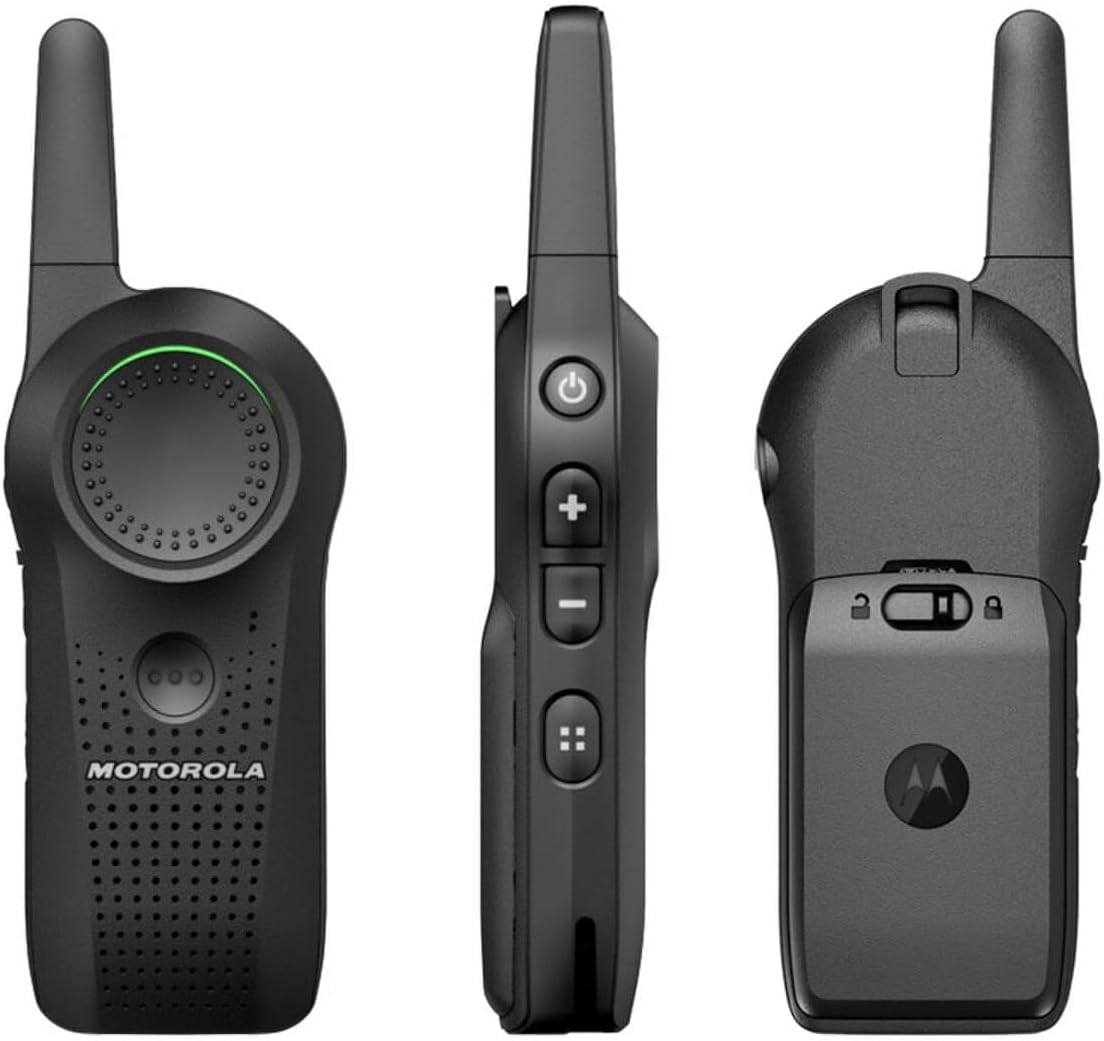
Figure 3: Front, side, and back views of the Motorola DLR110 Curve Radio, highlighting button locations.
- Push-to-Talk (PTT) Button: Located on the side of the radio. Press and hold to transmit your voice, release to listen.
- Volume Control: Use the '+' and '-' buttons (typically on the side) to adjust the listening volume.
- Voice Assistant Button (VAB): The circular button on the front of the radio. This Wi-Fi powered feature allows voice commands for logging in, initiating direct or group calls, and sending voicemails.
- Channel/Group Selection: Your radios are pre-configured for specific channels or talk groups. Consult your system administrator for details on available channels and how to switch between them if applicable.
Using the Voice Assistant
The Voice Assistant Button (VAB) provides a streamlined communication experience. To use the voice assistant:
- Ensure your radio is connected to a Wi-Fi network.
- Press and hold the VAB.
- Speak your command clearly, such as "Log in," "Call Group A," or "Send voicemail to John."
- Release the VAB. The radio will process your command.
Note: Voice Assistant functionality is subscription-based and managed through the Curve Portal. Ensure your subscription is active for full functionality.
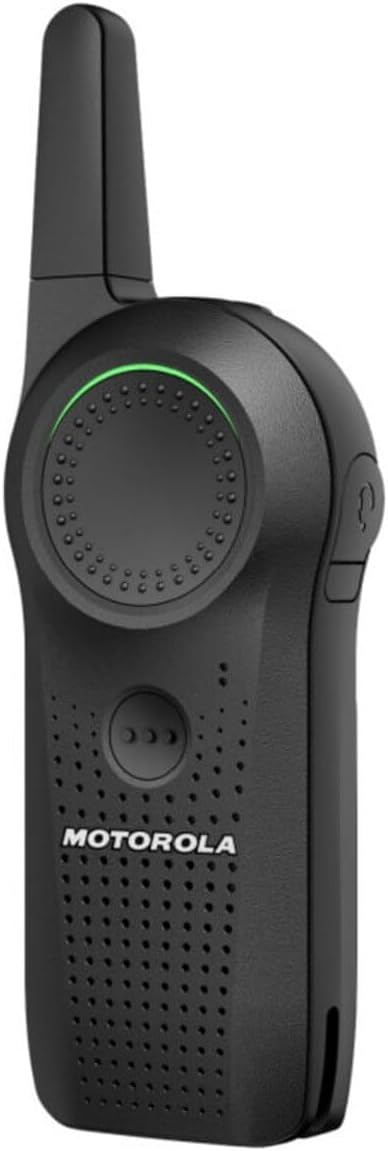
Figure 4: Front view of the Motorola DLR110 Curve Radio, highlighting the Voice Assistant Button.
Curve Portal Management
The Curve Portal is a web-based platform used for managing Voice Assistant subscriptions and monitoring device usage. It provides real-time analytics and key performance metrics to help track radio and personnel productivity. Access to the Curve Portal is typically provided by your system administrator.
Maintenance
Cleaning the Radio
- Turn off the radio before cleaning.
- Use a soft, damp cloth to wipe the exterior of the radio.
- Do not use harsh chemicals, solvents, or abrasive cleaners.
- Ensure no moisture enters the charging port or speaker/microphone openings.
Battery Care and Storage
- Store the radio and batteries in a cool, dry place when not in use.
- Avoid storing fully charged or completely depleted batteries for extended periods.
- If storing for a long time, charge the battery to approximately 50% capacity.
- Do not expose batteries to fire or extreme heat.
Troubleshooting
| Problem | Possible Cause | Solution |
|---|---|---|
| Radio does not power on. | Battery is depleted or not properly inserted. | Charge the battery. Ensure the battery is securely inserted. |
| Cannot transmit or receive. | Out of range, incorrect channel/group, or Wi-Fi issue for VAB. | Move closer to other radios or Wi-Fi access point. Verify channel/group settings. Check Wi-Fi connection. |
| Voice Assistant not responding. | No Wi-Fi connection, subscription expired, or unclear command. | Check Wi-Fi status. Verify Voice Assistant subscription via Curve Portal. Speak clearly. |
| Poor audio quality. | Low battery, interference, or radio too far from speaker/microphone. | Charge battery. Move away from sources of interference. Speak directly into the microphone. |
If the problem persists after attempting these solutions, please contact Motorola customer support or your system administrator.
Specifications
| Feature | Detail |
|---|---|
| Model Number | DLR110 |
| Brand | Motorola |
| Item Weight | 4.8 pounds (for the bundle of 5 radios) |
| Product Dimensions | 4.2 x 1.7 x 0.9 inches (per radio) |
| Number of Channels | 10 |
| Frequency Range | 900 MHz |
| Water Resistance Level | Not Water Resistant |
| Connectivity Protocol | Wi-Fi |
| Included Components | 5 x Motorola DLR110 Curve 900 MHz Digital Business Radios |
| Compatible Devices | Motorola DLR110 Curve 900 MHz Digital Business Radios |
| UPC | 094148674216 |
Warranty and Support
Warranty Information
Specific warranty terms and conditions for your Motorola Solutions Curve Two-Way Radios are typically provided with your purchase documentation or can be found on the official Motorola Solutions website. Please retain your proof of purchase for warranty claims.
Customer Support
For technical assistance, troubleshooting beyond this manual, or service inquiries, please visit the official Motorola Solutions support website or contact your authorized Motorola Solutions dealer. Contact information can usually be found on the manufacturer's website or in your product packaging.
Related documentsDLR110


Ask a question about this manual
Ask about setup, troubleshooting, compatibility, parts, safety, or missing instructions. Manuals+ will review the question and use this page’s manual context to help answer it.