
MENDOCK UF03
MENDOCK UF03 Keyless-Entry Deadbolt Smart Lock User Manual
Model: UF03 | Brand: MENDOCK
1. Product Overview
The MENDOCK UF03 Keyless-Entry Deadbolt Smart Lock offers advanced security and convenient access for your home or office. This digital lock provides multiple entry methods including fingerprint, keypad codes, and traditional physical keys. Designed for durability, it features a waterproof and dustproof rating, ensuring reliable performance in various weather conditions.
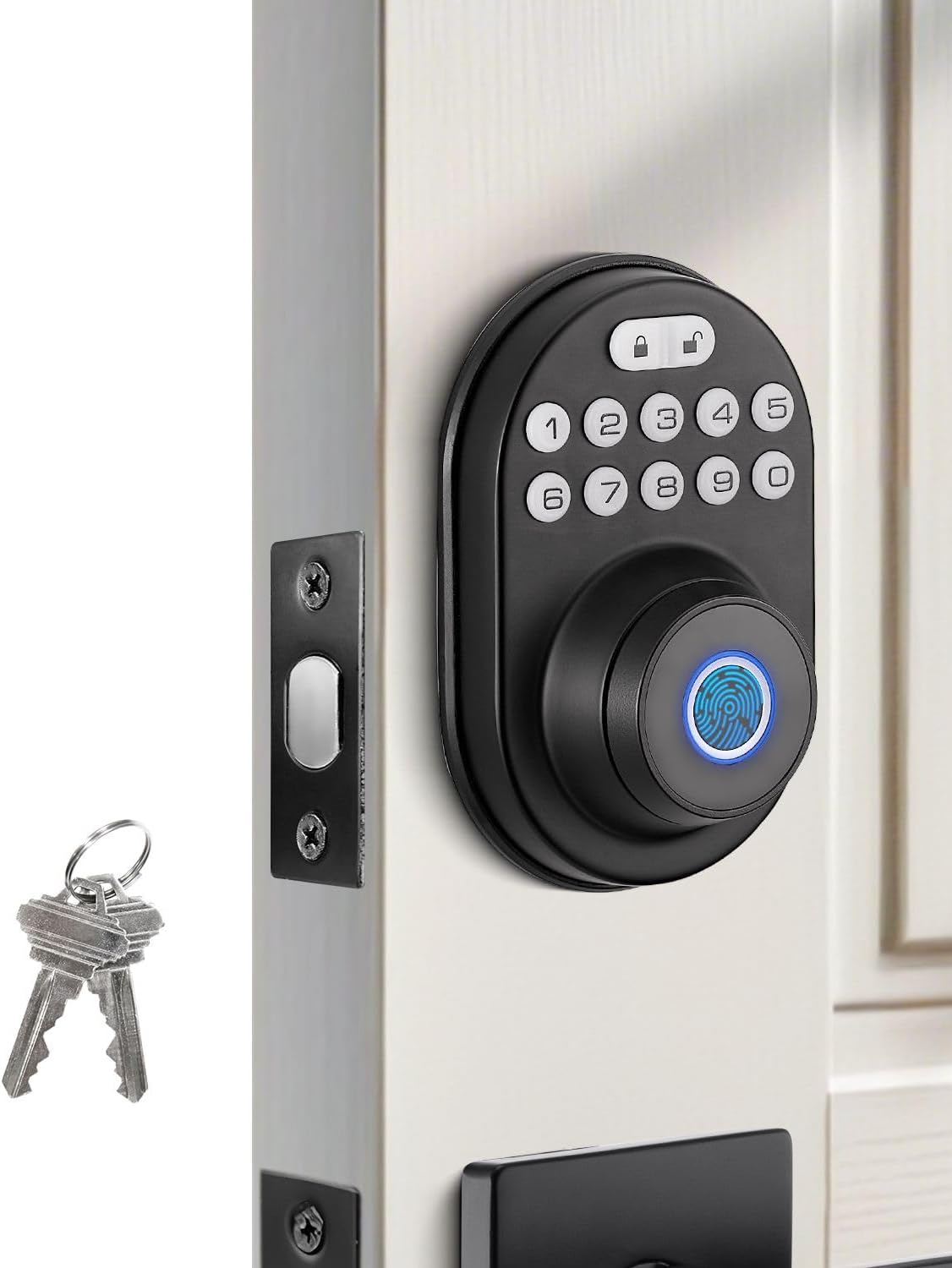
Image 1.1: The MENDOCK UF03 Smart Lock in Matte Black, shown with its accompanying physical keys. This image highlights the sleek design and the primary components of the lock.
2. Product Features
- Multifunctional Access: Unlock using fingerprint, keypad codes, or physical keys.
- Emergency Power: Features a Type-C USB connector for emergency power via a power bank in case of battery drain.
- Automatic Locking: Configurable auto-lock function with a delay of 0 to 30 seconds.
- Easy Installation: Designed for straightforward installation, replacing existing locks in minutes with a screwdriver. Compatible with door thicknesses from 1.38" to 2.16" and both left/right-hand doors. No app required for settings.
- Durability & Security: Solid construction meeting ANSI security standards, tested for over 100,000 lock/unlock cycles. IP56 dustproof and waterproof rating for weather resistance.
- Advanced Security Features: Includes one-touch locking, virtual code, temporary password, and low battery alert.
- Multiple User Capacity: Supports up to 50 user codes, one-time codes, and 50 fingerprints. Includes 2 physical keys.
- Long Battery Life: Powered by 4 AA batteries, lasting over 1 year.

Image 2.1: Illustration of the multiple access methods for the UF03 Smart Lock, including fingerprint, keypad, and physical key. This highlights the versatility of the lock for different user preferences.

Image 2.2: The emergency power interface of the UF03 Smart Lock, showing a USB Type-C port for connecting an external power bank. This feature ensures access even if the internal batteries are depleted.
3. Installation Guide
The MENDOCK UF03 Smart Lock is designed for easy installation and can replace most standard deadbolts. No special tools are required beyond a screwdriver.
3.1. Door Compatibility
Before installation, ensure your door meets the following specifications:
- Door Thickness: 1.38" to 2.16" (35mm to 55mm)
- Hole Diameter: 2-1/8" (54mm)
- Backset: 2-3/8" to 2-3/4" (60mm to 70mm)
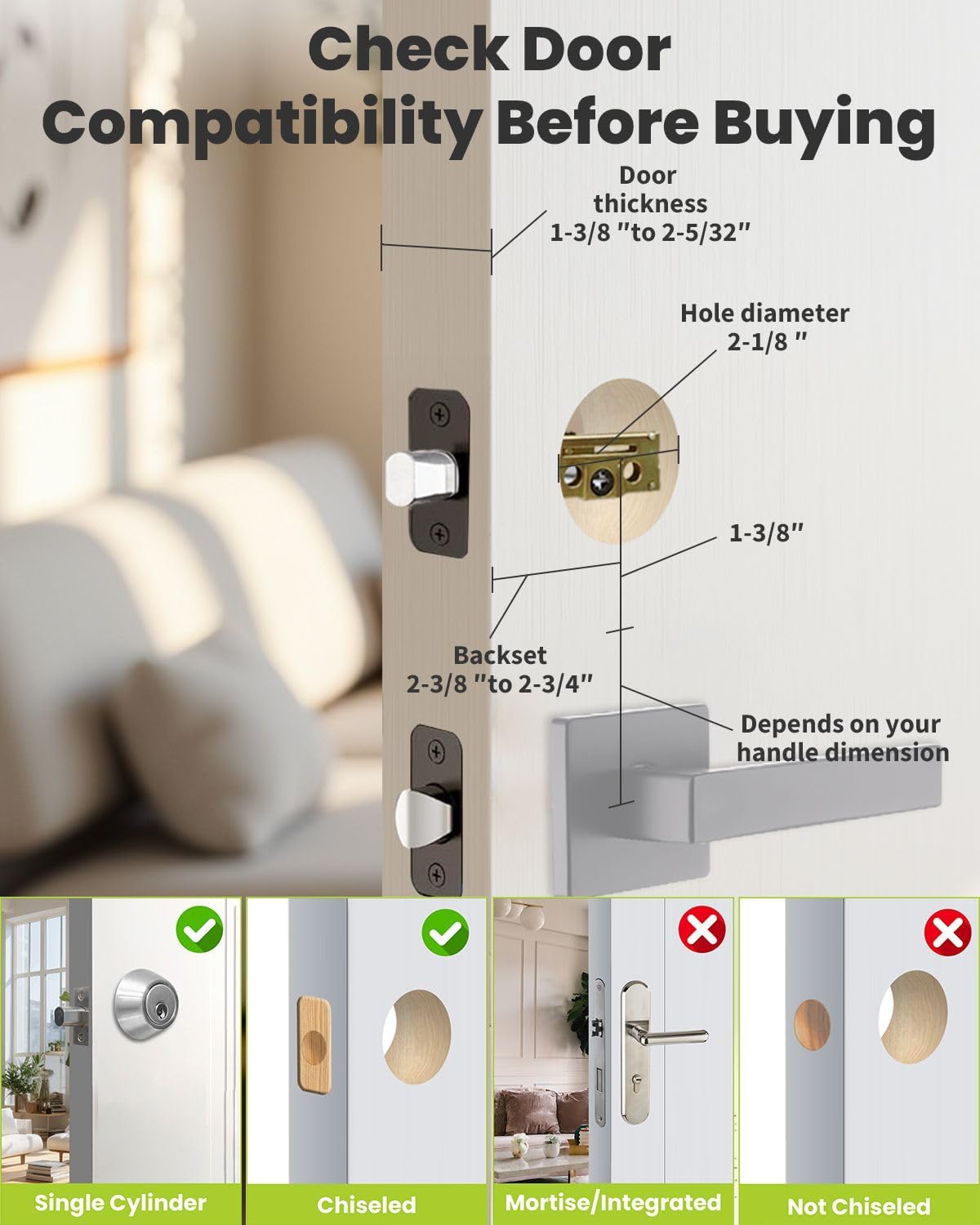
Image 3.1: Diagram illustrating door compatibility requirements for the UF03 Smart Lock, including door thickness, hole diameter, and backset measurements. It also shows compatible and incompatible door types.
3.2. Installation Steps
Follow the instructions provided in the package for detailed step-by-step installation. A screwdriver is the only tool needed.

Image 3.2: A visual representation of the simple installation process for the UF03 Smart Lock, emphasizing that only a screwdriver is needed.
4. Setup and Programming
The UF03 Smart Lock can be programmed directly from the keypad without needing a smartphone application.
4.1. Initial Setup and Administrator Addition
Upon initial power-up or after a factory reset, the lock is in initialization state. The default password is "123456".
- Press the Lock Key (
 ) + 9 + Lock Key to perform a self-check adjustment for locking direction.
 - To add an administrator: Press Lock Key + 1 + Lock Key.
- Enter the initial password "123456" and press Lock Key.
- Enter your new administrator password (6-8 digits) and press Lock Key. Re-enter the new password and press Lock Key to confirm.
- Alternatively, to add an administrator fingerprint: After entering the initial password, press Lock Key. Place your finger on the sensor 5 times, lifting between each scan, until successful.
Video 4.1: This video demonstrates the programming steps for the MENDOCK UF03 Smart Lock, including self-check adjustment, adding administrators (password and fingerprint), adding regular users, adding temporary passwords, deleting users, setting vacation mode, mute mode, and delayed automatic locking. It also shows factory reset methods.
4.2. Adding Regular Users
Regular users can be added using an administrator password or fingerprint.
- Press the Lock Key + 2 + Lock Key.
- Verify administrator identity by entering the administrator password or scanning the administrator fingerprint.
- Enter the new user's password (6-8 digits) and press Lock Key. Re-enter the password and press Lock Key to confirm.
- To add a user fingerprint: After administrator verification, place the user's finger on the sensor 5 times, lifting between each scan, until successful.
User IDs are assigned sequentially (011-040 for regular users). Remember user IDs for deletion purposes.
4.3. Adding Temporary Passwords
Temporary passwords are one-time use codes.
- Press the Lock Key + 3 + Lock Key.
- Verify administrator identity by entering the administrator password or scanning the administrator fingerprint.
- Enter the temporary password (6-8 digits) and press Lock Key. Re-enter the password and press Lock Key to confirm.
5. Operating Instructions
5.1. Unlocking the Lock
- Fingerprint: Place a registered finger on the fingerprint sensor. The lock will unlock if the fingerprint is recognized.
- Keypad Code: Enter a registered password on the keypad and press the Lock Key.
- Physical Key: Insert the physical key into the hidden keyhole (rotate the fingerprint cover to reveal) and turn to unlock.
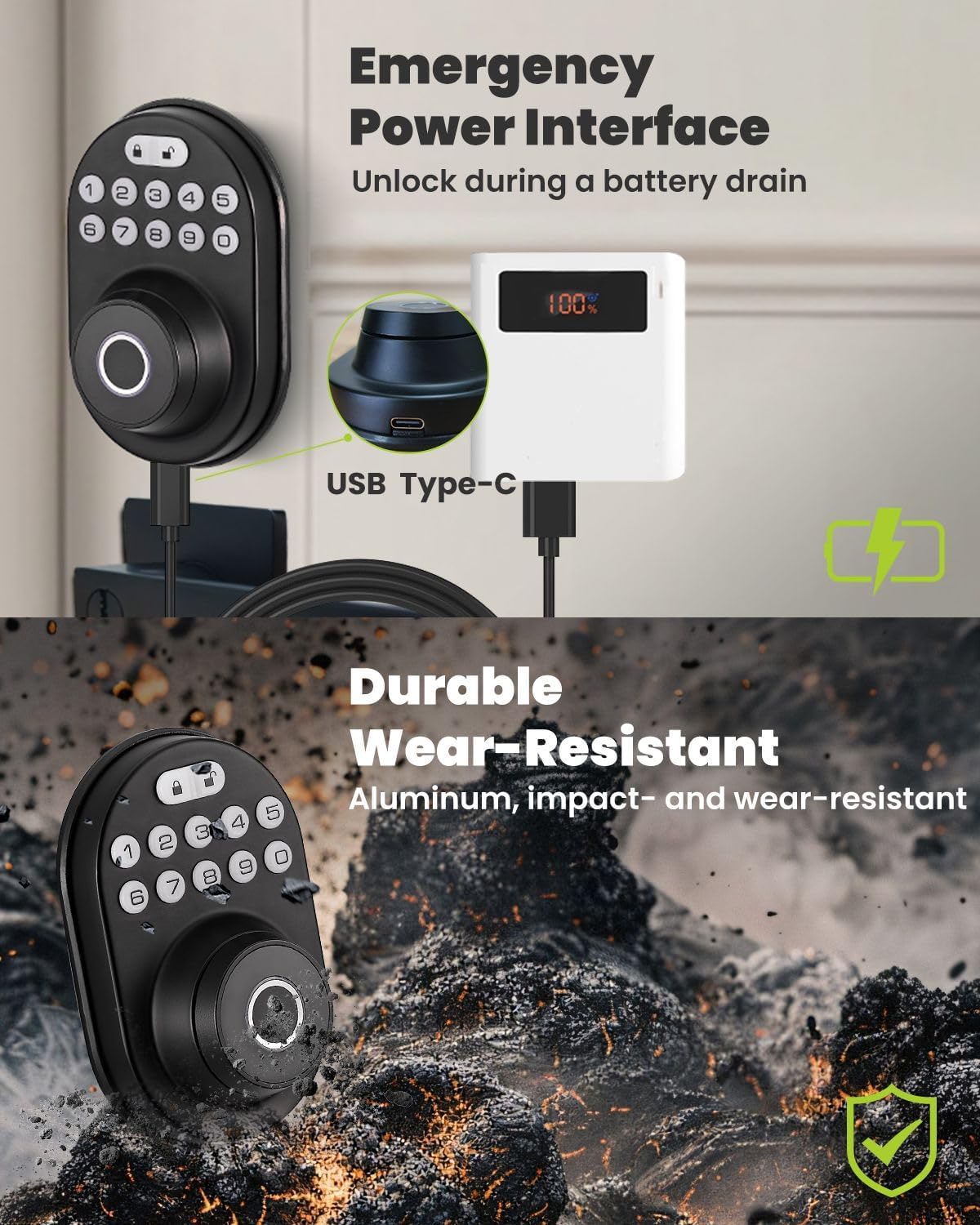
Image 5.1: The hidden keyhole feature of the UF03 Smart Lock, which is revealed by rotating the fingerprint sensor cover. This provides a discreet manual override option.
5.2. Locking the Lock
- One-Touch Locking: Press the Lock Key on the keypad to lock the deadbolt.
- Automatic Locking: If enabled, the lock will automatically engage after a set period (0-30 seconds) once the door is closed.
5.3. Vacation Mode
Vacation mode disables all user codes and fingerprints except for administrator access. This is useful when you are away for an extended period.
- To activate/deactivate: Press the Lock Key + 5 + Lock Key.
- Verify administrator identity by entering the administrator password or scanning the administrator fingerprint.
5.4. Mute Mode
Mute mode disables all sound feedback from the lock.
- To activate/deactivate: Press the Lock Key + 6 + Lock Key.
- Verify administrator identity by entering the administrator password or scanning the administrator fingerprint.
5.5. Delayed Automatic Locking Function
This function allows you to set a delay for automatic locking after the door closes.
- Press the Lock Key + 8 + Lock Key.
- Verify administrator identity by entering the administrator password or scanning the administrator fingerprint.
- Enter a number between 5 and 30 (for seconds) or 0 to disable the delay, then press Lock Key.
6. Maintenance
- Battery Replacement: The lock is powered by 4 AA batteries. Replace them when the low battery alert is issued to ensure continuous operation.
- Cleaning: Use a soft, dry cloth to clean the keypad and fingerprint sensor. Avoid abrasive cleaners or solvents that could damage the surface.
- Environmental Protection: While the lock is IP56 rated for dust and water resistance, prolonged exposure to extreme conditions should be minimized.
7. Troubleshooting
| Problem | Possible Cause | Solution |
|---|---|---|
| Lock not responding / No power | Dead batteries. | Replace AA batteries. Use a power bank with the Type-C USB port for emergency power. |
| Fingerprint not recognized | Finger is dirty, wet, or scanned at a weird angle. Fingerprint not properly registered. | Ensure finger is clean and dry. Try different angles. Re-register fingerprint, ensuring 5 complete scans. |
| Keypad not responding | Incorrect code entered. Keypad malfunction. | Ensure correct code is entered. Try physical key. If persistent, contact customer support. |
| Lock does not engage/disengage fully | Misalignment with door frame. Obstruction in bolt path. | Check door alignment and strike plate. Clear any obstructions. Perform self-check adjustment (Section 4.1). |
| All users deleted unexpectedly | Accidental factory reset or mass deletion. | Re-add administrators and users following programming instructions. |
7.1. Factory Reset
A factory reset will delete all registered users and passwords, restoring the lock to its initial state with default password "123456".
- Method 1 (via Keypad): Press the Lock Key + 0 + Lock Key. Verify administrator identity by entering the administrator password or scanning the administrator fingerprint.
- Method 2 (Physical Reset): Open the battery compartment cover. Locate the "RES" hole (reset button). Insert a needle or thin object into the hole and press and hold for 5 seconds until the keypad lights up green and emits a long beep.
8. Specifications
| Brand | MENDOCK |
| Model Name | UF03 |
| Lock Type | Biometric, Deadbolt, Keypad |
| Material | Aluminum, Polycarbonate |
| Item Dimensions (L x W x H) | 4.29 x 2.83 x 1.12 inches |
| Item Weight | 1.94 pounds |
| Special Features | Auto-Lock, Back-Lit Keypad, Battery Indicator, Fingerprint, Weather Resistant (IP56) |
| Power Source | 4 AA Batteries (not included) |
| UPC | 850068594160 |
9. Warranty and Support
MENDOCK is committed to providing quality products and excellent customer service. For any questions or assistance with your UF03 Smart Lock, please contact the professional sales team. Refer to your product packaging or the official MENDOCK website for specific warranty details and contact information.