
1. Product Overview
The Waves Vinyl Player is a versatile audio device that combines a vintage-style record player aesthetic with modern Bluetooth speaker functionality. It features adjustable ambient lighting with water wave effects, multiple playback modes including white noise, Bluetooth, TF card, and AUX input, and a 360° stereo sound system. Designed to create a tranquil atmosphere, it also includes a night-friendly screen-off feature for undisturbed rest.
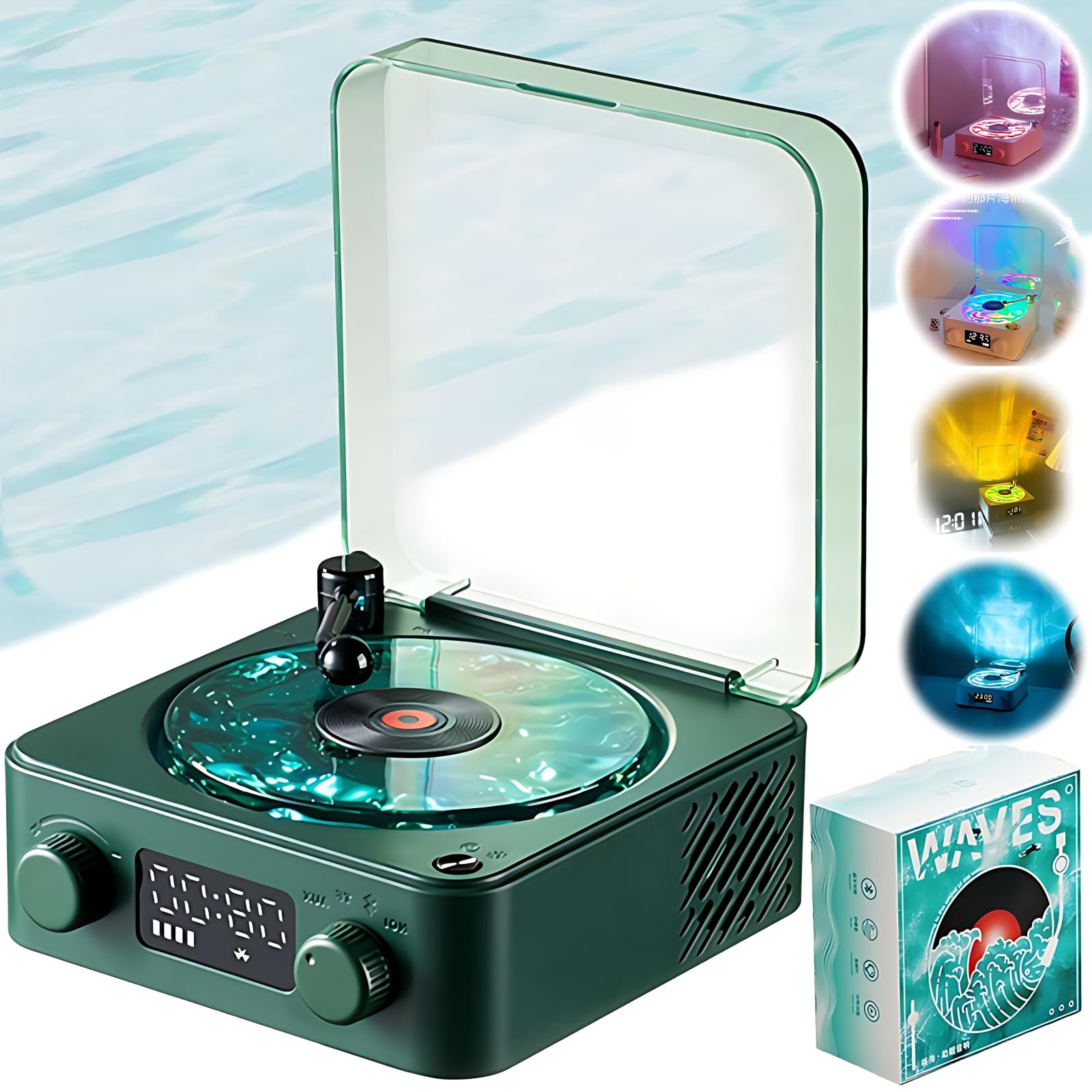
Image: The Waves Vinyl Player in Christmas Green.
2. What's in the Box
Please ensure all the following items are included in your package:
- The Waves Vinyl Player
- Data Cable (for charging)
- Sticker
- Instruction Manual (this document)

Image: Product packaging and contents.
3. Setup
- Unpacking: Carefully remove all components from the packaging.
- Charging: Connect the provided data cable to the device's charging port and a suitable USB power source (e.g., wall adapter, computer USB port) to charge the internal 1500mAh battery. The charging indicator will show the charging status.
- Power On/Off: Locate the power button/knob. Press and hold (or rotate, depending on design) to power the device on or off. The display will illuminate upon powering on.
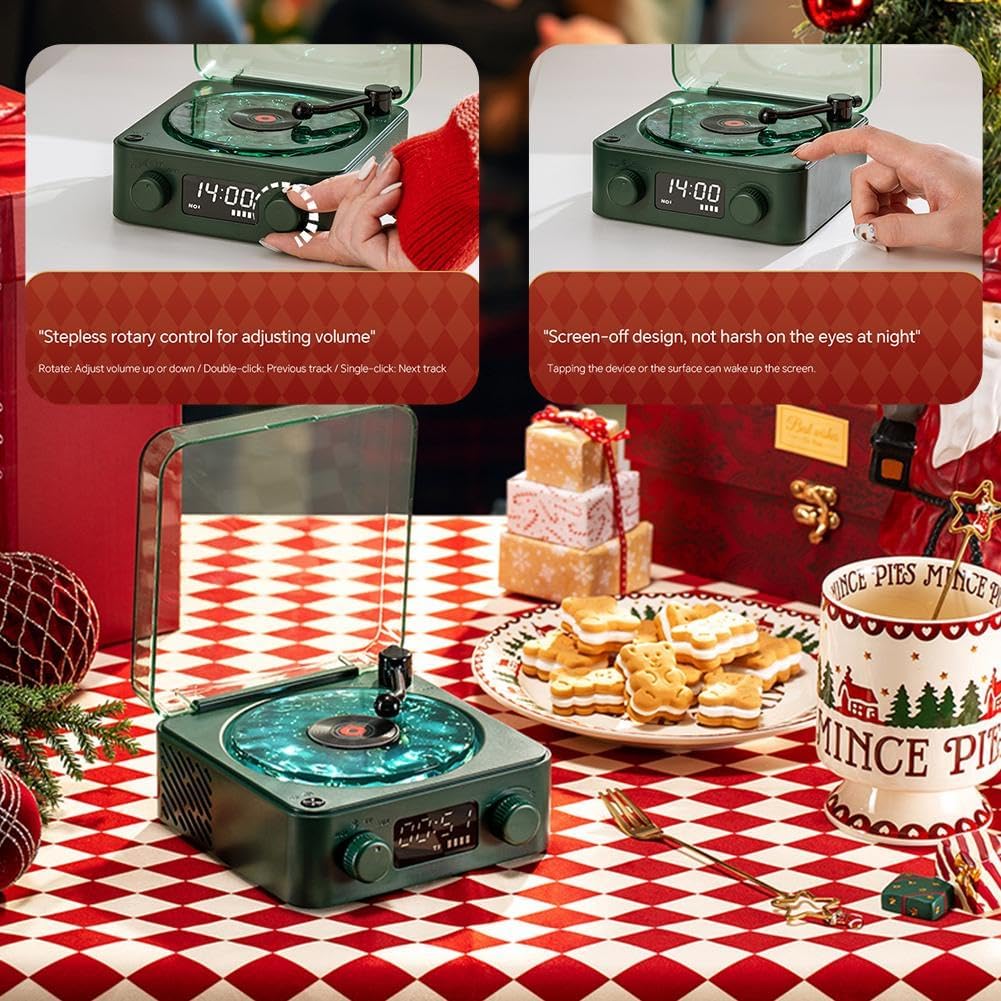
Image: Device controls and display.
4. Operating Instructions
4.1 Basic Controls
- Volume Control: Use the designated rotary knob (often labeled 'VOL') to adjust the audio output volume.
- Mode Selection: Rotate or press the mode selection control to cycle through available playback modes: White Noise, Bluetooth, TF Card, and AUX.
4.2 Playback Modes
- White Noise Mode: Select this mode to activate the built-in natural sounds. Available sounds include campfire burning, birds chirping, gurgling water, and waves flowing.
- Bluetooth Mode:
- Select Bluetooth mode on the device. The device will enter pairing mode, indicated by a flashing Bluetooth icon or similar.
- On your smartphone or other Bluetooth-enabled device, search for available devices and select "The Waves Vinyl Player" (or similar name) to connect.
- Once connected, you can stream audio wirelessly from your device.
- TF Card Mode: Insert a TF (MicroSD) card containing audio files into the designated slot. The device will automatically detect the card and begin playing audio.
- AUX Mode: Connect an external audio device (e.g., MP3 player, laptop) using a 3.5mm AUX cable (not included) to the AUX input port. The device will switch to AUX input.
4.3 Ambient Lighting
- Light Control: Press the dedicated light control button (if available) or a multi-function button to cycle through different ambient light modes (e.g., RGB, breathing, continuous wave effects) or to turn the lights off.
- Screen-Off Feature: For a calm night environment, the display can be set to turn off. To gently wake the display, tap the device or the surface it rests on.
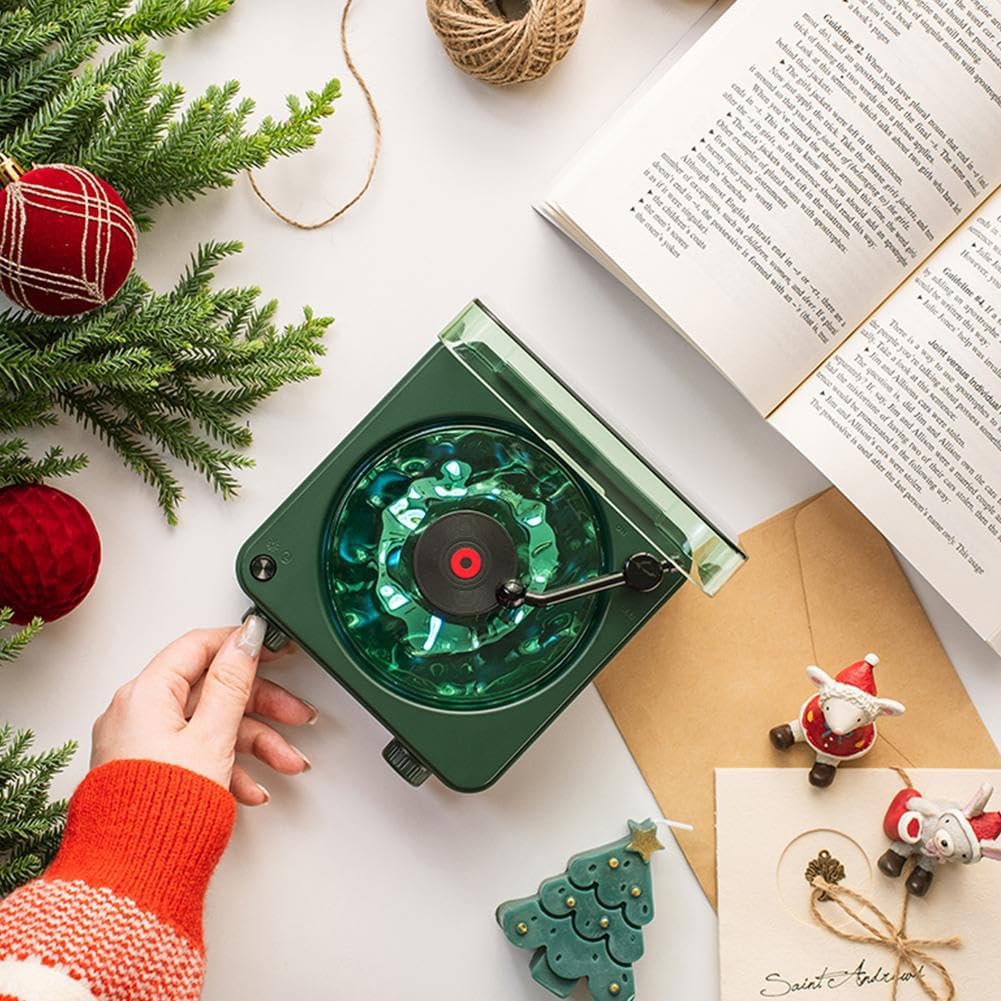
Image: User interacting with the device.
Video: Demonstration of white noise, Bluetooth, and audio input modes, along with ambient light switching.
5. Maintenance
- Cleaning: Use a soft, dry, lint-free cloth to clean the exterior surfaces of the device. Avoid using abrasive cleaners, solvents, or chemical sprays, as these can damage the finish.
- Storage: Store the Vinyl Player in a cool, dry place away from direct sunlight, high humidity, and extreme temperatures. When not in use, ensure the dust cover is closed to protect the turntable mechanism.
- Handling: Handle the device with care. Avoid dropping it or subjecting it to strong impacts, which can damage internal components.
6. Troubleshooting
- No Power:
- Ensure the device is fully charged.
- Verify the charging cable is securely connected to both the device and the power source.
- No Sound:
- Check the volume level on the Vinyl Player and any connected audio source (e.g., smartphone).
- Ensure the correct playback mode (Bluetooth, TF Card, AUX, White Noise) is selected.
- If using Bluetooth, confirm the device is properly paired and connected to your external device.
- If using AUX, ensure the cable is fully inserted into both the Vinyl Player and the external device, and that the cable is functional.
- Bluetooth Pairing Issues:
- Ensure the Vinyl Player is in Bluetooth pairing mode (usually indicated by a flashing light or icon).
- Disable and re-enable Bluetooth on your external device.
- Move your external device closer to the Vinyl Player to ensure a strong signal.
- Try unpairing and re-pairing the device from your external device's Bluetooth settings.
- Ambient Lights Not Working:
- Ensure the device is powered on.
- Press the light control button to cycle through the light modes or turn them on.
7. Specifications
| Brand | Generic |
| Model Name | The Waves |
| Color | Christmas Green |
| Shell Material | PC+ABS (Plastic) |
| Battery Capacity | 1500mAh |
| Playback Modes | White Noise, Bluetooth, TF Card, AUX |
| Connectivity Technology | Bluetooth |
| Power Source | Battery Powered |
| Special Features | AUX Input, Built-In Speaker, Built-In Bluetooth Receiver, Portable, Adjustable Ambient Lights |
| Maximum Rotational Speed | 1 RPM (for visual effect, not functional record playback speed) |
8. Warranty and Support
- Warranty: This product is covered by a 3-year manufacturer's warranty. Please retain your proof of purchase for any warranty claims. The warranty covers defects in materials and workmanship under normal use.
- Customer Support: For further assistance, technical support, or warranty inquiries, please contact the retailer from whom you purchased the product or refer to the manufacturer's official support channels.


