
Introduction
This manual provides essential information for the safe and efficient operation of your Skyworth 55Q7700G 55-inch 4K QLED Google TV. Please read it thoroughly before using the product and retain it for future reference.
The Skyworth 55Q7700G is a 55-inch 4K QLED Google TV featuring a 144Hz Variable Refresh Rate (VRR), HDMI 2.1 connectivity, Dolby Atmos and Dolby Vision support, HDR10+, 3GB RAM, 16GB storage, Bluetooth 5.1, Dual Wi-Fi, Google Assistant, and a dedicated Game Mode.
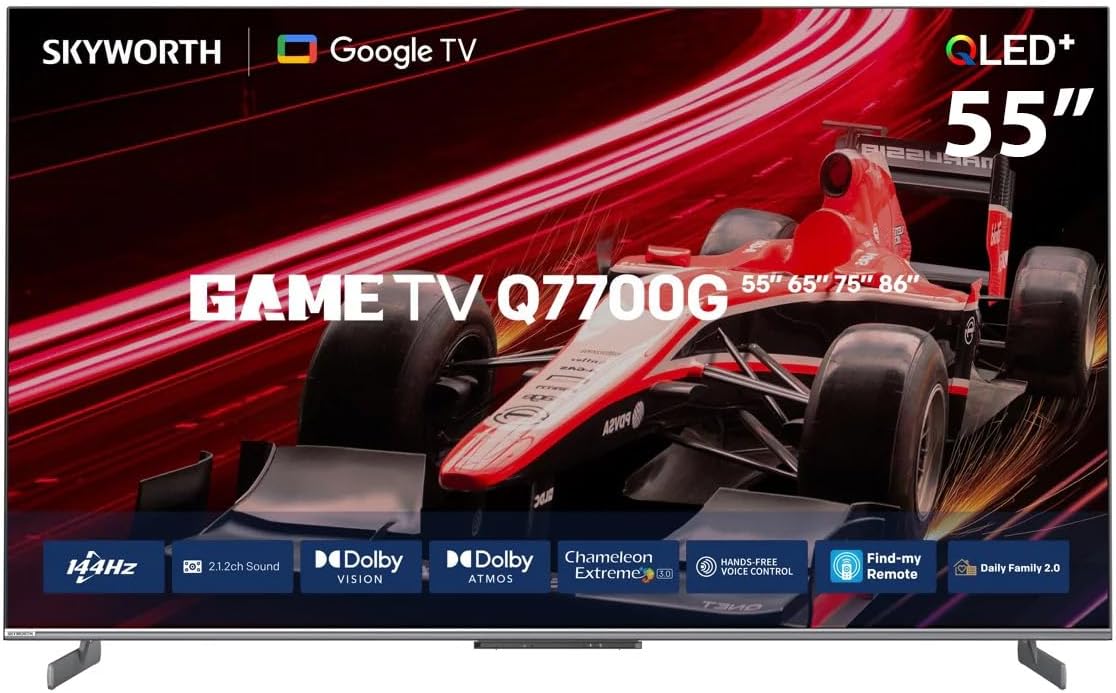
Image: Front view of the Skyworth 55Q7700G 55-inch 4K QLED Google TV, showcasing its slim design and screen.
Safety Information
Always follow basic safety precautions when using this television to reduce the risk of fire, electric shock, and injury.
- Do not expose the TV to rain or moisture.
- Do not open the TV casing; refer all servicing to qualified personnel.
- Ensure proper ventilation around the TV.
- Use only the power cable supplied with the TV.
- Keep the TV away from heat sources and direct sunlight.
- Clean the TV with a soft, dry cloth.
Package Contents
Verify that all items are present in the packaging:
- Skyworth 55Q7700G 55-inch 4K QLED Google TV
- Power Cable
- Remote Control
- TV Stand (Base)
- User Manual (This document)
Setup
Unpacking and Placement
Carefully remove the TV from its packaging. Place the TV on a stable, flat surface or mount it on a wall using a compatible VESA mount (sold separately). Ensure adequate space for ventilation.

Image: Diagram illustrating the dimensions of the Skyworth 55Q7700G TV, including width (123.3 cm / 48.5 inch), height (72.2 cm / 28.4 inch) without stand, and depth (8.7 cm / 3.5 inch). Diagonal screen size is 139.7 cm (55 inch). Weight with base is 15 kg, without base is 14.7 kg.
Connecting the Stand
If using the included stand, carefully attach the stand components to the bottom of the TV using the provided screws. Refer to the diagram below for proper orientation.
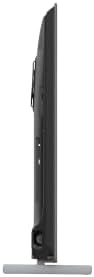
Image: Side profile of the Skyworth 55Q7700G TV, showing the slimness and the attached stand.
Power Connection
Connect the power cable to the TV's power input and then to a wall outlet. Ensure the power outlet is easily accessible.
External Device Connections
The TV features multiple ports for connecting external devices. Refer to the back panel image for port locations.

Image: Rear view of the Skyworth 55Q7700G TV, displaying various input and output ports for connectivity.
- HDMI 2.1: For high-definition audio and video devices like game consoles, Blu-ray players, and soundbars.
- USB: For connecting USB storage devices to play media or update firmware.
- LAN (Ethernet): For a wired internet connection.
- Antenna/Cable Input: For connecting an antenna or cable TV signal.
Operating Instructions
Initial Setup (Google TV)
Upon first power-on, the TV will guide you through the initial setup process for Google TV. This includes connecting to Wi-Fi, signing in with your Google account, and configuring basic settings.
Remote Control and Voice Features
Use the provided remote control to navigate the Google TV interface, adjust settings, and access features. The remote supports voice commands for Google Assistant. The TV also features a "Find-my Remote" function to help locate a misplaced remote.
Hands-free Voice Control
The TV supports hands-free voice control via Google Assistant. Simply say "Hey Google" or "Ok Google" followed by your command to control the TV, search for content, or get information.
Accessing Streaming Services
The Google TV platform provides access to popular streaming applications such as Netflix, YouTube, Amazon Prime Video, Disney+, and more through the Google Play Store. Ensure an active internet connection for these services.
Chameleon Extreme 3.0
The Chameleon Extreme 3.0 engine enhances picture quality by utilizing AI Super Resolution, Contrast Enhancement, and Dynamic Noise Reduction to upgrade content frame by frame.

Image: Visual representation of the Chameleon Extreme 3.0 technology, showing how AI Super Resolution, Contrast Enhancement, and Dynamic Noise Reduction improve image clarity and detail.
Daily Family 2.0
Daily Family 2.0 offers features like Daily Shortcuts, Key, and Hub to provide quick access to frequently used functions and personalized content.
Game Mode and Features
The Skyworth 55Q7700G is optimized for gaming with several key features:
- 144Hz VRR (Variable Refresh Rate): Ensures smoother gameplay by synchronizing the TV's refresh rate with the game console's frame rate, reducing screen tearing and stuttering.
- ALLM (Auto Low Latency Mode): Automatically switches the TV to a low-latency mode when a game console is detected, minimizing input lag for a more responsive gaming experience.
- HDMI 2.1: Provides the necessary bandwidth for 4K resolution at 144Hz, VRR, and ALLM.

Image: A living room scene depicting individuals playing video games on the Skyworth Q7700G TV, highlighting features like 4K 144Hz, ALLM, and HDMI 2.1 for an enhanced gaming experience.
Activating Game Console Mode
- Connect your game console to an HDMI 2.1 input on the TV.
- The TV should automatically detect the game console and activate Game Mode (ALLM).
- If not automatic, navigate to the TV settings to manually select the Game Mode or input.

Image: Screenshot showing on-screen instructions for connecting a game console: "Step 1: Connect the HDMI 2.1 input. Step 2: Wait until you see the Game Console. Step 3: Enjoy it (*Only supports gaming devices)."
Maintenance
Cleaning the TV
- Always unplug the TV before cleaning.
- Use a soft, dry, lint-free cloth to wipe the screen and cabinet.
- For stubborn marks, lightly dampen the cloth with water or a specialized screen cleaner (do not spray directly onto the screen).
- Avoid using abrasive cleaners, waxes, or solvents.
Remote Control Care
- Replace batteries when the remote's response becomes sluggish.
- Do not mix old and new batteries, or different types of batteries.
- Keep the remote away from moisture and direct sunlight.
Troubleshooting
If you encounter issues with your TV, refer to the following common solutions:
- No Power: Ensure the power cable is securely connected to both the TV and the wall outlet. Test the outlet with another device.
- No Picture/Sound: Check the input source. Ensure external devices are powered on and connected correctly.
- Poor Picture Quality: Verify antenna/cable connections. Adjust picture settings (brightness, contrast, sharpness). For streaming, check internet speed.
- Remote Control Not Working: Check or replace batteries. Ensure no obstructions between the remote and the TV's IR sensor.
- Software Issues (e.g., YouTube not working):
- Restart the TV by unplugging it from the power outlet for a few minutes, then plugging it back in.
- Check for system software updates in the TV's settings menu.
- Clear the cache and data for the problematic app (e.g., YouTube) in the TV's app settings.
- If issues persist, a factory reset may be necessary (note: this will erase all personal settings and installed apps).
- No Internet Connection: Check Wi-Fi settings and ensure the router is working. For wired connections, verify the Ethernet cable.
For further assistance, contact Skyworth customer support.
Specifications
Key technical specifications for the Skyworth 55Q7700G TV:
| Feature | Specification |
|---|---|
| Model Number | 55Q7700G |
| Screen Size | 55 inches |
| Display Technology | QLED |
| Resolution | 4K (3840 x 2160) |
| Refresh Rate | 144 Hz (VRR) |
| HDR Support | Dolby Vision, HDR10+, HLG |
| Audio Technology | Dolby Atmos, 2.1.2CH Sound 50W speaker Audio Drum |
| Operating System | Google TV |
| RAM | 3GB |
| Storage | 16GB |
| Connectivity | HDMI 2.1, USB, Dual Wi-Fi, Bluetooth 5.1, LAN |
| Built-in Receiver | DVB-T2/S2 |
| Local Dimming | Yes |
| Special Features | VRR, ALLM, Google Assistant (Hands-free Voice Control), Chromecast Built-in, Game Mode, Chameleon Extreme 3.0, Daily Family 2.0, Find-my Remote |
| Product Dimensions (with stand) | 123.3W x 8.7D x 72.2H cm |
| Weight (with stand) | 15 kg |
Warranty and Support
This Skyworth 55Q7700G TV comes with a 2-year warranty. Please retain your proof of purchase for warranty claims.
For technical support, service inquiries, or warranty information, please contact Skyworth customer service through their official website or the contact details provided in your purchase documentation.