
Mechkeys G24 Series
Incott G24 Series Wireless Gaming Mouse User Manual
Model: G24 PRO 8K
1. Introduction
Welcome to the user manual for the Incott G24 Series Hot Swap 8Khz Wireless Mouse. This high-performance gaming mouse is designed for professional esports, offering pixel-precise tracking and silky smooth movement control. Featuring the advanced PAW3950ES King sensor and supporting an 8K wireless polling rate, the G24 Pro ensures instant response and input for an unparalleled gaming experience. This manual provides detailed instructions on setting up, operating, maintaining, and troubleshooting your Incott G24 Series mouse.
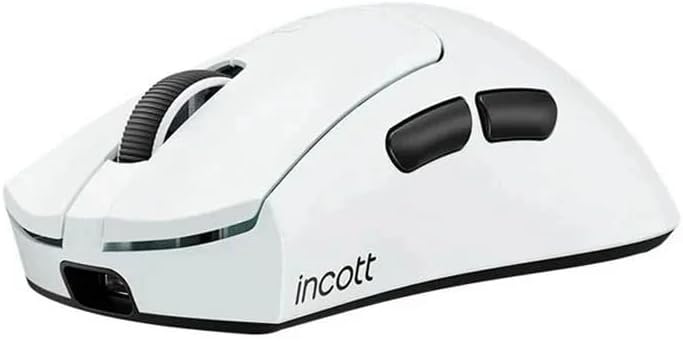
Figure 1.1: The Incott G24 Series Wireless Gaming Mouse, showcasing its ergonomic design and white finish.
2. Package Contents
Please verify that all items listed below are included in your package. If any items are missing or damaged, please contact customer support.
- Incott G24 Series Wireless Gaming Mouse
- USB Paracord Cable (for wired connection and charging)
- 8K USB Receiver
- Dot Skates (5 pieces)
- Micro-switch Clamp
- 3 Groups of Random Micro-switches (for customization)
- 4 Sets of Key Pads

Figure 2.1: Illustration of the Incott G24 Series mouse and its included accessories, such as the USB cable, 8K receiver, dot skates, micro-switch clamp, and additional micro-switches.
3. Product Overview and Button Functions
Familiarize yourself with the layout and functions of your Incott G24 Series mouse.

Figure 3.1: Top and bottom views of the Incott G24 mouse, highlighting button locations and their corresponding functions.
Front Button Functions:
- Left mouse button
- Right mouse button
- Scroll wheel (middle button)
- Rear side button
- Front side button
- DPI button / Report rate switch button / 1K receiver storage
Bottom Button Functions:
- OFF: Power Off / ON: Power On (DPI Switching Mode)
- Hz: Return Rate Switching Mode
- Micro Hot-Swap Modular Base
Key Indicator Light:
The mouse features a key indicator light that provides visual feedback for various settings and statuses. Refer to the diagram in Figure 3.1 for its location.
4. Setup and Connectivity
4.1. Wireless 2.4G Mode
To connect your Incott G24 mouse using the 2.4GHz wireless mode:
- Ensure the mouse is charged or has sufficient battery.
- Plug the 8K USB Receiver into an available USB port on your computer.
- Turn on the mouse using the power switch on the bottom.
- The mouse should automatically connect to the receiver. If not, follow the 1K/8K Matching Steps below.

Figure 4.1: Visual guide for connecting the Incott G24 mouse in Wireless 2.4G Mode and Wired Mode.
4.2. Wired Mode
For a stable wired connection or while charging:
- Connect the USB Paracord Cable to the Type-C port on the front of the mouse.
- Plug the other end of the cable into a USB port on your computer.
- The mouse will function in wired mode and charge simultaneously.
4.3. Bluetooth Mode
The Incott G24 Pro also supports Bluetooth connectivity. Note that the Bluetooth polling rate is fixed at 125Hz and does not support return rate adjustment in this mode.
- Set the 7th button (ON/OFF/DPI Switching Mode) to the Bluetooth (BT) position.
- Press and hold the 1, 2, and 3 buttons simultaneously until the indicator light on the mouse flashes blue quickly, indicating pairing mode.
- On your computer or device, open the list of available Bluetooth devices.
- Select "Incott G24" or a similar name from the list and click on the pairing link.
- After successful pairing, the blue indicator light will stop flashing.

Figure 4.2: Step-by-step guide for establishing a Bluetooth connection with the Incott G24 mouse.
4.4. 1K/8K Matching Steps (for Wireless 2.4G Mode)
If your mouse does not automatically connect to the 8K USB receiver, follow these steps to pair them:
- With the mouse turned off, press and hold the 1, 2, and 3 keys simultaneously.
- While executing Step 1, turn the bottom switch to the ON position (7).
- The indicator light on the top of the mouse will flash red, then green, or flash blue and then yellow. Let go after it flashes yellow.
- The yellow light keeps flashing. Then, plug the receiver into the USB port on the computer via a data cable, and place the mouse close to the receiver. Once synchronization is successful, move the mouse to operate.

Figure 4.3: Detailed steps for pairing the Incott G24 mouse with its 8K receiver, including indicator light behaviors.
4.5. Recommended Usage Environment
To achieve the best wireless transmission performance, place the mouse within 20cm of the receiver, and keep it more than 2 meters away from 2.4GHz interference sources (such as Wi-Fi routers).
5. Operating the Mouse
5.1. DPI Switching
The Incott G24 Pro allows you to adjust the DPI (Dots Per Inch) sensitivity.
- Turn the 7th button (ON/OFF/DPI Switching Mode) to the ON position.
- Use the 6th button (DPI button) to cycle between different DPI values.
The mouse supports a maximum sensitivity of 45000DPI (overclocked).
5.2. Polling Rate Switching
Adjust the polling rate (Hz) to control how often the mouse reports its position to the computer.
- Turn the Hz button (8) to the desired position.
- Use the 6th button (DPI button) to cycle between setting rate.
The G24 Pro supports polling rates up to 8KHz (8000Hz), providing a response time of just 0.125ms. Available polling rates include 125Hz, 250Hz, 500Hz, 1000Hz, 2000Hz, 4000Hz, and 8000Hz.
5.3. Charging Information
The Incott G24 Pro is equipped with a 500mAh high-capacity battery, offering up to 143 hours of battery life in 1K polling rate mode.
- When the mouse is plugged into the original cable for charging, the mouse indicator light turns red and goes out automatically when the battery is fully charged.
- The mouse supports fast charging, reaching a full charge in just 50 minutes.
Caution: It is not recommended to replace the battery of the G24 series mouse by yourself. If you replace the non-original battery, it may cause damage to the mouse and affect subsequent use. Remember to avoid related operations, otherwise the warranty will be void.
5.4. Battery Status and Low Battery Reminder
The 8K receiver lighting effects indicate connection status and polling rate.
- Connection Status and Polling Rate: Only when the mouse is connected to the receiver, it will light up in colors corresponding to different polling rates: Red (125Hz), Blue (250Hz), Yellow (500Hz), Orange (1000Hz), Purple (2000Hz), Green (4000Hz), White (8000Hz).
- Battery Status: When the battery level is below 33%, it is recommended to charge the battery. Based on the current battery level, the mouse is charged gradually from Green (100%) to Yellow (66%) to Orange (33%), and Red (0%).
- Low Battery Reminder: The light flashes red only when the mouse needs charging.
6. Maintenance
6.1. Micro-Switch Hot-Swap Replacement Process
The Incott G24 Pro features hot-swappable micro-movement switches for both left and right click buttons, allowing for customization. The mouse is compatible with 99% of mechanical micro-movement switches on the market.
- Step 1: Remove the Hot-Swap System. Use the included micro-switch clamp to gently lift and pull out the existing switch. Press and hold forward to release.
- Step 2: Replace the Micro Switch. Carefully remove the old switch.
- Step 3: Install the Hot-Swap System. Insert the new switch into the modular base, ensuring it is seated correctly. Press down to install.

Figure 6.1: Visual guide for replacing the micro-switches on the Incott G24 mouse.
6.2. Micro-switch Gift Pack (2nd Generation) Parameters and Features
The micro-switch gift pack is continuously re-iterated based on user feedback. Examples of compatible switches include:
- Huano Green White Dot: Durability: 100 Million Clicks. Click: Hard and Crisp. Rebound: Moderate. Feel: Strong Travel: Moderate.
- Huano Black Blue Dot: Durability: 10 Million Clicks. Click: Hard and Crisp. Rebound: Rapid. Feel: Quick. Travel: Moderate.
- Huano Silent: Durability: 10 Million Clicks. Quiet, Non-intrusive, soft, and comfortable.
7. Troubleshooting
If you encounter issues with your Incott G24 Series mouse, please refer to the following common solutions:
- Mouse not responding:
- Ensure the mouse is powered on.
- Check battery level and charge if necessary.
- For wireless mode, ensure the 8K USB receiver is securely plugged into a working USB port.
- Try re-pairing the mouse with the receiver using the 1K/8K Matching Steps.
- For wired mode, ensure the USB cable is securely connected to both the mouse and the computer.
- Try a different USB port on your computer.
- Lag or erratic movement in wireless mode:
- Ensure the mouse is within 20cm of the receiver.
- Move the receiver away from 2.4GHz interference sources (e.g., Wi-Fi routers, other wireless devices).
- Ensure there are no large metal objects between the mouse and the receiver.
- Check for driver updates for your mouse or USB ports.
- Bluetooth connection issues:
- Ensure the mouse is in Bluetooth pairing mode.
- Remove previous pairings from your device's Bluetooth settings and try pairing again.
- Ensure your device's Bluetooth is enabled and discoverable.
- Buttons not clicking or double-clicking:
- If you have recently swapped switches, ensure they are correctly seated.
- Consider replacing the micro-switches if they are worn out (refer to Section 6.1).
If the problem persists after trying these solutions, please contact Incott customer support for further assistance.
8. Specifications
| Feature | Detail |
|---|---|
| Brand | Mechkeys (Product by Incott) |
| Model Number | G24 Series |
| Color | White |
| Connectivity Technology | Radio Frequency (2.4GHz Wireless), USB (Wired), Bluetooth |
| Movement Detection Technology | Optical (PAW3950ES King Sensor) |
| Polling Rate | Up to 8KHz (8000Hz) Wireless |
| DPI Sensitivity | Up to 45000DPI (overclocked) |
| Battery Capacity | 500mAh |
| Battery Life | Up to 143 hours (at 1K polling rate) |
| Switches | Hot-swappable micro-movement switches |
| Dimensions | 122x67x42.5mm |
| Weight | Approx. 67 grams |
9. Warranty and Support
The Incott G24 Series Wireless Gaming Mouse comes with a standard manufacturer's warranty. Please refer to the warranty card included in your package for specific terms and conditions.
For technical support, troubleshooting assistance, or warranty claims, please contact Incott customer service. You can typically find contact information on the product packaging or the official Incott website.
Important: Unauthorized modification or repair of the product may void your warranty. Always refer to this manual or contact official support for any maintenance or repair needs.
Ask a question about this manual
Ask about setup, troubleshooting, compatibility, parts, safety, or missing instructions. Manuals+ will review the question and use this page’s manual context to help answer it.