1. Introduction
This manual provides detailed instructions for the setup, operation, and maintenance of your GuileKeys Leverless Controller Arcade Stick GK-16. Please read this manual thoroughly to ensure proper usage and to maximize your gaming experience.

Image: GuileKeys GK-16 Leverless Controller, top view with illuminated RGB lighting.
2. Package Contents
Verify that all items are present in the package:
- 1x GuileKeys GK-16 Leverless Controller
- 1x User Manual
- 1x USB Cable (L-shape USB-C)
- 1x USB Extended Cable
- 2x Stands
- 1x Anti-Slip Pads (adhesive)
- 2x Button Caps (extra)
- 4x Screws (replacement)
- 2x Kailh Switches (extra)
- 1x Switch Puller
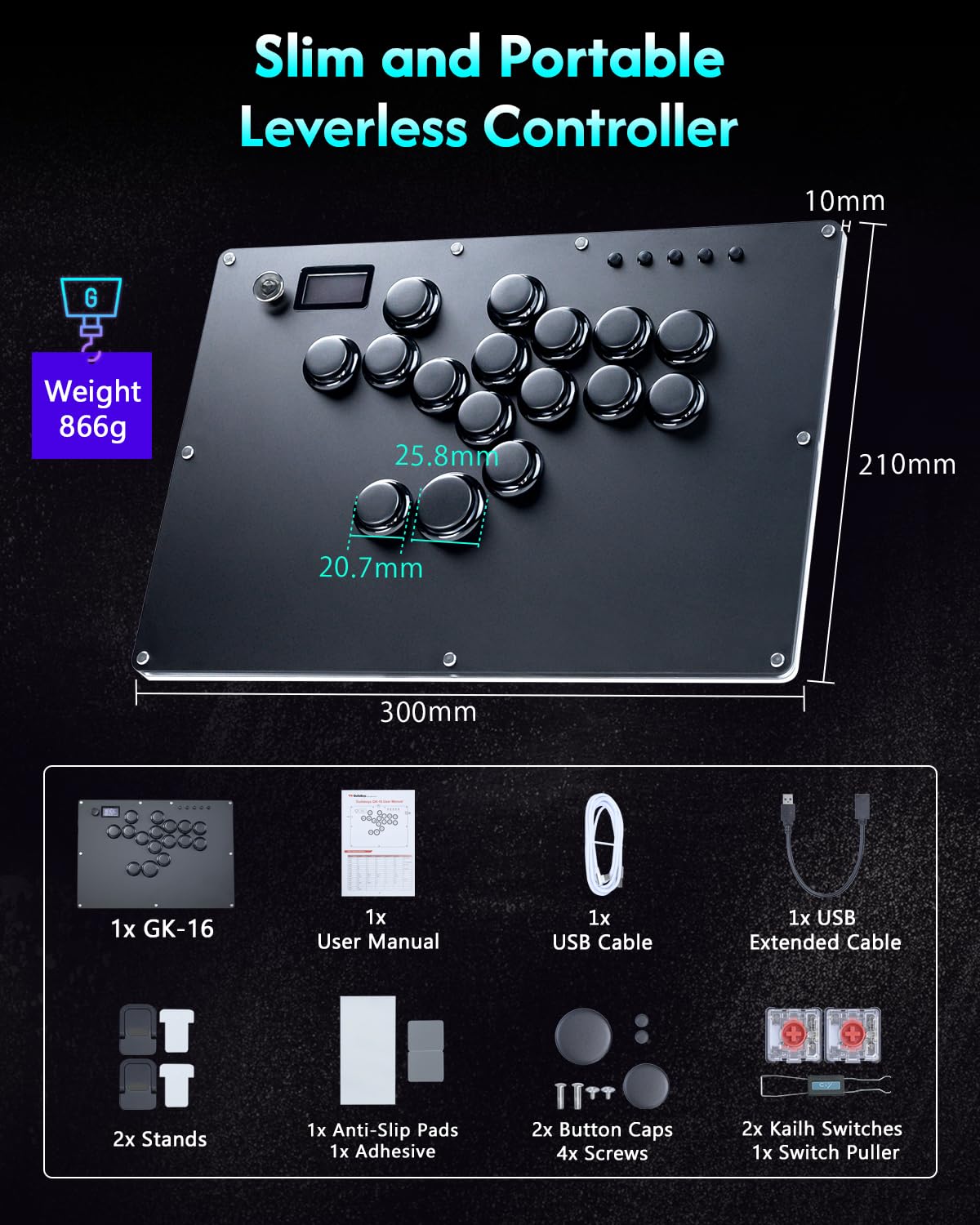
Image: Contents of the GuileKeys GK-16 package, including the controller, cables, manual, and accessories.
3. Product Overview
The GuileKeys GK-16 is a high-precision leverless arcade controller designed for various gaming platforms. It features a multi-function 5-way button for quick settings adjustments, Kailh Choc low-profile switches for fast response, and customizable RGB lighting.
Key Features:
- Multi-function Button: A unique 5-way button for quick access to settings like Input mode, Dpad mode, SOCD mode, turbo, profile, button RGB LED, and M1/M2 button configuration.
- High Precision & Low Latency: Utilizes four directional movement buttons for reduced input errors and ultra-low latency (less than 1ms) thanks to the Raspberry Pi RP2040 controller chip and GP2040-CE firmware.
- Customizable RGB Lighting: Frosted back panel and individual buttons feature customizable RGB lights with multiple modes and colors.
- Hot-Swap Capability: Switches and keycaps are hot-swappable for easy replacement and customization without soldering.
- OLED Screen: Displays button layout and current input modes for convenient monitoring.

Image: Internal view highlighting the Raspberry Pi RP2040 chip, dual USB-C ports, hot-swappable switches, and Kailh low-profile switches.
4. Setup & Connection
4.1. Compatibility
The GK-16 controller is compatible with Windows 10 or above, Steam Deck, PS3, PS4, Switch, and Android devices.
Note: For PS4/PS5/Xbox compatibility, an additional arcade stick converter is required and is not included with the controller.

Image: Visual representation of the GK-16's wide compatibility with Android, PS3, Arcade, PC, PS4, Steam, and Switch.
4.2. Connecting to PS4/PS5 with P5BOOTS Adapter
If you are using a P5BOOTS adapter for PS4/PS5 compatibility, follow these steps:
- Insert the P5BOOTS adapter into the .EXT port of the controller.
- Connect the controller to your PS4/PS5 console.
- Set the controller input mode to PS5 mode using the multi-function button and OLED screen.
- Press the HOME button on the controller. The controller will then connect to your PS4/PS5 console.
Video: Demonstrates how to connect the GuileKeys Leverless Controller to a PS4/PS5 console using a P5BOOTS adapter.
4.3. Firmware Update
To ensure optimal performance and compatibility, it is recommended to keep your controller's firmware updated. For Xbox console usage, updating to firmware version 0.7.10 or later is required.
To update the firmware:
- Visit the official GuileKeys website (www.guilekeys.com) and navigate to the support page.
- Download the latest firmware (.uf2 file) and the flash_nuke.uf2 file for your specific model (GK-16).
- Plug the USB cable into a USB port on your computer.
- Press and hold the Start button on the controller, then plug the USB cable into the USB-C port of your controller. This allows you to check the current firmware version displayed on the OLED screen.
- To enter BootSel/RPi drive mode, press and hold the BootSel button (located at the bottom, pinhole) while plugging the device into your computer.
- Drag the
flash_nuke.uf2file onto the RPI-RP2 drive that appears. Wait for the drive to disconnect and reconnect without unplugging power. - Drag the
guilekeys.uf2firmware file onto the RPI-RP2 drive and wait for it to disconnect. - After the controller restarts, hold the Start button and re-insert the USB cable into the USB-C port of the controller. You can now see the updated firmware version on the OLED screen.
Video: Step-by-step guide on how to update the firmware of the GuileKeys Leverless Controller.
5. Operation
5.1. Multi-function Button
The unique 5-way multi-function button allows for quick adjustments to various controller settings. Press the button to access the menu on the OLED screen, then navigate using the directional inputs.

Image: Close-up of the multi-function button and OLED screen, showing menu options like Input Mode, Dpad Mode, SOCD Mode, Turbo Speed, Profile, Button RGB LED, and M1/M2 Button settings.
5.2. Input Modes
The controller supports multiple input modes. Use the multi-function button to select the appropriate mode for your platform:
- X-input (Windows/Steam)
- Switch mode
- PS3/D-input (PS3/Android)
- PS4 mode (compatible with PS4 games on PS5 console)
- HID-Keyboard mode
- Xbox One (requires firmware update and converter)
- Neo Geo, PCEMini, Astro, PSClassic (various retro console modes)
5.3. Dpad Mode
Configure the Dpad mode via the multi-function button menu. Options typically include Digital, Left Analog, and Right Analog.
5.4. SOCD Mode
Adjust the Simultaneous Opposite Cardinal Directions (SOCD) resolution mode. Options include Neutral, Up Priority, Last Win, First Win, and Back.
5.5. Turbo Function
The controller features an adjustable turbo function. Access 'Turbo Speed Set' in the menu to configure the desired turbo speed.
5.6. M1/M2 Custom Keys
The M1 and M2 buttons can be customized. Set their key values via web configuration or through the multi-function button menu.

Image: Illustration of M1/M2 custom keys and the four directional buttons, emphasizing reduced input errors.
5.7. RGB Lighting
The back panel and individual buttons feature customizable RGB lights. Use the multi-function button to access 'Button RGB LED' settings. You can adjust light colors, modes (e.g., static, rainbow cycle, rainbow chase, button theme), and brightness.

Image: Various RGB lighting effects displayed on the GuileKeys GK-16 controller.
5.8. Focus Mode
The Focus mode prevents accidental button presses, which can be useful during intense gameplay.
5.9. Web Configuration
The controller supports built-in web configuration for advanced settings and customization. Refer to the official website for detailed instructions on accessing and using the web configurator.
6. Customization & Maintenance
6.1. Hot-Swapping Switches and Keycaps
The GK-16 features hot-swappable switches and keycaps, allowing for easy replacement and customization without the need for soldering. Use the included switch puller to remove switches.

Image: Close-up showing a Kailh Choc Red low-profile switch being removed from the controller using a switch puller, demonstrating the hot-swap feature.
6.2. Applying Anti-Slip Pads
For enhanced stability during use, apply the included anti-slip pads to the bottom of the controller.
7. Specifications
| Feature | Detail |
|---|---|
| Model | GK-16 |
| Product Size | 300 x 210 x 10 mm |
| Weight | 902g (approx. 2.64 lbs) |
| Keycap Diameters | 20.7mm / 25.8mm |
| Switches | Kailh Choc Low Profile (Hot-swappable) |
| Controller Chip | Raspberry Pi RP2040 |
| Firmware | GP2040-CE |
| Input Latency | Less than 1ms |
8. Troubleshooting
If you encounter issues with your GuileKeys GK-16 controller, consider the following:
- Connection Issues: Ensure the USB cable is securely connected to both the controller and your device. Try a different USB port or cable.
- Platform Compatibility: Verify that the correct input mode is selected for your gaming platform using the multi-function button and OLED screen. Remember that PS4/PS5/Xbox may require an additional converter.
- Firmware: Ensure your controller has the latest firmware installed. Refer to the 'Firmware Update' section (4.3) for instructions.
- Button Malfunction: If a button is not responding, check if the switch is properly seated. The hot-swap feature allows for easy inspection or replacement of individual switches.
- OLED Screen: If the OLED screen is not displaying information correctly, try restarting the controller by unplugging and re-plugging the USB cable.
For further assistance or specific issues, please visit the official GuileKeys website or contact their customer support.
9. Support
For additional information, FAQs, or to contact customer support, please visit the official GuileKeys website: www.guilekeys.com.


