1. Introduction
This manual provides detailed instructions for the installation, setup, and operation of your MENDOCK UF02 Keyless-Entry Deadbolt Smart Lock. Please read this manual thoroughly before installation and use to ensure proper function and safety.

Image: The MENDOCK UF02 Smart Lock, showcasing its exterior unit with keypad and fingerprint scanner, interior unit, physical keys, key fobs, and a smartphone displaying the control app.
2. Product Overview
Key Features
- Multiple Access Methods: Fingerprint scanner, keypad, key fob, physical keys, and smartphone app control.
- Emergency Power: Type-C USB connector for temporary power with a power bank in case of battery drain.
- Automatic Locking: Configurable auto-lock function (0 to 30 seconds).
- Easy Installation: Designed for straightforward installation with minimal tools.
- Durability: Solid construction meeting ANSI security standards, IP56 dustproof and waterproof ratings.
- Advanced Security: Virtual code, temporary password, low battery alert.
- User Capacity: Supports up to 250 user codes and 100 fingerprints.
Package Contents
- UF02 Fingerprint Deadbolt Door Lock (Exterior and Interior Units)
- Deadbolt Latch
- Strike Plate
- 2 Standard Keys
- 2 Key Fobs
- Installation Instructions
- Mounting Hardware (screws, etc.)
3. Setup & Installation
Door Compatibility Check
Before installation, ensure your door meets the following specifications:
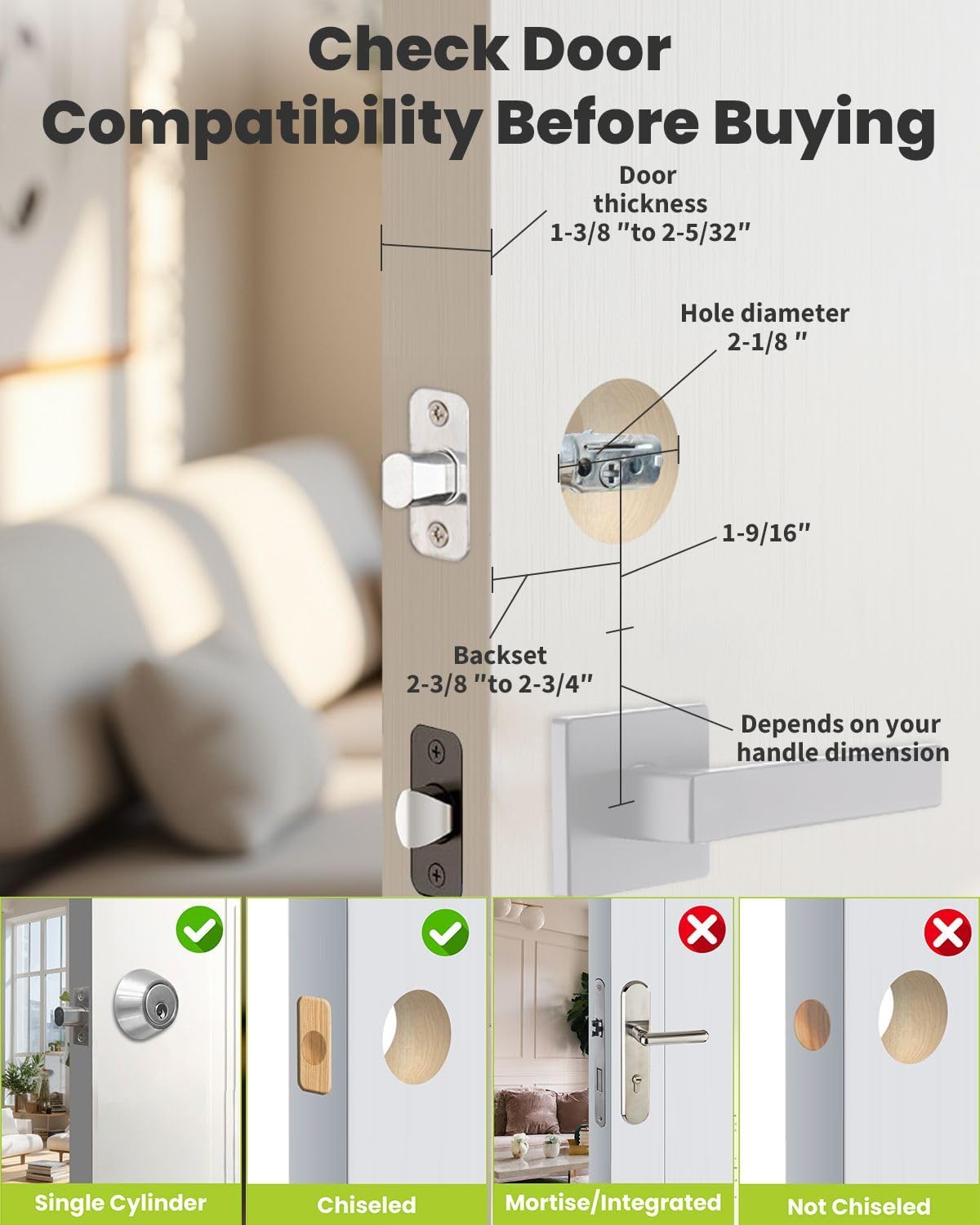
Image: A diagram illustrating door dimensions and hole requirements for compatibility with the smart lock. It shows acceptable door types (Single Cylinder, Chiseled) and incompatible types (Mortise/Integrated, Not Chiseled).
- Door Thickness: 1.38" to 2.16" (35mm to 55mm)
- Hole Diameter: 2-1/8" (54mm)
- Backset: 2-3/8" to 2-3/4" (60mm to 70mm)
- Compatible with both left and right-hand doors.
Installation Steps
Follow these steps for a successful installation. A screwdriver is the primary tool required.
Video: An official MENDOCK installation guide for the UF02 smart lock, demonstrating the step-by-step process of mounting the deadbolt and lock components onto a door.
- Install the Deadbolt: Adjust the deadbolt latch to match your door's backset (60mm or 70mm). Insert the deadbolt into the door edge, ensuring the 'UP' arrow is facing upwards. Secure it with screws.
- Install the Exterior Plate: Route the wire from the exterior plate below the flat rod. Ensure the flat rod is vertical and the lock is in the unlocked state. Carefully align and insert the exterior plate into the door.
- Install the Interior Mounting Plate: Attach the interior mounting plate to the door, ensuring the wire from the exterior unit passes through the designated opening. Secure it with screws.
- Connect Wires and Install Interior Unit: Connect the wire from the exterior unit to the interior unit's circuit board. Carefully tuck excess wire into the door cavity. Mount the interior unit onto the mounting plate.
- Secure the Interior Unit: Tighten the screws to firmly attach the interior unit to the mounting plate.
- Install Batteries: Open the battery cover on the interior unit. Insert 4 AA alkaline batteries, ensuring correct polarity. Close the battery cover.

Image: A hand using a screwdriver to secure a component of the smart lock during installation, highlighting the ease of setup.

Image: A technical diagram illustrating the precise dimensions and installation points for the MENDOCK UF02 smart lock, including measurements for the exterior and interior units, and the deadbolt mechanism.
4. Operating Instructions
Access Methods
The MENDOCK UF02 Smart Lock offers several convenient ways to unlock your door:

Image: A visual representation of the multiple access methods available for the smart lock, including fingerprint, keypad, mobile app, key card, and traditional key.
- Fingerprint: Place your registered fingerprint on the scanner.
- Keypad: Enter your user code on the illuminated keypad.
- Key Fob: Tap the provided key fob against the lock.
- Physical Key: Use the traditional key as a backup.
- Mobile App: Control the lock via the dedicated smartphone application (Bluetooth connection required).
Fingerprint Access
The fingerprint scanner provides quick and secure access. Ensure your finger covers the entire sensor for optimal recognition.

Image: A hand pressing a finger onto the smart lock's fingerprint scanner, indicating a fast unlocking time of less than 1 second and a 99.9% success rate.
Keypad Access
Enter your programmed user code on the keypad. The lock supports virtual codes to prevent code peeping by adding random numbers before or after your actual code.

Image: A smart lock keypad illustrating the use of a virtual code, where random numbers can be entered before and after the correct password for enhanced security.
You can also generate one-time passwords for temporary access, ideal for guests or service providers.

Image: A smartphone screen showing the generation of a one-time password for the smart lock, with a person sharing the code for easy, secure access.
Mobile App Control
The MENDOCK UF02 connects via Bluetooth to its dedicated smartphone app, allowing you to manage users, monitor activity, and control the lock remotely (with an optional Bluetooth gateway).
Video: An official MENDOCK video demonstrating the setup process of the UF02 smart lock with the smartphone application, including pairing and initial configuration.
Video: An official MENDOCK video showing how to control the UF02 smart lock using an Echo device, demonstrating voice commands for locking and unlocking.

Image: A smartphone screen showing the Tuya Smart app interface, displaying a list of unlocking records and notifications for the smart lock.
Automatic Locking
The lock features an automatic re-lock function. You can set the delay time (0 to 30 seconds) through the mobile app. After unlocking, the deadbolt will automatically extend after the set time.
5. Maintenance
Battery Replacement
The lock is powered by 4 AA batteries, which typically last for over 1 year. The mobile app will provide a low battery alert when replacement is needed.

Image: A hand inserting AA batteries into the battery compartment of the smart lock's interior unit, illustrating the battery installation process.
Emergency Power
In case of complete battery drain, you can use a Type-C USB power bank to temporarily power the lock via the external Type-C port, allowing you to unlock the door.

Image: The exterior unit of the smart lock connected to a power bank via a Type-C USB cable, demonstrating the emergency power interface for unlocking during a battery drain.
6. Troubleshooting
- Fingerprint Scanner Issues: If the fingerprint scanner is temperamental, ensure your finger is clean and covers the entire sensor. Re-registering your fingerprint might improve recognition.
- App Connection Problems: Ensure Bluetooth is enabled on your smartphone and the lock is within range. If using a gateway, verify its connection.
- Lock/Unlock Malfunction: Check the motor rotation direction setting in the app. Incorrect settings can prevent normal operation.
- Low Battery: If the lock is unresponsive, replace the batteries or use the emergency Type-C power port.
- Wrong Password/Fingerprint Alarm: The app will record instances of incorrect password or fingerprint attempts, providing a security log.
Image: A smartphone screen showing 'Message Records' from the smart lock app, indicating multiple 'wrong password alarm' and 'wrong fingerprint alarm' entries, useful for security monitoring.
7. Specifications
| Feature | Specification |
|---|---|
| Brand | MENDOCK |
| Model Name | UF02 |
| Lock Type | Biometric, Deadbolt, Keypad |
| Material | Zinc |
| Color | Venetian Bronze |
| Item Dimensions (L x W x H) | 4.67 x 2.99 x 0.93 inches |
| Item Weight | 2.78 pounds |
| Special Features | Auto-Lock, Back-Lit Keypad, Battery Indicator, Fingerprint, Weather Resistant (IP56) |
| Control Method | App, Touch |
| Connectivity Protocol | Bluetooth |
| Power Source | 4 AA Batteries (not included) |
8. Warranty and Support
MENDOCK is committed to providing quality products and excellent customer service. We rigorously check and control every aspect of our products. If you have any questions about your MENDOCK UF02 smart lock, please contact us. We are at your service.
For support, refer to the contact information provided on the thank-you card included with your product or visit the official MENDOCK website.