
Corsair H170i Elite LCD
CORSAIR iCUE H170i Elite LCD Liquid CPU Cooler User Manual
Model: H170i Elite LCD
Brand: Corsair
Product Overview
The CORSAIR iCUE H170i Elite LCD Liquid CPU Cooler is an all-in-one liquid cooling solution designed for high-performance desktop systems. It features a custom IPS LCD screen for displaying system information or personalized content, dynamic RGB lighting with 48 individually addressable LEDs, and three 140mm fans for efficient heat dissipation. The system includes a Commander CORE smart lighting controller for comprehensive management via CORSAIR iCUE software.

Image: The CORSAIR iCUE H170i Elite LCD Liquid CPU Cooler, showcasing its three RGB fans and the central pump head with an active LCD display showing fan RPM.
Package Contents
Verify that all components are present before beginning installation:
- CORSAIR iCUE H170i Elite LCD Liquid CPU Cooler (Radiator with integrated pump and LCD display)
- Three CORSAIR ML140 RGB ELITE PWM Fans
- CORSAIR Commander CORE Smart Lighting Controller
- Mounting brackets for Intel LGA 1700/1200/115X, 2011/2066 sockets
- Mounting brackets for AMD AM4, sTRX4/sTR4 sockets
- Mounting hardware (screws, standoffs, backplates)
- Thermal paste (pre-applied or included)
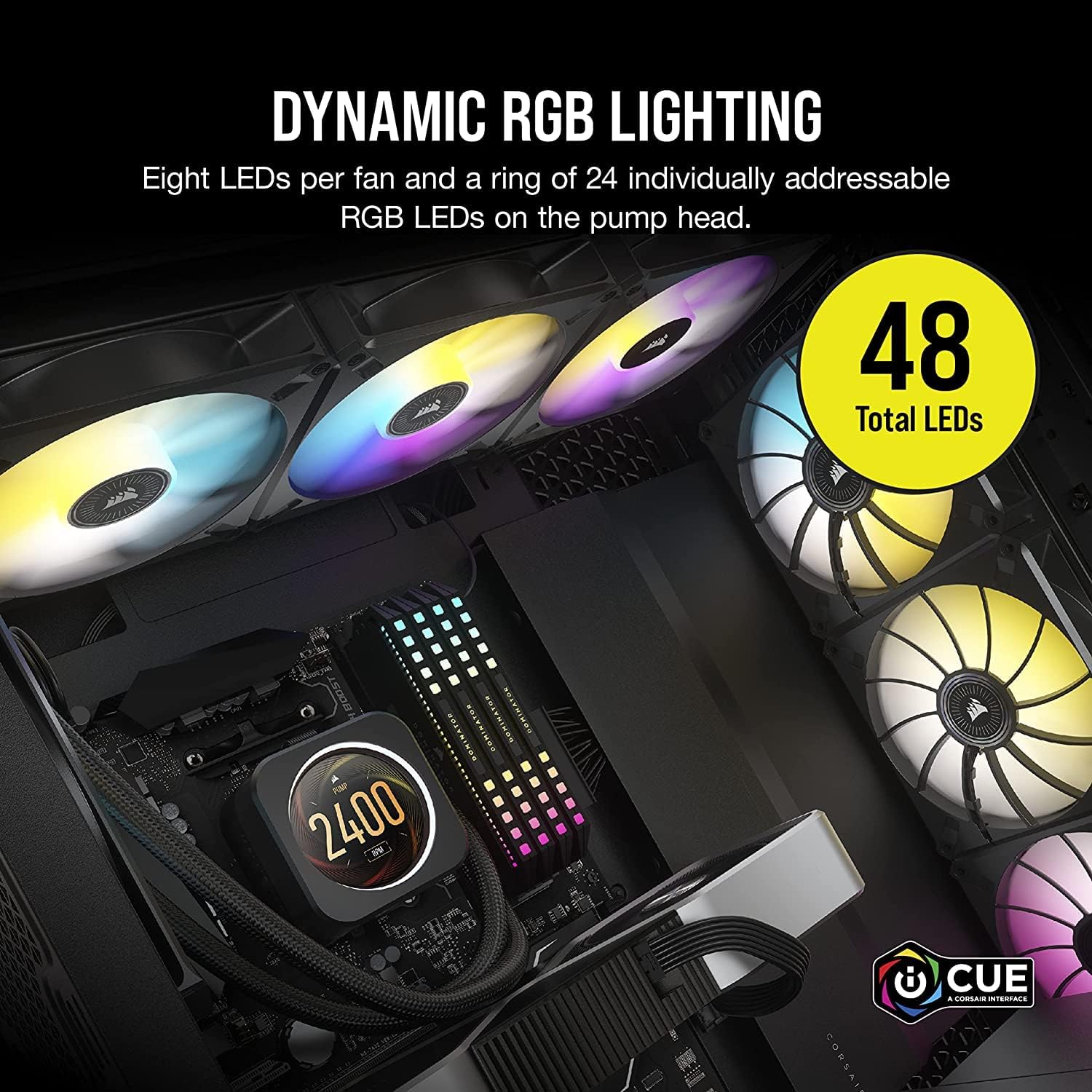
Image: A display of the various modular, tool-free mounting brackets included for Intel LGA (1700, 1200, 115X, 2011, 2066) and AMD (AM4, sTRX4, sTR4) sockets, ensuring wide compatibility.
Setup and Installation
Proper installation is crucial for optimal performance. Refer to the detailed instructions below for mounting the cooler to your CPU socket and connecting the necessary cables.
1. Prepare Your System
- Ensure your motherboard is compatible with the cooler's mounting brackets.
- Clean the CPU surface thoroughly, removing any old thermal paste.
- Identify a suitable location within your PC case for the 420mm radiator.
2. Install Mounting Hardware
- Select the appropriate backplate and standoffs for your CPU socket (Intel or AMD).
- Secure the backplate behind the motherboard and screw in the standoffs.
3. Mount the Radiator and Fans
- Attach the three 140mm fans to the radiator using the provided screws. Ensure fan airflow direction is appropriate for your case cooling strategy.
- Secure the radiator assembly to your PC case.

Image: The CORSAIR iCUE H170i Elite LCD cooler installed within a computer case, demonstrating its placement and the illuminated RGB fans and pump head.
4. Install the Pump Head
- Carefully align the pump head with the CPU and the installed standoffs.
- Gently lower the pump head onto the CPU, ensuring the pre-applied thermal paste makes full contact.
- Secure the pump head using the thumb screws or retention clips provided, tightening in a diagonal pattern until snug.
5. Connect Cables
- Connect the pump's 4-pin power connector to an available CPU_FAN or AIO_PUMP header on your motherboard.
- Connect the fans to the CORSAIR Commander CORE controller.
- Connect the Commander CORE to an available USB 2.0 header on your motherboard and to a SATA power connector from your power supply.
- Connect the LCD display cable from the pump head to the Commander CORE.
Operating Instructions
The CORSAIR iCUE H170i Elite LCD cooler is managed through the CORSAIR iCUE software. This software allows for customization of the LCD display, RGB lighting, and fan/pump speed control.
1. Install CORSAIR iCUE Software
- Download the latest version of CORSAIR iCUE software from the official Corsair website.
- Install the software following the on-screen prompts.
2. Customize LCD Display
- Launch iCUE. The H170i Elite LCD cooler should be detected automatically.
- Navigate to the device settings to customize the IPS LCD screen.
- Options include displaying vital system information (CPU temperature, fan RPM, pump RPM), custom images, or animated GIFs.

Image: Examples of the personalized LCD dashboard, showing options to display CPU fan RPM, a custom image (cat), and CPU temperature, illustrating the versatility of the display.
3. Control RGB Lighting
- Within iCUE, select the H170i Elite LCD to access lighting controls.
- Adjust the 48 dynamic RGB LEDs on the fans and pump head.
- Choose from various lighting effects, colors, and patterns.

Image: A close-up view of a CORSAIR fan, highlighting the dynamic RGB lighting with eight LEDs per fan and a ring of 24 individually addressable RGB LEDs on the pump head, totaling 48 LEDs.
4. Manage Fan and Pump Speeds
- iCUE allows for precise control over fan and pump speeds.
- Create custom fan curves based on CPU temperature or other system parameters.
- Monitor current fan and pump RPMs. The fans operate between 400 RPM and 1600 RPM.

Image: A screenshot of the CORSAIR iCUE software interface, illustrating options to switch between display options, control RGB lighting, adjust fan speeds, and set automated fan curves.
Maintenance
Regular maintenance helps ensure the longevity and optimal performance of your liquid CPU cooler.
- Dust Removal: Periodically clean dust from the radiator fins and fans using compressed air. Ensure the system is powered off before cleaning.
- Cable Management: Ensure all cables are securely connected and not obstructing airflow within the case.
- Software Updates: Keep your CORSAIR iCUE software updated to the latest version to benefit from performance improvements and bug fixes.
- Coolant Check: This is a closed-loop system and does not typically require coolant replenishment. However, monitor for any leaks or unusual noises.
Troubleshooting
This section addresses common issues you might encounter with your CORSAIR iCUE H170i Elite LCD Liquid CPU Cooler.
1. Cooler Not Detected by iCUE
- Ensure the Commander CORE is properly connected to a USB 2.0 header on your motherboard and receiving SATA power.
- Try a different USB 2.0 header.
- Restart your computer.
- Reinstall CORSAIR iCUE software.
2. LCD Screen Not Displaying or Malfunctioning
- Verify the LCD display cable is securely connected to both the pump head and the Commander CORE.
- Ensure iCUE software is running and updated.
- Restart iCUE or your computer.
- Note: Some users have reported issues with the LCD screen. If troubleshooting steps do not resolve the issue, contact Corsair support.
3. Fans Not Spinning or RGB Not Lighting Up
- Check that the fans are correctly connected to the Commander CORE.
- Ensure the Commander CORE is receiving SATA power.
- Verify fan and lighting settings within iCUE.
4. High CPU Temperatures
- Ensure the pump head is securely mounted to the CPU and making good contact.
- Verify that the pump is operating (check RPM in iCUE).
- Check fan speeds in iCUE and ensure they are set appropriately for your cooling needs.
- Ensure there is adequate airflow within your PC case.
Specifications
| Feature | Detail |
|---|---|
| Model | iCUE H170i Elite LCD |
| Cooling Method | Liquid (All-in-One) |
| Radiator Size | 420mm |
| Fan Size | 3 x 140mm (ML140 RGB ELITE PWM) |
| Fan Speed | 400 - 1600 RPM (Max Rotational Speed: 1600 RPM) |
| RGB Lighting | 48 Dynamic RGB LEDs (8 per fan, 24 on pump head) |
| Display | Custom IPS LCD Screen |
| Controller Included | CORSAIR Commander CORE Smart Lighting Controller |
| Power Connector Type | 4-Pin (Pump) |
| Compatible Devices | Desktop PCs |
| CPU Socket Compatibility |
|
| Package Dimensions | 19.45 x 7.56 x 6.3 inches |
| Weight | 6.86 Pounds |
| UPC | 604947776365 |
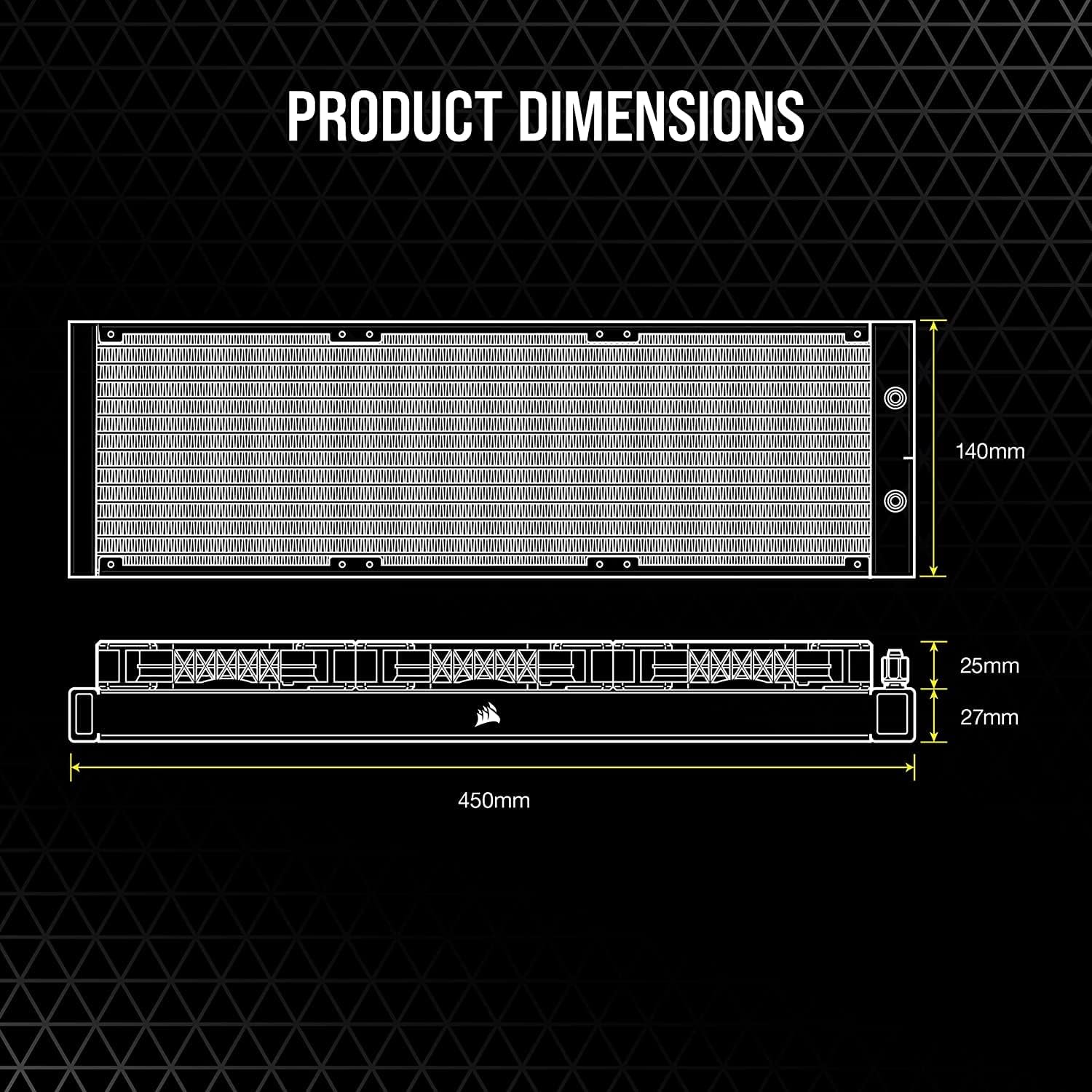
Image: A technical diagram illustrating the product dimensions of the 420mm radiator, including its length (450mm), width (140mm), and height (25mm for radiator, 27mm with fans).
Warranty and Support
This CORSAIR product is covered by a limited warranty. For specific warranty terms and conditions, please refer to the official Corsair website or the documentation included with your purchase. For technical support, driver downloads, and further assistance, visit the Corsair support page.
Related Documents - H170i Elite LCD
 |
CORSAIR iCUE ELITE LCD H100i/H150i/H170i Extreme Performance LCD Liquid CPU Cooler Installation Guide Comprehensive installation guide for the CORSAIR iCUE ELITE LCD Series liquid CPU coolers (H100i, H150i, H170i), covering included hardware, installation steps for Intel and AMD platforms, connections, and frequently asked questions. |
 |
CORSAIR iCUE H100i/H150i/H170i ELITE LCD XT Liquid CPU Cooler Installation Guide Comprehensive installation guide for the CORSAIR iCUE H100i, H150i, and H170i ELITE LCD XT Extreme Performance LCD Liquid CPU Coolers. Includes hardware lists, step-by-step installation instructions for Intel and AMD platforms, connectivity details, and FAQ. |
 |
CORSAIR iCUE ELITE LCD H100i, H150i, H170i Liquid CPU Cooler Installation Guide This guide provides detailed instructions for installing the CORSAIR iCUE ELITE LCD series liquid CPU coolers, including models H100i, H150i, and H170i. It covers hardware compatibility for Intel and AMD sockets (AM4, sTRX4), fan and radiator mounting, pump unit installation, and connecting the Commander CORE and LCD module. Includes a FAQ section for common troubleshooting. |
 |
Corsair iCUE H100i/H115i/H150i/H170i ELITE CAPELLIX CPU Cooler Installation Guide This guide provides comprehensive instructions for installing the Corsair iCUE H100i, H115i, H150i, and H170i ELITE CAPELLIX RGB Liquid CPU Coolers. It covers hardware identification for Intel and AMD platforms, step-by-step installation procedures, and connecting components to the Commander CORE. The guide is presented in English for clarity and ease of use. |
 |
CORSAIR iCUE ELITE LCD H100i | H150i | H170i Installation Guide Installation guide for CORSAIR iCUE ELITE LCD H100i, H150i, and H170i liquid CPU coolers. Covers setup, hardware, and compatibility for Intel and AMD systems. |
 |
CORSAIR iCUE H100i/H115i/H150i/H170i ELITE CAPELLIX High Performance RGB Liquid CPU Cooler Installation Guide Installation guide for the CORSAIR iCUE H100i, H115i, H150i, and H170i ELITE CAPELLIX high-performance RGB liquid CPU coolers. Includes included hardware, installation steps for Intel and AMD platforms, and FAQs. |