
NxFree Miyoo Mini Plus
NxFree Miyoo Mini Plus Handheld Retro Game Console User Manual
Model: Miyoo Mini Plus | Brand: NxFree
Introduction
The Miyoo Mini Plus is a compact handheld retro gaming console designed to deliver a nostalgic gaming experience. It features a 3.5-inch HD screen for clear visuals and a 3000mAh battery for extended playtime. This device supports various emulator formats, allowing access to a wide range of classic games. This manual provides essential information for setting up, operating, maintaining, and troubleshooting your Miyoo Mini Plus.

Image: The Miyoo Mini Plus handheld console, showcasing its compact design and screen.
Package Contents
Upon opening your Miyoo Mini Plus package, you should find the following items:
- Miyoo Mini Plus Console
- Carrying Case
- User Manual (this document)
- Screen Protector
- Card Reader
- Type-C Charging Cable

Image: An illustration of the Miyoo Mini Plus console and its included accessories.
Product Overview
Familiarize yourself with the buttons, ports, and indicators of your Miyoo Mini Plus console.

Image: Detailed diagram illustrating the key functions and ports of the Miyoo Mini Plus.
- D-Pad (Arrow Keys): For directional movement in games and menu navigation.
- Action Buttons (Y, X, A, B): Primary buttons for in-game actions.
- SELECT Button: Used for various in-game functions or menu selections.
- START Button: Used to start games, pause, or confirm selections.
- MENU Button: Accesses the system menu.
- L1/L2 and R1/R2 Keys: Shoulder buttons for additional in-game controls.
- POWER Button: Turns the console on/off.
- Type-C Interface: For charging the device.
- TF Card Slot: For inserting the microSD card containing games and system files.
- 3.5mm Audio Port: For connecting headphones.
- Speaker: For audio output.
- Battery Indicator: Shows the charging status or battery level.
Setup
- Initial Charge: Before first use, fully charge the Miyoo Mini Plus using the provided Type-C charging cable and a compatible USB power adapter (not included). The battery indicator will show charging status.
- Insert MicroSD Card: Ensure the pre-loaded 128GB microSD card is securely inserted into the TF Card Slot. This card contains the operating system and pre-installed games.
- Power On: Press and hold the POWER button until the screen illuminates and the system starts.
Video: An overview of the Miyoo Mini Plus console, demonstrating its physical features and initial power-on sequence.
Operating Instructions
Navigation
- Use the D-Pad to move between menu options.
- Press the A Button to confirm a selection.
- Press the B Button to go back to the previous screen or cancel an action.
Playing Games
- From the main menu, navigate to the "Game" icon and press A.
- Select the desired emulator system (e.g., FC, GBA, MD) and press A.
- Browse the list of games using the D-Pad.
- Select a game and press A to launch it.
- During gameplay, use the D-Pad and Action Buttons for controls. The L1/L2 and R1/R2 buttons may be used for additional functions depending on the game.
- To exit a game or access in-game options, press the MENU button.
Video: A demonstration of navigating the Miyoo Mini Plus menu and launching a game.

Image: The Miyoo Mini Plus screen showing a selection of classic games, highlighting its retro gaming capabilities.
Maintenance
- Cleaning: Use a soft, dry cloth to clean the console's exterior. For the screen, use a microfiber cloth specifically designed for electronics. Avoid abrasive cleaners or solvents.
- Battery Care: To prolong battery life, avoid fully discharging the battery frequently. Charge the device regularly, especially if it will be stored for an extended period. Store in a cool, dry place.
- Storage: When not in use, store the console in its protective carrying case to prevent scratches and damage.
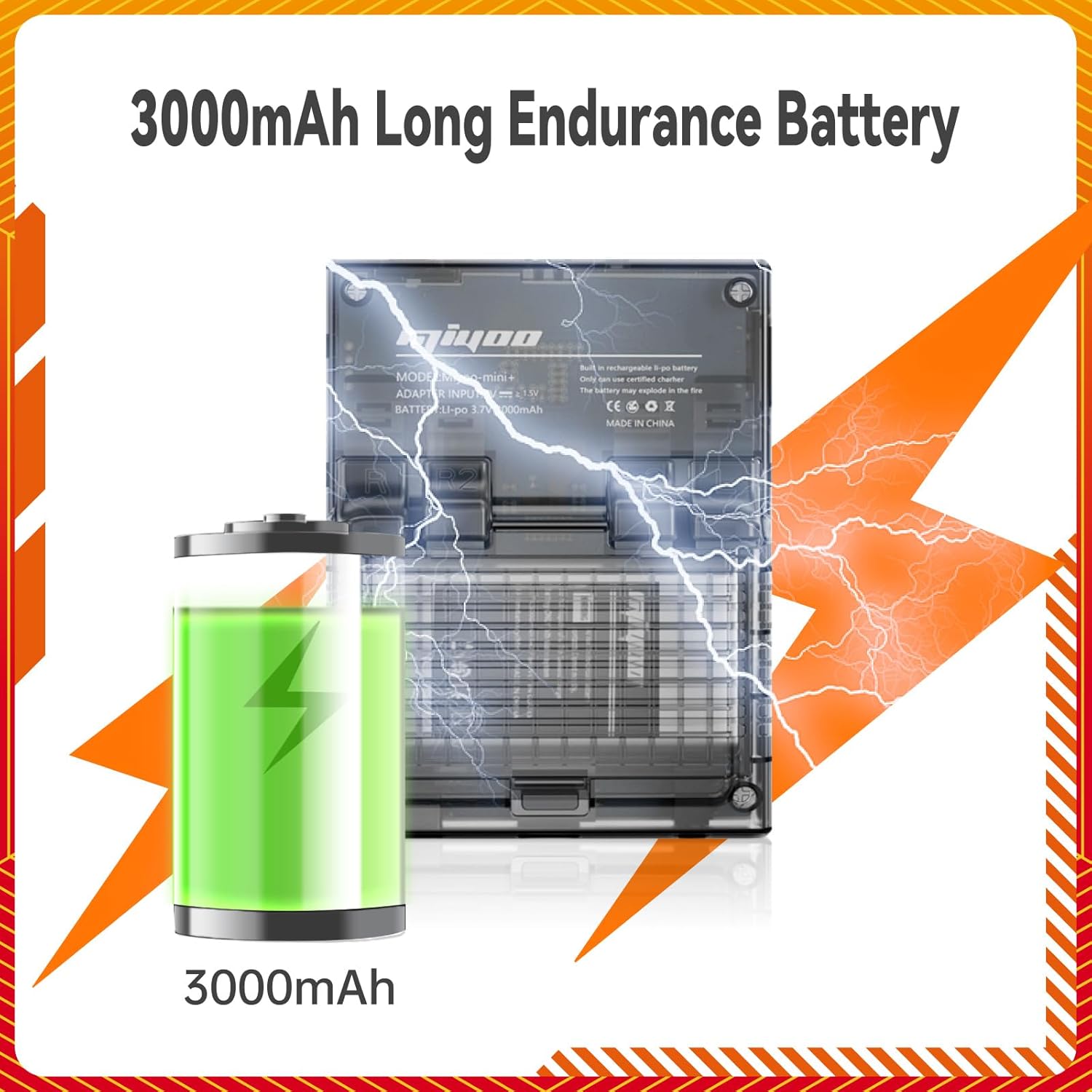
Image: Visual representation of the console's 3000mAh battery, emphasizing its endurance.
Troubleshooting
- Console Not Turning On:
- Ensure the battery is charged. Connect the console to a power source and allow it to charge for at least 30 minutes before attempting to power on again.
- Verify the microSD card is properly inserted.
- Games Not Loading or Crashing:
- Ensure the game files are correctly placed on the microSD card within the appropriate emulator folders.
- Some game files may be corrupted or incompatible. Try other games to confirm.
- Restart the console.
- Screen Issues (No Display, Flickering):
- Restart the device.
- Ensure the console has sufficient battery charge.
- No Sound:
- Check the volume settings on the device.
- If using headphones, ensure they are properly connected and functional.
Specifications
| Feature | Detail |
|---|---|
| Screen Size | 3.5 Inches |
| Display Type | LCD |
| Memory Storage Capacity | 128 GB |
| Battery Capacity | 3000mAh (Lithium Polymer) |
| Battery Life | Up to 7 Hours |
| Power Source | Battery Powered |
| Form Factor | Handheld |
| Material | Plastic |
| Product Dimensions | 3 x 4.2 x 0.88 inches |
| Item Weight | 5.6 ounces (0.35 Pounds) |
| Manufacturer | NxFree |
| Recommended Age | 24 months and up |
Warranty and Support
NxFree is committed to providing excellent after-sales service. If you encounter any issues with your Miyoo Mini Plus console, please refer to the troubleshooting section first. For further assistance or warranty inquiries, please contact our customer support team. Details for contacting support are typically found on the product packaging or the official NxFree website.
Please note that specific warranty terms and conditions may apply. Keep your proof of purchase for any warranty claims.
Ask a question about this manual
Ask about setup, troubleshooting, compatibility, parts, safety, or missing instructions. Manuals+ will review the question and use this page’s manual context to help answer it.