
Introduction
The LOOFII 21.5-inch Smart Digital Calendar is designed to streamline family organization through its Full HD touchscreen interface. This device offers features such as calendar synchronization, chore management, meal planning, and a digital photo frame function. This manual provides instructions for setup, operation, and maintenance to ensure optimal performance of your device.
Setup
1. Unboxing and Initial Placement
Carefully remove the Smart Digital Calendar from its packaging. Choose a suitable location for placement, either on a flat surface using its integrated stand or by wall-mounting. Ensure the location has access to a power outlet and a stable Wi-Fi signal.
2. Power Connection
Connect the provided power adapter to the device's power input port and then plug it into a wall outlet. The device will automatically power on.
3. Wi-Fi Connection
Upon first startup, the device will guide you through the initial setup process. Select your preferred language and connect to your home Wi-Fi network by selecting it from the list and entering the password. A stable internet connection is required for all smart features.
4. Calendar Synchronization
Follow the on-screen prompts to synchronize your existing digital calendars. The LOOFII Smart Digital Calendar is compatible with Google, iCloud, Outlook, Cozi, and Yahoo calendars. Events and tasks will automatically sync across all connected devices.

Image: The calendar interface showing various calendar service icons for synchronization.
5. Mounting Options
The device can be placed on a stand or mounted on a wall. If wall-mounting, ensure you use appropriate hardware for your wall type and follow standard safety procedures. The device dimensions are 33.02 x 53.85 x 2.51 cm and it weighs 4.95 kg.
Operating Instructions
1. Navigating the Touchscreen Interface
The 21.5-inch Full HD touchscreen allows for intuitive navigation. Swipe left or right to move between days or weeks, and tap on events or tasks for more details. The main menu typically includes sections for Calendar, Chores, Meals, Photos, and Settings.
2. Chore Management
Access the 'Chores' section to manage household tasks. You can add new chores, assign them to specific family members, set due dates, and track completion. Each family member can be assigned a unique color for easy identification of their tasks.
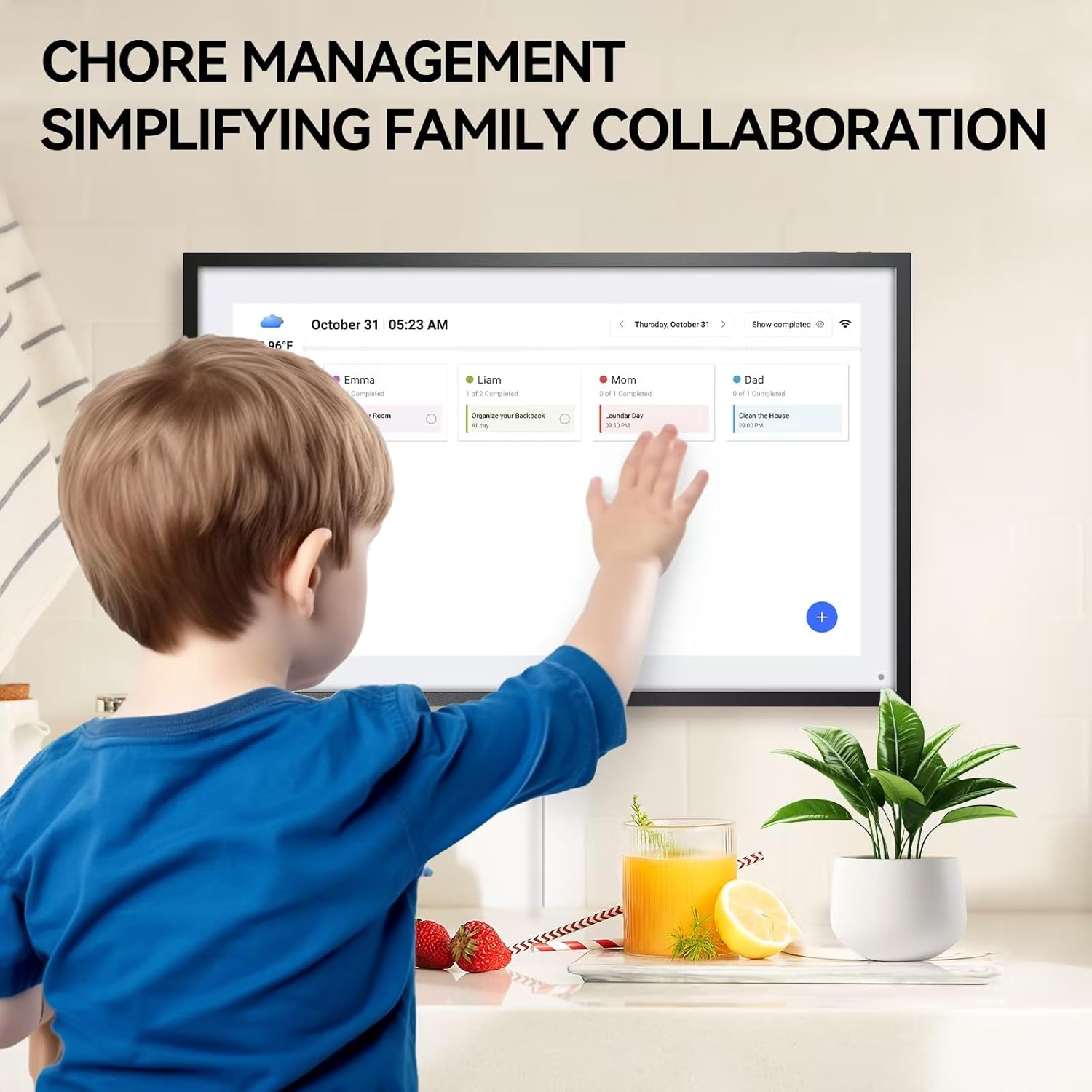
Image: A child using the chore management feature on the digital calendar.
3. Meal Planning
Utilize the 'Meals' section to plan your family's weekly or monthly meals. Add recipes, ingredients, and assign meal times. This feature helps in organizing grocery lists and ensures meal visibility for everyone.

Image: The digital calendar showing a meal planning interface in a kitchen.
4. Digital Photo Frame Function
When not actively in use, the calendar can function as a digital photo frame. Upload your favorite photos to the cloud, and the device will display them in a slideshow. This feature allows you to showcase cherished memories.
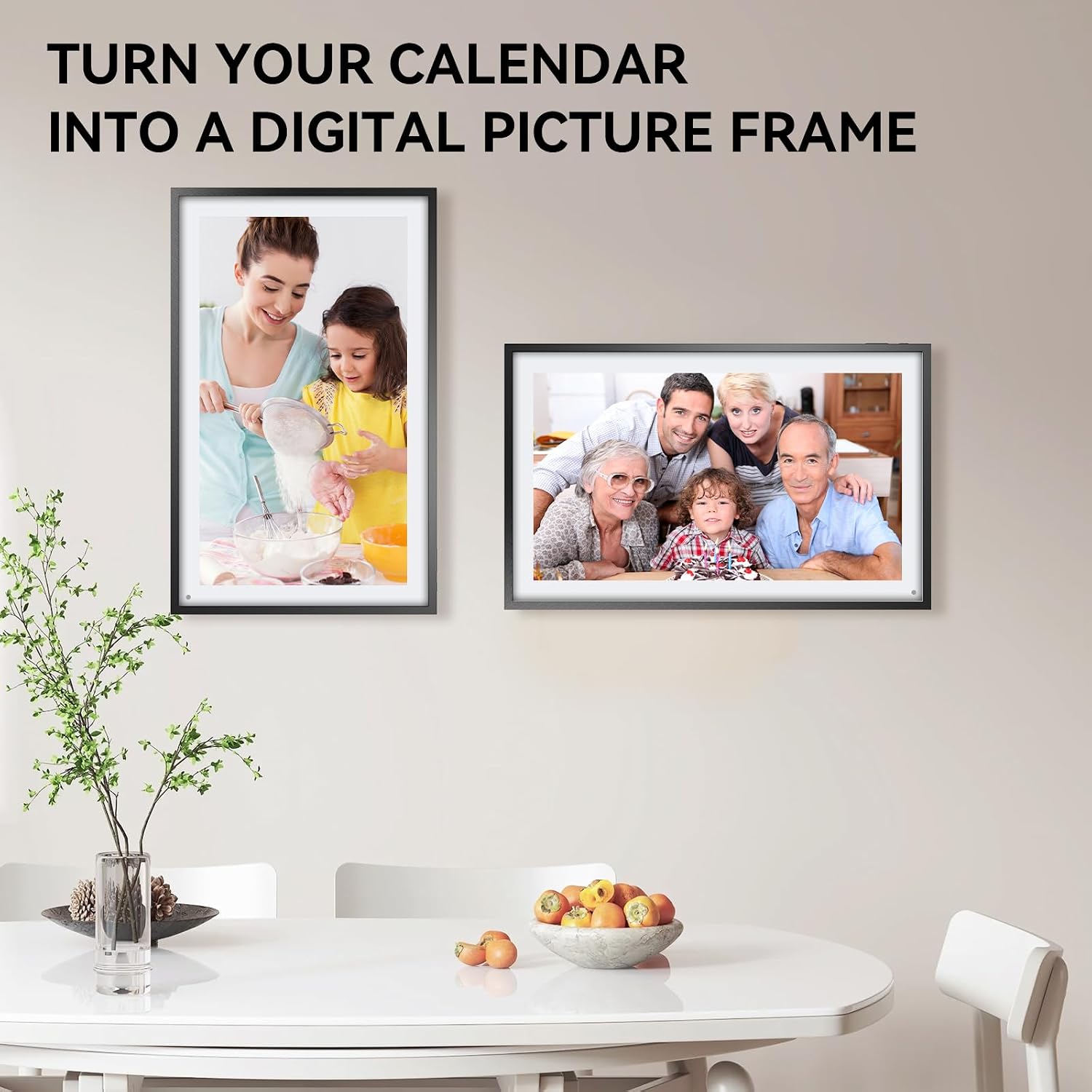
Image: Two digital calendars displaying family photos on a wall.
5. Mobile Application for Remote Management
Download the eCalendar mobile application to manage your LOOFII Smart Digital Calendar remotely. The app allows you to add tasks, update schedules, and coordinate activities from any location, ensuring you stay organized even when away from home.

Image: The digital calendar and a smartphone displaying synchronized schedules via the mobile app.
Maintenance
1. Cleaning the Screen
To clean the touchscreen, power off the device and gently wipe the screen with a soft, lint-free cloth. For stubborn smudges, slightly dampen the cloth with water or a screen-safe cleaning solution. Avoid using harsh chemicals or abrasive materials.
2. Software Updates
Periodically check for software updates in the 'Settings' menu. Keeping your device's software up-to-date ensures optimal performance, security, and access to new features. Follow the on-screen instructions for any available updates.
3. Environmental Conditions
Operate the device within recommended temperature and humidity ranges. Avoid exposing it to direct sunlight, extreme temperatures, or high moisture, as these can affect its functionality and lifespan.
Troubleshooting
- Device Not Powering On: Ensure the power adapter is securely connected to both the device and a working power outlet. Try a different outlet if necessary.
- Wi-Fi Disconnection: Check your router and internet connection. Restart the calendar and your router. Re-enter your Wi-Fi password in the device settings.
- Unresponsive Touchscreen: Perform a soft reset by holding down the power button until the device restarts. If the issue persists, a factory reset (found in settings) may be required, but this will erase all data.
- Calendar Not Syncing: Verify your internet connection. Check the synchronization settings for your connected calendar accounts (Google, iCloud, etc.) to ensure they are correctly linked and authorized.
- Incorrect Weather Display: Ensure the location settings for weather are correctly configured. If the issue persists, try re-entering the city or refreshing the weather data manually if an option is available.
- Slow Performance: Ensure the device software is up to date. Close any unnecessary applications running in the background if applicable.
Specifications
| Brand | LOOFII |
| Model Number | C-3 |
| Screen Size | 21.5 inches |
| Display Type | Full HD Touchscreen |
| Connectivity | Wi-Fi |
| Material | Plastic |
| Product Dimensions (L x W x H) | 33.02 x 53.85 x 2.51 cm |
| Weight | 4.95 kilograms |
Warranty and Support
For warranty information or technical support, please refer to the documentation included with your purchase or contact LOOFII customer service. Details for customer support can typically be found on the manufacturer's official website.