
Introduction
The Daconovo V900 60% Mechanical Keyboard is designed for comfort and efficiency, featuring an ergonomic layout that minimizes strain during extended use. Its compact 61-key design saves desk space while providing a full typing experience. This keyboard is versatile, suitable for both high-intensity gaming and quiet office work, offering a responsive and enjoyable input method.
With its plug-and-play USB Type-C connection, the V900 is compatible with various operating systems, making it a universal choice for any user. It boasts hot-swappable red mechanical switches for personalized tactile feedback and a vibrant RGB backlight with 21 different modes to customize your setup's ambiance.

Image: The Daconovo V900 60% Mechanical Keyboard, showcasing its compact design and vibrant RGB backlighting.
Package Contents
Please check the package for the following items:
- Daconovo V900 60% Mechanical Keyboard x 1
- Type-C USB Cable x 1
- Keycap and Switch Puller Tool x 1
- Replaceable Red Switches x 3
- User Manual x 1
Setup Guide
Setting up your Daconovo V900 keyboard is quick and easy. Follow these steps to get started:
- Connect the Cable: Locate the Type-C port on the back of the keyboard. Insert the smaller end of the provided Type-C USB cable into this port.
- Connect to Computer: Insert the standard USB-A end of the cable into an available USB port on your computer (PC or laptop).
- Plug and Play: The keyboard is plug-and-play. Your operating system should automatically detect and install the necessary drivers. No additional software installation is required.
- Adjust Feet (Optional): For ergonomic comfort, you can extend the two-stage adjustable feet located on the underside of the keyboard. The larger stand opens to 7 degrees, and the smaller stand opens to 4 degrees.

Image: A close-up view of the Type-C port on the keyboard, illustrating the cable connection for convenient storage and use.
Operating Instructions
Basic Operation
Once connected, the keyboard is ready for immediate use. The 61-key layout provides all essential functions in a compact form factor.
Lighting Effects
The Daconovo V900 features 21 stunning LED lighting effects. Use the following FN key combinations to control the backlight:

Image: The keyboard with an overlay demonstrating the various FN key combinations for adjusting lighting effects.
| Function Key Combination | Description |
|---|---|
| Fn + [Key with Light Icon] | Switch between 21 different LED lighting effects. |
| Fn + [{ | Decrease backlight brightness. |
| Fn + [} | Increase backlight brightness. |
| Fn + [; | Slow down the light effect speed. |
| Fn + [' | Speed up the light effect speed. |
| Fn + Tab | Activate custom lighting mode. |
| Fn + Enter | Perform a factory data reset for lighting settings. |
| Fn + Ctrl | Turn the backlight on or off. |
| Fn + Shift | Switch backlight colors (in certain modes). |
FN Key Combinations (Multimedia & System)
The keyboard utilizes FN key combinations to access multimedia controls and other system functions:
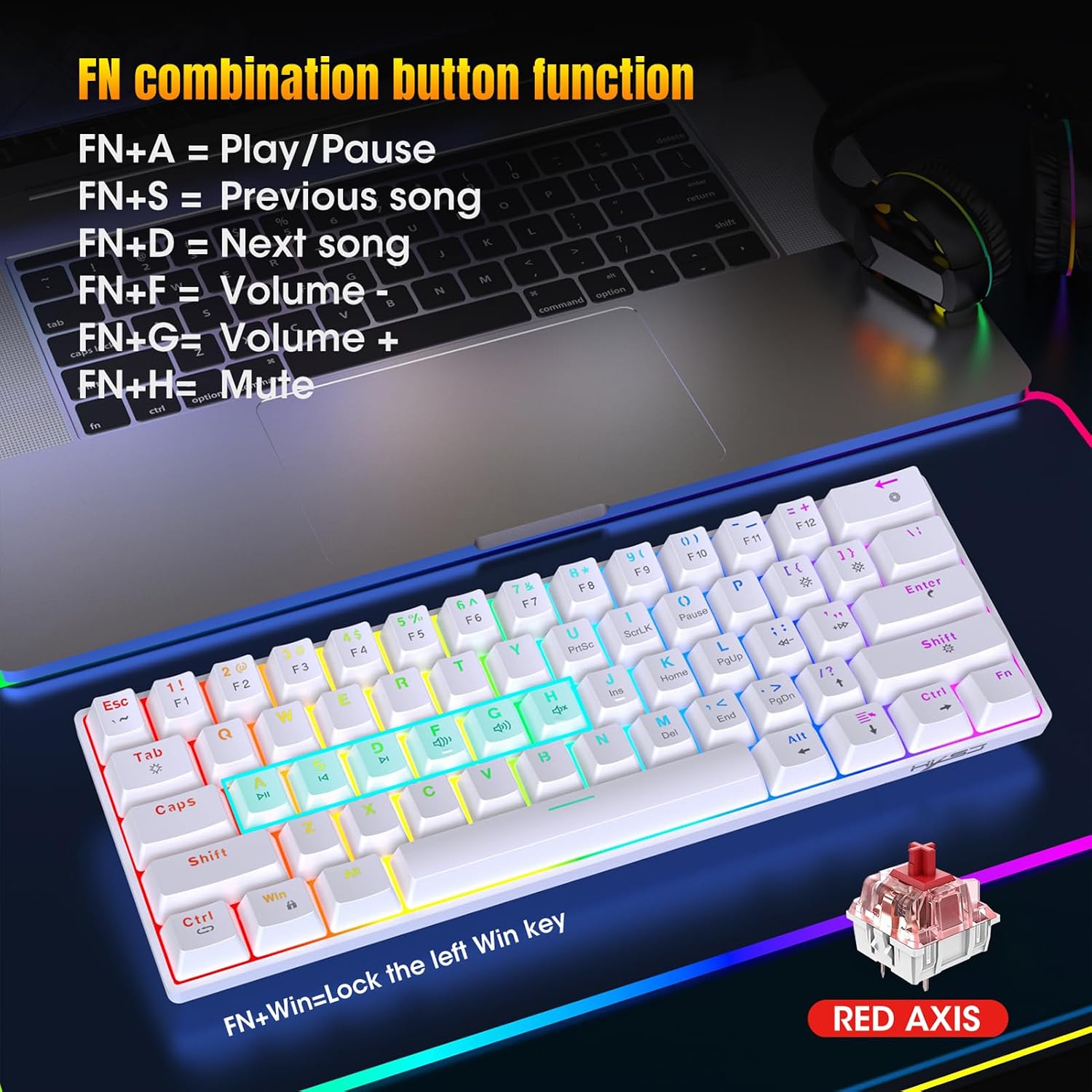
Image: The keyboard with an overlay detailing the FN key combinations for multimedia playback and volume control.
| Function Key Combination | Description |
|---|---|
| Fn + A | Play/Pause media. |
| Fn + S | Previous song. |
| Fn + D | Next song. |
| Fn + F | Volume down. |
| Fn + G | Volume up. |
| Fn + H | Mute/Unmute audio. |
| Fn + Win | Lock/Unlock the left Windows key. |
DIY Customization: Hot-Swappable Switches
The Daconovo V900 features hot-swappable mechanical red switches, allowing you to easily change the switches without soldering. This enables you to customize the typing feel to your preference or replace faulty switches.
Changing Switches
- Remove Keycap: Use the keycap puller tool (included in the package) to gently pull up the keycap you wish to remove.
- Remove Switch: Once the keycap is off, use the switch puller tool to grip the top and bottom clips of the switch. Gently pull the switch straight up to remove it from the PCB.
- Insert New Switch: Align the pins of the new switch with the holes on the PCB. Ensure the pins are straight to avoid bending. Press the switch firmly until it clicks into place.
- Replace Keycap: Place the keycap back onto the new switch, pressing down gently until it is secure.

Image: A detailed view of the keyboard's internal structure, highlighting the hot-swappable red mechanical switches and the included switch puller tool.
Maintenance
Proper maintenance will ensure the longevity and optimal performance of your Daconovo V900 keyboard.
- Cleaning: Regularly clean the keyboard to prevent dust and debris buildup. Use a soft brush or compressed air to remove particles between the keycaps. For surface cleaning, wipe with a slightly damp, lint-free cloth. Avoid harsh chemicals.
- Keycap Cleaning: Keycaps can be removed for deeper cleaning. Wash them with mild soap and water, then ensure they are completely dry before reattaching.
- Storage: When not in use, store the keyboard in a dry, cool place away from direct sunlight and extreme temperatures. The detachable Type-C cable makes storage more convenient.
- Avoid Spills: While durable, the keyboard is not waterproof. Avoid spilling liquids on it. If a spill occurs, immediately unplug the keyboard and allow it to dry completely before reconnecting.
Troubleshooting
If you encounter any issues with your Daconovo V900 keyboard, please refer to the following common solutions:
- Keyboard Not Responding:
- Ensure the USB Type-C cable is securely connected to both the keyboard and your computer.
- Try plugging the keyboard into a different USB port on your computer.
- Restart your computer.
- Test the keyboard on another computer to rule out a computer-specific issue.
- Backlight Not Working/Incorrect:
- Press Fn + Ctrl to ensure the backlight is not turned off.
- Use Fn + [{ and Fn + [} to adjust brightness.
- Try cycling through lighting modes with Fn + [Key with Light Icon].
- Perform a factory reset for lighting settings by pressing Fn + Enter.
- Keys Not Registering/Double Typing:
- Ensure the keycap is properly seated on the switch.
- If you have spare switches, try replacing the problematic switch using the hot-swap instructions in the DIY Customization section.
- Clean any debris or dust from around and under the affected key.
- Windows Key Locked:
- Press Fn + Win to toggle the lock status of the Windows key.
If the issue persists after trying these steps, please contact Daconovo customer support for further assistance.
Specifications
| Feature | Detail |
|---|---|
| Material | ABS |
| Color | White |
| Interface | Type-C (Wired) |
| Key Count | 61 Keys |
| Button Life | 50 Million+ Keystrokes |
| Operating Voltage | 5.0V ± 5% |
| Operating Current | 150mA (Max) |
| Cable Length | 1.75m |
| Switch Type | Red Mechanical Switches (Hot-Swappable) |
| Product Dimensions | 29.2 x 10.2 x 4 cm (11.5 x 4.02 x 1.57 inches) |
| Product Weight | 507g (17.88 ounces) |
| Package Dimensions | 32 x 10.4 x 4.4 cm (12.6 x 4.09 x 1.73 inches) |
| Package Weight | 669g (23.6 ounces) |
Warranty and Support
Daconovo products are manufactured to high-quality standards. This product comes with a standard manufacturer's warranty against defects in materials and workmanship under normal use. The warranty period typically begins from the date of purchase.
For warranty claims, technical support, or any questions regarding your Daconovo V900 keyboard, please contact Daconovo customer service through the retailer where you purchased the product or visit the official Daconovo website for contact information. Please have your proof of purchase ready when contacting support.
We are committed to providing excellent customer service and support to ensure your satisfaction with our products.