
1. Introduction
This manual provides essential instructions for setting up, operating, and maintaining your MINISFORUM 795S7 Mini Tower Gaming PC. Please read this manual thoroughly before using the product to ensure proper functionality and longevity.

Image: The MINISFORUM 795S7 Mini Tower PC, showcasing its compact design and branding.
2. Package Contents
Verify that all items listed below are included in your product package:
- 1x MINISFORUM 795S7 PC (BD790i SE Motherboard + Case)
- 1x Power Cord
- 1x User Manual
Note: This is a barebones version. RAM, SSD, and Operating System are NOT included and must be purchased separately.
3. Product Features
The MINISFORUM 795S7 is designed for high performance and expandability, featuring:
- Powerful Processor: AMD Ryzen 9 7945HX (16 Cores/32 Threads, up to 5.4GHz).
- Expandable Memory: 2x DDR5 SODIMM Slots, supporting up to 64GB at 5200 MT/s.
- High-Speed Storage: 2x M.2 2280 PCIe 4.0 SSD slots.
- Dedicated GPU Support: 1x PCIe 5.0 x16 slot for a low-profile graphics card.
- Triple Video Outputs: 1x USB-C (8K@60Hz), 1x HDMI 2.1 (4K@60Hz), 1x DP 1.4 (4K@60Hz).
- Versatile Connectivity: Multiple USB ports (USB 3.2 Gen2 Type-C, USB 3.2 Gen1 Type-A, USB 2.0 Type-A), 2.5G LAN, and audio jacks.

Image: Diagram highlighting the key features of the MINISFORUM 795S7, including CPU, memory, storage, and power supply.
4. Setup Instructions
4.1 Installing RAM and SSD
As a barebones system, you will need to install RAM and an M.2 SSD. Follow these steps:
- Power Off: Ensure the PC is completely powered off and disconnected from the power source.
- Open Case: Carefully open the PC case. Refer to the diagram below for internal component access.
- Install RAM: Locate the two DDR5 SODIMM slots. Insert your DDR5 memory modules firmly until the clips on both sides lock into place.
- Install M.2 SSD: Locate the M.2 2280 PCIe 4.0 SSD slots. Insert your M.2 SSD at an angle and then gently push it down, securing it with the provided screw.
- Close Case: Carefully close the PC case, ensuring all connections are secure.
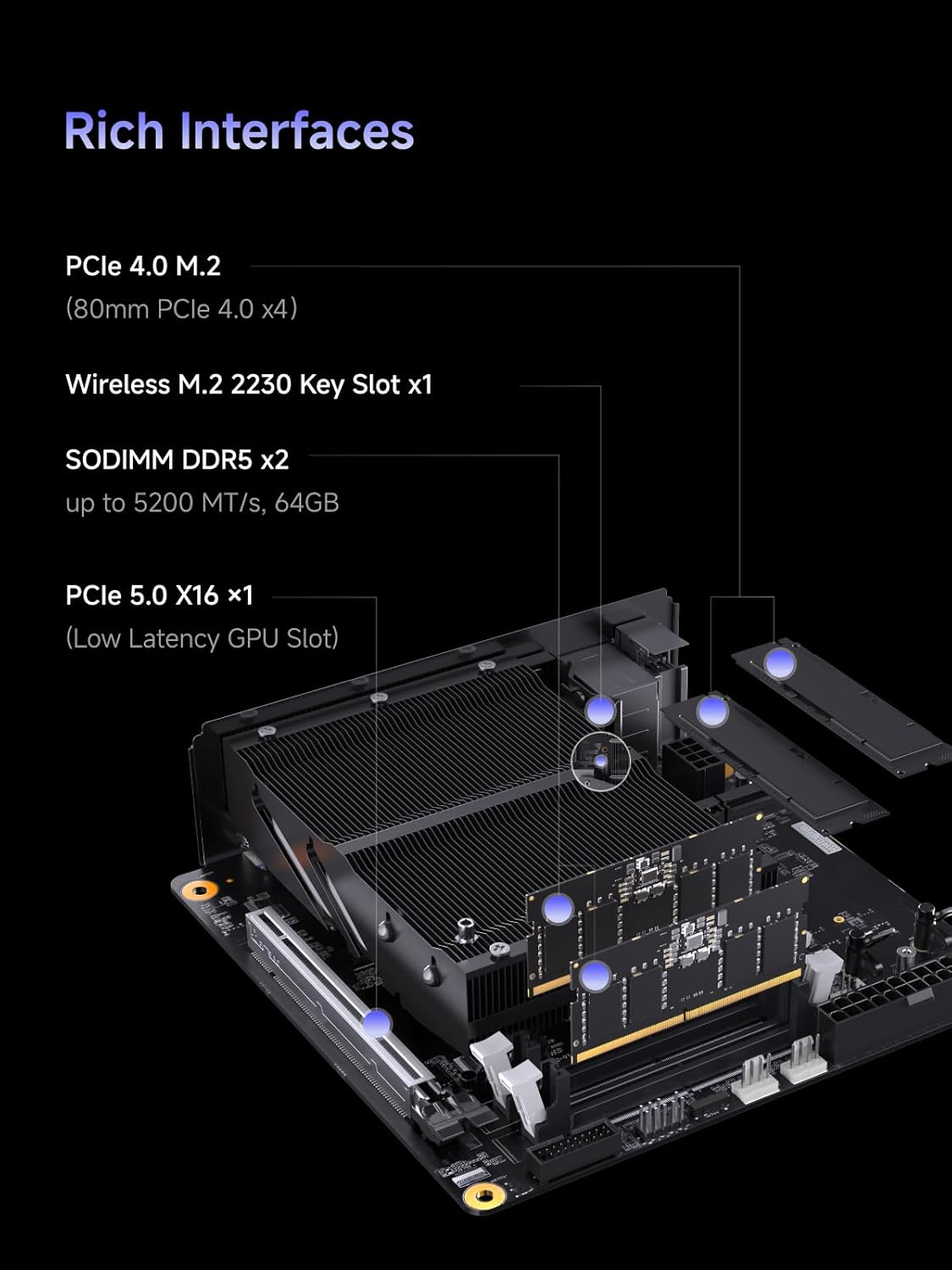
Image: An internal view of the MINISFORUM 795S7, illustrating the locations for installing RAM and M.2 SSDs.
4.2 Connecting Peripherals
- Power: Connect the power cord to the PC and a power outlet.
- Display: Connect your monitor(s) to the HDMI, DisplayPort, or USB-C video outputs.
- Keyboard/Mouse: Connect your USB keyboard and mouse to the available USB ports.
- Network: For wired internet, connect an Ethernet cable to the 2.5G LAN port.

Image: A detailed diagram showing the front and rear I/O ports of the MINISFORUM 795S7 for connecting peripherals.
4.3 Operating System Installation
Since the PC comes without an operating system, you will need to install one. Prepare a bootable USB drive with your preferred OS (e.g., Windows, Linux). Insert the USB drive, power on the PC, and follow the on-screen instructions to install the OS. You may need to enter the BIOS/UEFI settings (typically by pressing DEL or F2 during startup) to set the boot order.
Important: After OS installation, download and install the latest drivers from the MINISFORUM official website for optimal performance, especially for Wi-Fi (if you install a compatible card) and graphics.
5. Operating Instructions
5.1 Power On/Off
- Power On: Press the power button located on the front panel.
- Power Off: Use the operating system's shutdown function. Alternatively, press and hold the power button for 5 seconds for a forced shutdown (use only when necessary).
5.2 Display Configuration
The MINISFORUM 795S7 supports up to three displays simultaneously. Connect your monitors to the available HDMI, DisplayPort, and USB-C ports. Configure display settings (resolution, orientation, extended/duplicate desktop) within your operating system's display settings.

Image: A visual representation of the MINISFORUM 795S7 connected to three monitors, demonstrating its triple video output capability.
6. Maintenance
6.1 Cleaning
Regularly clean the exterior of the PC with a soft, dry cloth. Use compressed air to clear dust from the ventilation grilles to maintain optimal airflow and cooling performance. Ensure the PC is powered off and unplugged before cleaning.
6.2 Software Updates
Keep your operating system, drivers, and applications updated to ensure system stability, security, and performance. Check the MINISFORUM website periodically for updated drivers and BIOS versions.
6.3 Hardware Upgrades
The MINISFORUM 795S7 supports upgrades for RAM and M.2 SSDs. When upgrading, ensure compatibility with the system's specifications (DDR5 SODIMM, PCIe 4.0 M.2 2280). Always power off and unplug the PC before performing any hardware changes.

Image: A close-up view of the PCIe 4.0 M.2 SSD slots, highlighting the high-speed storage capabilities.

Image: A detailed view of the two DDR5 SODIMM slots, indicating support for up to 64GB of high-speed memory.
7. Troubleshooting
This section addresses common issues you might encounter with your MINISFORUM 795S7 PC.
| Problem | Possible Cause | Solution |
|---|---|---|
| No power | Power cable loose, power supply issue | Check power cable connection. Ensure power outlet is functional. |
| No display output | Monitor cable loose, incorrect input selected on monitor, RAM/SSD not installed correctly | Verify display cable connections. Select correct input on monitor. Re-seat RAM and SSD modules. |
| Operating System not booting | OS not installed, boot order incorrect, SSD issue | Install OS if not present. Check BIOS/UEFI boot order. Verify SSD installation. |
| No Wi-Fi/Bluetooth (if card installed) | Drivers not installed, Wi-Fi card not seated correctly | Install appropriate drivers from MINISFORUM website. Re-seat the M.2 2230 Key E Wi-Fi card. |
| System overheating/loud fan noise | Dust accumulation, heavy workload | Clean ventilation grilles. Ensure PC is in a well-ventilated area. Reduce system load if possible. |
8. Specifications
Detailed technical specifications for the MINISFORUM 795S7 Mini Tower Gaming PC:
| Component | Specification |
|---|---|
| CPU | AMD Ryzen 9 7945HX (16 Cores/32 Threads, 2.5 GHz base, up to 5.4 GHz boost) |
| GPU | AMD Radeon 610M (Integrated) |
| Memory | 2x DDR5 SODIMM Slots (up to 64GB, 5200 MT/s) |
| Storage | 2x M.2 2280 PCIe 4.0 SSD Slots |
| Expansion Slot | 1x PCIe 5.0 x16 (for low-profile GPU) |
| Wireless | M.2 2230 Key E Slot (for Wi-Fi card, not included) |
| Ethernet | RJ45 2.5G LAN Port |
| Video Output | 1x HDMI 2.1, 1x DP 1.4, 1x USB-C (Alt DP) |
| Audio Output | HDMI 2.1, DP 1.4, USB-C, Line Out |
| I/O Ports (Front) | 1x USB 3.2 Gen2 Type-C (Alt DP), 1x USB 3.2 Gen1 Type-A, 1x USB 2.0 Type-A, 1x Audio Jack, 1x Power Button, 1x Reset Button |
| I/O Ports (Rear) | 1x HDMI 2.1, 1x DP 1.4, 1x USB 3.2 Gen2 Type-C (Alt DP), 2x USB 3.2 Gen1 Type-A, 2x USB 2.0 Type-A, 1x LINE IN, 1x LINE OUT, 1x MIC IN, 1x Audio Jack, 1x USB-C 2.0, 1x USB-A 3.2 Gen1 (5Gbps), 1x 2.5G RJ45, 1x CMOS Clear |
| Power Supply | TFX 400W |
| Dimensions | 298 x 225 x 95 mm (11.7 x 8.8 x 3.8 inches) |

Image: A graphic detailing the MINISFORUM 795S7's specifications, including CPU, GPU, memory, storage, and I/O ports.
9. Warranty and Support
9.1 Warranty Information
MINISFORUM products typically come with a standard manufacturer's warranty. For specific warranty terms and conditions, please refer to the warranty card included with your product or visit the official MINISFORUM website. Keep your proof of purchase for warranty claims.
9.2 Technical Support
For technical assistance, driver downloads, or further inquiries, please visit the official MINISFORUM support website. You can often find FAQs, troubleshooting guides, and contact information for customer service there.
Official MINISFORUM Website: www.minisforum.com


