
Introduction
This manual provides detailed instructions for the installation, operation, and maintenance of your Fuluku 2+64GB Android 13 Car Radio. This unit is specifically designed for Mazda 5 CW models manufactured between 2010 and 2015. Please read this manual thoroughly before using the product to ensure proper function and safety.
Setup and Installation
Compatibility Check
Before installation, verify that your vehicle is a Mazda 5 CW model from 2010 to 2015. Confirm the shape and size of your vehicle's center console match the product's design for a proper fit.
Package Contents
Ensure all components listed below are present in your package:
- Fuluku Car Stereo Unit
- Backup Camera
- Microphone
- Power Cable
- GPS Antenna
- Rear Camera Input Cable
- RCA Cable
- USB Cables (2)
- User Manual (this document)
- Installation Tools

Wiring and Connections
The unit is designed for plug-and-play installation, retaining factory features such as steering wheel controls, door information display, driving data, amplifier function, and original reversing camera functionality. Connect the provided cables to their corresponding ports on the car stereo and your vehicle's wiring harness.

Backup Camera Installation
The included AHD backup camera provides a 170-degree ultra-wide-angle view. Connect the camera to the designated rear camera input on the stereo unit. Ensure the camera's power cable is connected to the vehicle's reversing lamp for automatic activation when shifting into reverse.

Initial Power-On
After all connections are secure, power on your vehicle. The unit will boot up, displaying the Android 13 interface. Initial setup may involve language selection and time zone settings.

Operating Instructions
Android System and Display
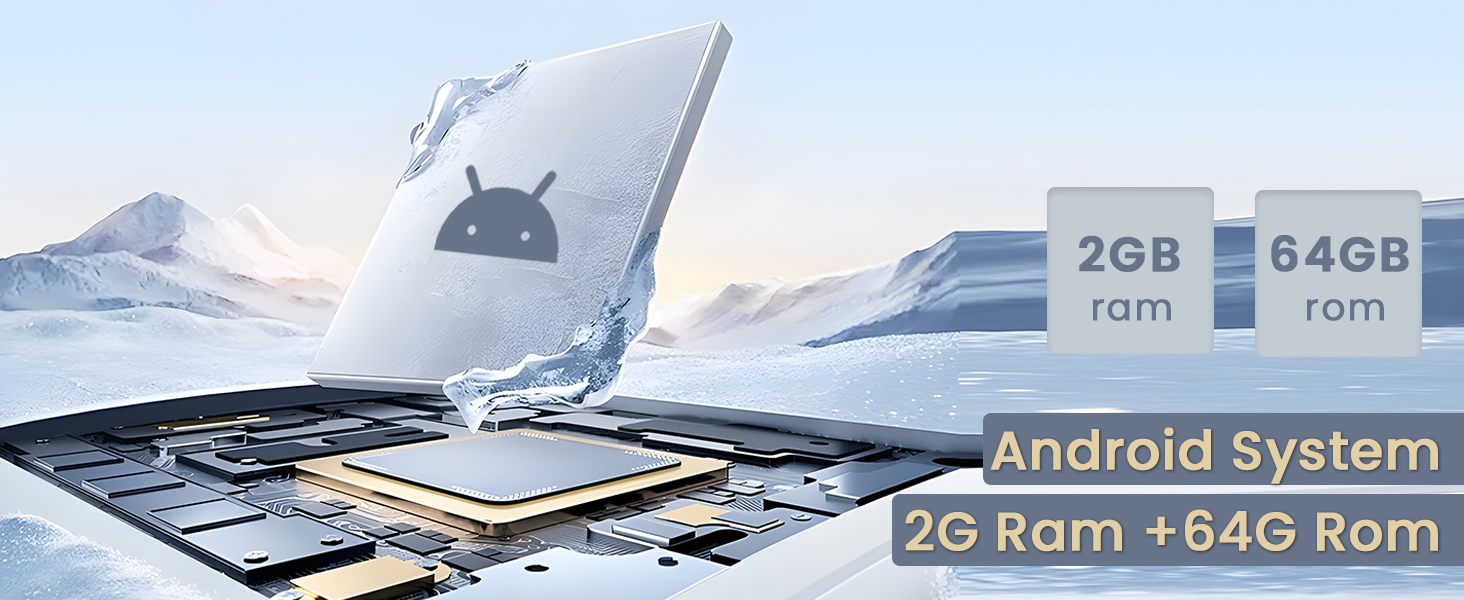
Your car radio operates on the latest Android system, powered by a 4-core CPU with 2GB RAM and 64GB ROM. It features a 9-inch capacitive touchscreen with 2.5D tempered glass for durability and clarity. You can customize the interface with 28 available user interface themes.
Wireless Carplay and Android Auto
Connect your smartphone wirelessly via Bluetooth or using a USB cable to access Apple Carplay or Android Auto. This allows for seamless integration of your phone's functions, including making calls, playing music, and using navigation apps. Voice assistants like Siri can be utilized for hands-free control.

GPS Navigation and WiFi
The unit includes a GPS navigation system with support for both offline and online maps. An external GPS antenna is provided for accurate positioning. Connect to WiFi via your mobile hotspot or a dedicated WiFi device to access online maps, download apps from the Application Store, and browse the internet.

Bluetooth Functions
Utilize Bluetooth for hands-free calling and music playback. The system supports automatic loading of your phone book for easy access to contacts.

Steering Wheel Control (SWC)
The unit supports your vehicle's original steering wheel controls. You can program the buttons to control various functions of the car radio, such as volume, track changes, and mode selection.

Audio Equalizer (EQ)
Adjust the audio output using the built-in EQ settings. Choose from preset sound styles (e.g., Standard, Rock, Pop, Jazz) or customize your own sound field to enhance your listening experience.
Split Screen Mode
The split-screen feature allows you to run two applications simultaneously on the display. For example, you can use navigation on one side while playing music or making a call on the other.

FM RDS Radio
The unit includes a built-in FM radio with RDS (Radio Data System) functionality. You can store over 30 preset stations and receive real-time radio information, weather broadcasts, and news.
Video Playback
The system supports 1080P HD video playback from USB drives or internal storage. Ensure video files are in compatible formats for optimal viewing.
Official Product Video
Maintenance
Cleaning the Screen
Use a soft, lint-free cloth to clean the touchscreen. For stubborn smudges, lightly dampen the cloth with water or a screen-safe cleaning solution. Avoid abrasive materials or harsh chemicals.
Software Updates
Periodically check for software updates through the system settings. Updates can provide new features, performance improvements, and security enhancements. Ensure a stable internet connection during updates.
General Care
Avoid exposing the unit to extreme temperatures or direct sunlight for prolonged periods. Do not attempt to disassemble the unit, as this may void your warranty and cause damage.
Troubleshooting
- Unit does not power on: Check all power cable connections. Ensure the vehicle's ignition is on. Verify the fuse in the power cable is intact.
- No sound: Check speaker connections. Verify the volume is not muted or set to zero. Adjust EQ settings if necessary.
- Steering wheel controls not working: Ensure the SWC wires are correctly connected. Access the "SteeringWheelKey" app in the unit's interface to program or re-program the buttons.
- Backup camera not displaying: Verify the camera's video input cable and power connection to the reversing lamp. Check the camera settings in the car info menu.
- GPS signal weak or inaccurate: Ensure the GPS antenna is properly installed and has a clear view of the sky. Try restarting the navigation app.
- Bluetooth connection issues: Ensure Bluetooth is enabled on both the car stereo and your smartphone. Delete previous pairings and attempt to re-pair the devices.
- WiFi connection unstable: Verify your mobile hotspot or WiFi device is active and within range. Check network settings on the car stereo.
Specifications
| Feature | Specification |
|---|---|
| Brand | Fuluku |
| Model Name | Fuluku |
| Vehicle Service Type | Car, SUV |
| Screen Size | 9 Inches |
| Special Features | Carplay, Android Auto, GPS Navigation, WiFi, Bluetooth, EQ, Touchscreen, FM RDS |
| Connectivity Technology | Bluetooth, Ethernet, USB, Wi-Fi |
| Map Type | North America, Worldwide |
| Audio Output Mode | Stereo |
| Mounting Type | Dashboard Mount |
| Resolution | 1024 x 600 |
| Operating System | Android |
| Memory Storage Capacity | 64 GB |
| Touch Screen Type | Capacitive |
| Display Type | LCD |
| Human-Interface Input | Buttons, Microphone, Touchscreen |
| Compatible Devices | Amplifier, Camera, Smartphone, Speaker |
| Control Method | Push Button, Remote, Touch, Voice |
| Supported Satellite Navigation System | GPS |
| Connectivity Protocol | Bluetooth, Wi-Fi |
Warranty and Support
Warranty Information
This Fuluku car radio comes with a 2-year manufacturer's warranty. Please retain your proof of purchase for warranty claims.
Customer Support
For technical assistance, troubleshooting, or warranty inquiries, please contact Fuluku customer support. You can reach us via email at fulukusupports@126.com. Our support team aims to provide a quick reply within 24 hours.