
1. Introduction
Thank you for purchasing the ciciglow 12MP HD Autofocus Digital Camera. This manual provides essential information for setting up, operating, and maintaining your camera. Please read it thoroughly before use to ensure optimal performance and longevity of your device.
Important Notice: The '4K' and '48.0 MEGA PIXELS' labels on the camera are for aesthetic design only and do not represent the actual camera specifications. Please refer to the detailed product parameters provided in this manual for accurate information.
2. Package Contents
Verify that all items are present in the package:
- 1 x ciciglow Digital Camera
- 1 x Wrist Strap
- 1 x Charging Cable (Type-C)
- 1 x User Manual

Image: The ciciglow Digital Camera shown with its included wrist strap and Type-C charging cable.
3. Setup
3.1 Inserting a Memory Card
The camera requires a memory card (not included) for storing photos and videos. It supports memory cards up to 128GB. Locate the memory card slot, typically on the side or bottom of the camera. Insert the memory card with the metal contacts facing the correct direction until it clicks into place.
3.2 Charging the Battery
The camera has a built-in 800mAh Li-Ion battery. Connect the provided Type-C charging cable to the camera's charging port and the other end to a USB power source (e.g., computer, wall adapter). The charging indicator light will show the charging status.
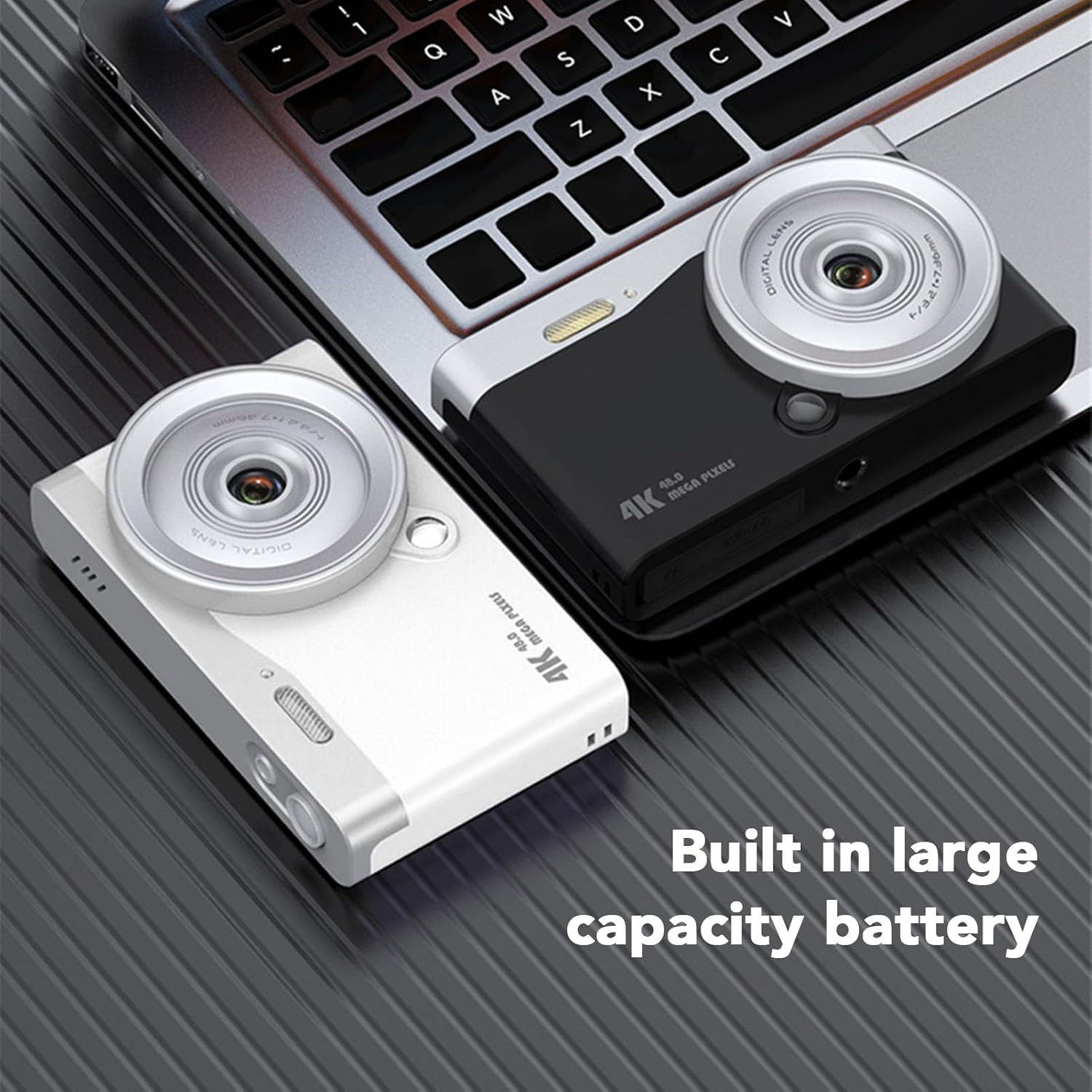
Image: Two ciciglow digital cameras, illustrating the compact design and built-in battery feature.
4. Operating Instructions
4.1 Powering On/Off
To turn the camera on, press and hold the power key for approximately 3 seconds. To turn it off, repeat the same action.
4.2 Taking Photos
- Frame your shot using the 2.8-inch TFT display.
- Press the shutter key halfway down to activate autofocus. The camera will automatically adjust focus.
- Once focused, press the shutter key fully down to capture the photo.

Image: The camera's autofocus feature in action, capturing moving subjects clearly.
4.3 Zoom Function
Use the 'W' (Wide) and 'T' (Telephoto) keys to control the digital zoom ratio. Press 'W' to zoom out and 'T' to zoom in.
4.4 Using the Fill Light (Flashlight)
The camera features a built-in fill light for illuminating subjects in low-light conditions. Refer to the on-screen menu for options to activate or adjust the fill light settings.

Image: Demonstration of the built-in flashlight, showing its effect on a subject in low light.
4.5 Display Screen
The camera is equipped with a 2.8-inch TFT screen. This display allows for clear viewing of your photos and videos, even in bright sunlight.
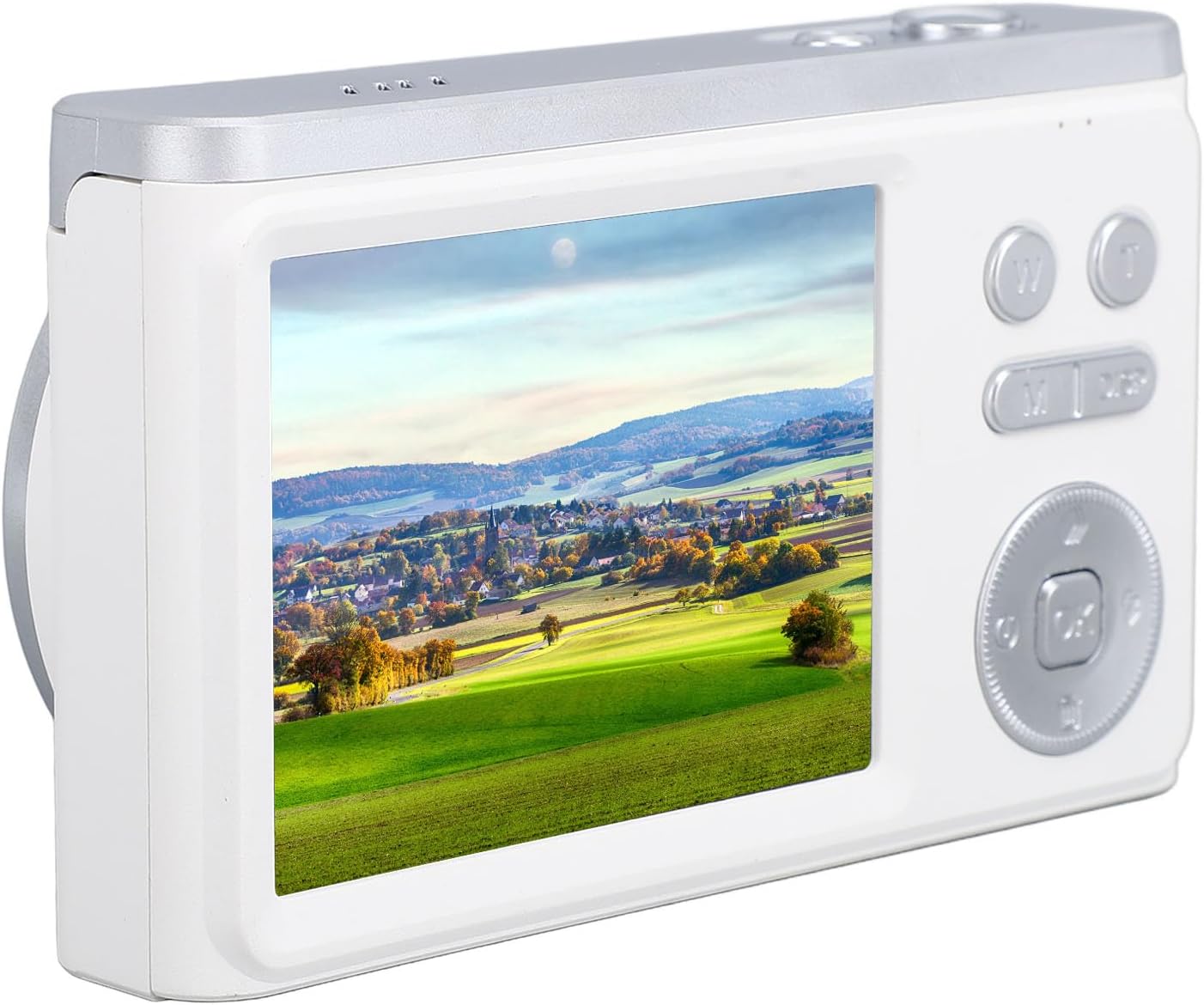
Image: The camera's 2.8-inch TFT screen displaying a vibrant landscape.
4.6 Filters and Frames
Explore the camera's menu to access various built-in filters and colorful frames to enhance your photos directly on the device.
5. Maintenance
- Cleaning: Use a soft, dry cloth to clean the camera body. For the lens and screen, use a specialized lens cleaning cloth and solution. Avoid abrasive materials.
- Storage: Store the camera in a cool, dry place away from direct sunlight and extreme temperatures.
- Battery Care: To prolong battery life, avoid fully discharging the battery frequently. Charge it regularly, even if not in use for extended periods.
- Water Resistance: This camera is not waterproof. Avoid exposure to water or high humidity.
6. Troubleshooting
| Problem | Possible Cause | Solution |
|---|---|---|
| Camera does not power on. | Low battery; incorrect power button press. | Charge the battery fully. Press and hold the power button for 3 seconds. |
| Cannot take photos. | No memory card; memory card full; memory card error. | Insert a memory card. Delete unnecessary files or replace the card. Format the card (this will erase all data). |
| Images are blurry. | Camera shake; subject too close/far; autofocus issue. | Hold the camera steady. Ensure subject is within focus range. Press shutter halfway to allow autofocus to engage. |
| Screen is blank or frozen. | System error. | Turn off the camera and restart. If unresponsive, allow battery to drain completely then recharge and restart. |
7. Specifications
| Feature | Detail |
|---|---|
| Item Type | Digital Camera |
| Material | ABS |
| Image Resolution | 12MP (maximum) |
| File Format | JPG (Image), AVI (Video) |
| Aspect Ratio | 16:9 |
| Auto White Balance | Yes |
| Battery Type | Built-in Li-Ion Battery |
| Battery Capacity | 800mAh |
| Storage Support | Up to 128GB Memory Card (not included) |
| Fill Light | Yes |
| Charging Port | Type-C |
| Display Screen | 2.8 inch TFT Screen |
| Wi-Fi Connection | Not Supported |
| Language Support | English, Traditional Chinese, Simplified Chinese, Russian, Japanese, French, German, Korean, Portuguese, Spanish, etc. |
| Photo Sensor Technology | CCD |
| Connectivity Technology | USB |
| Color | White |
| Model Number | ciciglowzpb38qgf2s-11 |
| Brand | ciciglow |
8. Warranty and Support
For warranty information and technical support, please refer to the documentation included with your purchase or contact ciciglow customer service through the retailer where the product was purchased. Keep your proof of purchase for warranty claims.