
Introduction
This manual provides comprehensive instructions for the setup, operation, and maintenance of your K36 Handheld Game Console. Please read this manual thoroughly before using the device to ensure optimal performance and longevity.

Figure 1: K36 Handheld Game Console, showing the console itself, a USB charging cable, and a 64GB TF card.
Product Overview
The K36 Handheld Game Console is a portable retro gaming device designed for an immersive gaming experience. It features a high-resolution display, comfortable controls, and support for a wide range of classic game simulators.
Key Features:
- High-Definition Visuals: Equipped with a 3.5-inch TFT screen (640x480 pixels) for clear and vibrant game display.
- Ergonomic Controls: Features dual 3D joysticks, independent ABYX buttons, and upgraded four-plate LR buttons for enhanced comfort and precision.
- Extensive Game Support: Powered by professional game chips, supporting dozens of simulators and tens of thousands of games. Users can also download games in supported formats.
- Long Battery Life: Integrated rechargeable lithium battery provides 5-6 hours of continuous gameplay.
- Linux System: Operates on a Linux-based system for stable performance.

Figure 2: The K36 console highlighting its professional game chip support for various simulators.
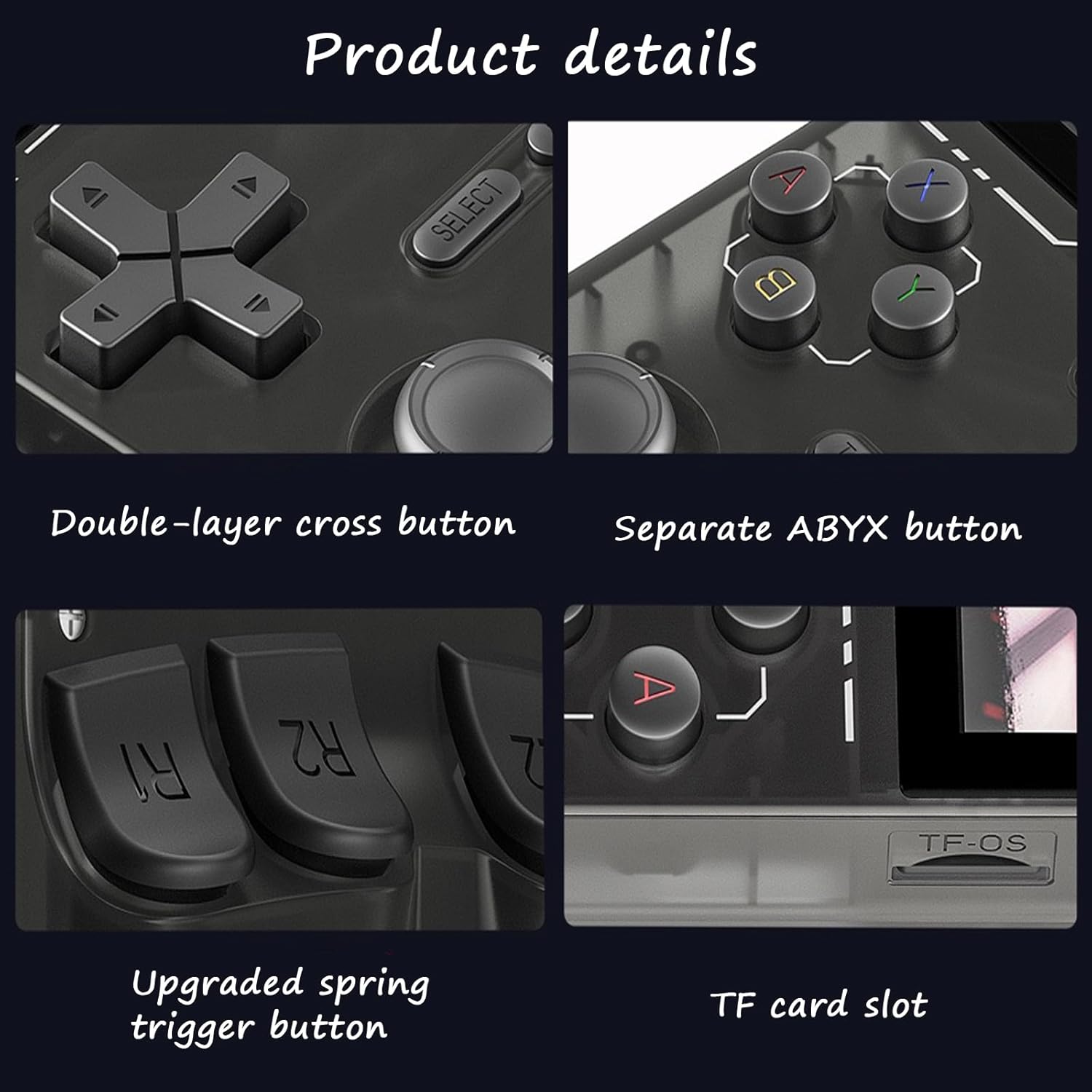
Figure 3: Display specifications of the K36 console, showing its 3.5-inch screen with 640x480 pixel resolution and RGB color.
Setup
1. Charging the Console:
Before initial use, fully charge the K36 Handheld Game Console. Connect the provided USB cable to the console's charging port and the other end to a compatible USB power adapter (5V ≥ 1.5A recommended) or a computer USB port.
- A charging indicator light will typically illuminate during charging and turn off or change color when fully charged.
- Charging time may vary.
2. Inserting the TF Card:
The console comes with a pre-installed 64GB TF card containing pre-loaded games. If you need to reinsert or replace the card:
- Locate the TF card slot on the console (refer to Figure 4 for location).
- Gently insert the TF card into the slot until it clicks into place. Ensure the card is oriented correctly.
- To remove, gently push the card inward until it springs out.

Figure 4: Close-up view of the K36 console's buttons, including the TF card slot.
Operating Instructions
1. Power On/Off:
- To power on, press and hold the Power button (usually located on the top or side of the console) for a few seconds until the screen illuminates.
- To power off, press and hold the Power button until a shutdown prompt appears, then confirm. Alternatively, a quick press might put it into sleep mode.
2. Navigation and Game Selection:
- Use the Direction Keys (D-pad) or 3D Joysticks to navigate through menus and game lists.
- Press the A button (or equivalent action button) to select an option or launch a game.
- Press the B button (or equivalent back button) to go back to the previous menu.
- The SELECT and START buttons are typically used for in-game functions or system menu access.

Figure 5: The K36 console's dual 3D joysticks, designed for comfortable and precise control during gameplay.

Figure 6: Close-up of the K36 console's upgraded R/L buttons, featuring an ergonomic design.
3. Playing Games:
- From the main menu, navigate to the desired game category or emulator.
- Select a game from the list to begin playing.
- Familiarize yourself with the in-game controls, which may vary by game and emulator.
4. Connecting to TV (if supported):
Some models may support TV output via an OTG port or dedicated video out. Refer to the console's ports and connect an appropriate cable (not included) to your TV's input. Select the correct input source on your TV.
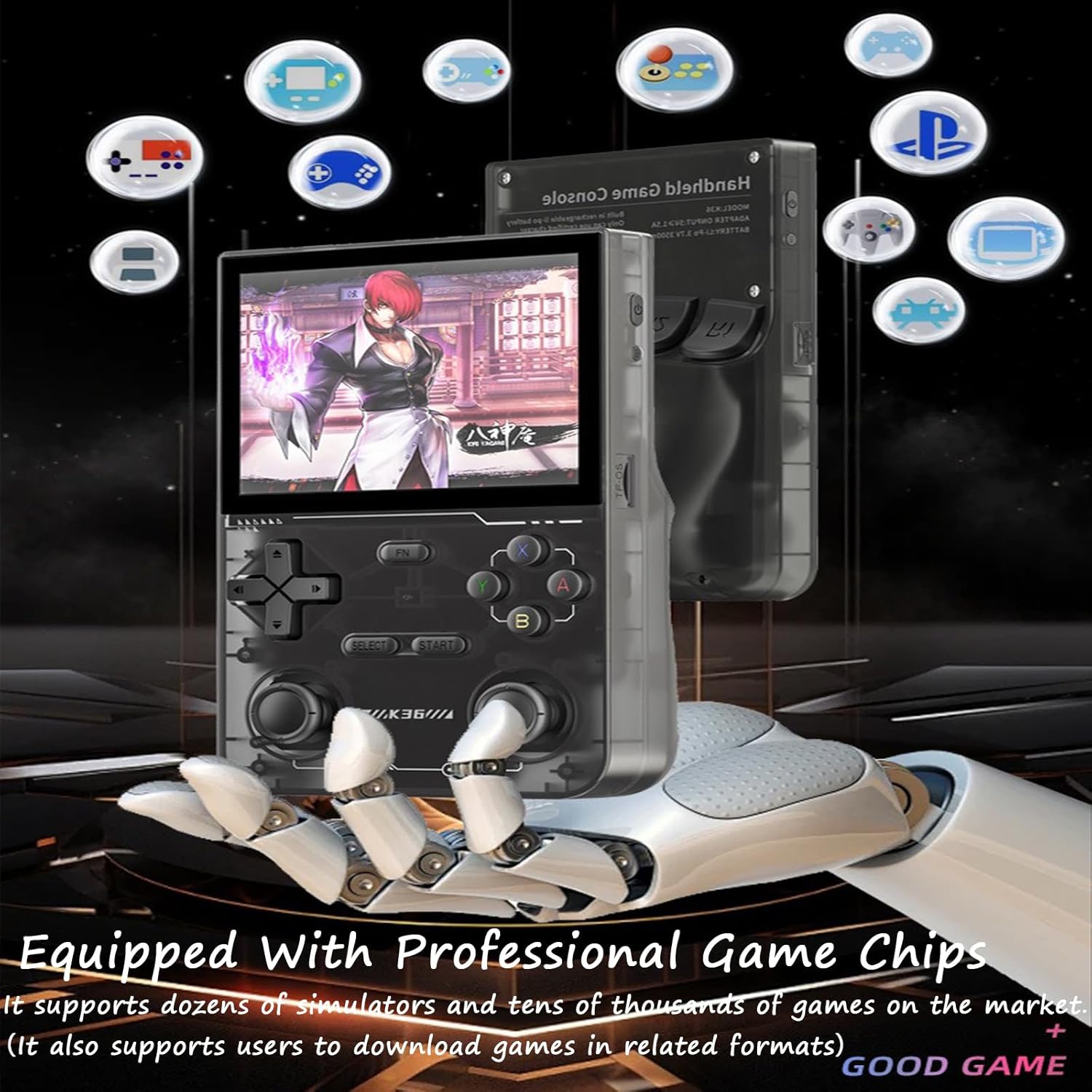
Figure 7: A user holding and playing the K36 Handheld Game Console, demonstrating its portable use.
Maintenance
- Cleaning: Use a soft, dry cloth to clean the console's exterior. Do not use liquid cleaners or abrasive materials.
- Storage: Store the console in a cool, dry place away from direct sunlight and extreme temperatures.
- Battery Care: To prolong battery life, avoid fully discharging the console frequently. Charge it regularly, even if not in use for extended periods.
- TF Card Handling: Always ensure the console is powered off before inserting or removing the TF card to prevent data corruption.
Troubleshooting
| Problem | Possible Cause | Solution |
|---|---|---|
| Console does not power on. | Low battery; Power button not pressed long enough; System error. | Charge the console for at least 30 minutes. Press and hold the Power button for 5-10 seconds. If unresponsive, try a hard reset (if a reset pinhole exists, otherwise let battery drain and recharge). |
| Games are not loading or visible. | TF card not inserted correctly; Corrupted game files; Incorrect file format. | Ensure the TF card is fully inserted. Restart the console. Verify game files on the TF card using a computer. Ensure games are in supported formats. |
| Screen is frozen or unresponsive. | Software glitch; System overload. | Press and hold the Power button for 10-15 seconds to force a shutdown. Restart the console. |
| Poor battery life. | Battery degradation; High screen brightness; Continuous heavy usage. | Ensure the console is fully charged. Reduce screen brightness. Close background applications if any. |
Specifications
- Model: K36
- Screen Size: 3.5-inch TFT
- Resolution: 640 x 480 Pixels
- System: Linux
- Storage: 64GB TF Card (included)
- Battery: 3.7V 3500mAh Li-Po Rechargeable Battery
- Adapter Input: 5V ≥ 1.5A
- Continuous Playtime: Approximately 5-6 hours
- Color: Purple (for this specific variant)
Warranty and Support
For warranty information and customer support, please refer to the seller's policies on the platform where the product was purchased. Keep your proof of purchase for any warranty claims.
For technical assistance or further inquiries, please contact the seller directly through the marketplace messaging system.


