
K36
K36 Handheld Game Console User Manual
Comprehensive guide for setup, operation, and maintenance of your K36 Handheld Game Console.
Introduction
The K36 Handheld Game Console is a portable retro gaming device designed to provide an extensive collection of classic games. It features a high-resolution display, comfortable controls, and support for various game simulators, allowing users to enjoy a wide range of gaming experiences on the go.
Key Features:
- Extensive collection of classic games, including arcade, puzzle, shooting, racing, fighting, and adventure genres.
- Upgraded dual 3D joysticks and independent ABYX buttons for enhanced gaming control and comfort.
- Ergonomically designed four-plate LR buttons on the back for improved grip and gameplay.
- Equipped with professional game chips supporting numerous simulators and tens of thousands of games.
- High-resolution 3.5-inch TFT screen for clear and vibrant visual effects.
- Rechargeable lithium battery providing 5-6 hours of continuous gaming time.
Package Contents
Please verify that all items listed below are included in your K36 Handheld Game Console package:
- 1 x K36 Handheld Game Console
- 1 x USB Charging Cable
- 1 x 64GB TF Card (pre-installed or included separately)
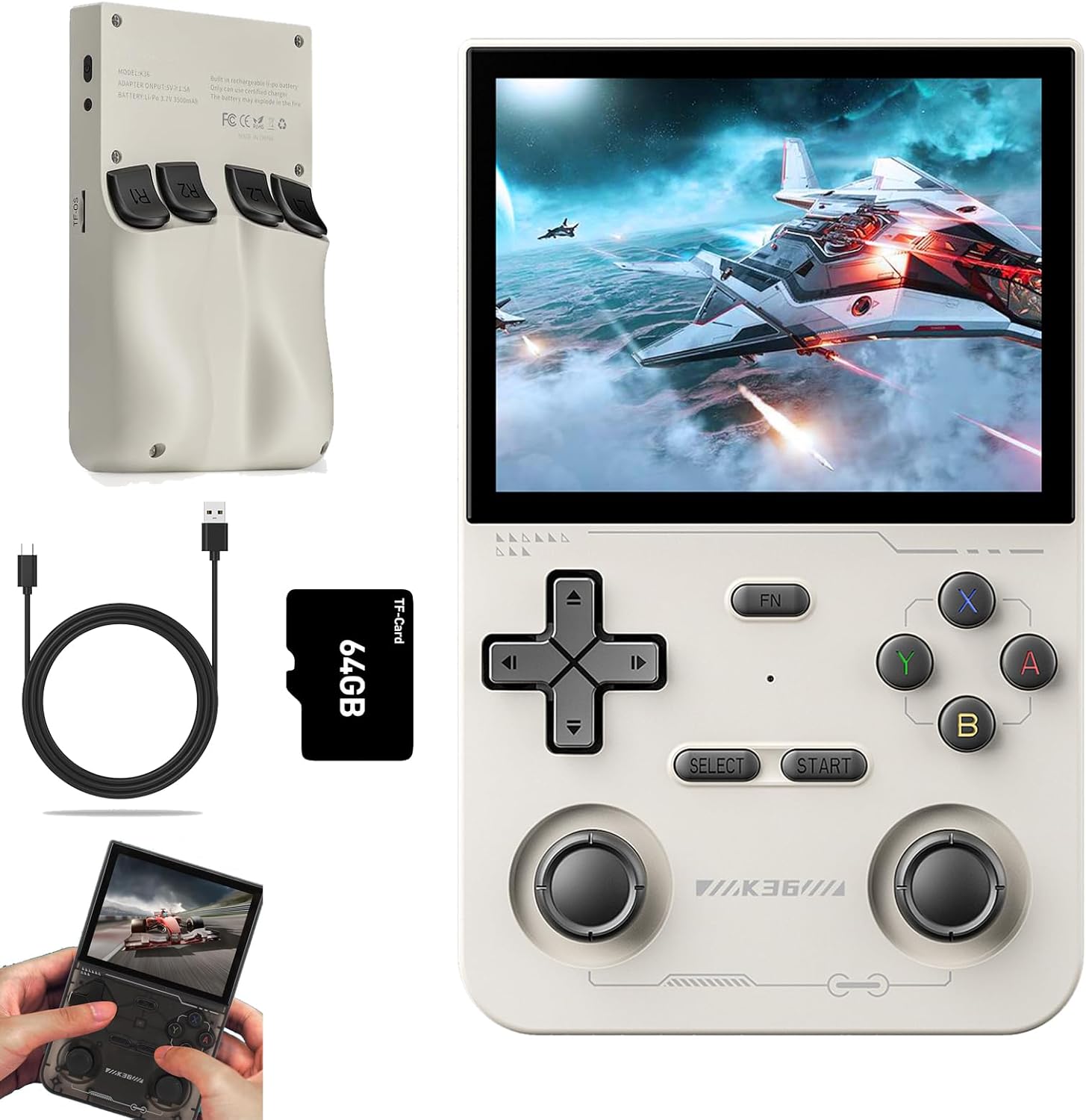
Image: K36 Handheld Game Console, USB charging cable, and 64GB TF card.
Setup
Initial Charging:
- Connect the provided USB charging cable to the console's charging port (DC port).
- Connect the other end of the USB cable to a compatible USB power adapter (5V/1.5A recommended) or a computer's USB port.
- Allow the console to charge fully before first use. The charging indicator light will typically change or turn off when charging is complete.
TF Card Installation:
The K36 console uses a TF card for game storage and system files. Ensure the 64GB TF card is properly inserted.
- Locate the TF card slot on the side of the console.
- Gently insert the TF card into the slot until it clicks into place. Ensure the card is oriented correctly.
- To remove the TF card, gently push it inward until it springs out.
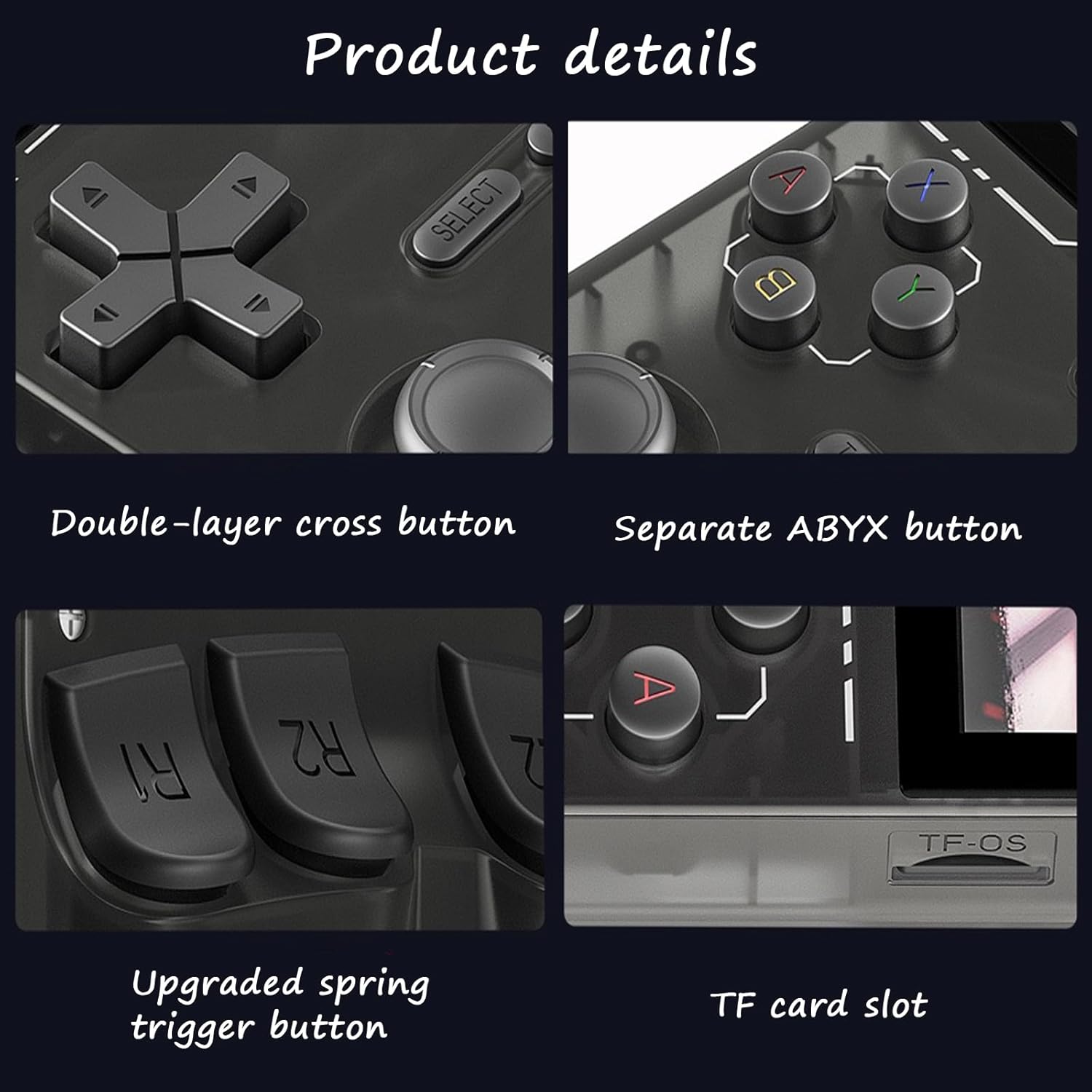
Image: Detailed view of the K36 console's TF card slot and various control buttons.
Operating Instructions
Power On/Off:
- To power on: Press and hold the power button (usually located on the top or side) for a few seconds until the screen illuminates.
- To power off: Press and hold the power button until a power-off menu appears, then select "Power Off" or continue holding until the device shuts down.
Basic Controls:
The K36 console features intuitive controls for navigation and gameplay.

Image: Diagram illustrating the layout of buttons, joysticks, and ports on the K36 console.
- Direction Keys (D-Pad): Used for menu navigation and directional input in games.
- Left/Right Rocker (Analog Joysticks): Provide precise 360-degree movement for games that support analog input.
- ABYX Buttons: Action buttons for in-game commands.
- SELECT/START Buttons: Used for menu selections, pausing games, or starting gameplay.
- FN Key: Function key, typically used in combination with other buttons for system shortcuts.
- LR Buttons (L1, L2, R1, R2): Shoulder buttons located on the top and back of the console, used for various in-game actions.
- Headset Port: For connecting headphones.
- OTG Port: On-The-Go port, for connecting external USB devices.
- DC Port: Charging port.

Image: Close-up view highlighting the dual 3D joysticks for enhanced control.

Image: View of the K36 console's back, emphasizing the ergonomically designed LR buttons.
Navigating the System and Playing Games:
- Upon powering on, the console will boot into its main menu or game selection interface.
- Use the Direction Keys or Left/Right Rocker to navigate through game categories or system settings.
- Select a game by pressing the 'A' button (or equivalent action button).
- The console supports various emulators and game formats. You can download additional games in compatible formats and place them on the TF card in the designated game folders.
- To exit a game or return to the main menu, refer to the specific emulator's controls or use the FN key in combination with another button (e.g., FN + START).
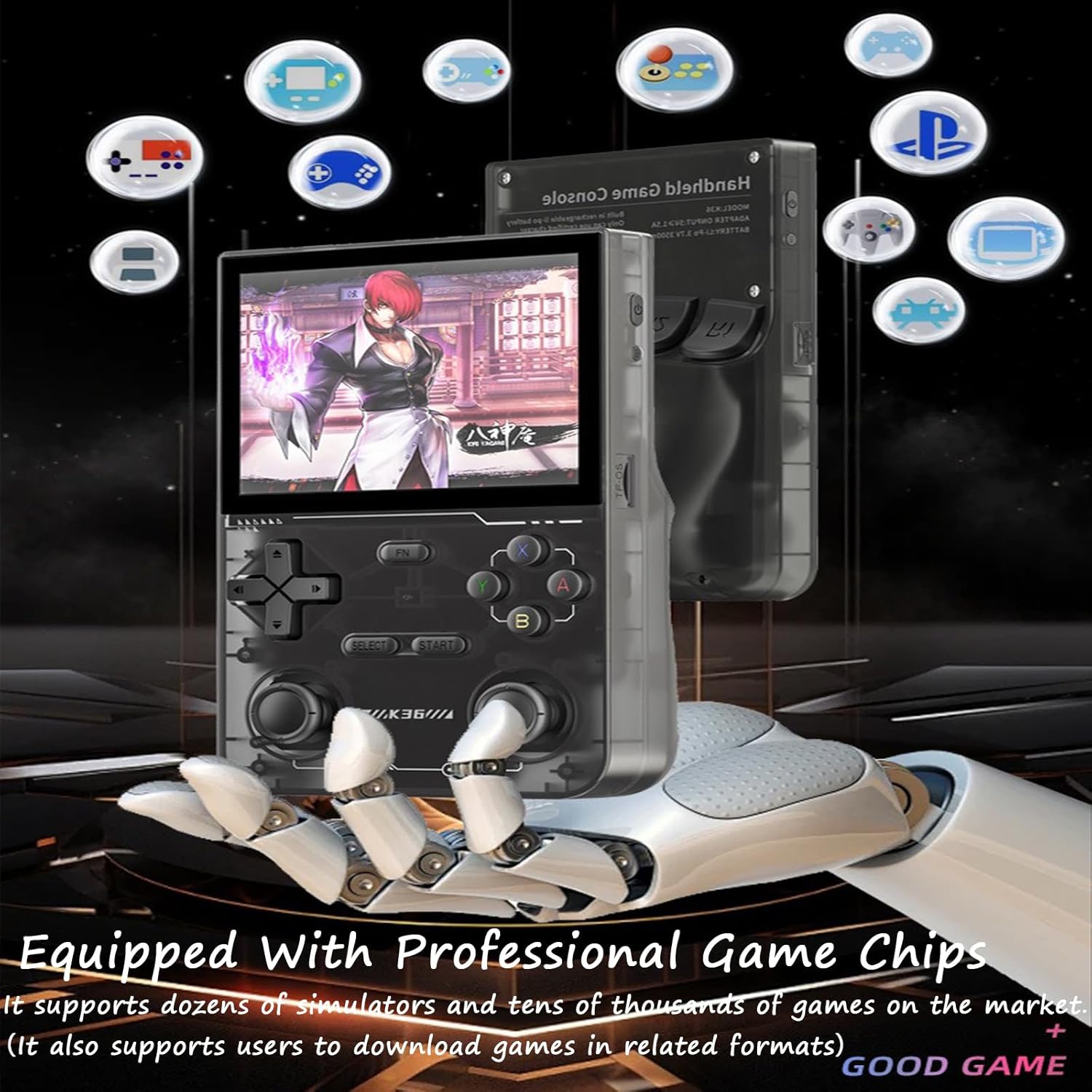
Image: The K36 console screen showing various game icons, highlighting its support for multiple game types and professional game chips.
High-Definition Visuals:
The 3.5-inch TFT screen provides a clear and vibrant gaming experience with delicate and soft colors.

Image: The K36 console screen showcasing its high-definition visual capabilities with a clear and colorful game display.
Maintenance
Cleaning:
- Use a soft, dry, lint-free cloth to clean the console's exterior.
- For stubborn smudges, slightly dampen the cloth with water. Avoid using harsh chemicals or abrasive cleaners.
- Do not spray cleaning solutions directly onto the console.
Battery Care:
- To prolong battery life, avoid fully discharging the battery frequently.
- Charge the console regularly, even if not in use for extended periods.
- Store the console in a cool, dry place away from direct sunlight and extreme temperatures.
Troubleshooting
| Problem | Possible Cause | Solution |
|---|---|---|
| Console does not power on. | Low battery; power button not held long enough. | Charge the console for at least 30 minutes. Press and hold the power button for 3-5 seconds. |
| Games are not loading or appearing. | TF card not inserted correctly; corrupted game files; unsupported game format. | Ensure TF card is fully inserted. Check game file integrity. Verify game format compatibility. |
| Screen is blank or flickering. | Low battery; system error. | Charge the console. Try restarting the device. If issue persists, contact support. |
| Controls are unresponsive. | System freeze; physical damage. | Restart the console. If physical damage is suspected, contact support. |
Specifications
| Feature | Detail |
|---|---|
| Product Name | K36 Handheld Game Console |
| Screen Size | 3.5-inch TFT Screen |
| Resolution | 640x480 Pixels (RGB Color) |
| Storage | 64GB TF Card (included) |
| Battery Type | Rechargeable Li-Po Battery |
| Battery Capacity | 3.7V 3500mAh |
| Charging Input | 5V ≥ 1.5A |
| Continuous Playtime | Approximately 5-6 hours |
| Supported Systems | Linux System (supports various emulators) |
Warranty and Support
This product is manufactured by Generic. For any warranty claims, technical support, or inquiries regarding your K36 Handheld Game Console, please refer to the contact information provided with your purchase or reach out to the retailer where the product was acquired.
Please retain your proof of purchase for warranty purposes.
Ask a question about this manual
Ask about setup, troubleshooting, compatibility, parts, safety, or missing instructions. Manuals+ will review the question and use this page’s manual context to help answer it.