
Zttopo Black-M9 (ZT-10)
Zttopo TikTok Video Scrolling Remote Control User Manual
Model: Black-M9 (ZT-10)
1. Introduction
Thank you for purchasing the Zttopo TikTok Video Scrolling Remote Control. This compact and versatile device allows you to control various functions on your smartphone, including TikTok video scrolling, e-book page turning, and camera shutter activation, all wirelessly via Bluetooth. This manual provides detailed instructions for setup, operation, and troubleshooting to ensure you get the most out of your remote control.

Image: The Zttopo TikTok Video Scrolling Remote Control shown alongside its included neck strap.
2. Product Features
- TikTok Video Control: Swipe next/last video, like, adjust volume, swipe left/right.
- One-Click Photo Taking: Remotely activate your phone's camera shutter for selfies or group photos. Maximum operation distance is 33 feet.
- E-Book Page Turner: Control page-turning in Kindle APP on your cellphone (not compatible with Kindle devices).
- Customized Screen Click: Control-click anywhere on your mobile phone screen, useful for specific app functions like TikTok video shooting.
- Wide Compatibility: Works with most Android phones and iPhones (iOS V14.8 and above, requires Assistive Touch setup).
- Rechargeable: Built-in Lithium Ion battery.
3. What's in the Box
- 1 x Zttopo TikTok Video Scrolling Remote Control
- 1 x Neck Strap
- 1 x Charging Cable
- 1 x User Manual (this document)
4. Setup and Pairing
4.1. Initial Charging
Before first use, ensure the remote control is fully charged. Connect the remote to a USB power source using the provided charging cable. The indicator light will show charging status and turn off when fully charged.
4.2. Bluetooth Pairing (General)
- Turn on the remote control by sliding the ON/OFF switch (located on the side). The blue indicator light will blink, indicating it's in pairing mode.
- On your smartphone, go to "Settings" and enable Bluetooth.
- Search for available devices. The remote control will appear as "Beauty-R1" or similar.
- Select the remote control from the list to pair. Once paired, the blue indicator light will stop blinking and remain solid.
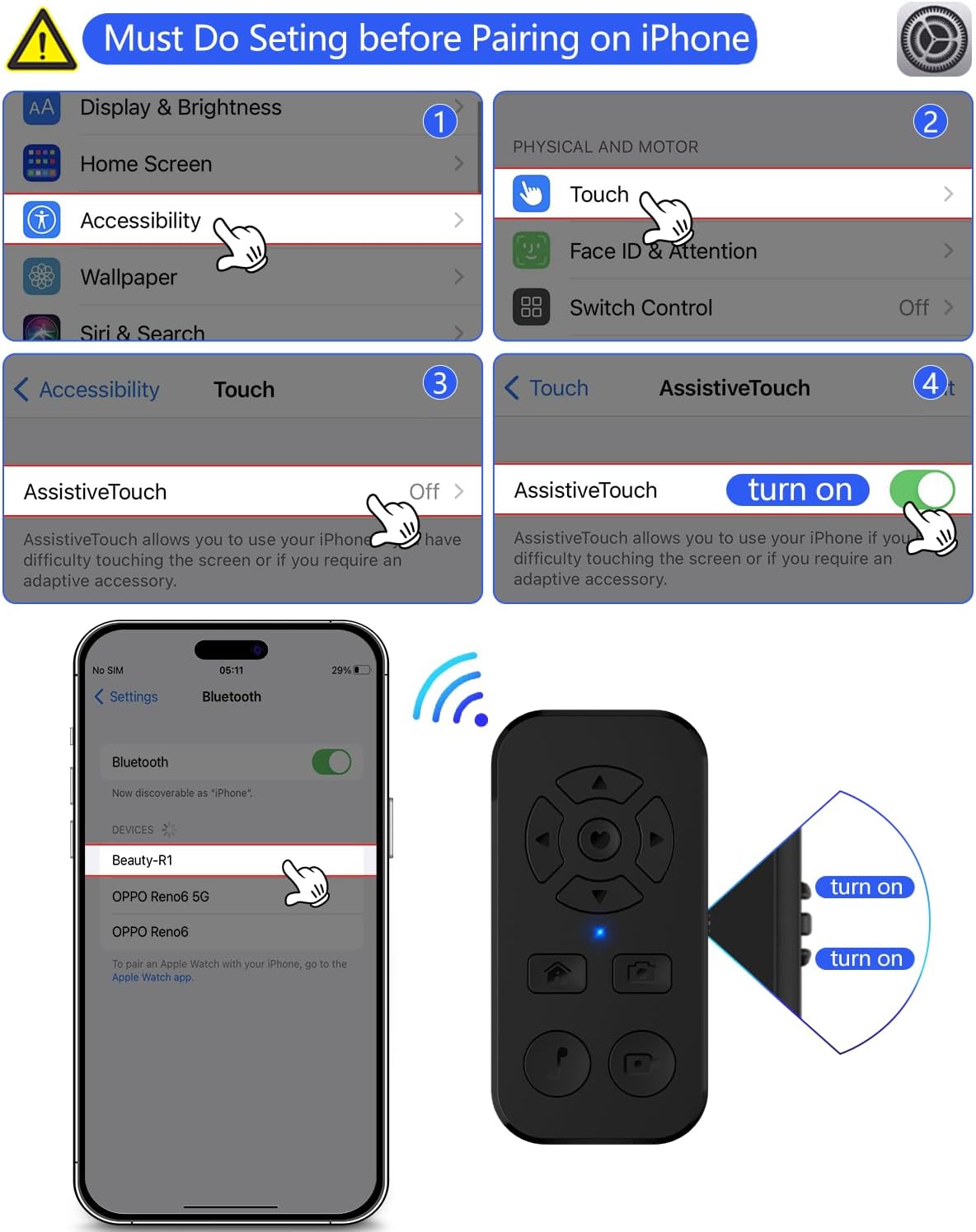
Image: Visual guide for iPhone Bluetooth pairing and the initial steps for enabling Assistive Touch.
4.3. Important iPhone Settings (iOS V14.8+)
For iPhone users, specific accessibility settings must be enabled for the remote to function correctly, especially for scrolling and custom click features.
- Go to Settings > Accessibility > Touch.
- Turn on AssistiveTouch.
- Within AssistiveTouch settings, you may need to adjust the Tracking Sensitivity Slider for optimal performance.
Refer to the troubleshooting section if you experience issues with iPhone functionality after pairing.
5. Operating Instructions
5.1. Button Diagram
Familiarize yourself with the remote control's buttons and their primary functions:

Image: A detailed diagram illustrating the function of each button on the Zttopo remote control.
- Up Arrow: Sliding Down Volume (long press) / Screen off (long press) / Swipe Left
- Down Arrow: Sliding Down Volume (long press)
- Left Arrow: Swipe Left
- Right Arrow: Swipe Right
- Center Button (Heart Icon): Pause/Play/Like
- Camera Icon Button: Taking Photo
- Home Icon Button: Back to Home
- Music Note Icon Button: Multi-function button
- Square Icon Button: Multi-function button setting switch
- ON/OFF Switch: Power on/off the device (side of remote)
5.2. TikTok Video Control
Once paired, open the TikTok app on your smartphone. Use the remote to navigate and interact with videos:
- Swipe Next/Last Video: Use the Up/Down arrow buttons.
- Give a Like: Press the Center button (Heart icon).
- Volume +/-: Long press the Up/Down arrow buttons.
- Swipe Left/Right: Use the Left/Right arrow buttons.
- Pause/Play: Press the Center button (Heart icon).
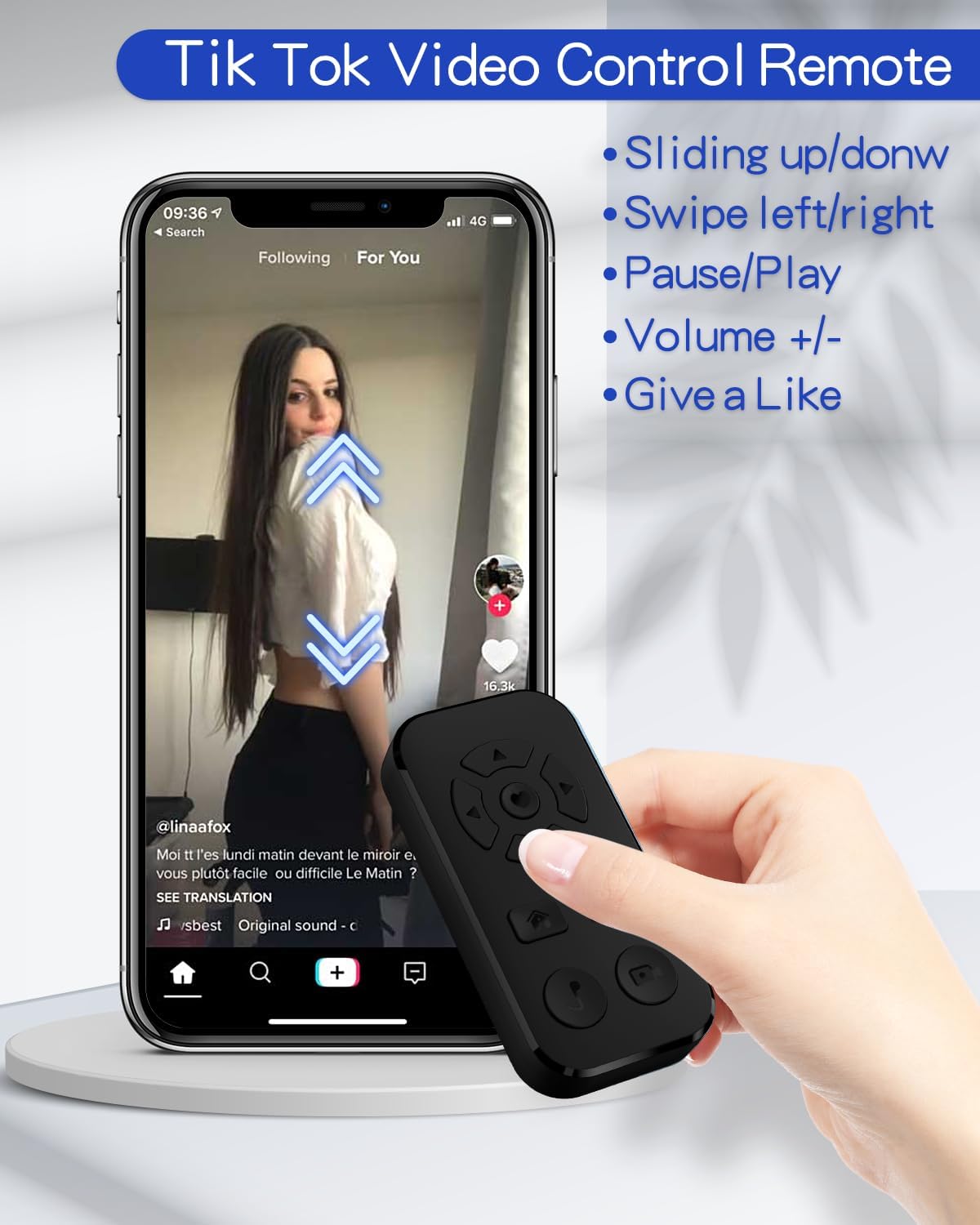
Image: A smartphone displaying a TikTok video, with the remote control in hand demonstrating its use for video navigation and interaction.
5.3. Camera Photo and Video Clicker
Use the remote to take photos or start/stop video recording remotely:
- Open your phone's camera app.
- Press the Camera Icon Button on the remote to take a photo.
- For video recording, press the Camera Icon Button once to start recording and again to stop.
- Note: Ensure your phone's camera settings allow taking photos via volume buttons for optimal compatibility.

Image: A family posing for a photo, with a smartphone on a tripod and the remote control being used to capture the image.
5.4. E-Book APP Page Turner
The remote can be used to turn pages in e-book applications on your smartphone:
- Open the Kindle APP (or other compatible e-book app) on your cellphone.
- Use the Left/Right arrow buttons to turn pages forward or backward.
- Note: This function is ONLY available for Kindle APP on e-book, not for Kindle devices.
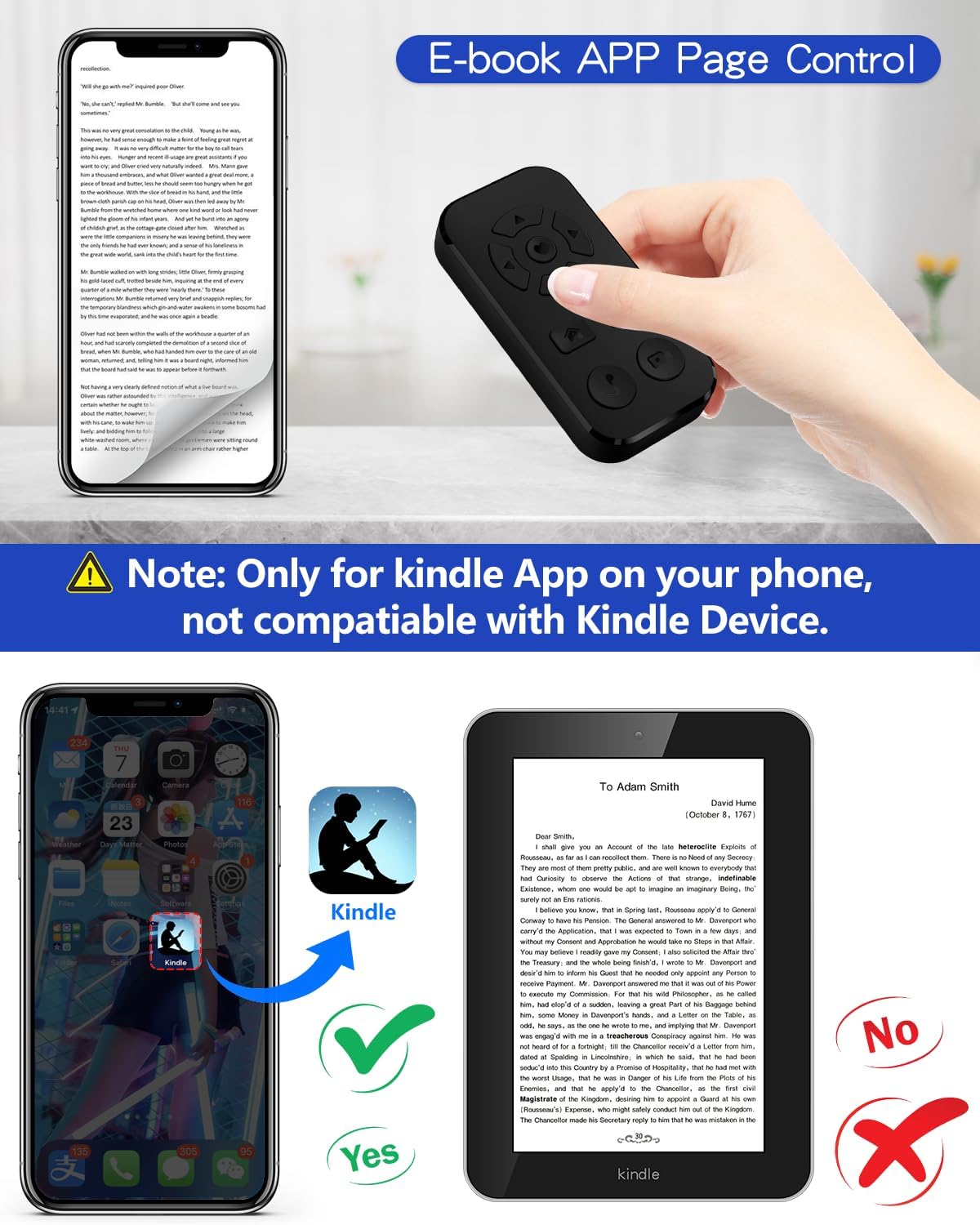
Image: A smartphone displaying an e-book, with the remote control being used to turn pages. An illustration clarifies compatibility with the Kindle app on a phone versus a Kindle device.
5.5. Customized Screen Click Button
This advanced function allows you to program the remote to click a specific point on your phone's screen, useful for unique app interactions.
- Press the Music Note Icon Button to enter setting mode.
- Use the directional arrow buttons (Up, Down, Left, Right) to move the on-screen cursor (a small dot) to the desired click location on your phone's screen.
- Press the Music Note Icon Button again to confirm and finish the setting.
- Press the Square Icon Button to activate the customized click function.
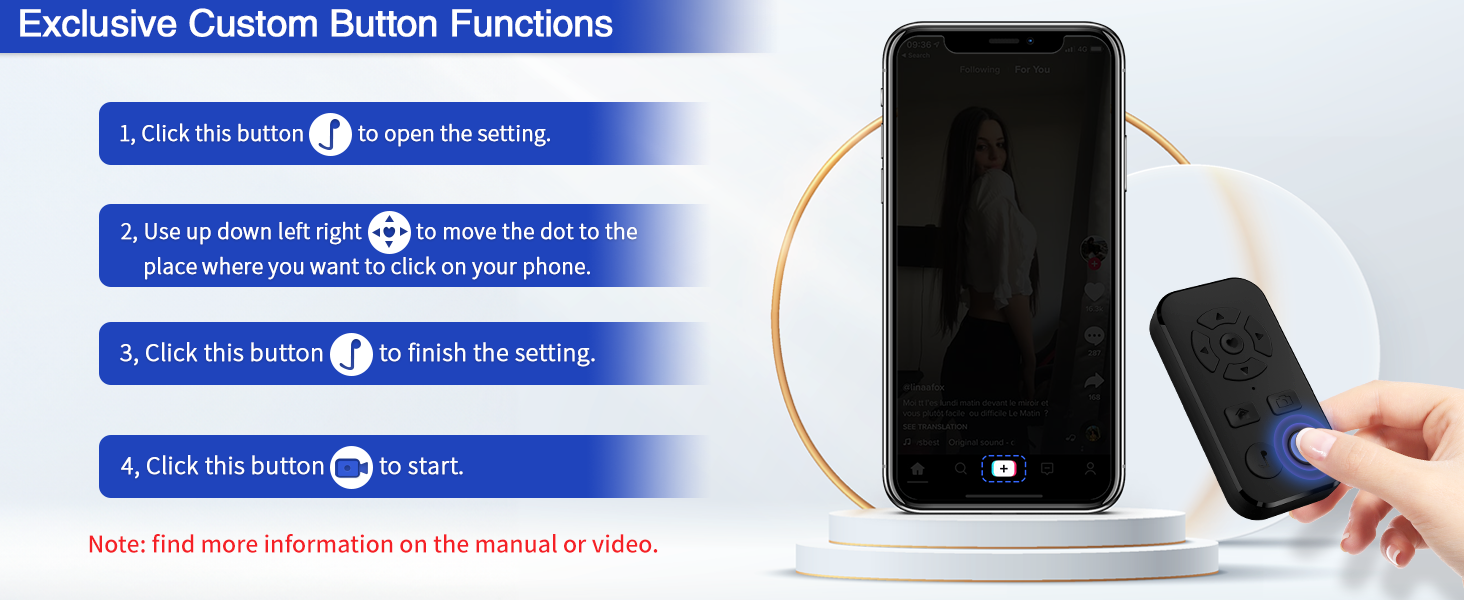
Image: A visual guide demonstrating the steps to set up and use the customized screen click function on the remote control.
6. Troubleshooting
6.1. Remote Isn't Working with iPhone?
If you encounter issues with your remote control on an iPhone, follow these steps:
- Ensure your iPhone's system version is V14.8 or above. Update if necessary.
- Restart your iOS device.
- If the problem persists, ensure the following settings are correctly configured:
- Go to Settings > Accessibility > Touch.
- Turn on AssistiveTouch.
- Adjust the Tracking Sensitivity Slider.
- After adjusting settings, press the middle button of the remote to confirm whether the cursor (small black dot) deviates from the default position. Slightly drag the "Tracking Sensitivity Slider" in the settings. Press the middle button of the remote to confirm each adjustment until the cursor reaches the default position or is nearby. Ensure "Perform Touch Gestures" is turned on to swipe videos up and down.

Image: Screenshots of iPhone settings demonstrating how to enable AssistiveTouch and adjust tracking sensitivity for remote control functionality.
6.2. General Troubleshooting Tips
- Remote Not Connecting: Ensure the remote is charged and within range (up to 33 feet). Try turning Bluetooth off and on again on your phone, then re-pair the device.
- Unresponsive Buttons: Check if the remote is fully charged. If the issue persists, try re-pairing.
- App Compatibility: While designed for TikTok and Kindle APP, compatibility with other apps may vary.
7. Specifications
| Feature | Detail |
|---|---|
| Model Number | ZT-10 (Black-M9) |
| Connectivity | Bluetooth |
| Compatible Devices | Smartphones (iPhone iOS V14.8+, most Android phones) |
| Max Operation Distance | 33 feet |
| Battery Type | 1 Lithium Ion battery (included) |
| Item Weight | 1.76 ounces |
| Package Dimensions | 5.83 x 3.86 x 0.71 inches |
| Special Feature | Rechargeable |
8. Maintenance
To ensure the longevity and optimal performance of your remote control, follow these maintenance guidelines:
- Cleaning: Wipe the remote with a soft, dry cloth. Do not use abrasive cleaners or solvents.
- Storage: Store the remote in a cool, dry place away from direct sunlight and extreme temperatures.
- Avoid Water: The device is not waterproof. Avoid exposure to water or high humidity.
- Handle with Care: Avoid dropping the remote or subjecting it to strong impacts.
9. Warranty and Support
Zttopo is committed to providing high-quality products. If you encounter any issues or have questions regarding your TikTok Video Scrolling Remote Control, please contact our customer support team. While specific warranty details are not provided in this manual, we strive to offer satisfactory solutions for any product-related concerns.
Please refer to the seller's information on the platform where you purchased the product for specific warranty terms and contact details.
Related Documents - Black-M9 (ZT-10)
 |
Magnadyne M9 10.2" Bluetooth Multi-Media Receiver User Manual Comprehensive user manual for the Magnadyne M9 10.2-inch Bluetooth Multi-Media Receiver, covering installation, operation, features like radio, USB/SD playback, Bluetooth, iPod/iPhone, SiriusXM, system settings, troubleshooting, and specifications. |
 |
HOTSPLOTS Kurzanleitung: MAC-Adresse auf Android und iOS finden Erfahren Sie, wie Sie die MAC-Adresse Ihres Geräts auf Android und iOS für die Nutzung mit HOTPLOTS WLAN finden. Diese Anleitung behandelt verschiedene Android-Versionen und iOS. |
 |
CarlinKit Wireless CarPlay and Android Auto Adapter User Manual Comprehensive user manual for the CarlinKit A2A adapter, detailing installation, connection steps for wireless CarPlay and Android Auto, troubleshooting, and after-sales service. Compatible with iPhone and Android phones. |
 |
Whale Photo 10.1 Inch Wifi Cloud Photo Frame User Manual - Setup, Features, and FAQ Comprehensive user manual for the Whale Photo 10.1 Inch Wifi Cloud Photo Frame (models AW103, AW105). Learn about setup, frame features, app usage, settings, photo management, backup, and troubleshooting. |
 |
iPhone User Manual and Guide - Comprehensive Overview Explore the complete iPhone user manual. This guide covers everything you need to know, from getting started and basics to personalization and privacy settings for your Apple iPhone. |
 |
Zenty ZT-133 49" LCD Screen User Manual User manual for the Zenty ZT-133 49" LCD Ultra Narrow Bezel Video Wall Display (ZT-DS49-35-500), covering features, specifications, product details, connections, accessories, optional equipment, maintenance, and warranty information. |