
Preciva 927 II
Preciva 927II Digital Soldering Station Kit User Manual
Model: 927 II
Brand: Preciva
1. Important Safety Instructions
Please read and understand all safety instructions before operating the Preciva 927II Digital Soldering Station. Failure to follow these instructions may result in electric shock, fire, or serious injury.
- Electrical Safety: This product is rated for 110-127V US specification. Do not connect this soldering iron to a 220V power supply. Ensure the power outlet is properly grounded.
- Heat Hazard: The soldering iron tip reaches very high temperatures (up to 896°F / 480°C). Avoid direct contact with the tip and allow it to cool completely before handling or storing.
- Fumes: Soldering produces fumes. Always work in a well-ventilated area or use a fume extractor to prevent inhalation of harmful vapors.
- Fire Prevention: Keep flammable materials away from the soldering area. Use a heat-resistant mat and ensure the soldering iron is always placed in its holder when not in use.
- Eye Protection: Always wear safety glasses or goggles to protect your eyes from solder splashes or flying debris.
- Children and Pets: Keep the soldering station and all accessories out of reach of children and pets.
- Maintenance: Disconnect the power supply before performing any maintenance or changing tips.
2. Package Contents
Verify that all items listed below are included in your package. If any items are missing or damaged, please contact customer support.
- 1 x Preciva 927II Soldering Station with Soldering Iron
- 5 x Extra Soldering Tips (Assorted sizes)
- 2 x Helping Hands with Alligator Clips
- 1 x Roll of Lead-Free Solder (30g)
- 1 x Solder Wick
- 1 x Solder Sucker
- 1 x Blue Cleaning Sponge
- 1 x Tip Cleaner (Brass wool and solid-state rosin)
- 1 x Tip Storage Slots
- 1 x Solder Wire Dispenser
- 2 x Screws (for assembly)
- 1 x User Manual
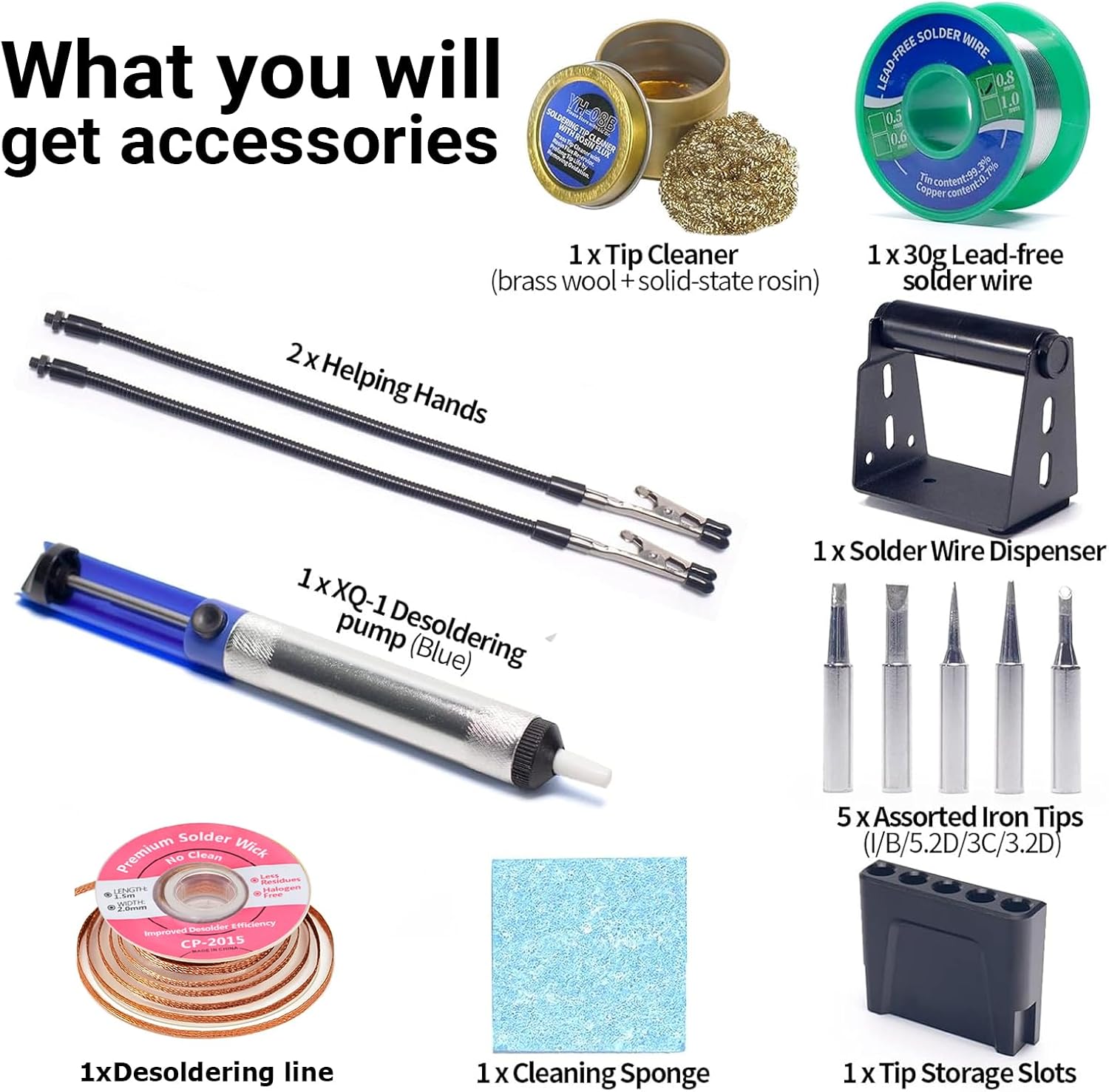
Image: All components and accessories included in the Preciva 927II Soldering Station Kit.
3. Product Overview
The Preciva 927II Digital Soldering Station is a comprehensive tool designed for various soldering tasks, from intricate circuit board work to general electronics repair. It features a compact, all-in-one design integrating essential tools for convenience and efficiency.
Key Features:
- Fast Heating & Precise Temperature Control: Heats up rapidly with a wide temperature range of 194°F to 896°F (90°C to 480°C). Advanced PID technology ensures consistent and stable heat output.
- Space-Saving & All-in-One Design: The compact station integrates the soldering iron holder, tip cleaner, flexible helping hands, and tip storage slots, optimizing workspace.
- Smart Sleep Mode: Automatically enters sleep mode after 10 minutes of inactivity, reducing power consumption and extending the lifespan of the soldering iron tip.
- High-Performance & Versatile Use: With a 60W output, it provides quick heat recovery suitable for a wide range of soldering applications.

Image: The Preciva 927II Digital Soldering Station Kit, showcasing its integrated design.

Image: Overview of the soldering station highlighting key features like LED display, automatic sleep protection, accurate temperature, and helping hands.

Image: Examples of common applications for the soldering station, such as electronics, wiring, automotive circuits, watches, cellphones, home appliances, and motherboards.
4. Setup Instructions
Follow these steps to set up your Preciva 927II Digital Soldering Station:
- Unpack Components: Carefully remove all items from the packaging and verify against the 'Package Contents' list.
- Attach Helping Hands: Insert the flexible arms of the helping hands into the designated slots on the side of the soldering station. Secure them with the provided screws if necessary.
- Install Solder Wire Dispenser: Mount the solder wire dispenser onto the side of the station. Place a roll of solder wire onto the dispenser.
- Prepare Tip Cleaner: Place the brass wool tip cleaner into its designated slot. Dampen the blue cleaning sponge with water and place it in its tray.
- Connect Soldering Iron: Plug the soldering iron cable securely into the port on the front of the soldering station.
- Power Connection: Ensure the power switch is in the 'OFF' position. Connect the power cord to the soldering station and then to a standard 110-127V AC power outlet.

Image: Attaching the flexible helping hands to the soldering station.
5. Operating Instructions
This section details how to operate your soldering station effectively.
5.1 Power On and Temperature Setting
- Flip the power switch to the 'ON' position. The LED display will illuminate.
- Rotate the temperature adjustment knob to set your desired temperature. The display will show the set temperature.
- The station will quickly heat the soldering iron to the set temperature. The display will show the current tip temperature.
- To switch between Celsius (°C) and Fahrenheit (°F), use the dedicated switch located near the display.

Image: Digital display and temperature adjustment knob.

Image: Detail of the temperature control knob.
5.2 Auto Sleep Mode
The soldering station features an intelligent auto-sleep function to conserve energy and prolong tip life:
- If the soldering iron remains inactive in its holder for 10 minutes, the station will automatically enter sleep mode. The display will show 'SLP' and the tip temperature will drop to a lower, safe temperature (e.g., 392°F/200°C if operating temperature was above 482°F, or 194°F/90°C if operating temperature was below 482°F).
- To wake the iron from sleep mode, simply pick up the handle or gently shake it. The iron will quickly return to its previously set operating temperature.

Image: Illustration of the 10-minute auto-sleep mode and wake-up function.

Image: Explanation of the two sleep temperature settings based on the initial operating temperature.
5.3 Soldering Process
Once the iron reaches the desired temperature:
- Clean the soldering iron tip using the brass wool or damp sponge.
- Apply a small amount of solder to the tip to 'tin' it. This improves heat transfer.
- Place the hot tip against both the component lead and the PCB pad you wish to solder.
- Feed solder onto the joint, not directly onto the iron tip. Allow the heat from the joint to melt the solder.
- Remove the solder wire, then remove the iron. Allow the joint to cool undisturbed.

Image: A user actively soldering a circuit board, demonstrating the use of the helping hands.
6. Maintenance
Regular maintenance ensures optimal performance and extends the life of your soldering station.
6.1 Soldering Tip Care
- Cleaning: Always clean the soldering tip before and after each use. Use the brass wool tip cleaner to remove excess solder and oxidation. The damp sponge can also be used for quick cleaning.
- Tinning: After cleaning, re-tin the tip with a small amount of fresh solder. This protects the tip from oxidation.
- Tip Replacement: If a tip becomes excessively worn or damaged, replace it with one of the included extra tips. Ensure the iron is cool and unplugged before changing tips.
6.2 General Cleaning
- Wipe down the soldering station body with a soft, dry cloth. Do not use abrasive cleaners or solvents.
- Periodically clean the solder wire dispenser and helping hands to remove any accumulated flux or solder residue.

Image: Integrated brass wool tip cleaner and tip storage slots.
7. Troubleshooting
If you encounter issues with your soldering station, refer to the following common problems and solutions:
- Problem: Soldering iron not heating or not melting solder.
Solution:- Ensure the power cord is securely plugged into a 110-127V outlet and the power switch is ON.
- Check the temperature setting on the display. Increase the temperature if it's too low for the solder type.
- Clean the soldering tip thoroughly. An oxidized tip will not transfer heat effectively.
- Ensure the tip is properly seated in the iron.
- Problem: Display shows an error code.
Solution: Turn off the station, unplug it from the power source, wait a few minutes, then plug it back in and restart. If the error persists, contact customer support. - Problem: Soldering iron enters sleep mode too quickly or not at all.
Solution: The sleep mode is activated by inactivity. Ensure the iron is placed correctly in its holder. If it's not entering sleep mode, ensure the sensor is not obstructed.
8. Specifications
| Feature | Specification |
|---|---|
| Model Number | 927 II |
| Brand | Preciva |
| Power Source | AC |
| Voltage | 110-127 Volts (US Specification) |
| Wattage | 60 watts |
| Temperature Range | 194°F to 896°F (90°C to 480°C) |
| Temperature Stability | ±2°C |
| Display Type | LED |
| Item Weight | 2.07 pounds |
| Package Dimensions | 9.13 x 7.87 x 2.83 inches |
| Included Components | Soldering Station Body; Iron; Solder Wire; Tips; Desoldering Pump; Brasswool Tip Cleaner; Cleaning Sponge; Helping Hands; Storage Block; Screws |

Image: Specifications for included soldering tips and lead-free solder wire.

Image: Spool of lead-free solder wire.
9. Warranty and Support
Preciva is committed to providing quality products and customer service. While specific warranty details are not provided in this manual, if you encounter any problems with your Preciva 927II Digital Soldering Station, please do not hesitate to contact us. Our customer support team is available 24 hours to provide assistance.
For support, please refer to the contact information provided with your purchase or visit the official Preciva website.
Ask a question about this manual
Ask about setup, troubleshooting, compatibility, parts, safety, or missing instructions. Manuals+ will review the question and use this page’s manual context to help answer it.