
1. Setup Guide
1.1 Unpacking
Carefully remove the television and all accessories from the packaging. Ensure all components are present before proceeding with installation. Retain packaging for future transport or service needs.

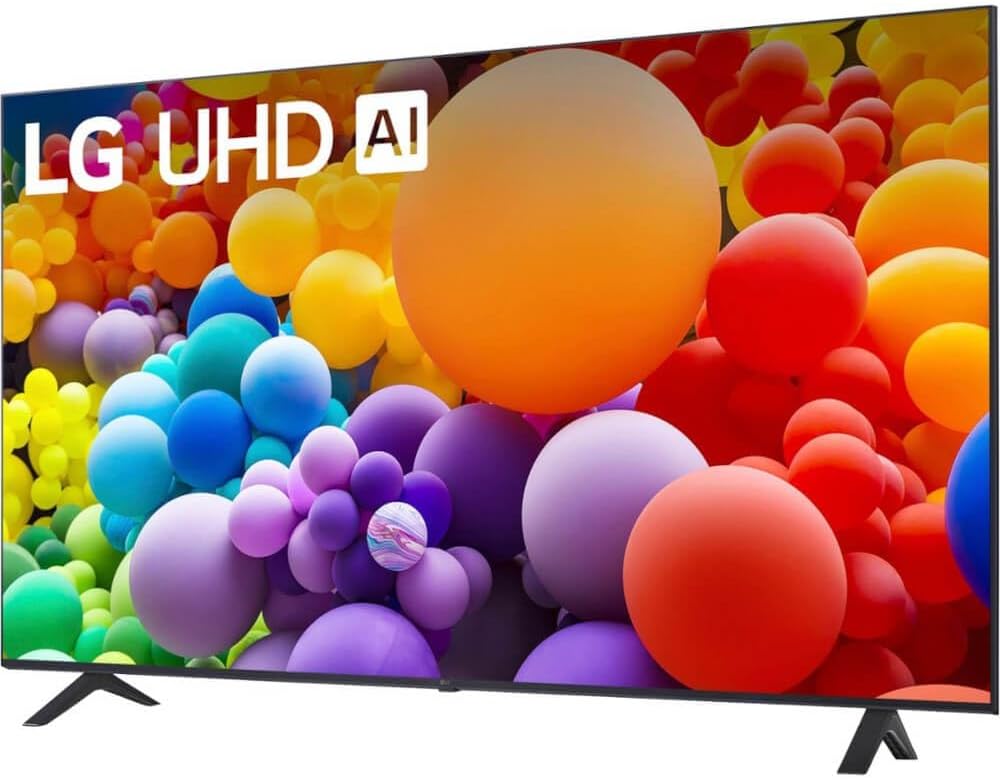
Front view of the LG UT70 Series 55-inch 4K UHD Smart TV, showcasing its display and bezel.
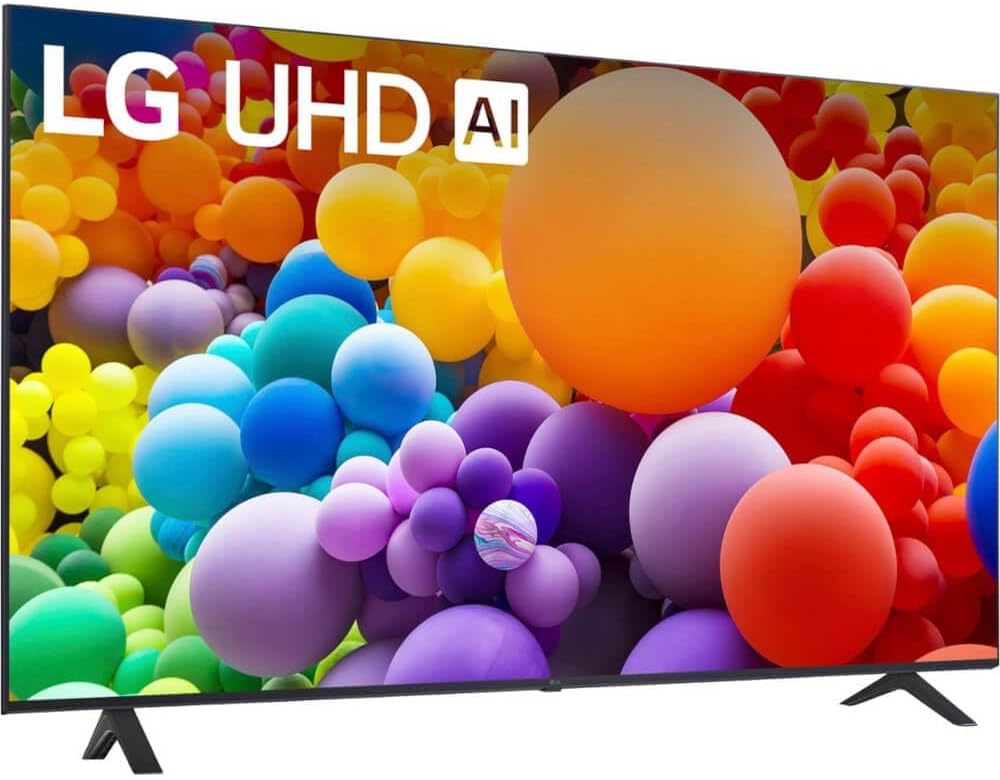
Angled front view of the LG UT70 Series 55-inch 4K UHD Smart TV, highlighting its slim profile.
1.2 Stand Installation
If using the included stand, attach the stand legs to the bottom of the TV using the provided screws. Ensure the stand is securely fastened before placing the TV on a stable, level surface.

Rear view of the LG UT70 Series 55-inch 4K UHD Smart TV with the stand attached, showing the mounting points.
1.3 Wall Mounting (Optional)
For wall mounting, consult the instructions provided with your specific wall mount kit. Ensure the wall mount is compatible with VESA standards for your TV model and installed by a qualified professional.
1.4 Connecting Peripherals
Connect external devices such as Blu-ray players, game consoles, or sound systems to the TV's input ports. Use HDMI for high-definition video and audio. The TV also features USB ports for media playback and a LAN port for wired internet connection.

Rear view of the LG UT70 Series 55-inch 4K UHD Smart TV, highlighting the various input and output ports including HDMI and USB.

Close-up of the side input ports on the LG UT70 Series 55-inch 4K UHD Smart TV, including additional HDMI and USB connections.
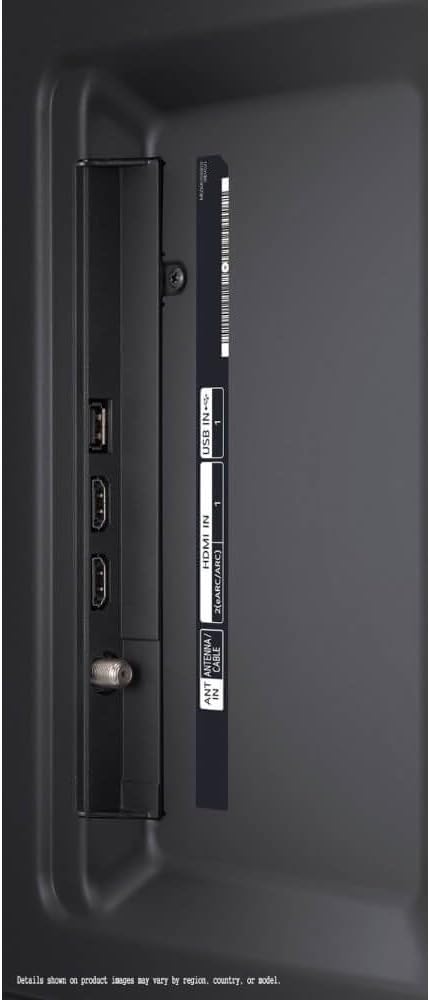
Detailed view of the rear connectivity panel, showing HDMI, USB, Optical Digital Audio Out, and LAN ports for various connections.
1.5 Initial Power On and Network Setup
After connecting all necessary cables, plug the power cord into an electrical outlet. Press the power button on the remote control. Follow the on-screen prompts to select your language, country, and connect to your home Wi-Fi network or wired LAN.
2. Operating Your LG Smart TV
2.1 Remote Control Functions
The included remote control allows you to navigate the TV's features. Familiarize yourself with the main buttons:
- Power Button: Turns the TV on or off.
- Navigation Pad (Up/Down/Left/Right): Moves the cursor or selection.
- OK/Enter Button: Confirms a selection.
- Volume Up/Down: Adjusts the sound level.
- Channel Up/Down: Changes TV channels.
- Home Button: Accesses the webOS Home screen.
- App Shortcut Buttons: Direct access to popular streaming services (e.g., Netflix, Prime Video).

The LG remote control for the UT70 Series Smart TV, showing power, navigation, volume, channel, and app shortcut buttons.
2.2 Navigating webOS
The LG UT70 Series TV uses the webOS smart platform. Press the Home button on your remote to access the Launcher Bar, which displays your installed apps, inputs, and other features. Use the navigation pad to scroll through options and the OK button to select.
The LG webOS smart TV interface displaying various streaming applications and content for easy access.
2.3 Accessing Smart Features
From the webOS Home screen, you can:
- Launch streaming applications like Netflix, Prime Video, Disney+, and more.
- Access LG Channels for a selection of free streaming content.
- Manage connected devices and inputs.
- Adjust TV settings.
2.4 Picture and Sound Settings
To optimize your viewing experience, navigate to the TV's settings menu. Here you can adjust:
- Picture Mode: Choose from standard, vivid, cinema, sport, game, or create custom settings.
- Sound Mode: Select from AI Sound, standard, cinema, clear voice, or game sound modes.
- Aspect Ratio: Adjust the screen display to fit content appropriately.
2.5 Game Optimizer
The LG UT70 Series features a Game Optimizer mode. This setting automatically adjusts picture and sound for an enhanced gaming experience, reducing input lag and optimizing visuals for various game genres. Access this feature through the TV's settings menu.
3. Care and Maintenance
3.1 Cleaning the Screen
To clean the screen, gently wipe it with a soft, dry microfiber cloth. For stubborn marks, lightly dampen the cloth with water or a specialized screen cleaner. Avoid using harsh chemicals, abrasive materials, or spraying liquid directly onto the screen.
3.2 Cleaning the TV Body
Wipe the TV's frame and stand with a soft, dry cloth. If necessary, a slightly damp cloth can be used, followed by a dry cloth to remove any moisture. Ensure the TV is unplugged before cleaning.
3.3 Software Updates
Periodically check for software updates to ensure your TV has the latest features and performance improvements. You can usually find this option in the TV's settings menu under 'Support' or 'About This TV'. Ensure a stable internet connection during updates.
4. Troubleshooting Common Issues
Before contacting customer support, review the following common issues and solutions:
4.1 No Power
- Ensure the power cord is securely plugged into both the TV and a working electrical outlet.
- Check if the outlet is functional by plugging in another device.
- Try pressing the power button on the TV itself, not just the remote.
4.2 No Picture/Sound
- Verify that the correct input source is selected (e.g., HDMI 1, HDMI 2).
- Check all cable connections between the TV and external devices.
- Ensure the volume is not muted or set to zero.
- Restart the TV and any connected devices.
4.3 Network Connection Issues
- Confirm your Wi-Fi password is correct.
- Restart your router and modem.
- If using a wired connection, ensure the Ethernet cable is properly connected.
- Check network status in the TV's settings menu.
4.4 Remote Control Not Working
- Replace the batteries in the remote control.
- Ensure there are no obstructions between the remote and the TV's sensor.
- Point the remote directly at the TV.
4.5 Picture Quality Issues
- Adjust picture settings (e.g., brightness, contrast, sharpness) in the TV's menu.
- Ensure the input source is providing a high-quality signal.
- Check for any external interference.
5. Technical Specifications
| Feature | Specification |
|---|---|
| Brand | LG |
| Model Series | UT70 Series |
| Screen Size | 55 Inches |
| Display Technology | LED |
| Resolution | 4K (UHD) |
| Refresh Rate | 60 Hz |
| Aspect Ratio | 16:9 |
| Special Feature | Game Mode |
| Connectivity Technology | HDMI, USB, LAN, Optical Digital Audio Out |
| Included Components | Remote |
| Product Dimensions (with stand) | 56"D x 7"W x 32"H (approximate) |
| Item Weight | 44 Pounds |
6. Warranty & Support
6.1 Warranty Information
This LG Smart TV comes with a limited manufacturer's warranty. For detailed information regarding warranty coverage, terms, and conditions, please refer to the warranty card included with your product or visit the official LG website. Keep your proof of purchase for warranty claims.
6.2 Customer Support
If you encounter issues that cannot be resolved using the troubleshooting guide, or require further assistance, please contact LG Customer Support. You can find contact information and additional resources on the official LG website: www.lg.com/us/support