
1. Introduction
This manual provides essential information for the setup, operation, and maintenance of your Samsung Galaxy Book4 Ultra laptop. Please read this guide thoroughly to ensure proper usage and to maximize the performance and longevity of your device.
The Samsung Galaxy Book4 Ultra is a high-performance laptop designed for productivity and creativity. It features a stunning 16-inch AMOLED touch screen display, powered by an Intel Core Ultra 9 processor and NVIDIA GeForce RTX 4070 graphics, running on Windows 11 Home.
2. Setup
2.1 Initial Power On
- Unpack your laptop and all accessories from the box.
- Connect the power adapter to the laptop's USB-C port and then to a power outlet.
- Open the laptop lid. The device may power on automatically. If not, press the power button located on the top-right of the keyboard.
- Follow the on-screen instructions to complete the Windows 11 Home setup, including language selection, network connection, and user account creation.
2.2 Connecting Accessories
Utilize the various ports available on your Galaxy Book4 Ultra to connect external devices such as mice, keyboards, external displays, and storage devices.

Image Description: A close-up view of the left and right sides of the Samsung Galaxy Book4 Ultra, highlighting the various input/output ports. The left side features a MicroSD card slot, a USB-A 3.2 port, and a 3.5mm headphone/microphone combo jack. The right side displays an HDMI 2.1 port, two Thunderbolt 4 ports, and a status LED.
3. Operating the Laptop
3.1 Display Features
The Galaxy Book4 Ultra features a 16-inch AMOLED Touch Screen with a resolution of 2880 x 1800 pixels and a 120Hz refresh rate, providing vibrant colors and smooth visuals. The touch functionality allows for intuitive interaction with Windows 11 Home.

Image Description: The Samsung Galaxy Book4 Ultra laptop is open, displaying a vibrant image of a colorful lion on its 16-inch AMOLED screen. Text overlays on the screen highlight key features: "16" Dynamic AMOLED 2X Touchscreen", "3K (2880x1800) High Resolution", "Up to 120Hz Refresh Rate", and "DCI-P3 120% Color Volume".
3.2 Keyboard and Touchpad
The full-size keyboard includes a numeric keypad for enhanced productivity. The large glass touchpad supports multi-touch gestures for seamless navigation.
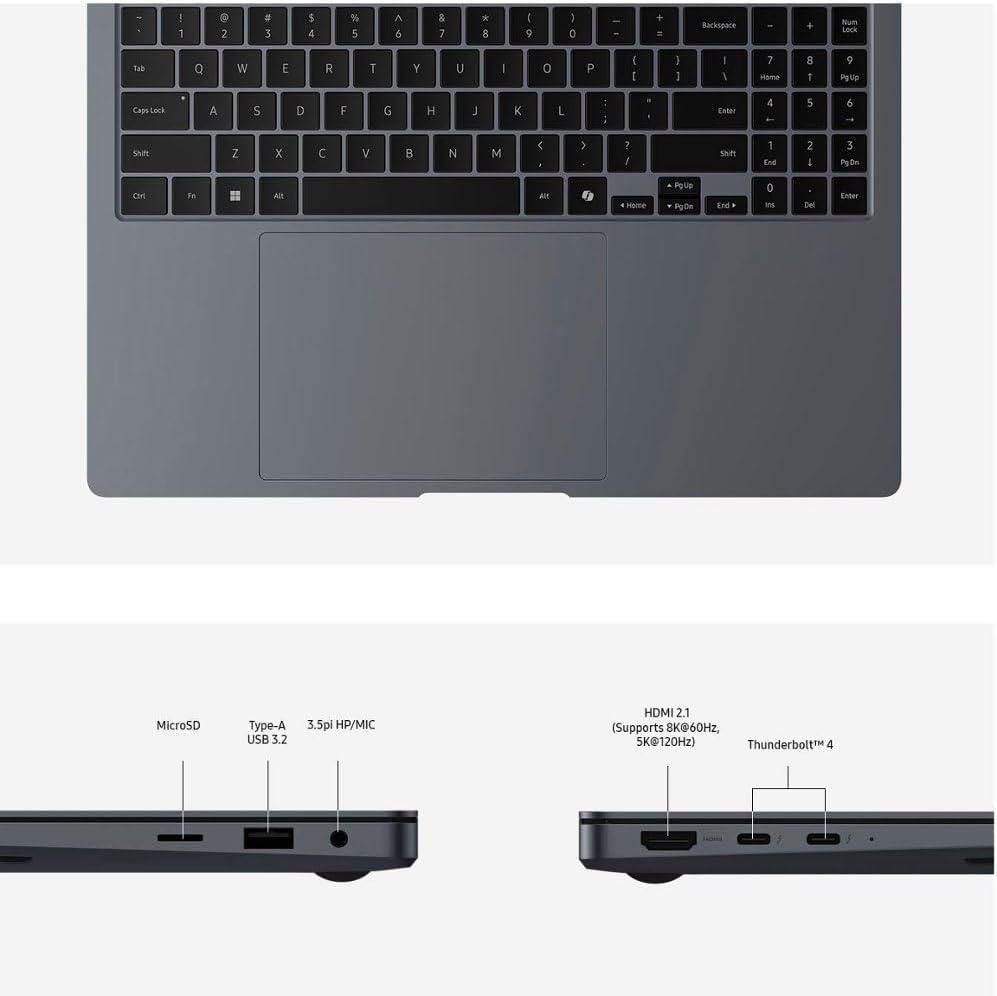
Image Description: A close-up view of the keyboard and large touchpad of the Samsung Galaxy Book4 Ultra. The keyboard features a full layout with a dedicated numeric keypad on the right side. The touchpad is centrally located below the spacebar.
3.3 Performance and Battery
Equipped with an Intel Core Ultra 9 processor and NVIDIA GeForce RTX 4070, the laptop delivers robust performance for demanding tasks. The battery provides up to 21 hours of usage on a single charge, with fast-charging capabilities.

Image Description: The Samsung Galaxy Book4 Ultra laptop is open, displaying a conceptual graphic on its screen. The graphic illustrates layers representing CPU, GPU, and NPU components, symbolizing the laptop's advanced processing capabilities.
4. Samsung Ecosystem Integration
The Galaxy Book4 Ultra offers seamless integration with other Samsung Galaxy devices, enhancing productivity and connectivity.
4.1 Multi-Control
Use your Galaxy Book's mouse and keyboard to control other Samsung phones, tablets, TVs, and smart monitors. You can also drag and drop content between your devices.
4.2 Quick Share
Quick Share allows for fast and easy sharing of files, photos, and videos between your Galaxy Book and other nearby Samsung devices over Wi-Fi.
4.3 Phone Link
Connect your Samsung phone to your Galaxy Book to receive notifications, make and take calls, and access your phone's apps directly from your laptop.
4.4 Storage Share
Access files from your Samsung phone or tablet directly through the File Explorer on your Galaxy Book, treating your mobile device's storage as an external drive.
4.5 Auto Switch Buds
If you own Samsung Galaxy Buds, they can automatically switch between your Galaxy Book and other connected Samsung devices when you make or answer a call, or play media.
4.6 Samsung Find
Locate your lost Galaxy devices, including phones, tablets, PCs, watches, earbuds, and S Pens, on a map. You can also track SmartTags.
4.7 Samsung Pass
Securely store and manage your passwords and passkeys across your Samsung Galaxy devices, including your laptop, with biometric authentication.
5. Media Integration
5.1 Product Overview Video
Video Description: A brief product overview of the Samsung Galaxy Book4 Edge, showcasing its design and key features. This video provides a quick visual introduction to the laptop's aesthetics and functionality.
5.2 Samsung Business Solutions Video
Video Description: This video highlights various Samsung Business Solutions, demonstrating how Samsung products, including laptops, can enhance productivity and collaboration in professional environments. It showcases features relevant to business users.
6. Maintenance
6.1 General Care
- Keep your laptop clean by gently wiping the screen and keyboard with a soft, lint-free cloth.
- Avoid exposing the laptop to extreme temperatures, direct sunlight, or high humidity.
- Protect the laptop from drops and impacts by using a protective sleeve or case.
6.2 Software Updates
Regularly check for and install Windows updates and Samsung software updates to ensure optimal performance, security, and access to the latest features.
7. Troubleshooting
If you encounter any issues with your Galaxy Book4 Ultra, consider the following general troubleshooting steps:
- Restart the device: A simple restart can often resolve minor software glitches.
- Check power connections: Ensure the power adapter is securely connected to both the laptop and the power outlet.
- Update drivers and software: Outdated drivers or software can cause performance issues. Check for updates via Windows Update and Samsung Update.
- Monitor temperature: Ensure proper ventilation to prevent overheating, especially during demanding tasks.
- Consult online resources: Refer to Samsung's official support website or community forums for specific solutions to common problems.
8. Specifications
| Feature | Detail |
|---|---|
| Brand | Samsung |
| Model Name | Galaxy Book4 Ultra |
| Item Model Number | Intel Core Ultra 9 processor 185H |
| Operating System | Windows 11 Home |
| Screen Size | 16 Inches |
| Screen Resolution | 2880 x 1800 pixels |
| Processor | 5.1 GHz Intel Core Ultra 9 |
| RAM | 32 GB LPDDR5 |
| Hard Drive | 1 TB SSD |
| Graphics Coprocessor | GeForce RTX 4070 |
| Wireless Type | 802.11ax |
| Average Battery Life | 21 Hours |
| Item Weight | 4 pounds |
| Product Dimensions | 13.99 x 9.86 x 0.65 inches |
| Color | Black |
9. What's in the Box
- Samsung Galaxy Book4 Ultra Laptop
- Power Adapter
- Warranty Card
10. Warranty and Support
Your Samsung Galaxy Book4 Ultra comes with a manufacturer's warranty. Please refer to the included Warranty Card for detailed terms and conditions. For technical support, product registration, or service inquiries, visit the official Samsung support website or contact their customer service.