
plimpton L1
Plimpton Portable Carplay User Manual
Model: L1
Introduction
The Plimpton Portable Carplay is a versatile 7-inch IPS touch screen multimedia player designed to enhance your in-car experience. It offers seamless integration with Apple CarPlay and Android Auto, providing access to navigation, music, calls, and more, all controllable via voice commands or the intuitive touch interface. This manual provides detailed instructions for setup, operation, and maintenance of your device.

Image: The Plimpton Portable Carplay unit with its included accessories, including the mount, power cable, and audio cable.
What's in the Box
- 1 x Carplay Unit
- 1 x Mount (9.5cm*11.5cm*6.7cm)
- 1 x Power Cord
- 1 x 3.5mm Audio Cable
- 1 x Instruction Manual
- 1 x 3M Glue

Image: A visual representation of the package contents, including the main unit, mount, cables, and manual.
Specifications
| Feature | Detail |
|---|---|
| Visible Screen Diagonal | 7" / 18 cm |
| Package Dimensions | 8.46 x 5.55 x 3.03 inches |
| Item Weight | 1.68 pounds |
| Item Model Number | L1 |
| Brand | plimpton |
| Connectivity Technology | Wi-Fi |
| Controller Type | Android |
| Special Feature | Touchscreen |
| Compatible Devices | Type C |
| Connector Type | 3.5mm Jack |
| Audio Output Mode | Stereo |
| Surround Sound Channel Configuration | 5.1 |
| Video Encoding | H.264, H.265/HEVC |
| Number of Channels | 2 |
Setup
Installation
The Plimpton Portable Carplay is designed for easy installation without requiring dismantling of your car's existing system. Simply install the car play screen and the solid base with the provided 3M adhesive on your dashboard.
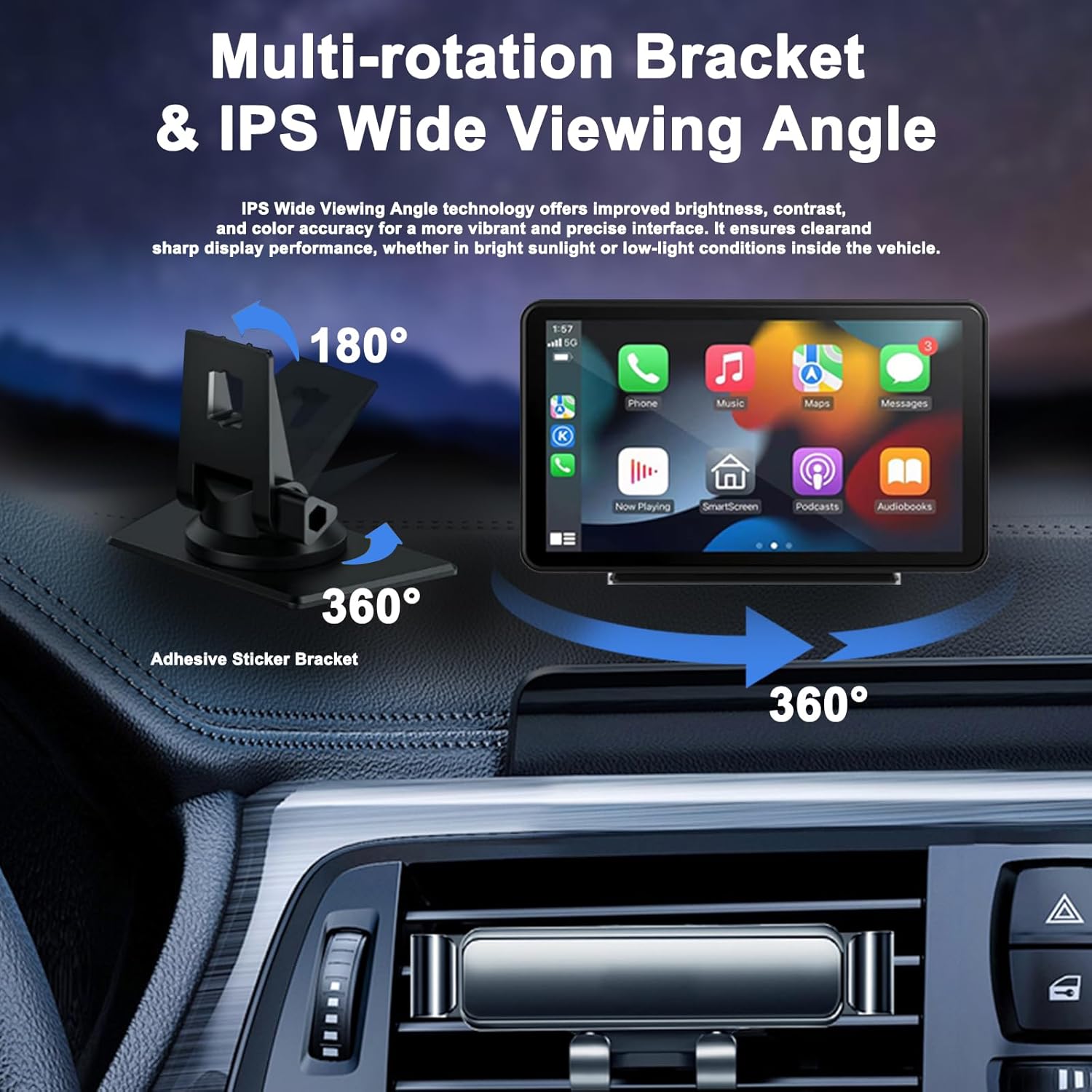
Image: The multi-rotation bracket allows for flexible positioning on your dashboard, ensuring optimal viewing angles.

Image: This diagram illustrates the simple installation process of the portable carplay compared to complex traditional car stereo installations.

Image: The mount dimensions are 9.5 cm by 11.5 cm by 6.7 cm, providing a stable base for the device.
Wireless CarPlay & Android Auto Requirements
To utilize the wireless CarPlay or Android Auto features, ensure your mobile device meets the following criteria:
- For CarPlay: An iPhone running iOS 9 or later. CarPlay system and Siri voice control must be enabled on your iPhone.
- For Android Auto: A phone that supports 5GHz Wi-Fi, running Android 11 or later. Google or Samsung phones with Android 10.0, or Samsung Galaxy S8, S8+, Note 8 with Android 9.0 are also supported. Ensure the Android Auto app is updated to the latest version.

Image: A detailed chart outlining the software and hardware requirements for both Apple CarPlay and Android Auto wireless connections.
Scan the QR code for related how-to videos: https://qr1.be/5ATH
Connection Methods
Wireless Apple CarPlay Connection
- Turn on CarPlay mode on the device.
- Turn on Bluetooth on your iPhone.
- Select the Bluetooth device named "CarKit-xxxx" to connect and pair.
- When the pop-up window displays "Use iPhone for CarPlay car?", choose the "Use CarPlay" option.
- Connection successful.
Connection exception recovery method:
- Forget the paired Bluetooth of this device from the phone.
- Restart this device before connecting.
- Restart the phone.

Image: Step-by-step visual guide for connecting your iPhone to the Carplay unit via wireless Apple CarPlay.
Wireless Android Auto Connection
- Turn on CarPlay mode on the device.
- Turn on Bluetooth on your Android phone.
- Select the device named "CarKit-xxxx" to pair and connect.
- Connection successful.

Image: Visual instructions for establishing a wireless Android Auto connection with the device.
Wireless Airplay Connection Method (iOS Mirroring)
- Turn on Airplay mode on the device.
- Turn on Wi-Fi on your iPhone.
- Connect to the Wi-Fi named "carplay_wifi xxxx".
- Turn on phone screen mirroring.
- Connection successful.

Image: A step-by-step guide for mirroring your iOS device screen to the Carplay unit using Airplay.
Wireless Android Cast Connection Method (Android Mirroring)
- Turn on Android Cast mode on the device.
- Turn on Wi-Fi on your Android phone.
- Connect to the Wi-Fi named "carplay_wifi xxxx".
- Turn on phone screen mirroring.
- Connection successful.

Image: Instructions for mirroring your Android device screen to the Carplay unit using Android Cast.
Operating Instructions
Wireless CarPlay & Android Auto Functionality
Once connected, the portable carplay screen allows you to access navigation, phone contacts, and play music directly from your phone. Voice commands via Siri & Google Voice Control enable hands-free operation, promoting safer driving.

Image: The screen displaying both Wireless CarPlay and Android Auto logos, indicating compatibility and ease of connection.

Image: The device showcasing its 7-inch HD IPS touchscreen with icons for Carplay, Android Auto, Bluetooth, AUX, Mirror Link, Voice Control, FM Transmitter, and TF card support.
Voice Control & GPS Navigation
Utilize voice commands for hands-free control of navigation, music, and communication. The large 7-inch IPS touchscreen with 1024 x 600 resolution ensures clear readability even in sunlight.

Image: A driver using voice commands for navigation and calls, demonstrating the hands-free operation of the device.

Image: This graphic highlights the safety benefits of using Siri and Google Voice Control for navigation and communication while driving.
Video: This video demonstrates the features of the 2024 Newest Wireless Carplay, 7" Touch Screen Android Auto, showcasing its user interface and responsiveness.
Video: A short tutorial on how to use Apple Carplay on the Plimpton screen, covering basic navigation and app access.
Four Ways of Sounding
The device offers multiple audio output options for flexible sound delivery:
- Built-in Speaker: Audio can be played directly from the device's integrated speaker.
- Bluetooth: Wirelessly stream audio to your car's stereo speakers via Bluetooth.
- FM Transmitter: Transmit audio to your car's FM radio by tuning to a matching frequency.
- AUX Connection: Connect directly to your car's AUX input using the provided 3.5mm audio cable for high-quality stereo sound.

Image: This graphic illustrates the four different audio output methods available on the device.

Image: A group of friends enjoying music in a car, emphasizing the immersive audio experience provided by the device's multiple sound options.
Video: A comprehensive guide on how to listen to music with the car stereo using the Plimpton Portable Carplay, demonstrating various connection methods.
Mirror Link Function (Android & iOS)
The 7-inch Apple Car Play supports iOS Mirroring, allowing you to easily connect and synchronize content from your iPhone's screen. This portable Android Auto car screen also supports Android smartphones, offering a similar mirroring feature to access and operate your phone apps directly while driving.

Image: A person using the mirror link feature to display content from their phone onto the Carplay screen, highlighting HD resolution and 5G WiFi support.

Image: This image emphasizes the portable nature of the Carplay unit and its mirror link capabilities, including HD resolution and 5Ghz WiFi.
Maintenance
To ensure the longevity and optimal performance of your Plimpton Portable Carplay, follow these general maintenance guidelines:
- Keep the screen clean using a soft, lint-free cloth. Avoid abrasive cleaners or solvents.
- Protect the device from extreme temperatures, direct sunlight for prolonged periods, and excessive moisture.
- Ensure all cables are securely connected and not pinched or damaged.
- Regularly check for firmware updates to ensure the best performance and compatibility.
Troubleshooting
If you encounter issues with your Plimpton Portable Carplay, try the following troubleshooting steps:
- No Power: Ensure the power cable is securely plugged into both the device and the car's cigarette lighter outlet. Check if the car's power outlet is functioning.
- Connection Issues (CarPlay/Android Auto):
- Verify that Bluetooth and Wi-Fi are enabled on your phone.
- "Forget" the device from your phone's Bluetooth settings and re-pair.
- Restart both the Carplay unit and your phone.
- Ensure your phone's operating system and CarPlay/Android Auto app are up to date.
- No Audio Output:
- Check the selected audio output method on the Carplay unit (Built-in Speaker, Bluetooth, FM, AUX).
- If using FM, ensure the frequency on the Carplay unit matches your car's radio.
- If using AUX, ensure the 3.5mm cable is fully inserted into both the device and your car's AUX port.
- Adjust the volume on both the Carplay unit and your car's stereo.
- Screen Unresponsive: Try restarting the device. If the issue persists, contact customer support.
Warranty & Support
Plimpton is committed to providing a quality experience. Your Portable Carplay comes with a 2-year warranty covering manufacturing defects and quality-related issues. We offer lifetime after-sales technical support.
- 24 Hours: Quick response and answers for inquiries.
- 365 Days: Free returns for quality problems.
- 2 Years: Warranty and lifetime after-sales technical support.

Image: A graphic summarizing Plimpton's customer support commitments.
For further assistance, please visit the official Plimpton store on Amazon: Plimpton Amazon Store
Ask a question about this manual
Ask about setup, troubleshooting, compatibility, parts, safety, or missing instructions. Manuals+ will review the question and use this page’s manual context to help answer it.