
1. Product Overview
The Hikity Android 15 Autoradio is a state-of-the-art car multimedia system designed specifically for Peugeot 407 models from 2004 to 2011. It features a 9-inch IPS capacitive touchscreen with a resolution of 1280x720, an 8-core CPU, 4GB RAM, and 64GB ROM, ensuring smooth operation and ample storage for applications. This unit integrates seamlessly with your vehicle's existing systems, offering advanced connectivity and entertainment options.

Image: The Hikity Android 15 Autoradio unit, showcasing its 9-inch display, along with included accessories such as the AHD rear camera, Carplay/Android Auto compatibility, and an external microphone.
2. What's in the Box
Upon unboxing your Hikity Android 15 Autoradio, please verify that all the following components are included:
- Android Autoradio Unit
- Canbus Decoder
- GPS Antenna
- AHD Rear Camera
- External Microphone
- Power Cable
- USB Cable(s)
- Camera Input Cable
- RCA Cable(s)
- Installation Tool
- Reverse Line
- Radio Antenna

Image: A visual representation of the product dimensions (9-inch screen, 233mm width, 135mm height) and a comprehensive list of all accessories included in the package, such as power cables, USB cables, GPS antenna, and the AHD rear camera.
3. Specifications
| Feature | Specification |
|---|---|
| Brand | Hikity |
| Model Number | Hikity-A7688A3453H1MI2EU26-C304 |
| Screen Size | 9 inches |
| Display Type | IPS Capacitive Touchscreen |
| Resolution | 1280*720P |
| Operating System | Android 15 |
| CPU | 8 Core Processor |
| RAM | 4GB |
| ROM | 64GB |
| Connectivity | Bluetooth 5.0, USB, Wi-Fi |
| Special Features | Wireless/Wired Carplay & Android Auto, Built-in Bluetooth, GPS Navigation, FM/RDS Tuner, Mirror Link, DSP (32-band EQ), Steering Wheel Control support |
| Audio Output Mode | Stereo |
| Surround Sound Channels | 4 |
| Video Encoding Support | MKV/RMVB/AVI/MP4/MDV etc. |
| Output Power | 45 Watts |
| Product Dimensions (L x W x H) | 23 x 13.5 x 5.5 cm |
| Weight | 1.46 kilograms |
4. Setup and Installation
4.1 Vehicle Compatibility
This autoradio is specifically designed for a perfect fit and integration with Peugeot 407 models manufactured between 2004 and 2011. Ensure your vehicle falls within this range for proper installation.

Image: A comparison showing the vehicle's dashboard before and after the installation of the Hikity Android Autoradio, demonstrating the seamless integration and improved display.
4.2 Connecting the AHD Backup Camera
The included AHD backup camera provides enhanced visibility when reversing. Follow these steps for connection:
- Connect the red cable (labeled ②) from the camera harness to the backup light's positive (+) terminal.
- Connect the black cable (labeled ①) from the camera harness to the vehicle's ground (GND).
- Plug the yellow RCA video cable from the camera into the corresponding camera input on the autoradio unit.
- To enhance Wi-Fi and Bluetooth signals, ensure the small blue/yellow wire is plugged in.
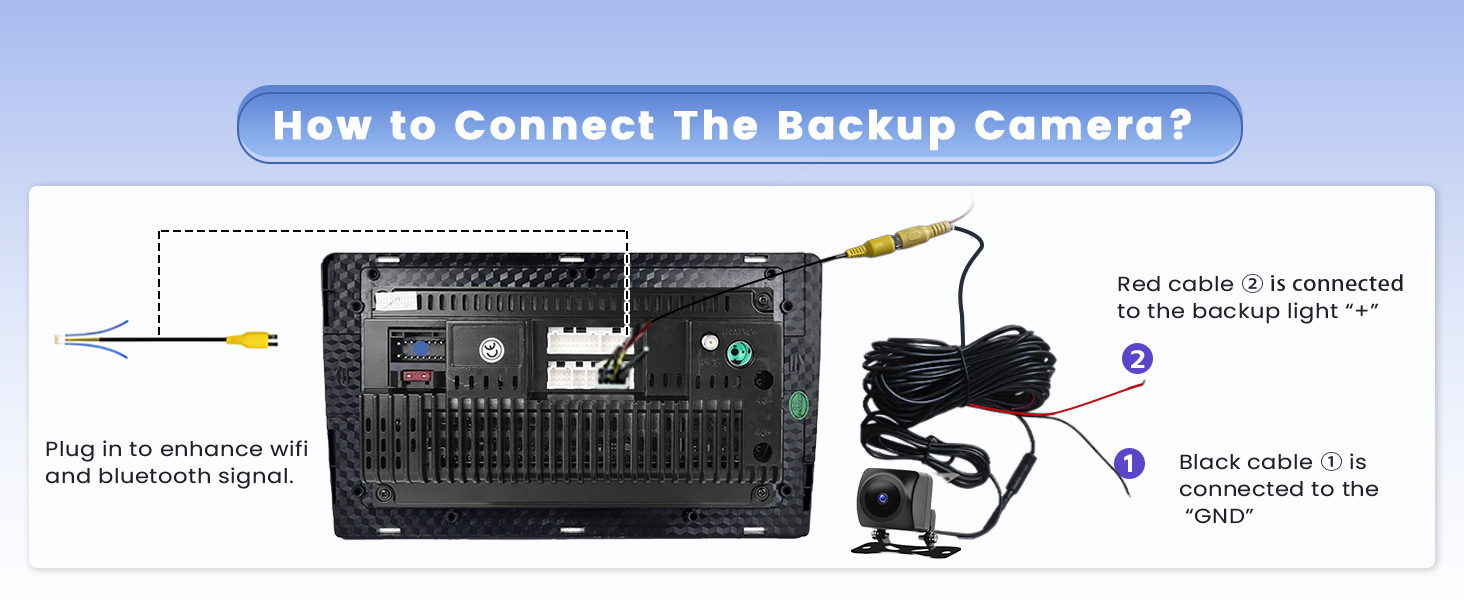
Image: A detailed diagram illustrating the wiring connections for the AHD backup camera, showing the red cable to the backup light positive and the black cable to ground, along with the video input.
To activate or adjust guidelines for the AHD Backup Camera:
- Navigate to: Car Info > About > Custom Set.
- Enable "show dynamic trackline" and "show static trackline" as desired.
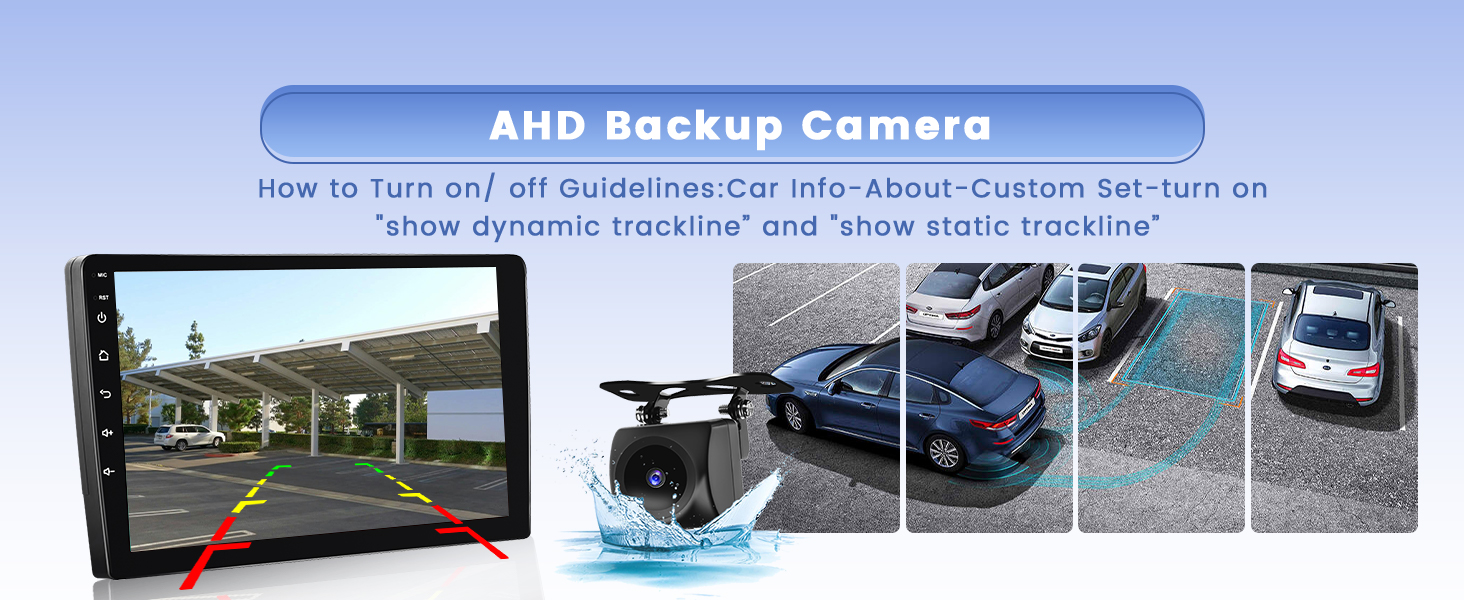
Image: A visual demonstration of the AHD backup camera's view on the autoradio screen, displaying dynamic and static parking guidelines to assist with reversing maneuvers.
4.3 Steering Wheel Control (SWC) Setup
To enable original steering wheel control functionality:
- Go to Settings.
- Select Factory Settings (Password: 1234).
- Choose Protocol settings.
- Select the correct Protocol Box Brand. The brand name is typically found on the surface of the protocol box itself.
- Follow the on-screen instructions to learn and assign functions to your steering wheel buttons.

Image: A guide demonstrating the process of configuring original steering wheel controls, including navigating through settings and assigning functions to buttons like volume, track skip, and call answer/hang up.
5. Operating Instructions
5.1 Wireless and Wired Carplay & Android Auto
The autoradio supports both wireless and wired connectivity for Apple Carplay and Android Auto, allowing seamless integration with your smartphone's applications and features. Access navigation, music, messages, and more directly from the car's touchscreen.
- Wireless Connection: Connect via Bluetooth for initial setup, then Wi-Fi for data transfer.
- Wired Connection: Use a USB data cable to connect your smartphone.
- Voice Control: Utilize Siri or Google Assistant for hands-free operation.

Image: An illustration showing the autoradio's compatibility with wireless and wired Carplay and Android Auto, highlighting the use of Bluetooth and USB for connectivity, and displaying various compatible apps like WhatsApp, Google Maps, and Spotify.
5.2 GPS Navigation and Wi-Fi
The unit supports both online and offline navigation. Connect to Wi-Fi or a mobile hotspot to access real-time traffic conditions and download applications.
- Online Maps: Requires Wi-Fi or hotspot connection for real-time traffic updates.
- Offline Maps: Download maps for navigation without an internet connection.
- Split Screen Function: Simultaneously view GPS navigation and other applications, such as video playback.
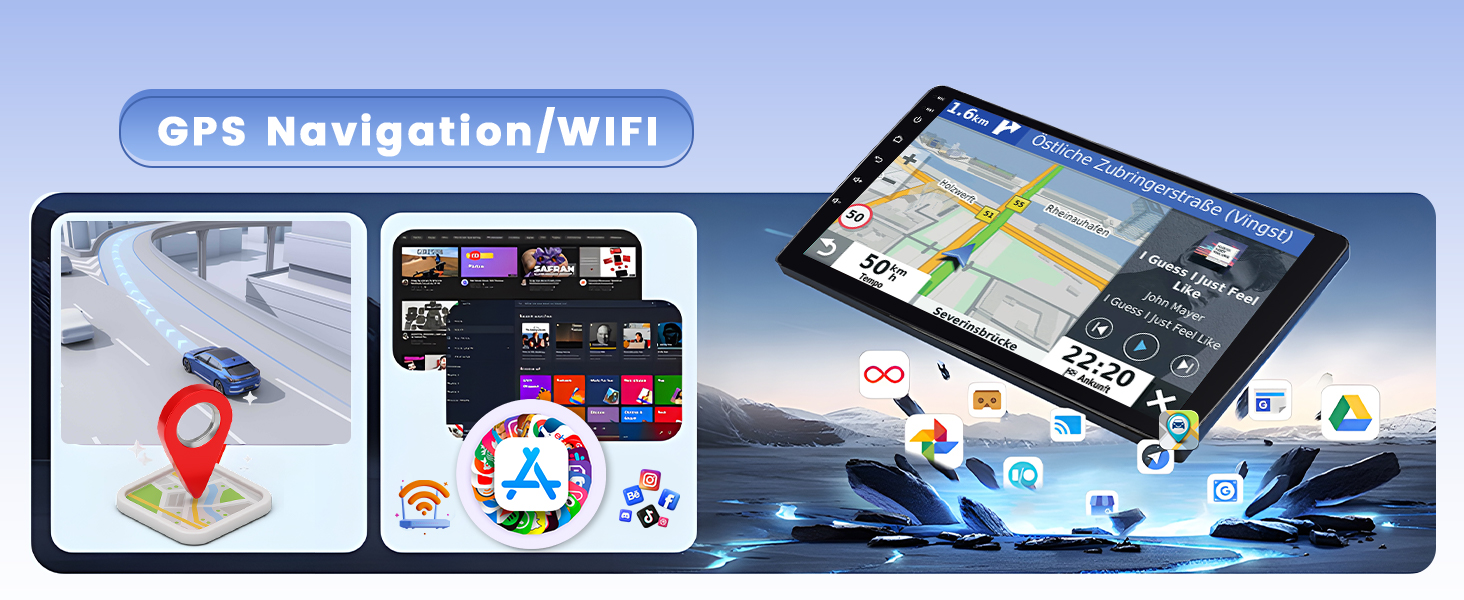
Image: A visual representation of the autoradio's GPS navigation capabilities, showing a map interface, alongside icons for Wi-Fi and various downloadable applications, emphasizing internet connectivity for enhanced features.
5.3 Bluetooth 5.0 and Voice Control
Bluetooth 5.0 ensures faster transmission speeds and stable connections for hands-free calling, phonebook download, and music streaming.
- Hands-Free Calling: Make and receive calls safely while driving.
- Phonebook Sync: Download your phone's contacts to the autoradio.
- Audio Streaming: Play music from your smartphone wirelessly.
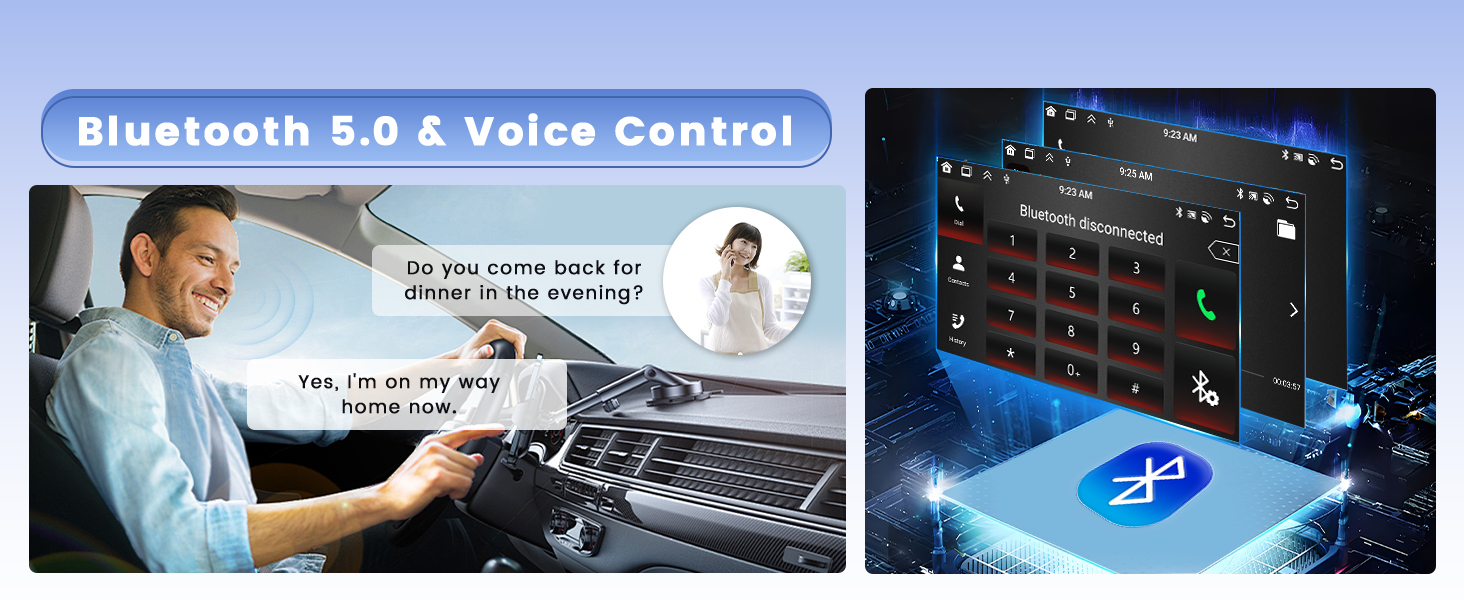
Image: A depiction of the Bluetooth 5.0 functionality, showing a driver using voice control for hands-free communication, and a visual interface for Bluetooth connection and call management on the autoradio screen.
5.4 FM/RDS Radio and 32-Band DSP
Enjoy a wide range of radio stations with the FM/RDS tuner, which supports 30 preset stations. The pre-installed DSP (Digital Sound Processor) software with 32 equalization settings allows for precise audio customization.
- FM/RDS: Receive clear radio broadcasts and station information.
- 32-Band EQ: Fine-tune audio frequencies to match your preferences and vehicle acoustics.
- Sound Field Adjustment: Optimize sound staging for an immersive listening experience.
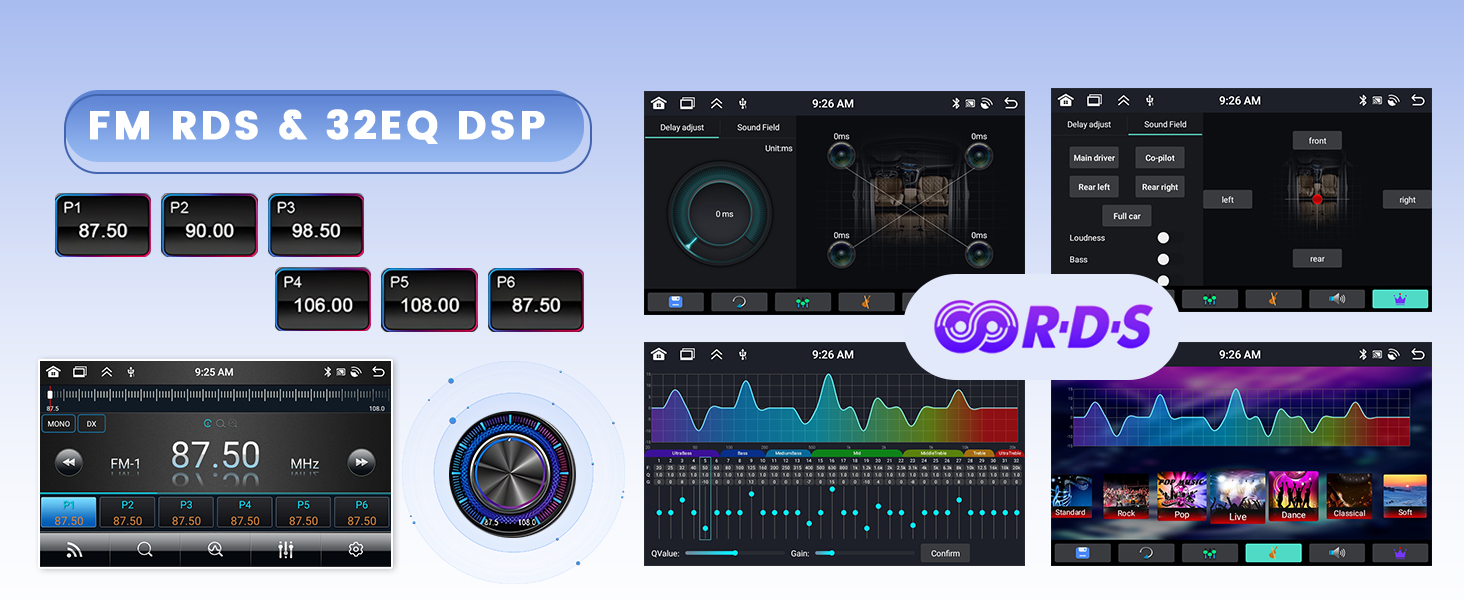
Image: Screenshots illustrating the FM RDS radio interface with preset stations and the detailed 32-band DSP equalizer settings, allowing users to adjust sound frequencies and sound field for optimal audio quality.
5.5 User Interface Customization and Mirror Link
Personalize your autoradio experience with various UI themes and the ability to rearrange frequently used applications on the home screen. Mirror Link functionality allows you to display your smartphone's content directly on the large screen.
- UI Themes: Choose from 59 different user interface themes to match your style.
- Homepage Customization: Long-press an app icon to move it to the home screen for quick access.
- Mirror Link: Cast your smartphone's screen to the autoradio display.

Image: A view of the autoradio's user-friendly interface, demonstrating the ability to customize the homepage by long-pressing and moving app icons, and highlighting the GPS navigation and DSP features.
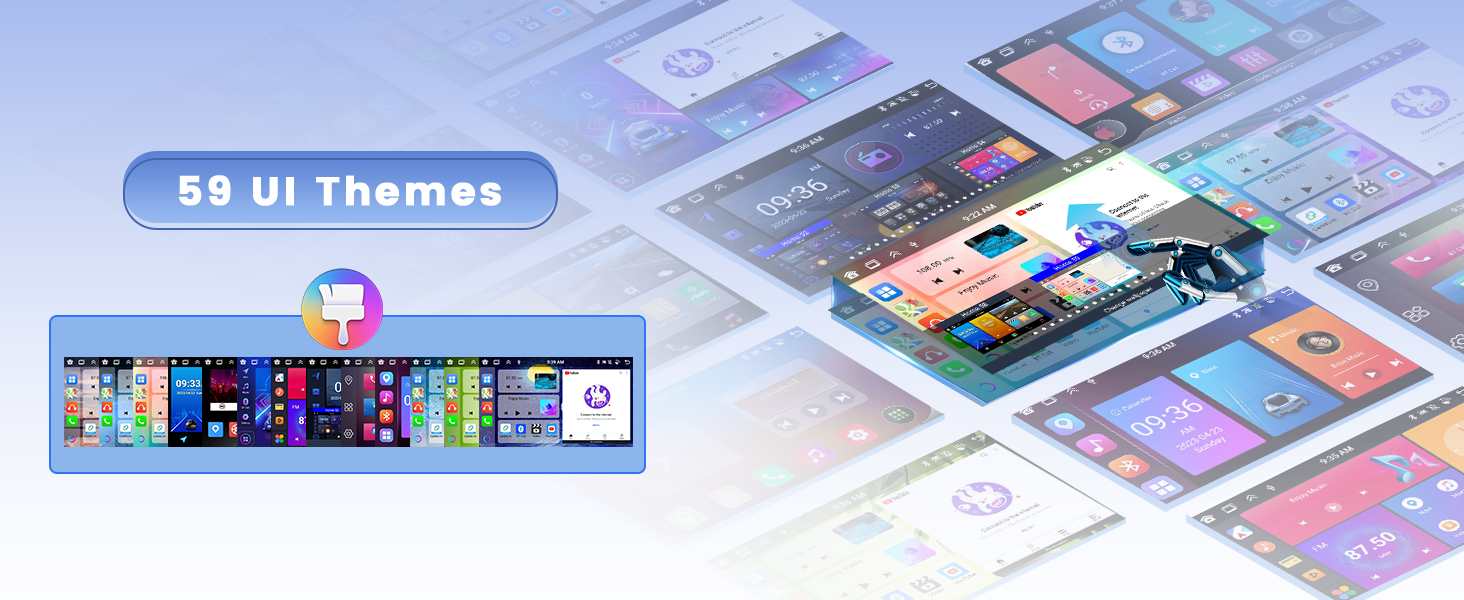
Image: A collage showcasing the variety of 59 user interface themes available for the autoradio, allowing users to personalize the visual appearance of their system.
6. Maintenance
To ensure the longevity and optimal performance of your Hikity Android 15 Autoradio, follow these general maintenance guidelines:
- Screen Cleaning: Use a soft, lint-free cloth slightly dampened with water or a screen cleaner specifically designed for electronics. Avoid harsh chemicals or abrasive materials.
- Software Updates: Periodically check for and install available software updates to ensure system stability, security, and access to new features.
- Ventilation: Ensure the unit's ventilation openings are not blocked to prevent overheating.
- Cable Connections: Regularly check all cable connections (power, USB, RCA, antenna) to ensure they are secure and free from damage.
- Environmental Conditions: Avoid exposing the unit to extreme temperatures, direct sunlight for prolonged periods, or excessive moisture.
7. Troubleshooting
If you encounter issues with your Hikity Android 15 Autoradio, consider the following common troubleshooting steps:
- No Power: Check all power cable connections. Ensure the vehicle's ignition is on and the fuse is intact.
- No Sound: Verify speaker connections. Check volume levels and ensure the mute function is not activated. Confirm audio output settings in the system.
- Touchscreen Unresponsive: Try restarting the unit. If the issue persists, a factory reset might be necessary (note: this will erase user data).
- GPS Signal Loss: Ensure the GPS antenna is properly connected and has a clear line of sight to the sky. Move the vehicle to an open area if in a covered location.
- Bluetooth/Wi-Fi Connectivity Issues: Ensure Bluetooth/Wi-Fi is enabled on both the autoradio and your device. Try forgetting and re-pairing devices. Restart both devices.
- Carplay/Android Auto Not Connecting: Verify your phone's compatibility and ensure the Carplay/Android Auto app is updated. Try both wired and wireless connections. Check USB cable integrity if using wired.
- Backup Camera Not Displaying: Check the camera's power and video connections. Ensure the reverse gear is engaged and the camera input is correctly selected or automatically triggered.
For persistent issues not resolved by these steps, please refer to the customer support section.
8. Warranty and Customer Support
Your Hikity Android 15 Autoradio comes with a manufacturer's warranty and dedicated customer support.
- Manufacturer Warranty: A 12-month warranty is provided from the date of purchase.
- Online Assistance: Lifetime online assistance is available for inquiries. Support aims to respond within 24 hours.
How to Contact Customer Service:
If you have technical questions or installation issues, please follow these steps to contact Hikity customer service:
- Click on the "Hikity electronic" store link on the product page.
- Click the "Ask a question" button.
- Provide detailed information, including pictures or videos, of the technical or installation questions you have.
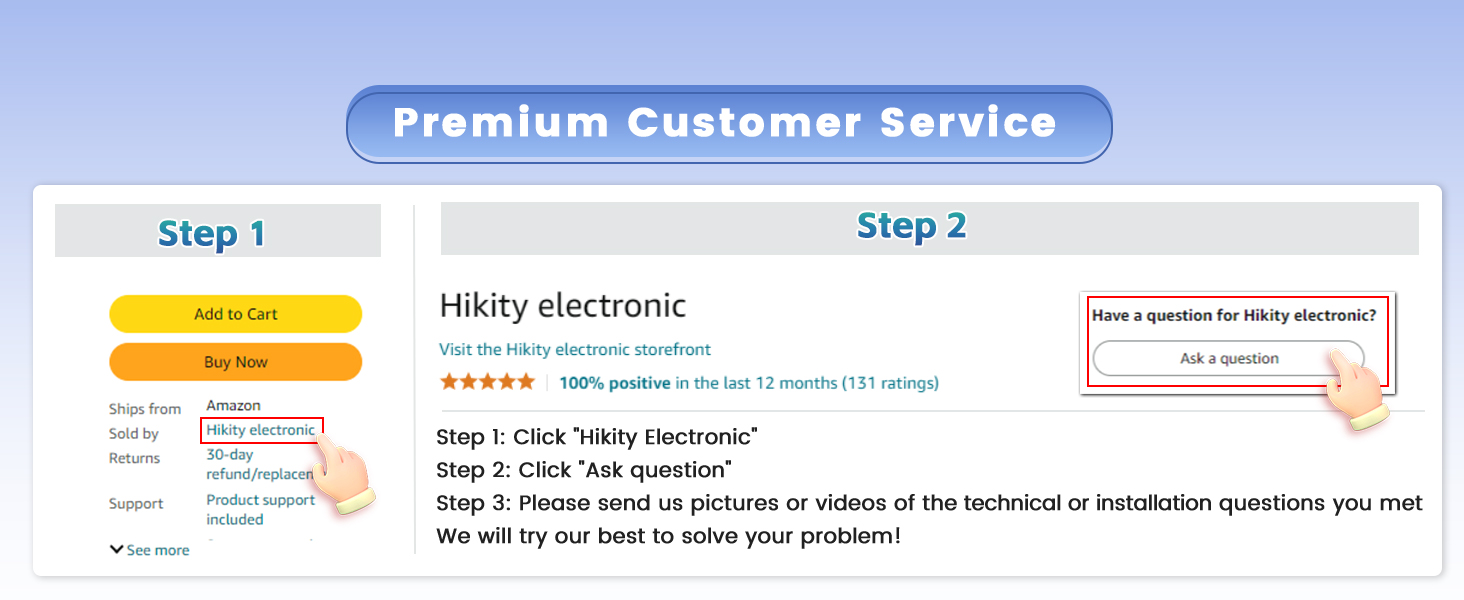
Image: A visual guide detailing the three steps to contact Hikity customer service through the Amazon platform, emphasizing the importance of providing visual aids for technical inquiries.