
1. Introduction
This manual provides detailed instructions for the setup, operation, and maintenance of your NetumScan Wireless QR Barcode Scanner, Model 2D-G. This device is a versatile 3-in-1 barcode reader supporting 1D and 2D codes, designed for various applications including retail, warehouse management, and inventory tracking. Please read this manual thoroughly before using the scanner to ensure optimal performance and longevity.
2. Product Overview
The NetumScan 2D-G scanner features a high-sensitive CMOS sensor for fast and accurate decoding of various barcode types. It is designed with durability in mind, incorporating an anti-shock silicone cover.

Image 1: The NetumScan 2D-G Wireless QR Barcode Scanner, featuring a black body with green accents and a scanning window.
Key Features:
- High-Sensitive CMOS Sensor: Enables fast and accurate reading of 1D and 2D barcodes from both paper and digital screens.
- 3-in-1 Connectivity: Supports 2.4Ghz wireless, Bluetooth, and USB 2.0 wired connections.
- Long-Lasting Battery: Equipped with a 2000mAh built-in battery, offering extended standby time.
- Multiple Scanning Modes: Includes Trigger Mode, Continuous Mode, and Auto-sensing Scan.
- Data Storage Capability: Features a storage mode for collecting barcodes out of range, with capacity for up to 100,000 barcodes.
- Durable Design: Professional anti-shock construction with an IP54 rating for dust and moisture protection, capable of withstanding drops from 6.57 feet (2 meters).
3. Setup
3.1 Charging the Scanner
Before initial use, fully charge the scanner. Connect the scanner to a USB power source using the provided USB cable. The indicator light will show charging status.
3.2 Connection Methods
The NetumScan 2D-G offers three connection options:

Image 2: Illustration of the three connection methods: Bluetooth pairing with a smartphone, inserting a 2.4G USB dongle into a laptop, and connecting via USB cable to a laptop.
- 2.4Ghz Wireless Connection:
- Insert the 2.4G USB dongle into an available USB port on your computer or device.
- The scanner will automatically pair with the dongle. No driver installation is required.
- Maximum transmission range is approximately 100m (330ft) in a barrier-free environment and 30m (99ft) under obstacles.
- Bluetooth Connection:
- Ensure your device (e.g., tablet, smartphone, computer) has Bluetooth enabled.
- Scan the Bluetooth pairing barcode (refer to the physical manual for specific barcode).
- On your device, search for and select the scanner from the list of available Bluetooth devices.
- Maximum transmission range is approximately 50m (164ft) in a barrier-free environment and 20m (66ft) under obstacles.
- USB 2.0 Wired Connection:
- Connect the scanner directly to your computer via the provided USB cable.
- The scanner will function as a wired device and will also charge simultaneously. No driver installation is required.
3.3 Compatibility
The scanner is compatible with a wide range of operating systems and devices:

Image 3: Icons representing compatibility with Mac OS, Windows, Linux, Tablet, iOS, and Android, along with an image of the scanner connecting to a PC, smartphone, tablet, and POS system.
- Operating Systems: Windows XP/7/8/10, Mac OS, iOS, Android, Linux.
- Devices: Desktop computers, Laptops, POS systems, Smartphones, Tablets.
4. Operating Modes
The NetumScan 2D-G offers flexible scanning and data handling modes to suit different operational needs.
4.1 Scanning Modes
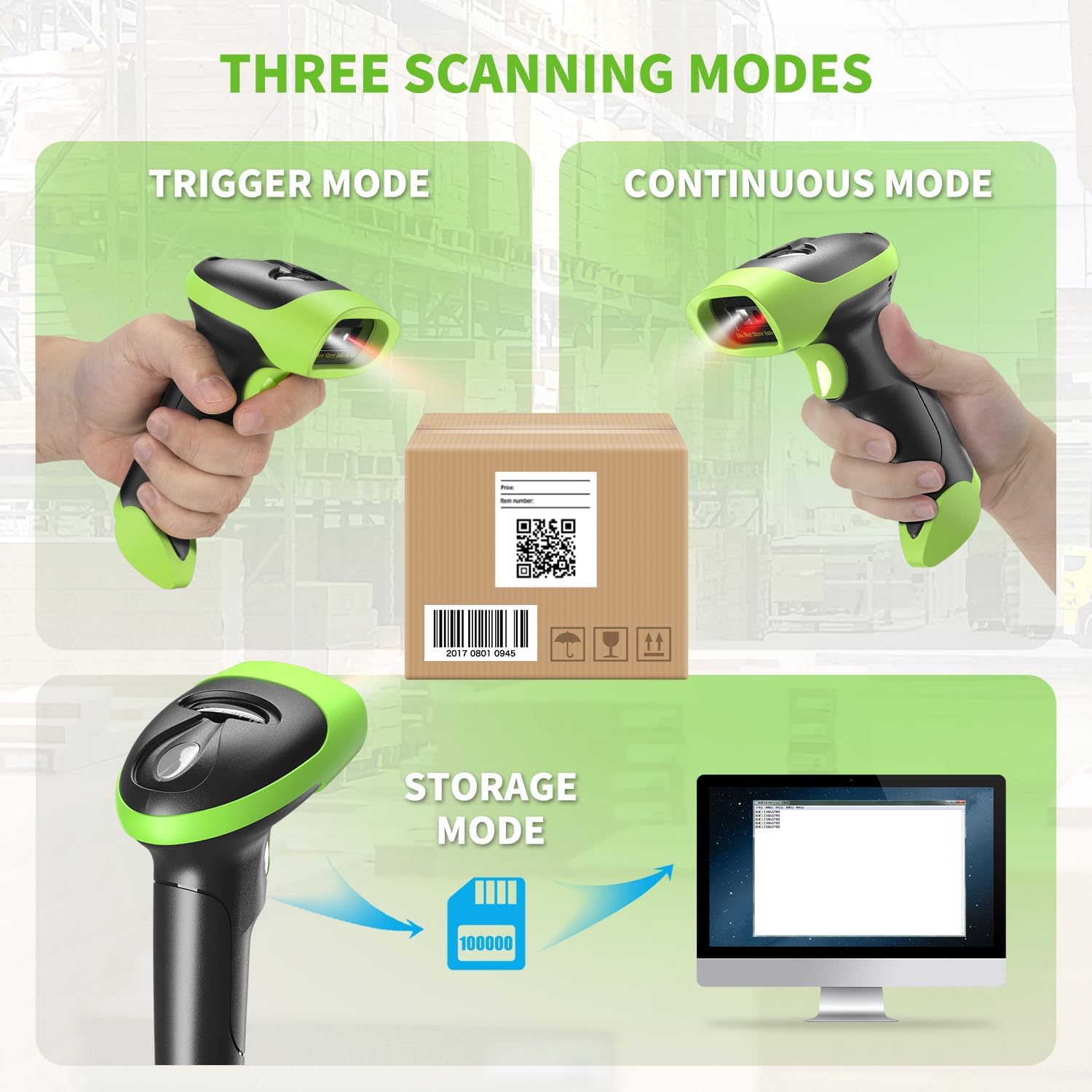
Image 4: Depicts the three scanning modes: Trigger mode (manual scan), Continuous mode (automatic, constant scanning), and Storage mode (scanner storing data for later upload).
- Trigger Mode (Manual Scan): Press the trigger button to scan each barcode individually.
- Continuous Mode: The scanner continuously emits a scan beam, reading barcodes as they pass within its field of view without needing to press the trigger.
- Auto-sensing Scan: The scanner automatically detects a barcode in its field of view and scans it without manual trigger activation. Note: Some special barcodes may require specific settings to enable this function. If the self-sensing scanning function is inactive, please refer to the manual's troubleshooting section or contact support.
4.2 Data Transmission Modes
- Instant Upload Mode: Barcodes are transmitted to the connected device immediately after scanning.
- Storage Mode: Barcodes are stored in the scanner's internal memory. This mode is useful when operating out of wireless transmission range. Data can be uploaded to your device once you re-enter the transmission range. The scanner can store up to 100,000 barcodes.
5. Scanning Capabilities
The NetumScan 2D-G is equipped with a 32-bit CPU, providing a decoding speed of up to 350 scans per second. It can read a wide array of 1D and 2D barcode symbologies, even those that are smudged, damaged, fuzzy, or reflective.
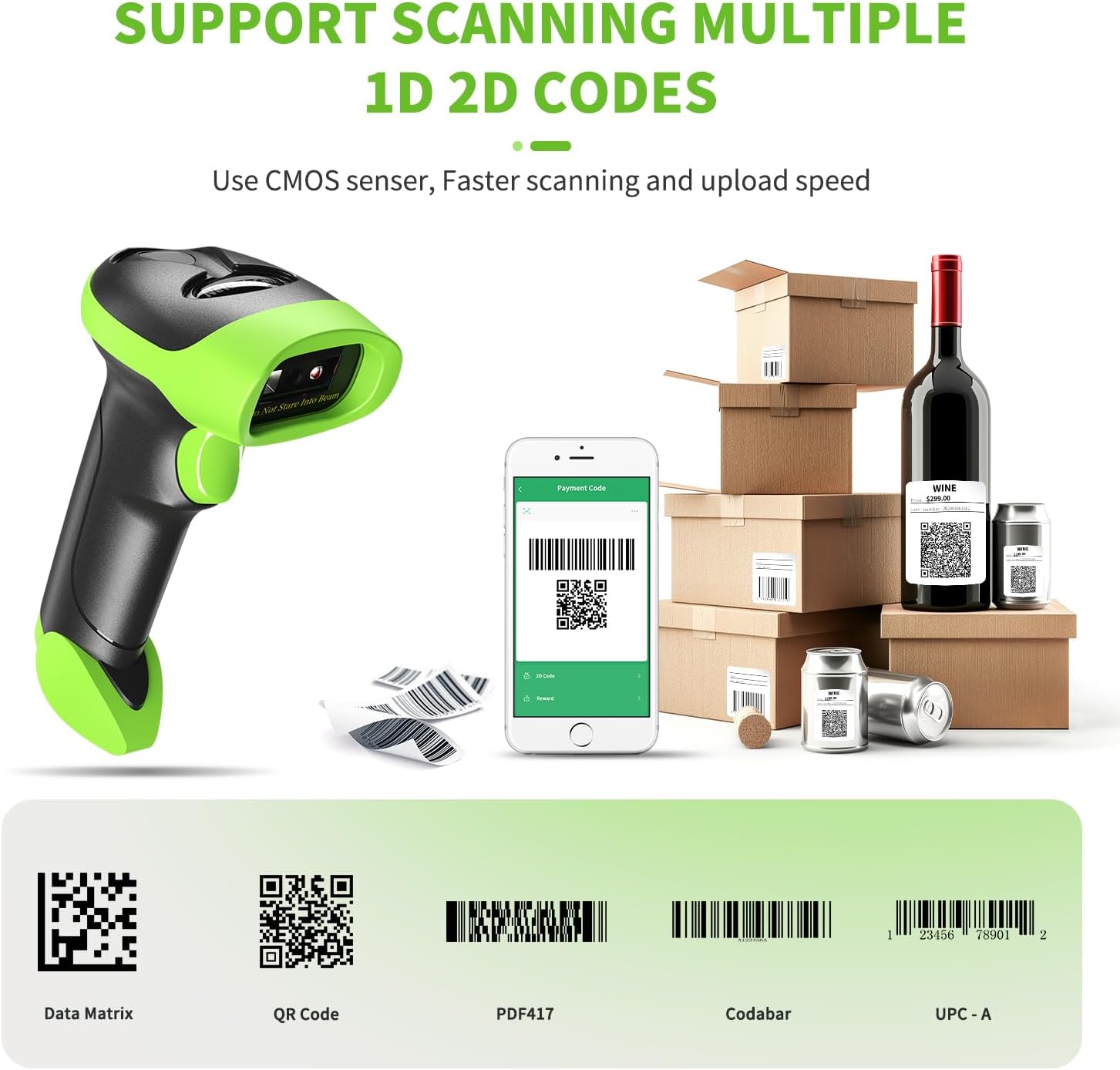
Image 5: Examples of supported barcode types including Data Matrix, QR Code, PDF417, Codabar, and UPC-A, demonstrating the scanner's versatility.
Supported Symbologies:
- 1D Codes: Codabar, Code 11, Code93, MSI, Code 128, UCC/EAN-128, Code 39, EAN-8, EAN-13, UPC-A, ISBN, Industrial 25, Interleaved 25, Standard25, Matrix.
- 2D Codes: QR Code, DataMatrix, PDF417, Aztec, Hanxin, Micro PDF417.
The scanner can also read barcodes displayed on computer monitors and other digital screens.

Image 6: Illustrates the scanner's ability to decode various barcode conditions, including one-dimensional, two-dimensional, reflective, frayed, profiled, color, and folded barcodes.
6. Maintenance
Proper maintenance ensures the longevity and optimal performance of your scanner.
6.1 Cleaning
- Use a soft, dry cloth to clean the scanner's exterior.
- For the scanning window, use a lens cleaning cloth or a soft cloth lightly dampened with a mild, non-abrasive cleaner. Avoid harsh chemicals.
6.2 Durability and Protection
The scanner features a professional anti-shock design, made from ABS+PC materials with a silicone protective cover. This provides high shock resistance and protects against scratches and friction from falls up to 6.57 feet (2 meters). Its IP54 rating ensures protection against dust and moisture.

Image 7: Depicts the scanner's anti-shock silicone design and IP54 rating, illustrating its ability to withstand a 2-meter drop test in an industrial setting.
7. Troubleshooting
- Scanner not reading barcodes:
- Ensure the scanner is properly connected (wired, 2.4G wireless, or Bluetooth).
- Check if the barcode is damaged or unclear.
- Verify that the specific barcode symbology is enabled. Some special barcodes may need to be activated by scanning a setting barcode from the manual.
- Ensure the scanner is charged.
- Self-sensing scanning function is inactive:
- Refer to the physical instruction manual for specific setting barcodes to enable or adjust auto-sensing.
- If issues persist, contact NetumScan customer support.
- Scanner not working with Square POS:
- The NetumScan 2D-G scanner is not compatible with Square POS systems. This is a known limitation.
- Bluetooth connection issues:
- Ensure the scanner is in Bluetooth pairing mode.
- Delete previous pairings on your device and attempt to re-pair.
- Ensure the scanner and device are within the effective Bluetooth range (up to 50m/164ft in barrier-free environments).
8. Specifications
| Feature | Detail |
|---|---|
| Model | 2D-G |
| Connectivity Technology | Bluetooth / 2.4G USB Wireless / USB 2.0 Wired |
| Sensor Type | CMOS |
| Decoding Speed | Up to 350 scans/second |
| Supported 1D Codes | Codabar, Code 11, Code93, MSI, Code 128, UCC/EAN-128, Code 39, EAN-8, EAN-13, UPC-A, ISBN, Industrial 25, Interleaved 25, Standard25, Matrix |
| Supported 2D Codes | QR, DataMatrix, PDF417, Aztec, Hanxin, Micro PDF417 |
| Battery | 1 Lithium Ion battery (included), 2000mAh |
| Standby Time | Up to 60 days |
| Storage Capacity | Up to 100,000 barcodes |
| Drop Resistance | 6.57 feet (2 meters) |
| IP Rating | IP54 (Dust and Moisture Protection) |
| Item Weight | 10.5 ounces |
| Package Dimensions | 7.4 x 4.29 x 3.43 inches |
| Compatible Devices | Desktop, Laptop, POS, Smartphone, Tablet |
| Power Source | Battery Powered |
9. Warranty and Support
NetumScan products typically come with a manufacturer's warranty. For specific warranty details, registration, or technical support, please refer to the warranty card included with your product or visit the official NetumScan website. You may also contact the seller directly for assistance.
For additional information or to explore other NetumScan products, please visit the NetumScan Store on Amazon.