
1. Product Overview
The GREEN KEEPER GKS60 is a versatile portable karaoke machine designed for both indoor and outdoor entertainment. It features Bluetooth connectivity, multiple input options, dynamic LED lighting, and comes with two wireless microphones for an engaging audio experience. This manual provides essential information for safe and effective use of your device.

Image: The GREEN KEEPER GKS60 Karaoke Machine, a compact black unit with a speaker grille and LED lights, accompanied by two wireless microphones.
2. Important Safety Information
Please read and understand all safety instructions before using this product. Keep this manual for future reference.
- Do not expose the unit to rain or moisture to prevent fire or electric shock.
- Do not block any ventilation openings. Install in accordance with the manufacturer's instructions.
- Do not install near any heat sources such as radiators, heat registers, stoves, or other apparatus (including amplifiers) that produce heat.
- Protect the power cord from being walked on or pinched, particularly at plugs, convenience receptacles, and the point where they exit from the apparatus.
- Only use attachments/accessories specified by the manufacturer.
- Unplug this apparatus during lightning storms or when unused for long periods of time.
- Refer all servicing to qualified service personnel. Servicing is required when the apparatus has been damaged in any way, such as power-supply cord or plug is damaged, liquid has been spilled or objects have fallen into the apparatus, the apparatus has been exposed to rain or moisture, does not operate normally, or has been dropped.
- Keep out of reach of children.
3. Package Contents
Ensure all items are present upon unboxing:
- GREEN KEEPER GKS60 Karaoke Machine
- 2 x Wireless Microphones
- Remote Control
- USB Charging Cable
- AUX Cable
- User Manual (this document)
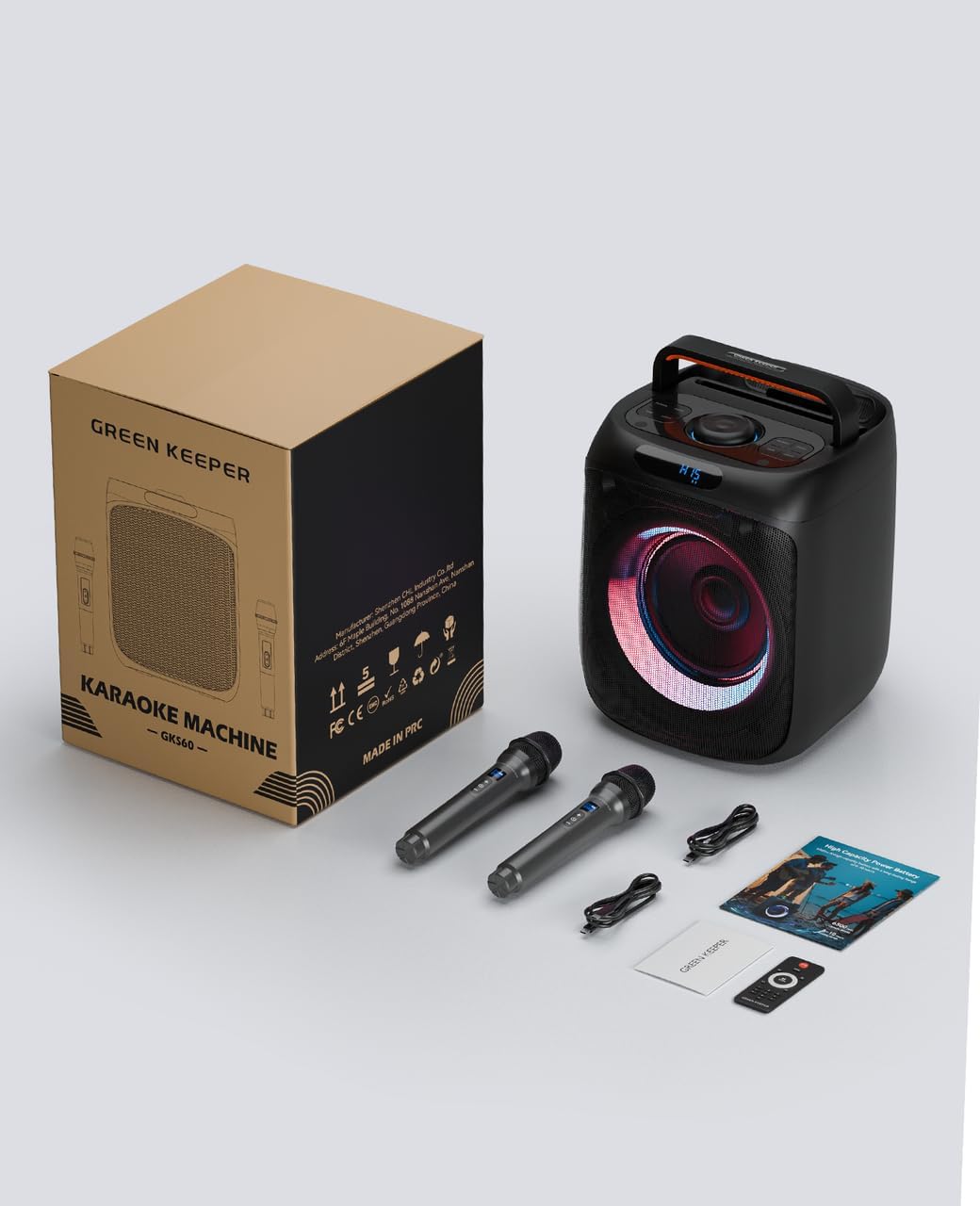
Image: The complete package contents, including the karaoke machine, two microphones, remote control, and cables, next to its retail box.
4. Component Identification
4.1. Main Unit Controls (Top Panel)
- Power Button: Turns the unit On/Off.
- Menu Button: Accesses various settings like microphone volume and echo.
- TWS Button: Initiates True Wireless Stereo pairing with another GKS60 unit.
- Light Button: Cycles through different LED light modes or turns them off.
- Mode Button: Switches between input modes (Bluetooth, AUX, FM Radio, USB, TF Card).
- Play/Pause Button: Controls media playback.
- Skip/Rewind Buttons: Navigates tracks or radio stations.
- Volume Knob: Adjusts the master volume.
- Display Screen: Shows current mode, volume levels, and other indicators.
4.2. Rear Panel Ports
- MIC Input: For wired microphone connection (if desired).
- AUX Input: For connecting external audio devices via AUX cable.
- TF Card Slot: For playing music from a TF (microSD) card.
- USB Port: For playing music from a USB drive or recording.
- DC5V Port: USB-C charging port for the unit.
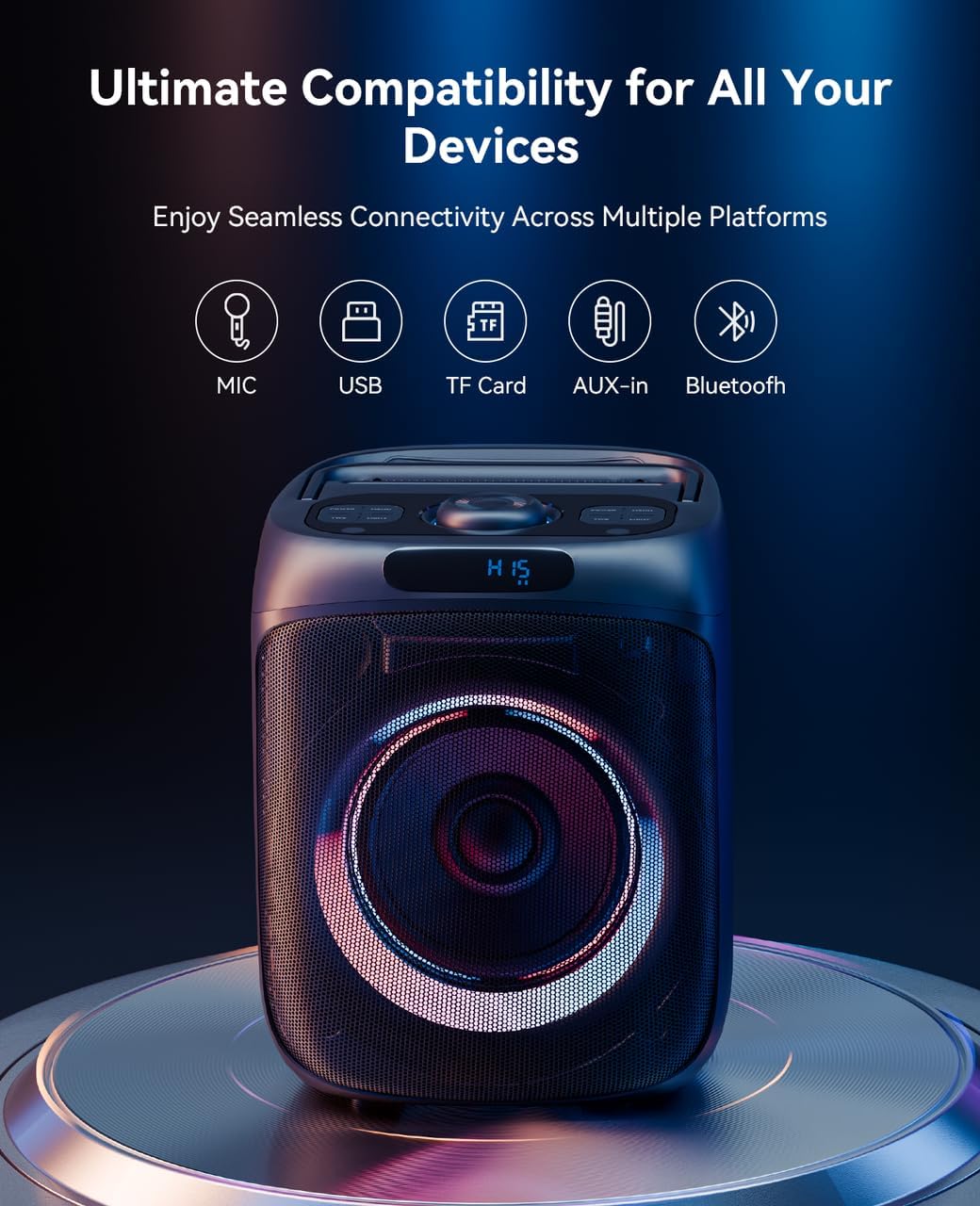
Image: Close-up view of the rear panel of the karaoke machine, showing the microphone, AUX, TF card, USB, and DC5V charging ports.
4.3. Wireless Microphones
- Power Button: Turns the microphone On/Off.
- Volume +/- Buttons: Adjusts the microphone's individual volume.
- Display Screen: Shows microphone channel and battery status.
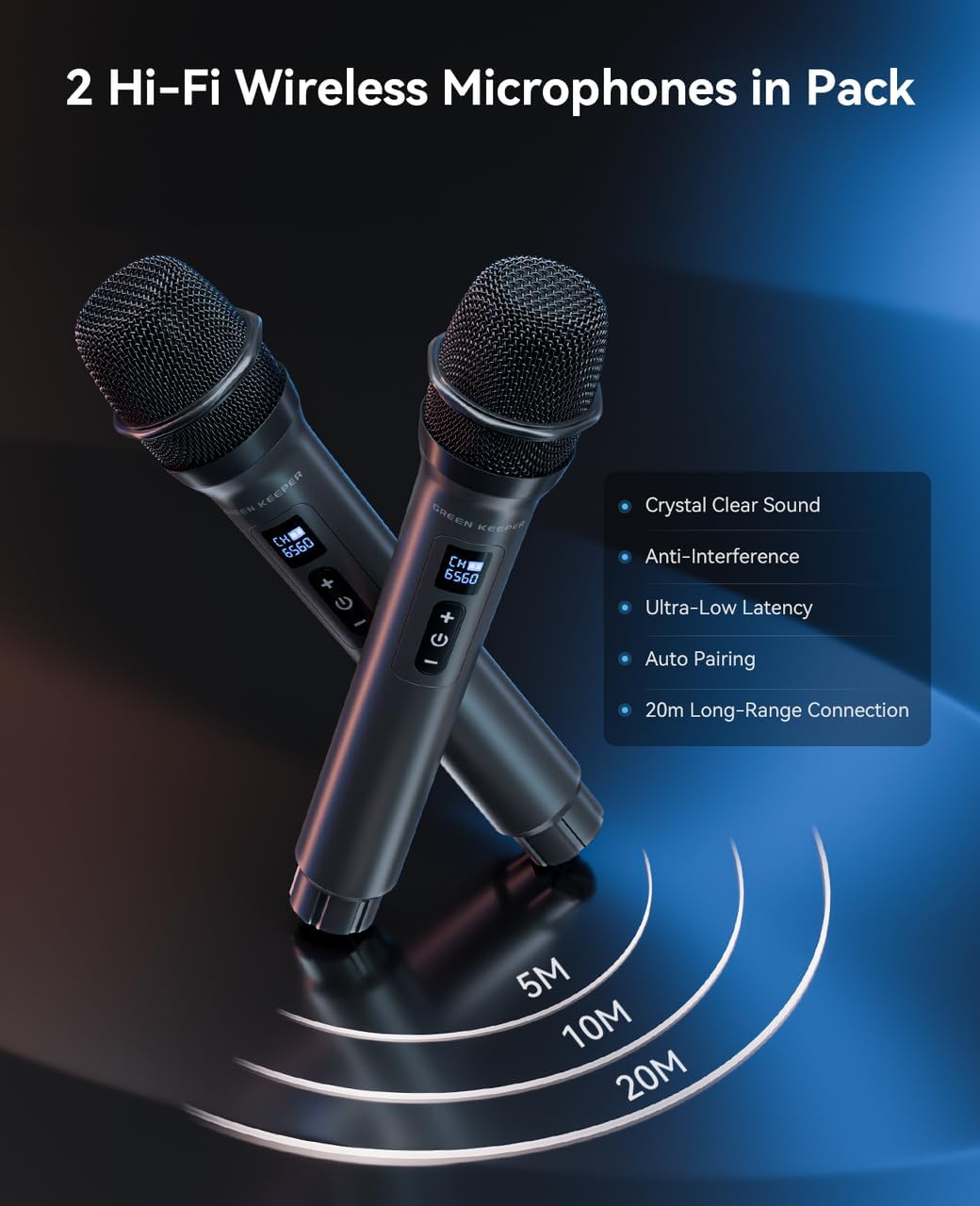
Image: Two wireless microphones, highlighting their power and volume controls, and indicating their long-range connection capability.
5. Setup Guide
5.1. Charging the Karaoke Machine
- Connect the provided USB charging cable to the DC5V port on the rear of the karaoke machine.
- Connect the other end of the USB cable to a compatible USB power adapter (not included) or a powered USB port.
- The display will indicate charging status. A full charge provides 6 to 8 hours of continuous playtime.
5.2. Installing Microphone Batteries
Each wireless microphone requires 2 x AA batteries (not included).
- Unscrew the bottom part of the microphone to reveal the battery compartment.
- Insert 2 x AA batteries, ensuring correct polarity (+/-).
- Securely reattach the bottom part of the microphone.
6. Operating Instructions
6.1. Power On/Off
- Press and hold the Power button on the top panel to turn the unit On or Off.
- The LED lights on the speaker will illuminate upon power-on.
6.2. Bluetooth Pairing
Upon powering on, the machine automatically enters Bluetooth mode, indicated by "BLUE" on the display.
- Enable Bluetooth on your smartphone, tablet, or other audio device.
- Search for "GKS60" in the list of available Bluetooth devices.
- Select "GKS60" to pair. A confirmation sound will indicate successful pairing.
- You can now play audio from your device through the karaoke machine.
6.3. Using Wireless Microphones
The microphones automatically pair with the machine when powered on.
- Press and hold the power button on each microphone to turn them on.
- To adjust microphone volume, press the Menu button on the main unit until "H" appears on the display. Use the Volume Knob to increase or decrease microphone volume.
- To adjust echo effect, press the Menu button again until "E" appears on the display. Use the Volume Knob to adjust the echo level. The default echo volume is 15; adjusting to 6 is recommended for optimal performance.
6.4. Playing Music from USB/TF Card/AUX
- USB/TF Card: Insert a USB drive or TF card into the respective port on the rear panel. The unit will automatically switch to the correct mode and begin playing supported audio files. Use the Play/Pause and Skip/Rewind buttons to control playback.
- AUX Input: Connect an external audio device (e.g., MP3 player, laptop) to the AUX port using the provided AUX cable. Press the Mode button until "AUX" appears on the display.
6.5. FM Radio Operation
- Press the Mode button until "FM" appears on the display.
- To auto-scan and save available stations, press and hold the Play/Pause button. The unit will scan and store stations as presets.
- Use the Skip/Rewind buttons to navigate through the saved FM stations.
6.6. Dynamic LED Lights
The speaker features dynamic LED lights that activate automatically when the unit is powered on.
- Press the Light button on the top panel to cycle through different light modes.
- Continue pressing the Light button to turn the lights off. Note that lights will default back to on when the unit is powered off and on again.

Image: The karaoke machine displaying vibrant, customizable LED lighting effects around its speaker, creating a party atmosphere.
6.7. TWS (True Wireless Stereo) Function
The TWS function allows you to pair two GKS60 units together for a stereo sound experience.
- Ensure both GKS60 units are powered on and in Bluetooth mode.
- On one of the units (this will be the primary unit), press the TWS button. The unit will search for another GKS60.
- Once connected, both units will play audio in stereo.
6.8. Recording Function
You can record your singing or audio directly to a connected USB drive or TF card.
- Ensure a USB drive or TF card is inserted into the appropriate port.
- While playing music or using the microphone, press the REC button on the remote control to start recording.
- Press the REC button again to stop recording. The recorded file will be saved on the USB drive or TF card.
7. Maintenance
7.1. Cleaning
- Wipe the surface of the unit with a soft, dry cloth.
- Do not use abrasive cleaners or solvents.
7.2. Battery Care
- Recharge the unit regularly to maintain battery health, even if not in frequent use.
- Remove batteries from microphones if they will not be used for an extended period to prevent leakage.
7.3. Storage
- Store the unit in a cool, dry place away from direct sunlight and extreme temperatures.
- Keep the unit and accessories in their original packaging or a protective case when not in use.
8. Troubleshooting
| Problem | Possible Cause | Solution |
|---|---|---|
| No power/Unit does not turn on. | Battery is depleted. | Charge the unit using the provided USB cable. |
| No sound from speaker. | Volume is too low or muted. Incorrect input mode. | Increase master volume. Press Mode button to select correct input. |
| Microphones not working. | Microphones are off or batteries are low. Microphone volume is too low. | Turn on microphones and check/replace batteries. Adjust microphone volume via Menu button on main unit. |
| Excessive echo from microphones. | Echo volume is set too high (default is 15). | Press the "Menu" button briefly until "E" (Echo) appears, then lower the echo volume to around 6. |
| Poor FM radio reception. | Weak signal or interference. | Relocate the unit for better reception. Perform an auto-scan again. |
| Bluetooth pairing issues. | Device not in pairing mode or too far. | Ensure unit is in Bluetooth mode. Move device closer to the unit. Restart both devices. |
| Sound distortion at high volume. | Volume is too high. | Reduce the master volume. |
9. Specifications
| Feature | Detail |
|---|---|
| Model Number | GKS60 |
| Brand | GREEN KEEPER |
| Output Wattage | 400 Watts (Peak), 40 Watts (Rated) |
| Battery Capacity | 5200mAh Lithium Ion |
| Playtime | 6-8 hours (continuous) |
| Connectivity Technology | Bluetooth, USB, AUX, TF Card, Wireless Microphones |
| Number of Channels | 2 |
| Item Weight | 8.36 pounds (3.8 Kilograms) |
| Product Dimensions | 9.8 x 12.2 x 10.2 inches |
| Mounting Type | Floor Standing |
| Recommended Uses | Indoor/Outdoor |
| Noise Level | 80 dB |
10. Warranty & Support
For warranty information, technical support, or service inquiries, please contact GREEN KEEPER customer service through the retailer's platform or visit the official GREEN KEEPER store online.
Please retain your proof of purchase for any warranty claims.


