
Introduction
This manual provides essential instructions for the proper setup, operation, maintenance, and troubleshooting of your XvuaTeIw USB Programming Cable. This cable is designed to facilitate communication between a computer and specific VOTOL motor controllers, including models EM50S, EM100S, EM150S, and EM200S, for programming and configuration purposes.
Please read this manual thoroughly before using the product to ensure correct usage and to prevent potential issues.
Product Overview
The XvuaTeIw USB Programming Cable is a dedicated interface tool. It features a standard USB-A connector for connection to a computer and a specific 4-pin connector designed to interface with compatible VOTOL motor controllers. The cable enables users to adjust controller parameters, update firmware, and perform diagnostics using the appropriate VOTOL programming software.
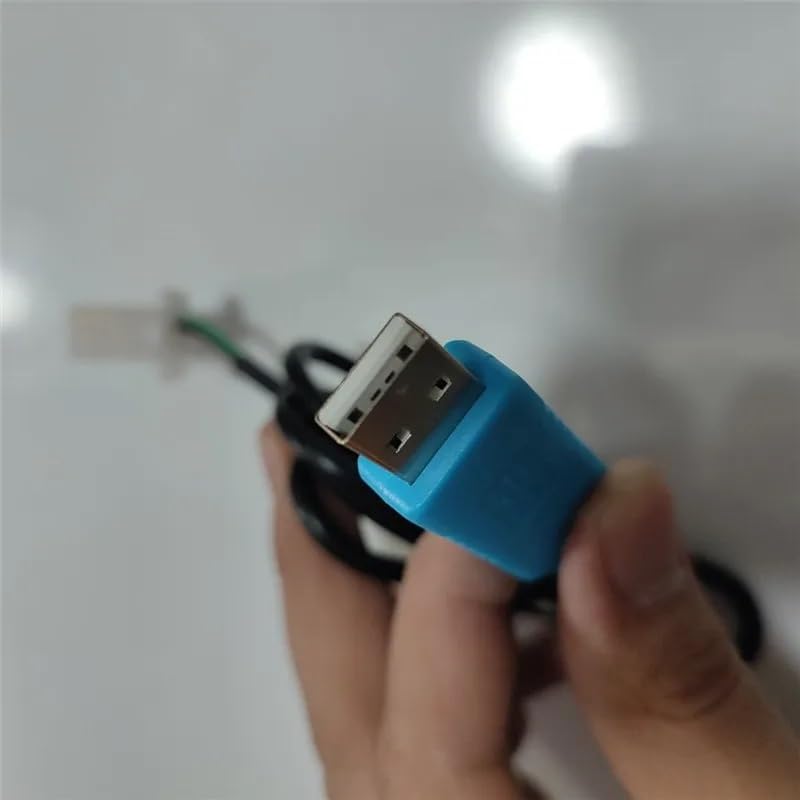
Image 1: Close-up view of the USB-A connector, which plugs into your computer's USB port.
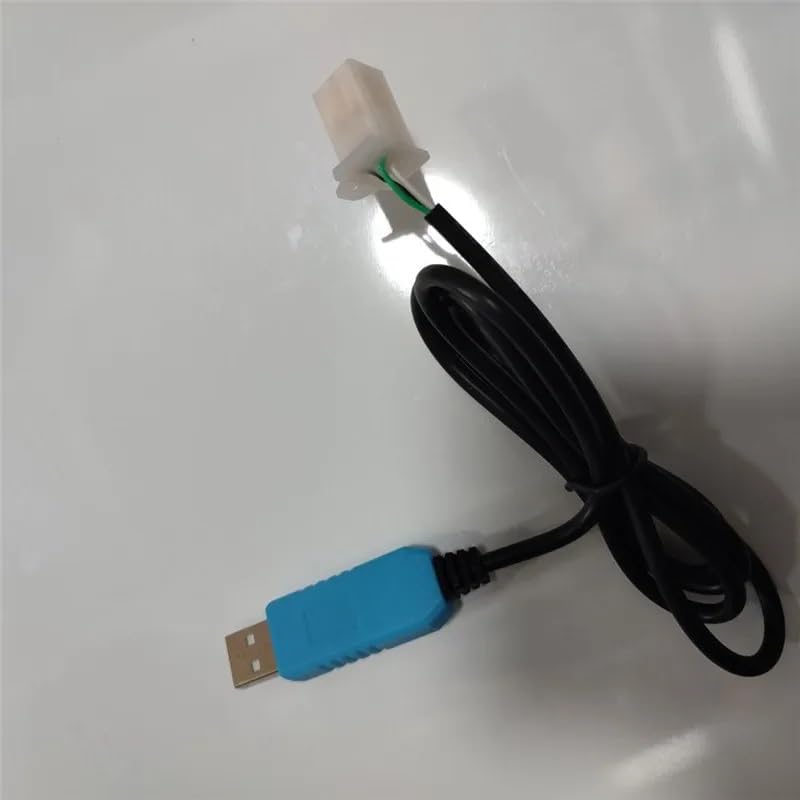
Image 2: Full view of the programming cable, illustrating its overall length and the two distinct connectors at each end.
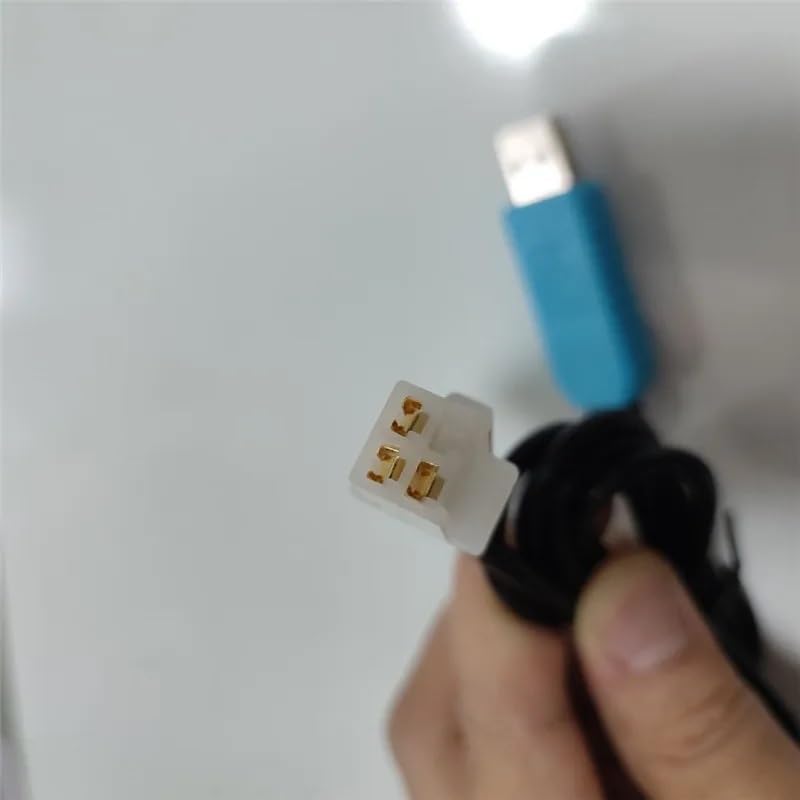
Image 3: Close-up view of the 4-pin connector, which connects to the VOTOL motor controller's programming port.
Setup Instructions
System Requirements
- Operating System: Windows 7/8/10/11 (32-bit or 64-bit) is typically required for controller programming software.
- Available USB Port: A standard USB-A port on your computer.
- VOTOL Controller Programming Software: Obtain the correct software version compatible with your specific VOTOL controller model.
Driver Installation
Before connecting the cable, ensure any necessary USB-to-serial drivers are installed. These drivers are often included with the VOTOL programming software or can be downloaded from the VOTOL manufacturer's website.
- Download Drivers: If not already installed, download the appropriate USB driver for the programming cable from the VOTOL official website or the software provider.
- Install Drivers: Follow the on-screen instructions to install the drivers. This may require administrator privileges and a system restart.
- Verify Installation: After installation, connect the USB cable to your computer. Open Device Manager (Windows Key + X, then select Device Manager) and check under 'Ports (COM & LPT)' for a new COM port entry (e.g., 'USB Serial Port (COMx)').
Connecting the Cable
- Connect to Computer: Insert the USB-A end of the programming cable into an available USB port on your computer.
- Connect to Controller: Locate the programming port on your VOTOL EM50S, EM100S, EM150S, or EM200S controller. Carefully align the 4-pin connector of the programming cable with the controller's port and push it in firmly until it is securely seated.
- Power On: Ensure the VOTOL controller is powered on according to its specific operational requirements.
Operating Instructions
Software Requirements
This programming cable requires dedicated VOTOL controller programming software to function. Ensure you have the correct software version installed and configured for your specific controller model.
Programming Process
- Launch Software: Open the VOTOL controller programming software on your computer.
- Select COM Port: Within the software settings, select the correct COM port that was assigned to the USB programming cable (as identified in Device Manager during driver installation).
- Establish Connection: Use the software's 'Connect' or 'Read' function to establish communication with the VOTOL controller. A successful connection will typically be indicated by a status message within the software.
- Configure Parameters: Once connected, you can read the current controller parameters, modify settings as needed, and write new configurations to the controller. Refer to your VOTOL controller's specific software manual for detailed instructions on parameter adjustment.
- Disconnect Safely: After completing your programming tasks, use the software's 'Disconnect' function before physically removing the cable from the controller or computer.
Maintenance
Proper care will extend the life of your programming cable.
- Storage: Store the cable in a clean, dry environment away from direct sunlight and extreme temperatures. Avoid tightly coiling or bending the cable, which can damage internal wires.
- Cleaning: Use a soft, dry cloth to clean the cable and connectors. Do not use liquid cleaners or solvents. Ensure connectors are free of dust and debris before use.
- Handling: Always grasp the connector housing when plugging or unplugging the cable. Avoid pulling directly on the cable itself.
Troubleshooting
- Cable Not Recognized by Computer:
- Ensure drivers are correctly installed. Check Device Manager for any yellow exclamation marks next to the COM port.
- Try a different USB port on your computer.
- Restart your computer.
- Cannot Connect to Controller via Software:
- Verify the correct COM port is selected in the programming software.
- Ensure the controller is powered on and the cable is securely connected to both the computer and the controller.
- Confirm you are using the correct version of the VOTOL programming software for your specific controller model.
- Check for any error messages in the software.
- Intermittent Connection:
- Inspect the cable and connectors for any visible damage.
- Ensure all connections are firm and not loose.
- Avoid electromagnetic interference from other devices.
Specifications
| Feature | Detail |
|---|---|
| Model Number | XvuaTeIw |
| Compatibility | VOTOL EM50S, EM100S, EM150S, EM200S Controllers |
| Connector Type (PC) | USB-A |
| Connector Type (Controller) | 4-pin specific connector |
| Package Dimensions | 1.18 x 0.79 x 0.39 inches |
| Item Weight | 1.76 ounces |
Warranty Information
This XvuaTeIw product is covered by a standard manufacturer's warranty against defects in materials and workmanship. The specific terms and duration of the warranty may vary. Please retain your proof of purchase for warranty claims. For detailed warranty information, refer to the product packaging or contact the manufacturer directly.
Support
If you encounter issues that cannot be resolved using the troubleshooting guide, or if you require further assistance, please contact XvuaTeIw customer support. Provide your product model number and a detailed description of the issue for efficient service.
For the latest drivers, software, and support resources, please visit the official XvuaTeIw or VOTOL manufacturer's website.